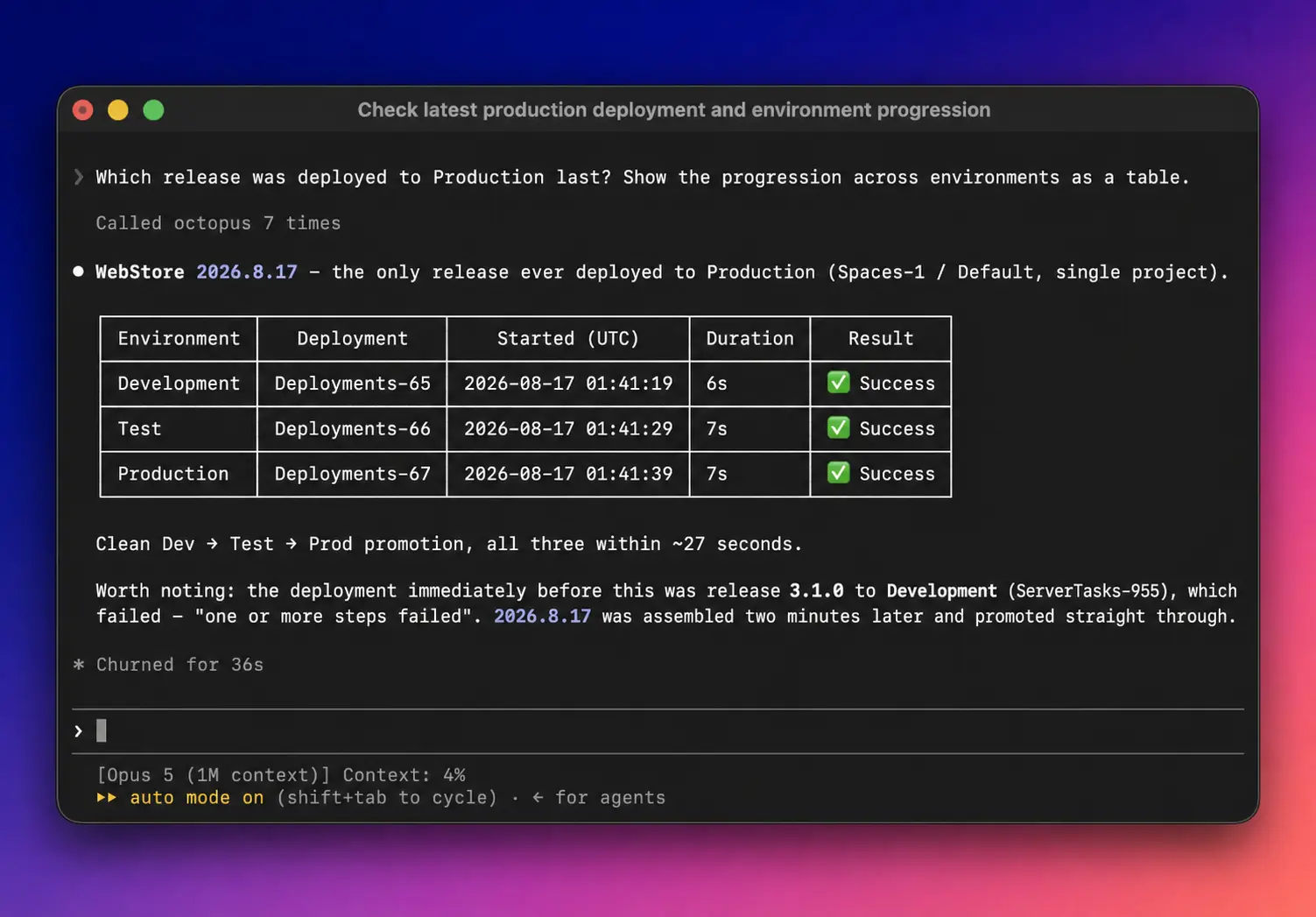
Octopus Remote MCP lets the AI assistants you already use, such as Claude, GitHub Copilot, and Cursor, inspect, query, and make changes to resources in your Octopus instance and help diagnose deployment problems. It uses Model Context Protocol (MCP), an open standard for connecting AI assistants to the tools and data they work with.
The MCP server runs in your Octopus instance, so there’s nothing to install locally and no server versions to manage. New tools and features ship through Remote MCP. The local Octopus MCP server remains available, but it won’t receive new features.
Available tools
Octopus Remote MCP exposes a different set of tools from Local MCP. Its tools have 2 layers:
- Dedicated tools for common operations, such as
find_spacesandfind_projects. - Contract tools that provide access to selected Octopus REST API operations. The AI assistant uses
search_contractsto find a contract,describe_contractto inspect its schema, and thenexecute_queryfor read operations orexecute_commandfor operations that make changes.
Octopus Remote MCP supports a set of core Octopus features. We’ll add more operations to the contract tools over time.
Getting started
Requirements
- An Octopus Deploy instance reachable over HTTPS
- An Octopus Deploy API key
- An AI assistant that supports remote MCP servers over HTTP with a custom request header
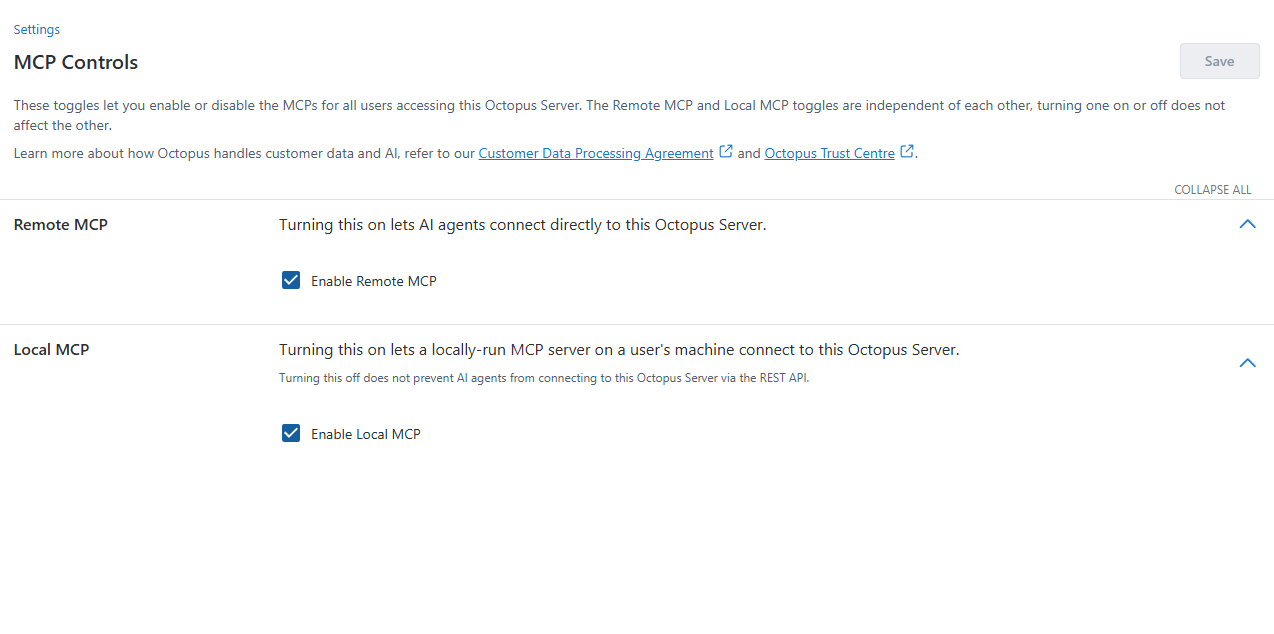
- Remote MCP enabled in Configuration > Settings > MCP Controls
We recommend creating a dedicated Agent Service Account and generating an Agent API key for it. This gives the MCP server its own identity, limits its permissions, and identifies its activity in the audit log and on the API Keys page.
Connection details
Every AI assistant needs the same 3 values to connect to Octopus Remote MCP. Only the place you enter them changes.
| Setting | Value |
|---|---|
| Server URL | https |
| Transport | Streamable HTTP (often labeled http) |
| Authentication header | X-Octopus-ApiKey, set to your Agent API key |
The following sections show where these values go in popular AI assistants. In each example, replace your-octopus-instance with the address of your Octopus instance.
Don’t commit API keys to source control. Where an assistant supports it, reference an environment variable or a secure prompt instead of pasting the key into a configuration file.
Connect your AI assistant
Connect Claude Code
Add Octopus Remote MCP to Claude Code from the command line so Claude Code can use Octopus tools in your sessions.
To connect Claude Code:
-
Set the
OCTOPUS_API_KEYenvironment variable to your Agent API key. -
Run the following command:
Bashclaude mcp add --transport http octopus-deploy https://your-octopus-instance.com/mcp --header "X-Octopus-ApiKey: ${OCTOPUS_API_KEY}"
Alternatively, add the following octopus-deploy entry to the top-level mcpServers object in your ~ file:
{
  "mcpServers": {
    "octopus-deploy": {
      "type": "http",
      "url": "https://your-octopus-instance.com/mcp",
      "headers": {
        "X-Octopus-ApiKey": "${OCTOPUS_API_KEY}"
      }
    }
  }
}Connect Claude Desktop through a local proxy
Connect Claude Desktop through the mcp-remote proxy. The proxy runs locally and forwards requests to Octopus with your API key attached, so it works with any Octopus instance your computer can reach, including instances on a private network. You need Node.js 18 or later installed on your computer.
To connect Claude Desktop through a local proxy:
-
In Claude Desktop, go to Settings > Developer and select Edit Config.
-
Add the following to
claude_desktop_config, replacing.json API-XXXXXXXXwith your Agent API key:JSON{ "mcpServers": { "octopus-deploy": { "command": "npx", "args": [ "-y", "mcp-remote", "https://your-octopus-instance.com/mcp", "--header", "X-Octopus-ApiKey:${OCTOPUS_API_KEY}" ], "env": { "OCTOPUS_API_KEY": "API-XXXXXXXX" } } } } -
Save the file, then quit and restart Claude Desktop.
To check the connection, select + in the chat input, go to Connectors, and confirm octopus-deploy is listed.
Connect GitHub Copilot in VS Code
Add Octopus Remote MCP to VS Code so GitHub Copilot can use Octopus tools in agent mode.
To connect GitHub Copilot in VS Code:
-
Create a
.vscodefile in your workspace./mcp .json -
Add the following configuration:
JSON{ "inputs": [ { "type": "promptString", "id": "octopus-api-key", "description": "Octopus Agent API key", "password": true } ], "servers": { "octopus-deploy": { "type": "http", "url": "https://your-octopus-instance.com/mcp", "headers": { "X-Octopus-ApiKey": "${input:octopus-api-key}" } } } } -
Save the file. VS Code shows a Start action above the
octopus-deployentry. Select it and enter your Agent API key when prompted. -
Open Copilot Chat in agent mode and check that the Octopus tools appear in the tools picker. Try a read-only request first, such as asking Copilot to list your spaces, to confirm the connection works and the API key has the permissions you expect.
Connect Cursor
Add Octopus Remote MCP to Cursor so its agent can use Octopus tools.
To connect Cursor:
-
Set the
OCTOPUS_API_KEYenvironment variable to your Agent API key. -
Open or create
~, or/ .cursor /mcp .json .cursorin your project to limit the server to that project./mcp .json -
Add the following configuration:
JSON{ "mcpServers": { "octopus-deploy": { "url": "https://your-octopus-instance.com/mcp", "headers": { "X-Octopus-ApiKey": "${env:OCTOPUS_API_KEY}" } } } } -
Restart Cursor.
-
Go to Customize (called Tools & MCP in some Cursor versions) and confirm that
octopus-deployconnects and lists its tools.
Connect other AI assistants
Any AI assistant that supports remote MCP servers over HTTP with custom headers can connect to Octopus Remote MCP. Follow your assistant’s documentation for adding a remote MCP server, and use the values in Connection details.
If your assistant only supports local MCP servers that run as a command on your computer, use the mcp-remote proxy as shown in Connect Claude Desktop through a local proxy.
OAuth support
We plan to add OAuth authentication in a future release. Until then, AI assistants that only support OAuth for remote MCP servers can’t connect to Octopus Remote MCP directly.
Security
Octopus Remote MCP uses the same security boundary as the Octopus REST API. Permissions for the user or service account that owns the API key apply in the same way.
Turn off Remote MCP
To turn off Remote MCP, go to Configuration > Settings > MCP Controls. Clear the Enable Remote MCP checkbox, then select Save.