
Salesforce DX (Developer Experience) is a set of tools and features that bring modern, source-driven development and DevOps practices to the Salesforce platform. It allows teams to build Salesforce applications using Git-based workflows and deploy them via CI/CD pipelines.
Salesforce DX provides a command-line interface (CLI) to automate application deployments, and Octopus Deploy can integrate with it to deliver a seamless deployment experience.
In this post, you’ll learn how to deploy Salesforce applications using Octopus Deploy and the Salesforce CLI.
Prerequisites
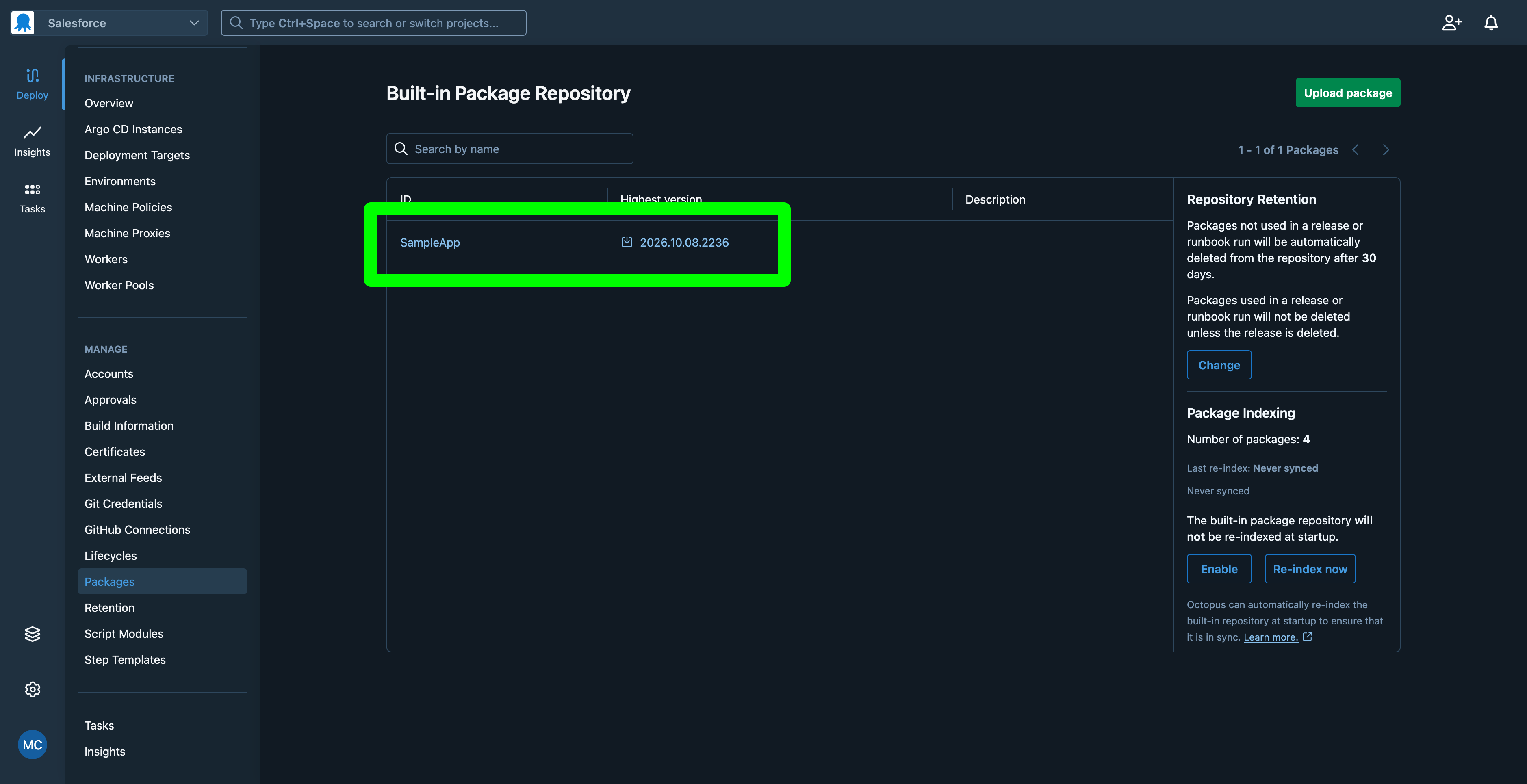
Download the sample application from this GitHub repository. The releases provide Zip files that can be uploaded to the Octopus built-in feed:
You must install the Salesforce CLI locally by following the Salesforce CLI installation instructions.
You can create a free account on the Salesforce Developer site. This post will use a Salesforce Developer Edition account to deploy the sample application.
Log in locally
Log in to your Salesforce Developer Edition account using the Salesforce CLI:
sf org login web --set-default --alias DevThe authentication URL, which is used as a secret to log in to Salesforce, is shown with this command:
sf org auth show-sfdx-auth-urlThe SFDX Auth URL is then displayed in the format force://PlatformCLI::<secret>@<hostname>.develop.my.salesforce.com. This URL is used to authenticate the Salesforce CLI with your Salesforce organization. Take note of this URL, as it must be saved as a secret in Octopus Deploy.
You can use the JWT Flow to authenticate the Salesforce CLI without requiring a web-based login. This allows deployments to be automated without user interaction. However, this post will use the web-based login for simplicity.
Deployment process
Deploying a Salesforce application is done via a script step that runs the Salesforce CLI commands.
To automate Salesforce login, the SFDX Auth URL is stored as a secret variable named Salesforce.Auth.
Then add a script step to the deployment process that runs the following commands.
You’ll make use of an Execution Container to expose the Salesforce CLI to the script step. In the Execution Container Image section, select the option Runs inside a container on a worker, and then the Build container from an inline Dockerfile option. Paste the following Dockerfile into the text box:
FROM node:22-bookworm-slim

RUN apt-get update && apt-get install -y --no-install-recommends \
    ca-certificates \
    curl \
    gnupg \
    libicu-dev \
    && rm -rf /var/lib/apt/lists/*

RUN npm install -g @salesforce/cli
Paste the following script as an inline script in the script step:
# Stop the CLI from losing its auth storage context
export SF_USE_GENERIC_UNIX_KEYCHAIN=true

# Deactivate the CLI's DNS check, which frequently fails in CI networks
export SF_DISABLE_DNS_CHECK=true
export SFDX_DISABLE_DNS_CHECK=true

# Keep telemetry off
export SF_DISABLE_TELEMETRY=true

# Enter the directory with the sample application
cd SampleApp

# Log into Salesforce using the auth URL stored in Octopus Deploy
echo $(get_octopusvariable "Salesforce.Auth") > ./authfile.txt
sf org login sfdx-url --sfdx-url-file ./authfile.txt --set-default --alias CiOrg
rm ./authfile.txt

# Perform the deployment
sf project deploy start --target-org CiOrg
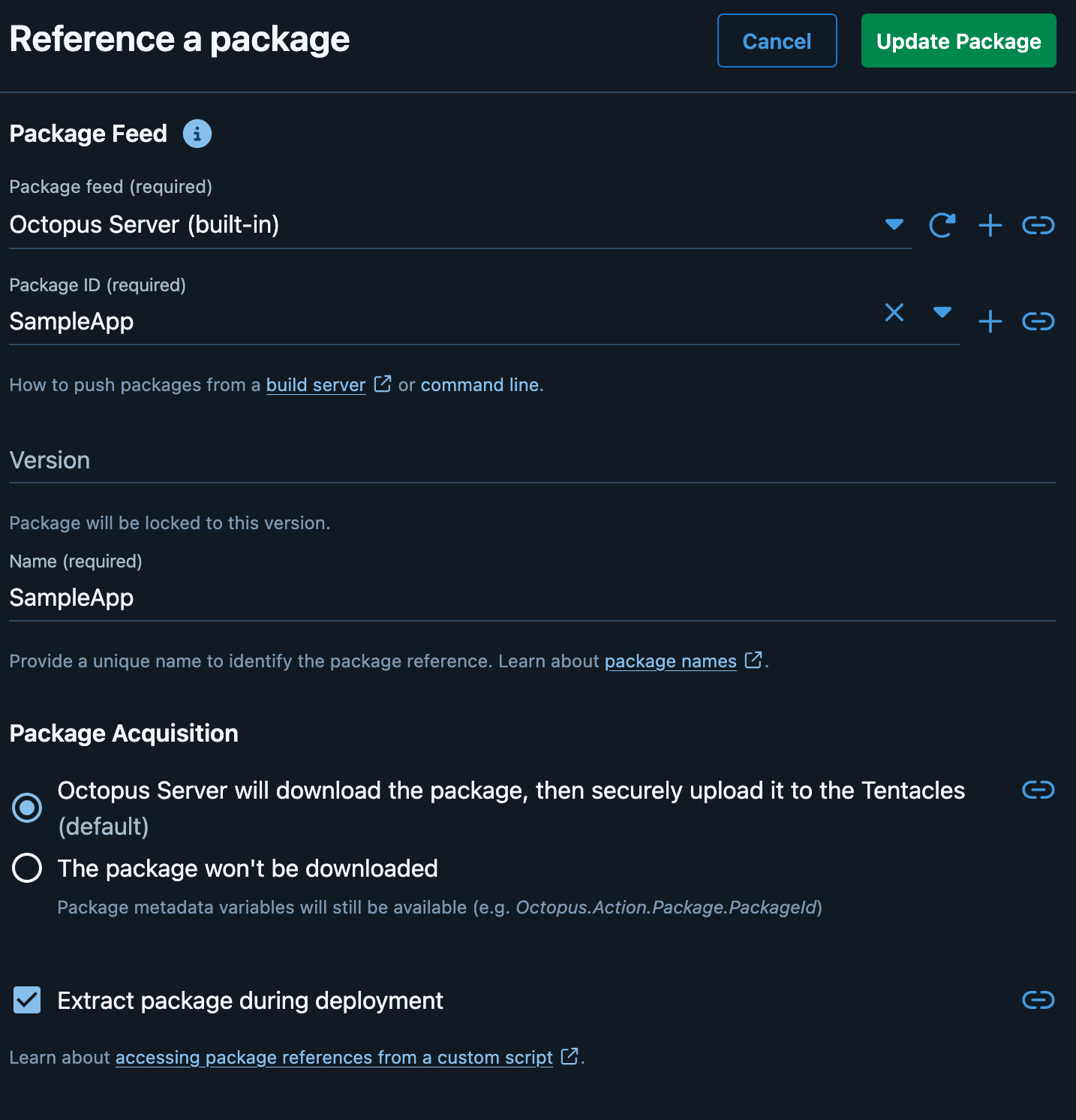
Finally, add the sample application to the project as a referenced package:
Using the new component
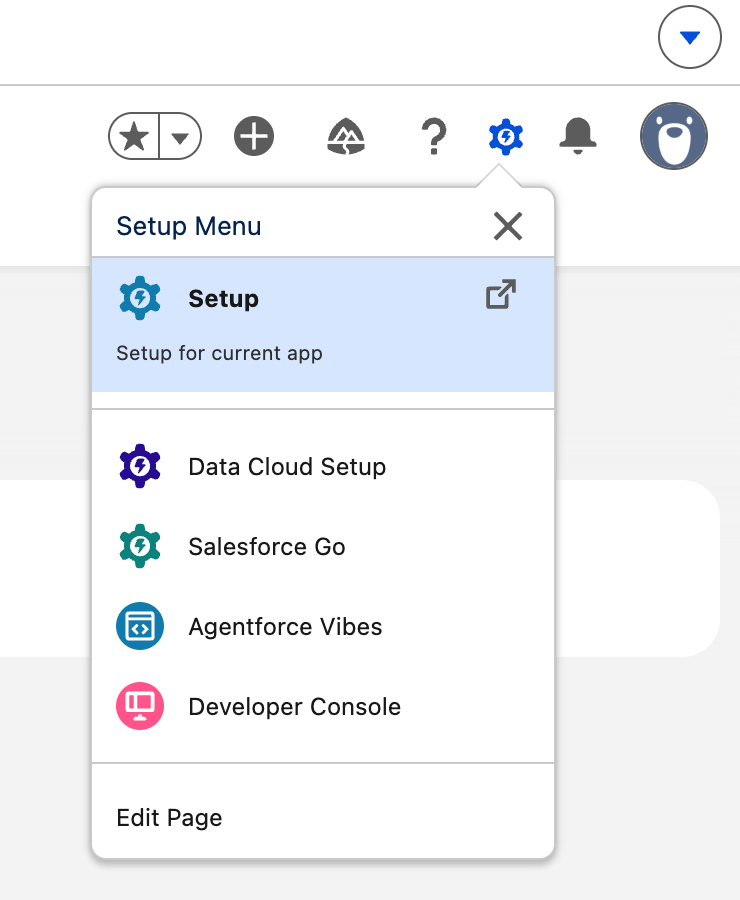
To use the new component from the sample application, navigate to the Setup menu in Salesforce:
Open the Lightning App Builder item in the left-hand menu, and click the New button to create a new Lightning app:
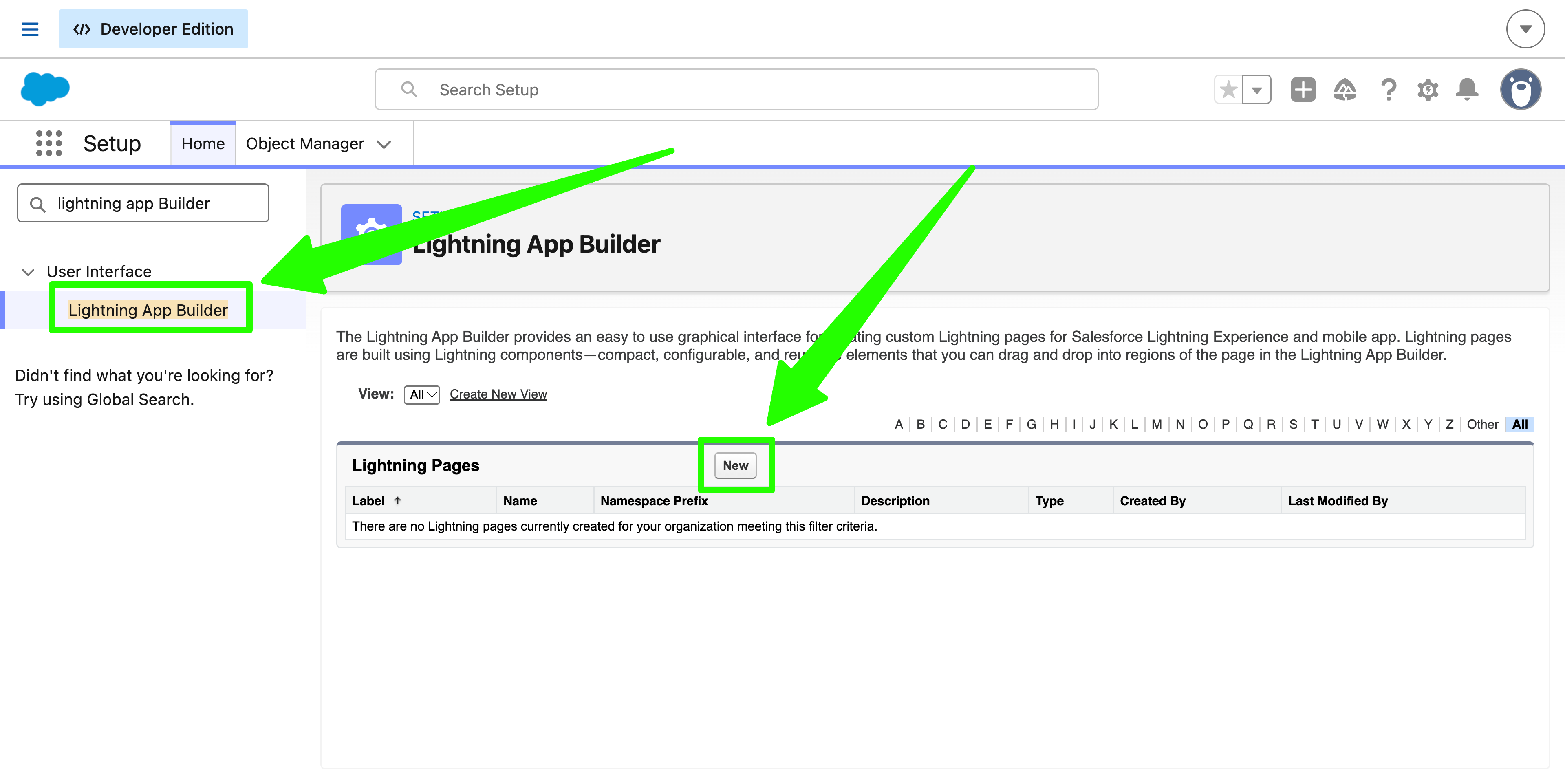
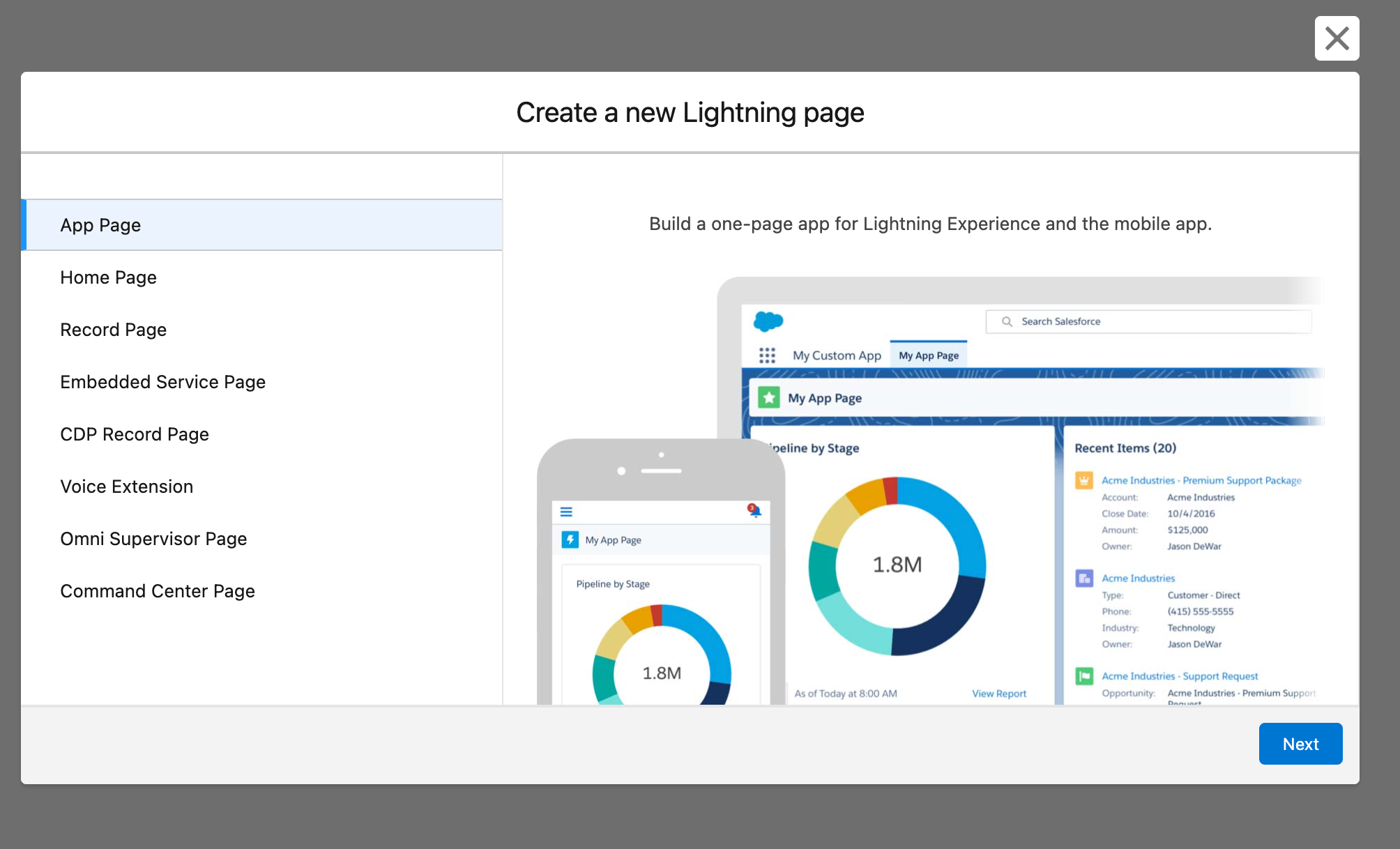
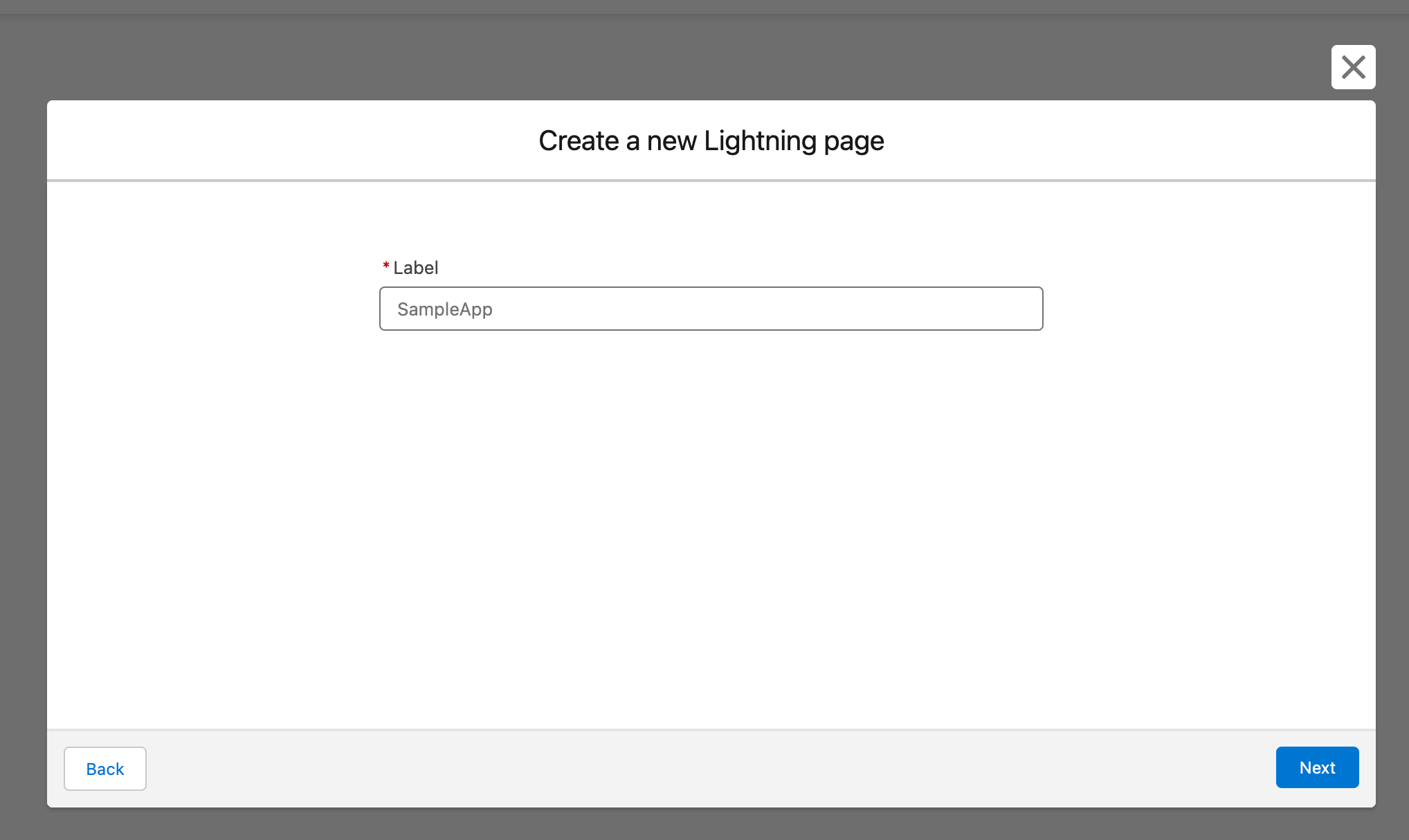
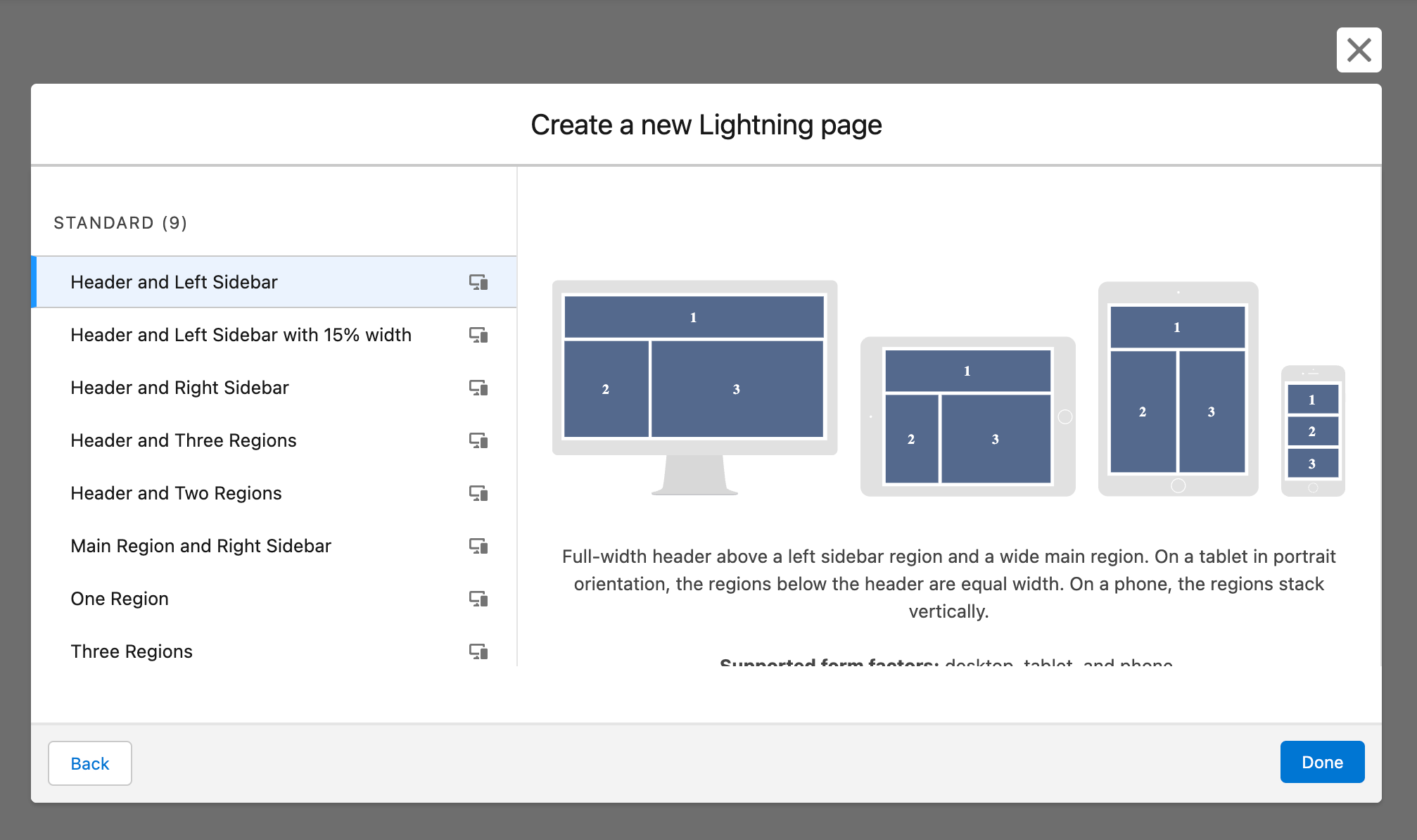
Complete the wizard to create a new Lightning app:
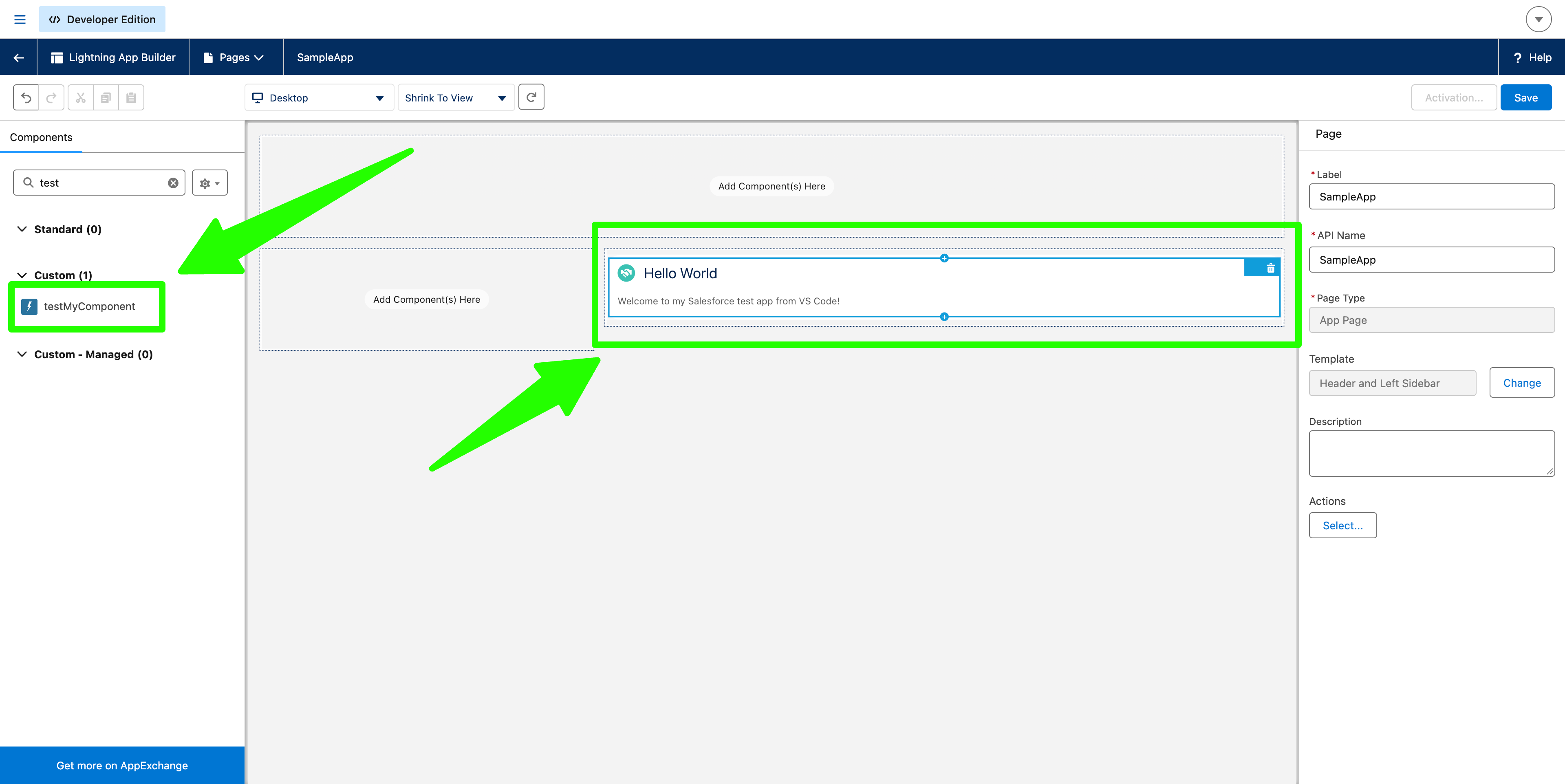
Select the new component and drag it onto the page:
Going further
This Salesforce post describes a high-level deployment pipeline, with this diagram showing the breakdown between the CI and CD processes:
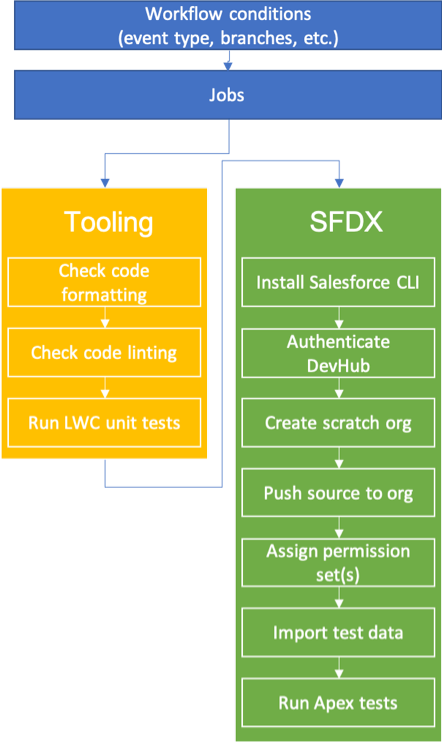
All the steps in the CD process are implemented via the sf CLI and can be automated using Octopus Deploy.
Conclusion
Octopus provides a convenient way to deploy Salesforce applications using the Salesforce CLI. The CLI handles the interactions with the Salesforce platform, while Octopus provides a user-friendly interface for managing deployments, variables, and secrets. By combining these tools, teams can implement a robust CI/CD pipeline for Salesforce applications.