

Apache Ant is a Java-based build tool that has been around for over 20 years. Despite its age, Ant is still actively developed and used in many enterprise deployments. Octopus can be used to deploy Ant applications with a few simple steps. This post will demonstrate how to deploy a sample Ant application using Octopus.
Prerequisites
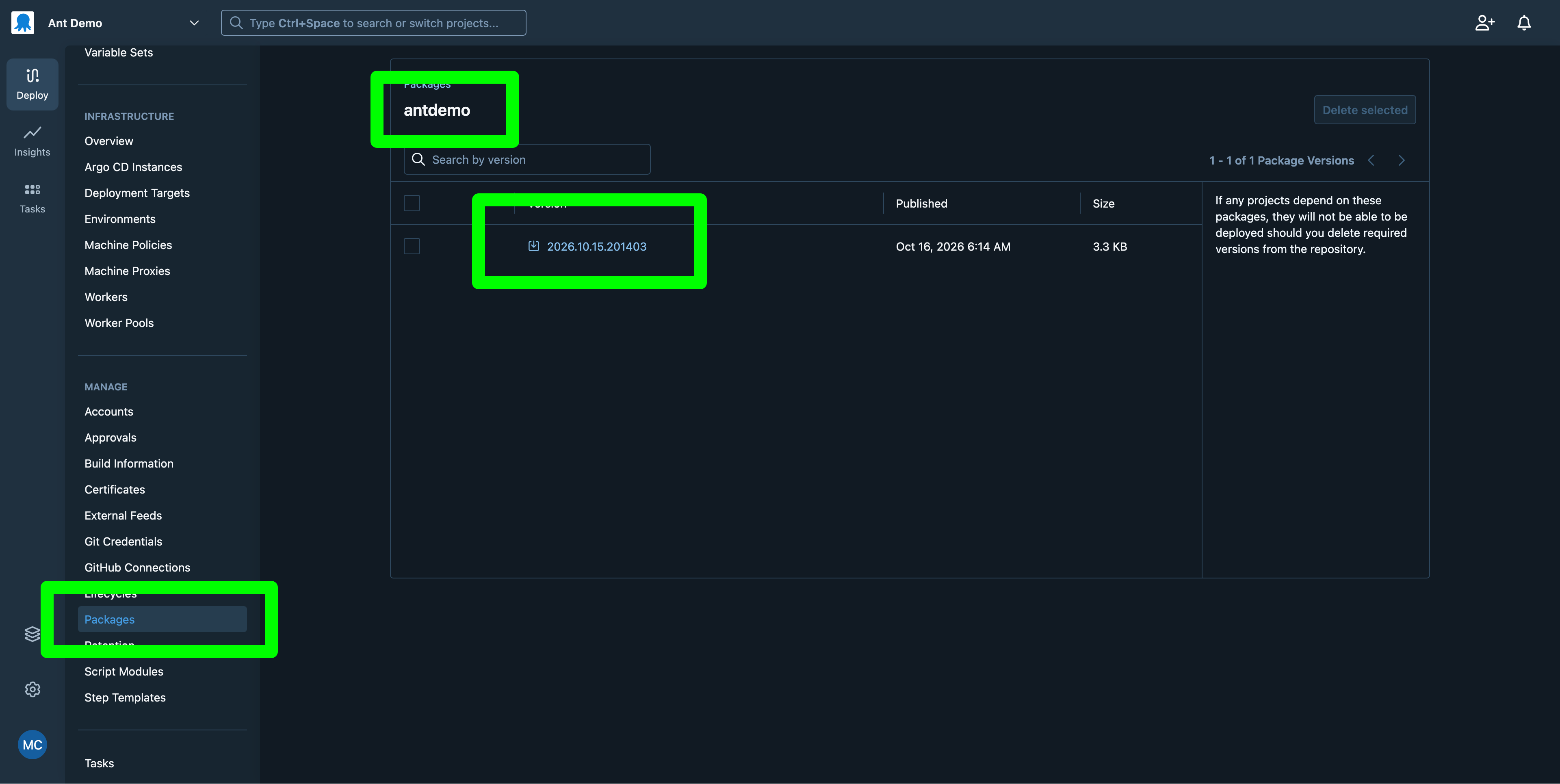
Download the sample application from this GitHub repository. The releases provide ZIP files that can be uploaded to the Octopus built-in feed:
Preparing the Ant tooling
Ant was first released in 2000 and predates many popular DevOps tools like Docker by many years. While execution containers are a great solution for exposing Ant and its dependencies to your Octopus workers, we’ll make the assumption here that teams using Ant may not have implemented Docker in their deployment workflows.
Instead, Ant and its dependencies will be exposed to the Octopus workers by extracting portable versions of Ant and Java into the working directory as a step is executed.
Start by downloading a binary distribution of Ant from the Apache Ant website. At the time of writing, the file you will download is called apache-ant-1.10.18-bin.zip.
Octopus requires a strict filename structure for packages uploaded to the built-in feed. The filename must be in the format <package-name>.<version>.<extension>. For example, apache-ant.1.10.18.zip. So rename the file you downloaded to apache-ant.1.10.18.zip before uploading it to the built-in feed.
Ant requires a JDK to run. There are many JDK distributions available, but for this example, we’ll use the Azul Zulu OpenJDK distribution. We’ll assume that the workers are running Windows, so download the ZIP distribution of the JDK. At the time of writing, the file you will download is called zulu27.28.101-ca-jdk27.0.0-win_x64.zip. Rename the file to zulu27.28.101.zip before uploading it to the built-in feed.
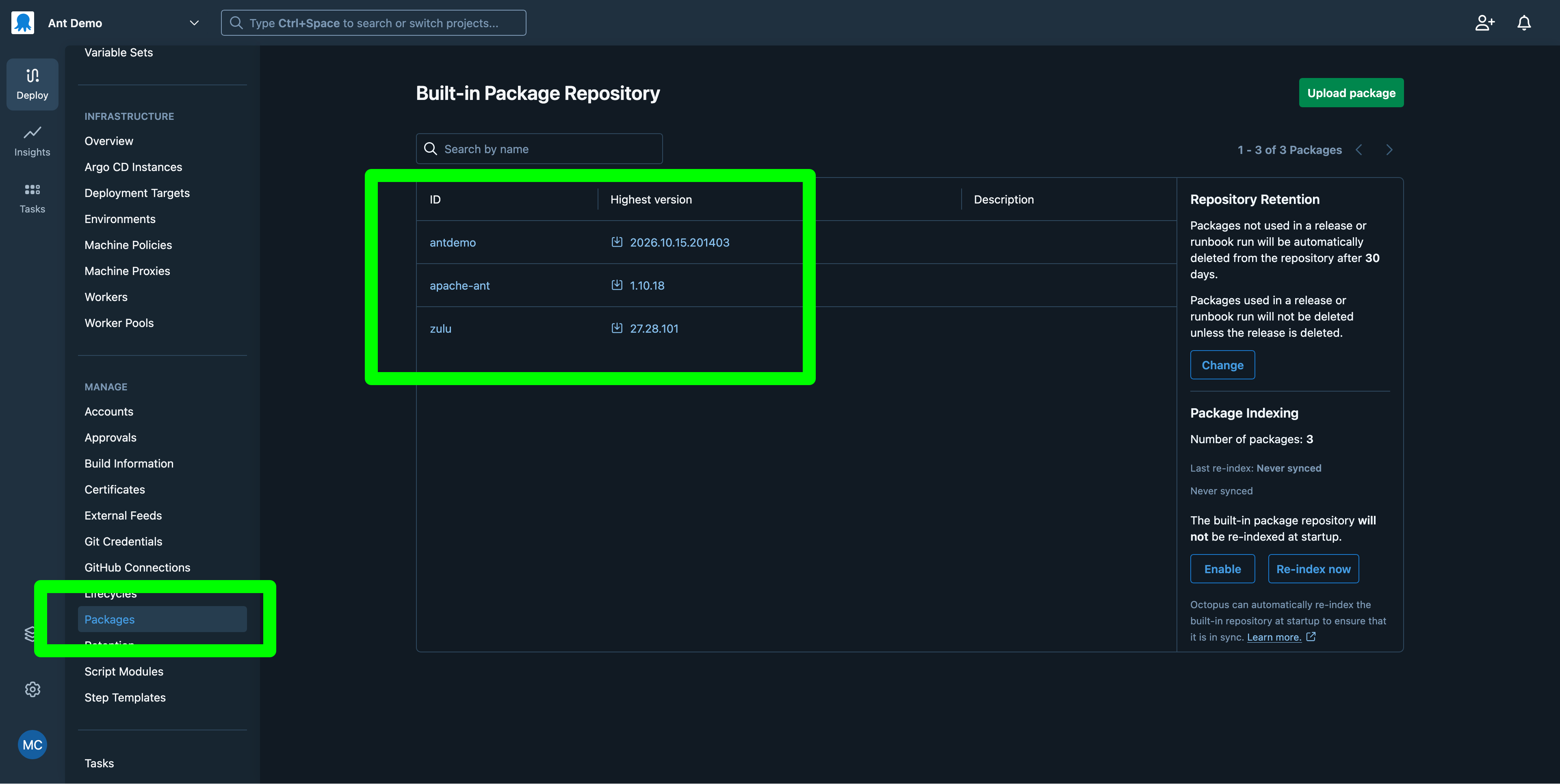
You must now have 3 packages in the built-in feed:
Running Ant in a deployment step
Ant is run as part of a script step in an Octopus deployment. The script step will extract the Ant and JDK packages into the working directory, set the JAVA_HOME environment variable, and append both Ant and Java to the session Path variable. This allows Ant to be executed on a worker without requiring any installation of Ant or Java on the worker itself:
# 1. Define explicit working directories
# Note that the Ant and JDK packages include their own versioned subfolders, so we need to include those in the path.
# The versioned subfolders are unique to the package version, so if you update the package version, you'll need to update the path here as well.
$workDir   = Get-Location
$antBinDir = "$workDir\apache-ant\apache-ant-1.10.18\bin"
$javaDir   = "$workDir\zulu\zulu27.28.101-ca-jdk27.0.0-win_x64"

# 2. Set JAVA_HOME and explicitly append BOTH Java and Ant to the session Path
$env:JAVA_HOME = $javaDir
$env:Path = "$antBinDir;$javaDir\bin;" + $env:Path

# 3. Verify the binary actually exists where we expect it
if (-not (Test-Path "$antBinDir\ant.bat")) {
    Write-Error "Could not find ant.bat at: $antBinDir"
    Exit 1
}

# 4. Change directory to your app folder
cd antdemo

# 5. Run Ant using the call operator (&) to force PowerShell to resolve the executable path
& ant.bat compile
& ant.bat jar
& ant.bat run
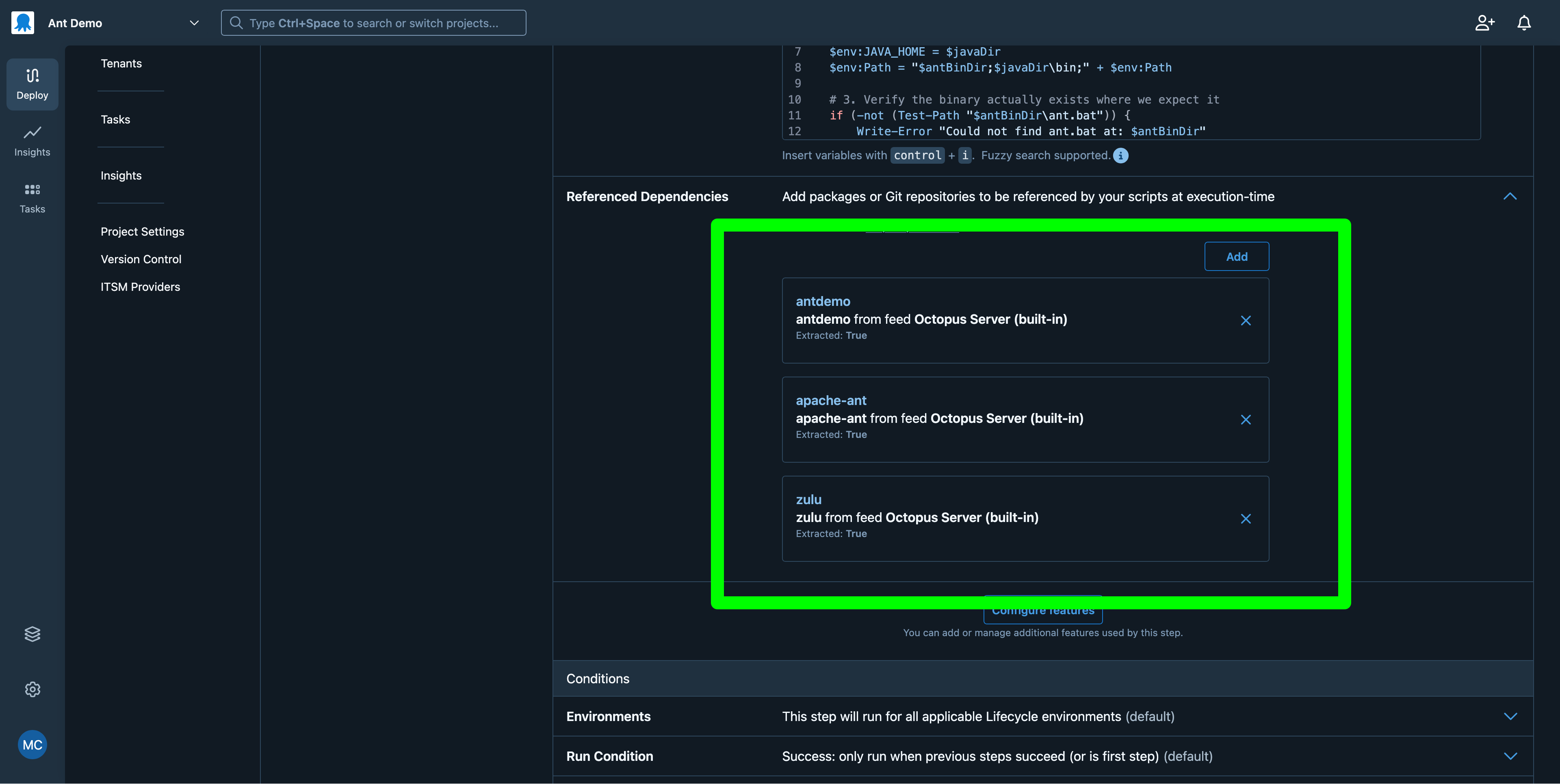
The three packages (the Ant Demo application, the Ant binary distribution, and the JDK) are included as Referenced Dependencies. This ensures the packages are downloaded and extracted into the step’s working directory:
Running the deployment
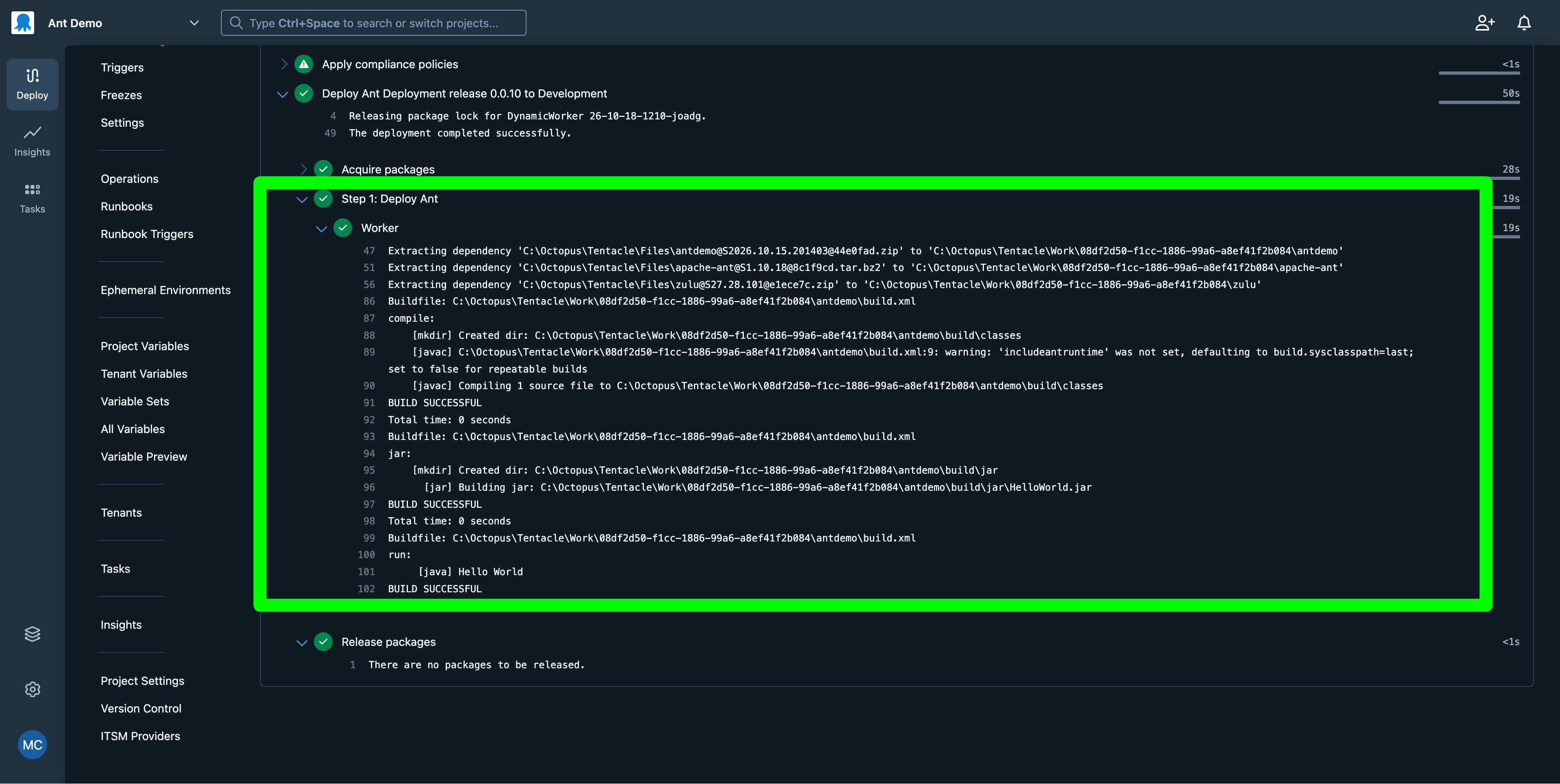
At this point, you can create a release of the project and deploy it to an environment. The deployment log will show the output of the Ant commands as they are executed:
Conclusion
Executing Ant as part of an Octopus deployment is straightforward. By using the built-in feed to provide Ant and its dependencies, you can run Ant on any worker without requiring any installation of Ant or Java on the worker itself. This approach allows teams to deploy Ant applications consistently and repeatably by leveraging Octopus Deploy.