
Octopus Deploy ships dozens of features that are each useful on their own. But the real power comes from combining them. In this post, I will walk through bringing together a collection of smaller, often overlooked features into a practical solution: automatically notifying the responsible team members whenever a deployment hits a manual intervention. It’s a real-world example of how thinking in solutions, not just features, can unlock more value from the tools you already have.
In an application deployment process, a manual intervention step can help provide a checkpoint for sign-offs, or allow validation of the state of the deployment before it is switched over to a live site. Unfortunately, by default, manual interventions only show up in the Octopus user interface, so they’re easy to overlook and can block deployments from completing.
Let’s walk through a few different ways that we can solve this using old and new features of Octopus:
- Subscriptions
- Slack notifications
- Webhook triggered runbooks
Slack notifications
In 2026.3, we added the ability to connect your Octopus Deploy instance to a Slack Workspace. At the time of writing, only one workspace is supported for the whole instance. Configuration is quite straightforward, so I won’t even go into details on how to configure it, just follow your nose from Configuration > Settings > Slack Integration, and the Slack docs on Creating apps with an app manifest.
Once you have a Slack Workspace configured, you can use a subscription to notify your Slack channel of a pending Manual Intervention being created in the Space the subscription is in. Subscriptions also allow you to narrow the projects that this applies to.
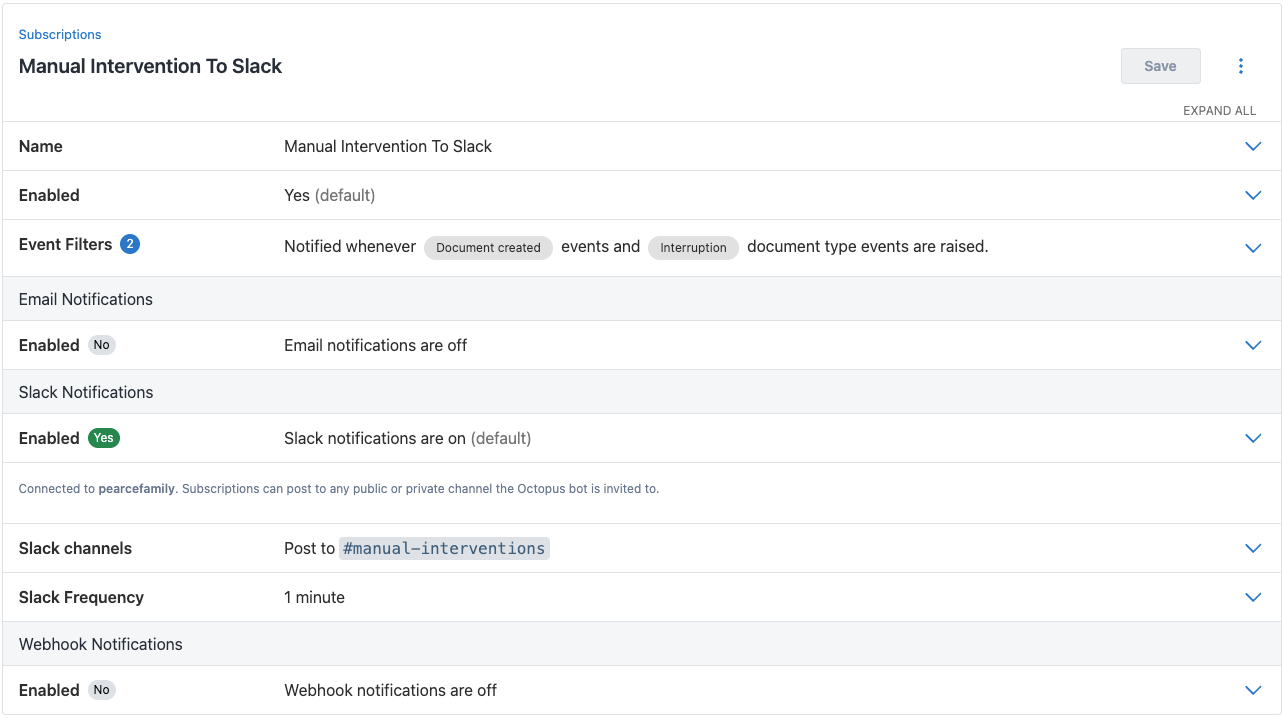
There is a rough edge worth calling out here: subscriptions are per space and it would be nice to have consistent behavior across many or all spaces. That’s where you can use some automation to create the exact same subscription setup.
Use the Octopus Deploy Terraform provider to create all your subscriptions across the required spaces:
terraform {
  required_providers {
    octopusdeploy = {
      source = "OctopusDeploy/octopusdeploy"
      version = "1.18.0"
    }
  }
}

variable "space_ids" {
  type = list(string)
  default = ["Spaces-142", "Spaces-1"]
  description = "List of Space IDs to create subscriptions in"
}

# Provider without space_id - space set per-resource
provider "octopusdeploy" {
  address = "https://example.octopus.app"
  api_key = "API-APIKEY12345"
}

resource "octopusdeploy_subscription" "per_space" {
  for_each = toset(var.space_ids)
  name = "Manual Intervention To Slack"
  space_id = each.value
  is_disabled = false

  event_notification_subscription = {
    # the id of your target channel
    slack_channel_ids = ["C0BG25D5DQV"]

    # the name of the channel, only required for display purposes
    slack_channel_names = ["manual-interventions"]

    # notify every minute
    slack_frequency_period = "00:01:00"

    filter = {
      event_categories = ["Created"]
      document_types = ["Interruptions"]
    }
  }
}
With this subscription in place, the #manual-interventions channel in your Slack workspace will receive a generic message with a link to the audit page in the Octopus instance.
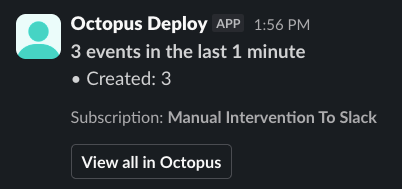
Slack and email communications from a subscription will always be a batch of events covering the subscription frequency, and pressing the View all in Octopus button will take you to the audit page.
This works, but we can probably make it better.
Webhooks and runbooks
Another new feature available in 2026.3 is the ability to trigger a runbook from a webhook call. Octopus supports being both the webhook provider as well as a consumer for the purposes of executing a runbook via the Runbook Webhook Trigger.
In previous versions, if you wanted to take any action based on an event within Octopus you had two options: polling the event API, which can be expensive and requires somewhere to run the polling code, or standing up a webhook receiver either as a custom function/lambda or using an external SaaS service such as Zapier or Workato. Webhook Triggers let you use a runbook process as the execution location.
Let’s swap out the default behavior from the subscription’s Slack notification and provide our own custom message format that will notify the responsible users.
The attention-seeking project
The project that I am using as an example is very straightforward: it deploys to a staging deployment slot in Azure, uses a Manual Intervention step to get a human check, and performs the slot swap after it has been reviewed.
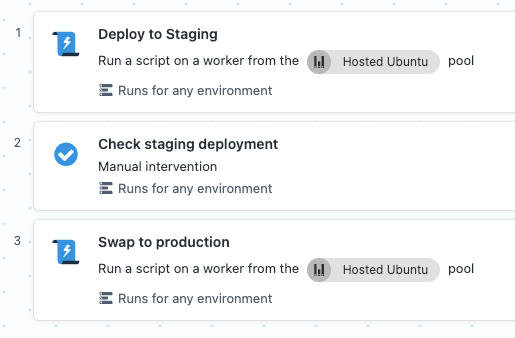
To build out this solution, I am going to touch on a number of Octopus features, some only made available recently in 2026.3, and others have been around for much longer:
- Webhook triggers to Runbooks NEW
- Slack integration and a built-in Slack step NEW
- JSON path variables
- Variable filter syntax
- Octopus CLI
- Read-only roles
- Output variables
- OIDC auth to Octopus with service accounts
- Generic OIDC accounts
- Library Variable Sets
- Execution containers
- Variable testing
Wiring up the webhook
The first thing we are going to need is a new runbook to receive the webhook trigger payload and a webhook trigger.
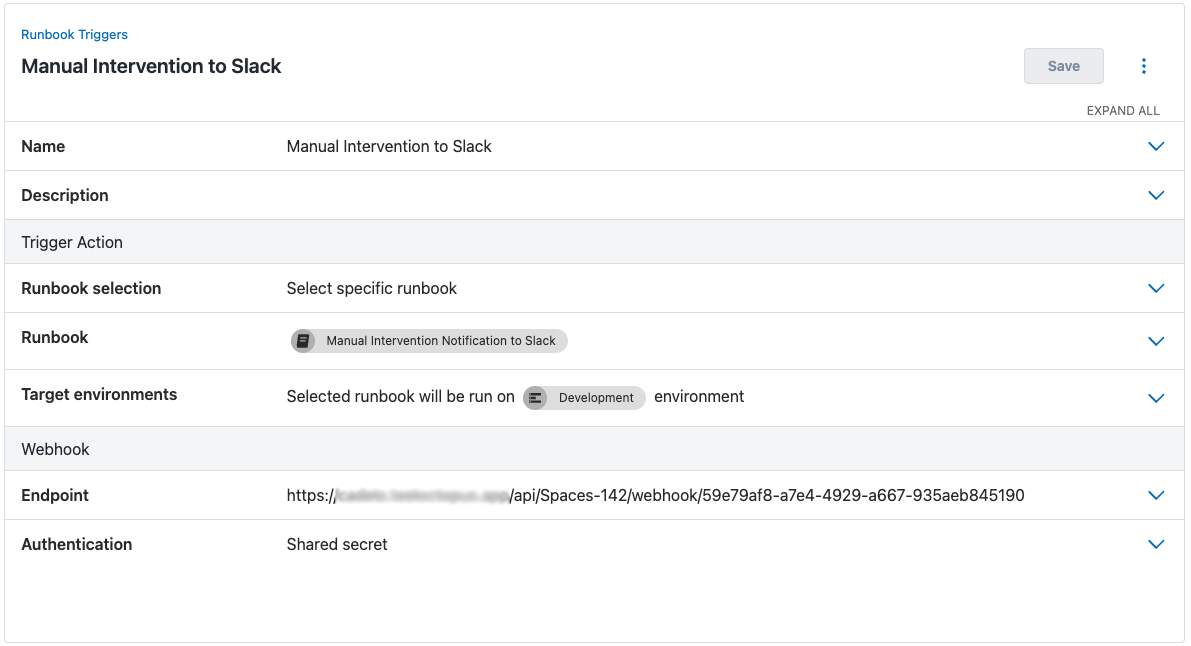
The trigger requires either a shared secret, supplied in the header X-Octopus-Webhook-Secret, or an API key, supplied in the header X-Octopus-ApiKey for an account that has permission to run the runbook. If you would prefer to have the executions tied to a specific account, for auditing purposes for example, use an API key.
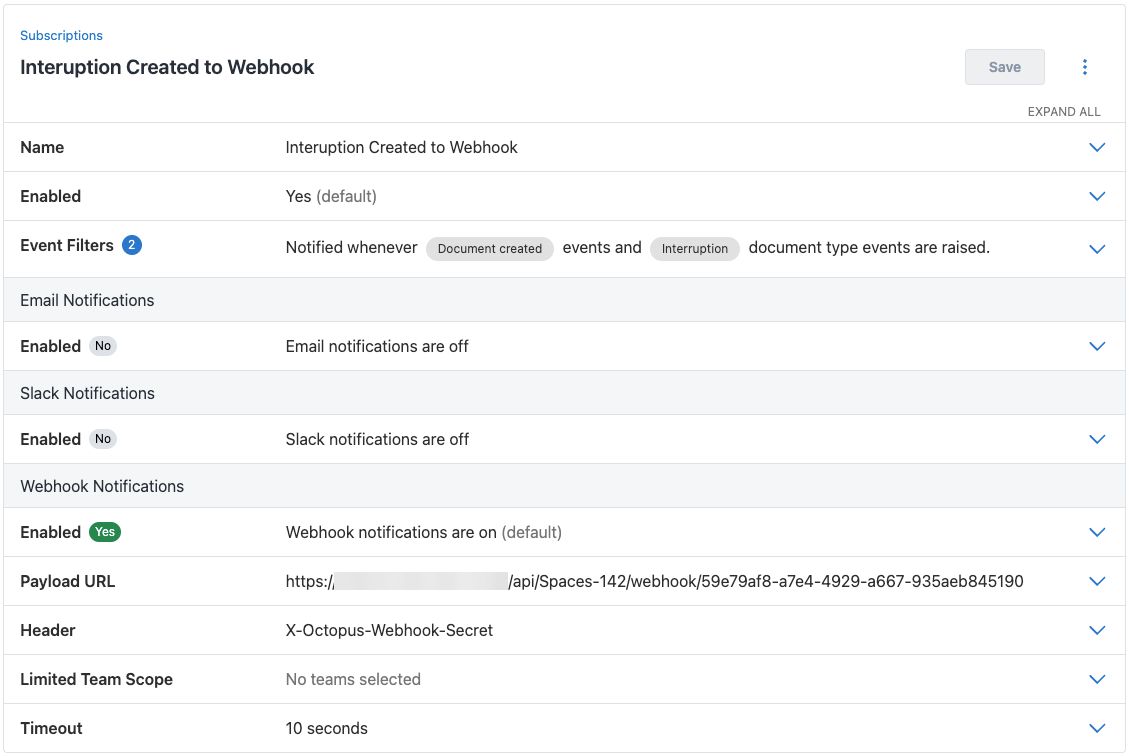
Next, configure a subscription, or reuse the one we created earlier. You will need the endpoint URL for the trigger and the header and value to authenticate the webhook call.
In my case, I have opted for a shared secret:
Shape of the event payload
When a subscription fires a webhook, you get a pretty generous chunk of JSON. Here’s the shape of it, trimmed down to the bits we actually care about.
{
    "Timestamp": "2026-08-24T06:43:12.310+00:00",
    "EventType": "SubscriptionPayload",
    "Payload": {
        "ServerUri": "https://my.octopus.app",
        "ServerAuditUri": "https://my.octopus.app/app#/Spaces-142/configuration/audit?...",
        "Subscription": { ... },
        "Event": {
            "Id": "Events-772873",
            "RelatedDocumentIds": ["Interruptions-43"],
            "Category": "Created",
            "Message": "Interruption Check staging deployment was created",
            "ChangeDetails": {
                "DocumentContext": {
                    "Id": "Interruptions-43",
                    "Title": "Check staging deployment",
                    "Type": "ManualIntervention",
                    "Status": "Pending",
                    "RelatedDocumentIds": [
                        "Deployments-53208",
                        "ServerTasks-805184",
                        "Projects-941",
                        "Environments-423"
                    ],
                    "ResponsibleTeamIds": ["Teams-202"],
                    "SpaceId": "Spaces-142",
                    "ProjectId": "Projects-941",
                    "EnvironmentId": "Environments-423"
                }
            },
            "SpaceId": "Spaces-142"
        },
        "BatchId": "a634600f-0cd0-43f6-9412-14bb1a072fcd",
        "TotalEventsInBatch": 1,
        "EventNumberInBatch": 1
    }
}
The event details that we need are buried in Payload.Event.ChangeDetails.DocumentContext - that’s where we find the responsible team IDs, the related document IDs (handy for working out if this was a deployment or a runbook run), and the server task ID for linking people back to the Octopus web UI.
Note: The DocumentContext part shown here is specific to a Manual Intervention event. Other event types will have a different data shape.
The supporting cast
Before we get to the runbook itself, there are a few pieces of configuration that make the whole thing work.
Teams and users
The manual intervention step in our deployment process is configured with a responsible team, creatively named Manual Intervention. This team has all the people who can approve or reject the intervention: Annie Developer, Bob Tester, and yours truly. Crucially, these team IDs come through in the webhook event payload - that’s how our runbook figures out who to notify on Slack.
We also need a service account, readonly-svc, so the runbook can talk back to the Octopus API and look up who’s actually in those teams. This account lives in a new team called Read-only with only the Read only role assigned to it. The Read only built-in role is another feature added in 2026.3 to support read-only API keys and AI agents.
Generic OIDC account
Now here’s where it gets a little bit Inception-like: we need Octopus to authenticate with… itself.
Rather than stashing an API key somewhere (which always feels a bit icky), I’m using a Generic OIDC Account called “Octopus Loopback”. During the runbook run, the service account gets an OIDC token issued to it, and we use that to authenticate the CLI right back to the same instance.
There are two parts to set up.
-
Add an OIDC identity to the service account
On the
readonly-svcaccount created earlier, add an OIDC identity with these settings:- Issuer type: Other Issuer
- Issuer: the public HTTPS URL of your Octopus instance
- Subject:
space:<space-slug>:runbook:<runbook-slug>
Slugs start out as the lowercase resource name with spaces replaced by hyphens. Renaming a resource doesn’t update its slug, so check the current value rather than working it out from the name.
Once it’s saved, take note of the audience shown on the OIDC identity. This is the service account’s ID, and it’s what the CLI needs to log in.
-
Create the Generic OIDC account
Create a new Generic OIDC account called “Octopus Loopback” with these settings:
- Deployments & Runbooks subject claim:
SpaceandRunbook - Audience: the audience value from the OIDC identity
The script uses
Octopus.Web.ServerUrito log in and to build the link in the Slack message. Octopus Cloud always sets this. On a self-hosted instance, check that Configuration > Settings > Web Portal has an HTTPS server URI that’s accessible from the worker where the runbook runs, otherwise, the CLI login will fail. - Deployments & Runbooks subject claim:
Slack user mapping
We need a way to go from “Octopus user” to “Slack user” so we can @mention the right people. A library variable set called Slack Users does the trick - the variable names are email addresses and the values are Slack user IDs:
| Variable Name (Email) | Value (Slack User ID) |
|---|---|
ben.pearce@octopus.com | U7PE3KF16 |
annie.developer@example.com | U0BT5BU5GS0 |
bob.tester@example.com | U0BT1LU7W5Q |
The script in the runbook will find each user’s email and then try to find a Slack User ID to add to the message, failing that it will just use the Display Name.
Project variables for extracting details
When the webhook trigger is fired, the request payload is available via the built-in variable Octopus.WebhookTrigger.RequestBody. From there, it’s a matter of fishing out what we need using JSON path notation and a sprinkle of Octostache filter syntax:
| Variable | Value |
|---|---|
Event | #{Octopus.WebhookTrigger.RequestBody.Payload.Event} |
SpaceId | #{Event.SpaceId} |
DocumentContext | #{Event.ChangeDetails.DocumentContext} |
ResponsibleTeams | #{DocumentContext.ResponsibleTeamIds} |
RelatedDocumentIds | #{DocumentContext.RelatedDocumentIds} |
DeploymentId | #{each item in RelatedDocumentIds}#{if item | StartsWith Deployments-}#{item}#{/if}#{/each} |
RunbookRunId | #{each item in RelatedDocumentIds}#{if item | StartsWith RunbookRuns-}#{item}#{/if}#{/each} |
ProjectId | #{each item in RelatedDocumentIds}#{if item | StartsWith Projects-}#{item}#{/if}#{/each} |
EnvironmentId | #{each item in RelatedDocumentIds}#{if item | StartsWith Environments-}#{item}#{/if}#{/each} |
ServerTaskId | #{each item in RelatedDocumentIds}#{if item | StartsWith ServerTasks-}#{item}#{/if}#{/each} |
IsDeployment | #{if DeploymentId}true#{else}false#{/if} |
IsRunbook | #{if RunbookRunId}true#{else}false#{/if} |
OctopusAccount | Octopus Loopback (Generic OIDC Account type) |
Those JSON paths are a mouthful!
The DeploymentId and RunbookRunId variables are doing the heavy lifting - they loop over RelatedDocumentIds and use the StartsWith filter to sniff out whether this interruption came from a deployment or a runbook run. This lets the Slack message include the right context so people know what they’re clicking into.
If your project has a deployment process or other runbooks, each of these variables can be scoped to the runbook.
Runbook process
The runbook itself is fairly simple - just two real steps:
Step 1: Get Details - A script step that uses the Octopus CLI, authenticates back to the instance using our loopback account, and starts rummaging through team membership. For each responsible team, it grabs the members, looks up their Slack IDs, and stitches together the notification message. The result gets stashed as an output variable. See the Getting the Octopus CLI on the worker section to ensure the CLI is available for this step.
Step 2: Send a Slack Message - The built-in Slack step picks up the message via #{Octopus.Action[Get Details].Output.Message} and fires it off to the channel. No fuss, no custom integrations, just a step that does exactly what it says on the tin.
Bash
# Authenticate the CLI back to this Octopus instance. The OIDC token is
# issued to the service account for the life of the runbook run, so there is
# no API key to store anywhere.
octopus login \
    --server "$(get_octopusvariable "Octopus.Web.ServerUri")" \
    --service-account-id "$(get_octopusvariable "OctopusAccount.Audience")" \
    --id-token "$(get_octopusvariable "OctopusAccount.OpenIdConnect.Jwt")" \
    --no-prompt

# Project variables, already extracted from the webhook payload
spaceId=$(get_octopusvariable "SpaceId")
projectId=$(get_octopusvariable "ProjectId")
environmentId=$(get_octopusvariable "EnvironmentId")

# get the names to use in the message
executionName=$(octopus api /api/$spaceId/projects/$projectId | jq -r '.Name')
environmentName=$(octopus api /api/$spaceId/environments/$environmentId | jq -r '.Name')

# An interruption can come from a deployment or a runbook run
resourceType="deployment"
if [[ $(get_octopusvariable "IsRunbook") == "true" ]]; then
    resourceType="runbook"
    runbookRunId=$(get_octopusvariable "RunbookRunId")
    runbookId=$(octopus api /api/$spaceId/runbookRuns/$runbookRunId | jq -r '.RunbookId')
    executionName=$(octopus api /api/$spaceId/runbooks/$runbookId | jq -r '.Name')
fi

# Deep link straight to the task in the Octopus web UI
taskUrl="$(get_octopusvariable "Octopus.Web.ServerUri")/app#/$spaceId/tasks/$(get_octopusvariable "ServerTaskId")"
message="Manual intervention required for <$taskUrl|$resourceType> for *$executionName* to *$environmentName*"

# Fetch the users once, rather than an API call per team member
users=$(octopus api "/api/users?take=2147483647")

teams=$(get_octopusvariable "ResponsibleTeams")

# Someone can be in more than one responsible team - only mention them once
declare -A seenUsers

# Loop over each responsible team
while read -r teamId; do
    # Loop over each member of that team
    while read -r userId; do
        [[ -n "${seenUsers[$userId]+x}" ]] && continue
        seenUsers[$userId]=1

        user=$(echo "$users" | jq ".Items[] | select(.Id == \"$userId\")")
        displayName=$(echo "$user" | jq -r '.DisplayName')
        email=$(echo "$user" | jq -r '.EmailAddress')

        # Try getting the Slack UserId from the map
        # Fall back to the display name when there is no mapping.
        slackUserId=$(get_octopusvariable "$email")
        if [[ -z "$slackUserId" ]]; then
            message+=$'\n'"${displayName}"
        else
            message+=$'\n'"<@${slackUserId}>"
        fi
    done < <(octopus api "/api/teams/$teamId" | jq -r '.MemberUserIds[]')
done < <(echo "$teams" | jq -r '.[]')

# Hand the finished message to the Slack step
set_octopusvariable "Message" "$message"
PowerShell
# Authenticate the CLI back to this Octopus instance. The OIDC token is
# issued to the service account for the life of the runbook run, so there is
# no API key to store anywhere.
& octopus login `
    --server $OctopusParameters["Octopus.Web.ServerUri"] `
    --service-account-id $OctopusParameters["OctopusAccount.Audience"] `
    --id-token $OctopusParameters["OctopusAccount.OpenIdConnect.Jwt"] `
    --no-prompt

# Project variables, already extracted from the webhook payload
$spaceId = $OctopusParameters["SpaceId"]
$projectId = $OctopusParameters["ProjectId"]
$environmentId = $OctopusParameters["EnvironmentId"]

# get the names to use in the message
$executionName = (& octopus api /api/$spaceId/projects/$projectId | ConvertFrom-Json).Name
$environmentName = (& octopus api /api/$spaceId/environments/$environmentId | ConvertFrom-Json).Name

# An interruption can come from a deployment or a runbook run
$resourceType = "deployment"
if ($OctopusParameters["IsRunbook"] -eq "true") {
    $resourceType = "runbook"
    $runbookRunId = $OctopusParameters["RunbookRunId"]
    $runbookId = (& octopus api /api/$spaceId/runbookRuns/$runbookRunId | ConvertFrom-Json).RunbookId
    $executionName = (& octopus api /api/$spaceId/runbooks/$runbookId | ConvertFrom-Json).Name
}

# Deep link straight to the task in the Octopus web UI
$taskUrl = "$($OctopusParameters["Octopus.Web.ServerUri"])/app#/$spaceId/tasks/$($OctopusParameters["ServerTaskId"])"
$message = "Manual intervention required for <$taskUrl|$resourceType> for *$executionName* to *$environmentName*"

# Fetch the users once, rather than an API call per team member
$users = & octopus api "/api/users?take=2147483647" | ConvertFrom-Json

$teams = $OctopusParameters["ResponsibleTeams"] | ConvertFrom-Json

# Someone can be in more than one responsible team - only mention them once
$seenUsers = @{}

# Loop over each responsible team
foreach ($teamId in $teams) {
    $teamData = & octopus api /api/teams/$teamId | ConvertFrom-Json

    # Loop over each member of that team
    foreach ($userId in $teamData.MemberUserIds) {
        if ($seenUsers.ContainsKey($userId)) { continue }
        $seenUsers[$userId] = $true

        $user = $users.Items | Where-Object { $_.Id -eq $userId }

        # Try getting the Slack UserId from the map
        # Fall back to the display name when there is no mapping.
        $slackUserId = $OctopusParameters[$user.EmailAddress]
        if (-not $slackUserId) {
            $message += "`n$($user.DisplayName)"
        } else {
            $message += "`n<@$slackUserId>"
        }
    }
}

# Hand the finished message to the Slack step
Set-OctopusVariable -Name "Message" -Value $message
Getting the Octopus CLI on the worker
Before you can run this, you will need to ensure that the Octopus CLI is available on the worker. There are a few ways to achieve this:
-
Use the Octopus Worker Tools execution container
This will require configuring a Docker Feed, then configuring the script step to run inside the Worker Tools container.
The script uses the octopus
apicommand, which was added in Octopus CLI 2.21.0. Use the octopusdeploy/worker-tools.24.04 image or later. The older ubuntu.22.04 image only ships with CLI version 2.20.1. -
Install the Octopus CLI on your worker, and ensure it is in the system path.
This might not be possible, for example, the dynamic workers on Octopus Cloud do not have this installed.
-
Upload the CLI as a package to the built-in feed.
Download the appropriate architecture archive file from a CLI release, rename it to the appropriate format, such as
octopus.2.26.0.ziporoctopus.2.26.0.tar.gz, and upload it to the built-in feed.Reference this package on the step as a referenced dependency, and update the
octopuscommands in the script to beoctopus/octopusbecause the package will be extracted to a subdirectory using the package id, and add the line at the top of the scriptchmod +x octopus/octopusif your script will be running on Linux.
Testing it
Following this guide is all well and good, but what if your solution is based on a different event type? The incoming document context is going to be a different shape.
The first thing you should do is configure your subscription, runbook, and trigger. Put a single script step in your runbook process that writes out the webhook payload to the log file:
body=$(get_octopusvariable "Octopus.WebhookTrigger.RequestBody")
echo "$body"
Publish the runbook and wait for an event to be raised.
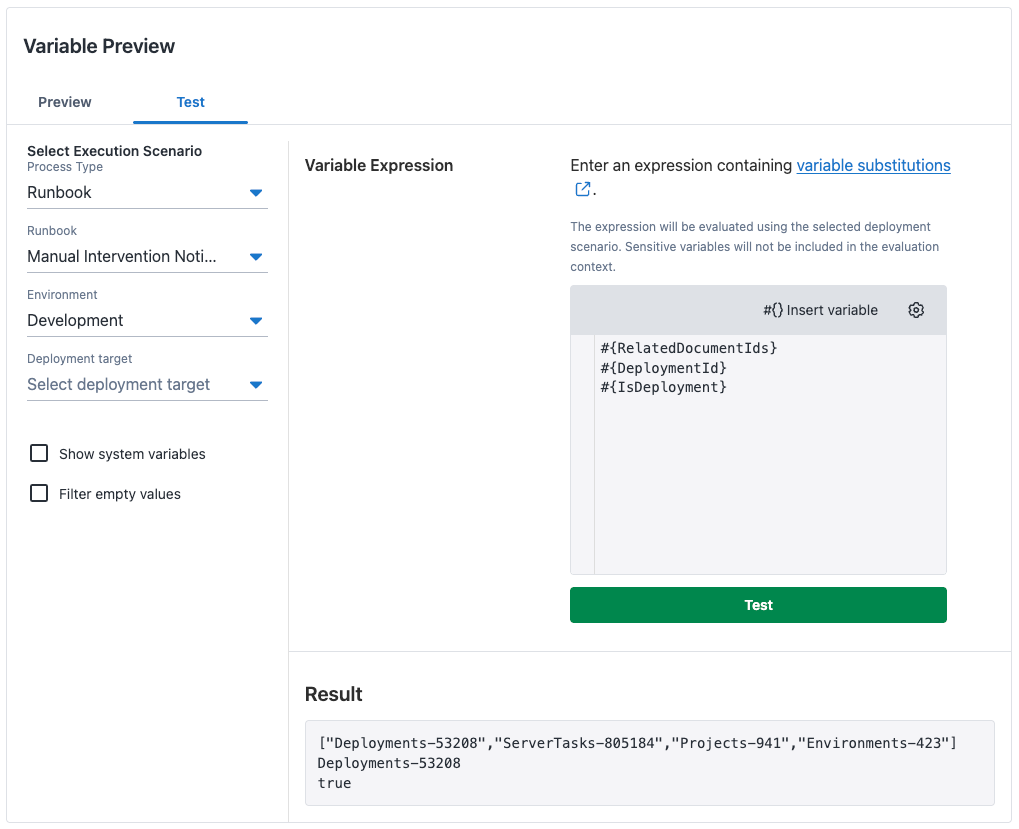
Once you have your sample payload, disable the trigger, create a new project variable called Octopus.WebhookTrigger.RequestBody, and set its value to the payload from the task log.
Once you have this in place, you can use the Variable Test page, under Variable Preview, to test the output of your various variable expressions.
The result
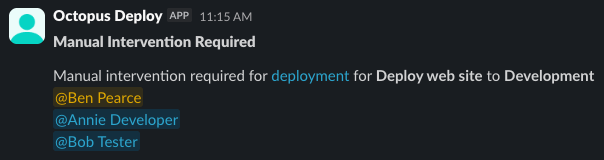
The updated message that we end up with after this is simple but includes the details and calls out the users directly in Slack. Including the deployment link, project name, environment, and responsible users makes it a huge difference to the original message.
Conclusion
Most of the features outlined in this post aren’t big on their own. A subscription raises an event, a webhook trigger starts a runbook, a few variables rummage through the payload, and a script step and the built-in Slack step do the rest. Together, they turn a manual intervention from something that sits quietly in a corner of the Octopus UI, waiting for someone to notice it, into a Slack message that taps the right people on the shoulder.
The same pattern works well beyond manual interventions. Any event a subscription can raise can now start a runbook, so the next time you find yourself wishing Octopus would just do something when an event happens, have a poke around the features you already have before reaching for a new tool. There may be a solution hiding in plain sight, like a pending manual intervention.
If you need some inspiration, here are a few events that would suit the same pattern:
- Guided failure: This is the manual intervention’s slightly more stressed-out cousin. It uses the same interruption payload, so the runbook in this post needs little more than a more urgent message.
- Deployment failed: Rather than waking up the whole channel, look up the commits in the release and politely tap the people who made the changes.
- Certificate expiring: Renew the certificate, upload it to Octopus, and redeploy anything that uses it, long before anyone notices the padlock has gone missing.
- Production deployment succeeded: Post the release notes, update the status page, and move the linked tickets to done, so the fun part of shipping doesn’t come with a pile of admin.
- Approvals integration with an ITSM system: Use our upcoming approvals feature to raise Change Requests with an ITSM system that Octopus doesn’t current support out of the box, such as BMC Helix or ZenDesk. Look out for a future blog post on this topic.
Happy deployments!
Tags: