
In the previous post, you created a functional Kubernetes deployment project. In this post, you’ll create Ephemeral Environments to simulate the deployment of feature branches.
Octopus Easy Mode - Manual intervention
Prerequisites
- An Octopus Cloud account. If you don’t have one, you can sign up for a free trial.
- The Octopus AI Assistant Chrome extension. You can install it from the Chrome Web Store.
The Octopus AI Assistant will work with an on-premises Octopus instance, but it requires more configuration. The cloud-hosted version of Octopus doesn’t need extra configuration. This means the cloud-hosted version is the easiest way to get started.
Creating the project
Ephemeral environments support the creation and destruction of short-lived environments and their associated resources. These environments are often used to deploy feature-branch builds, allowing developers to interact with their work before it is merged into a mainline branch.
Paste the following prompt into the Octopus AI Assistant and run it:
Create a Kubernetes project called "K8s Web App with Ephemeral Environments", and then:
* Use client side apply in the Kubernetes step (the mock Kubernetes cluster only supports client side apply).
* Disable verification checks in the Kubernetes steps (the mock Kubernetes cluster doesn't support verification checks).
* Enable retries on the K8s deployment step.
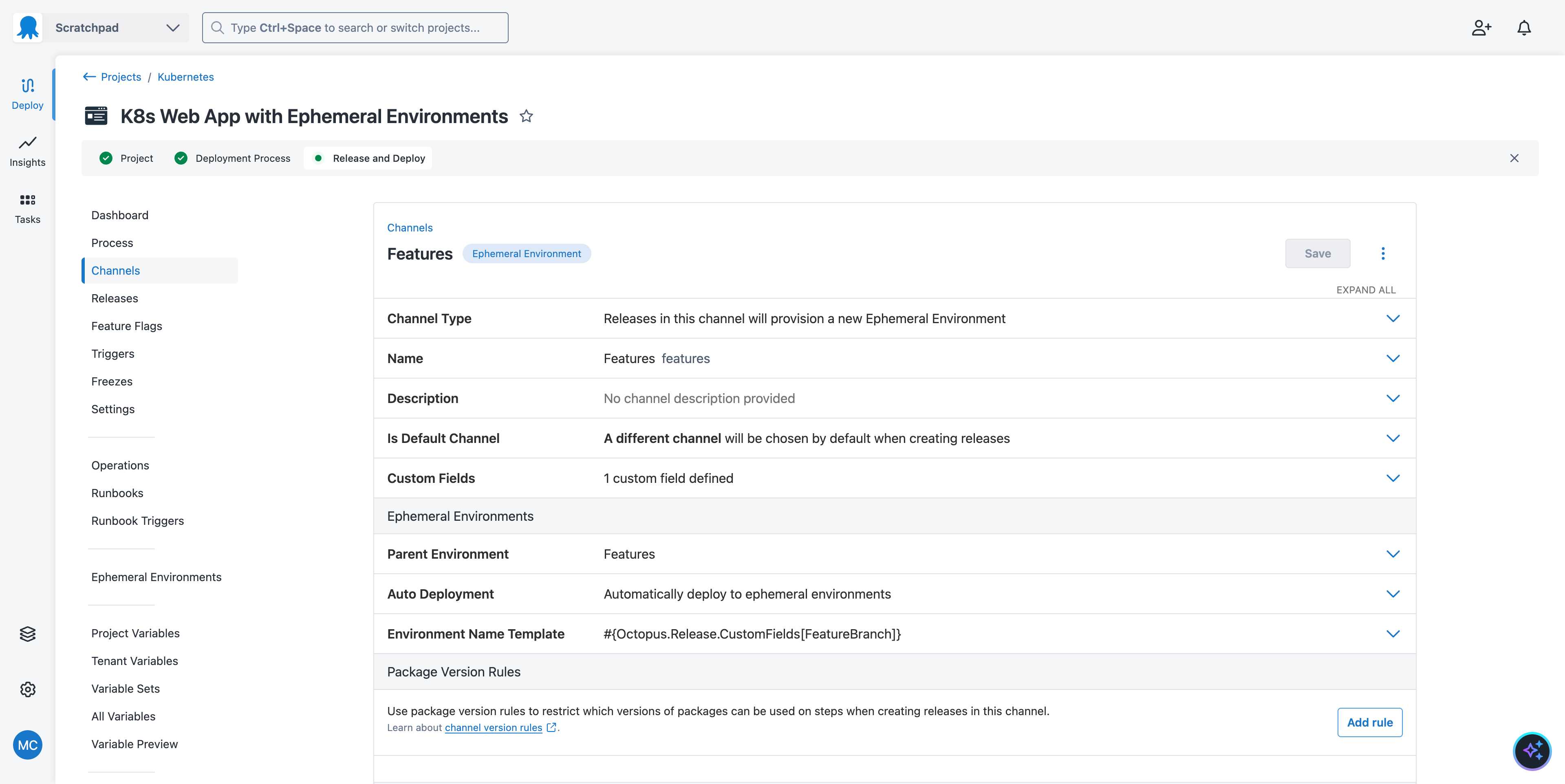
* Add support for ephemeral environments, with the Parent Environment and Ephemeral Environment channel both called "Features"

---

Create a token account called "Mock Token".

---

Create a feed called "Docker Hub" pointing to "https://index.docker.io" using anonymous authentication.

---

Create a Kubernetes target with the tag "Kubernetes", the URL https://mockk8s.octopusdemos.com, attach it to the "Development", "Test", "Production" environments and the "Features" parent environment, using the health check container image "octopusdeploy/worker-tools:6.5.0-ubuntu.22.04" from the "Docker Hub" feed, using the token account, and the "Hosted Ubuntu" worker pool.
The document separator (---) is used to split the prompt into multiple sections. Each section is applied sequentially, which allows you to create different types of resources in a single prompt.
As we did in the last post, the AI Assistant creates a functional Kubernetes project pointing to a mock Kubernetes server.
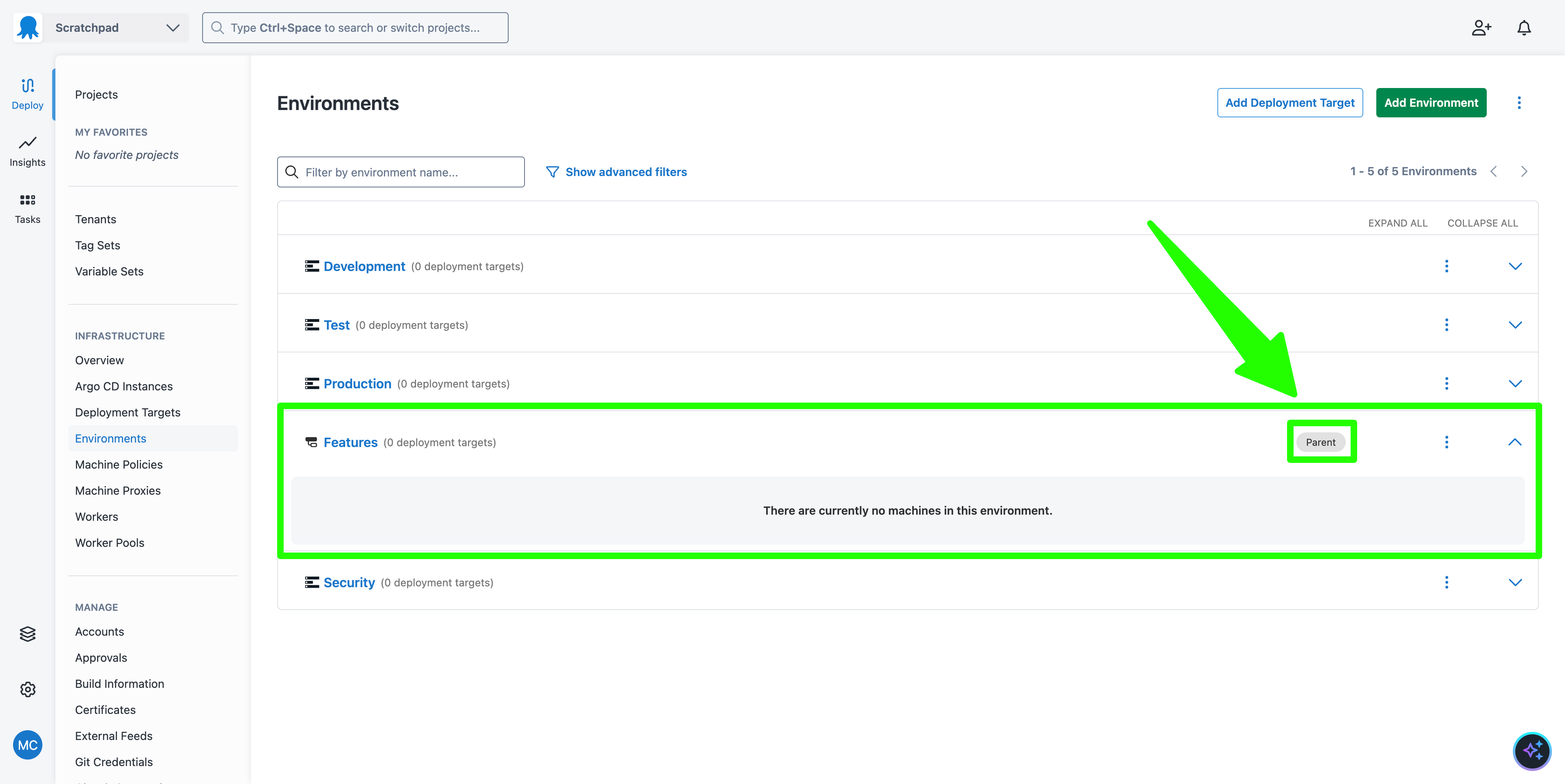
We then added support for ephemeral environments, which requires:
- A parent environment called
Features - A channel that deploys to ephemeral environments, also called
Features
Create a new deployment of the project, select the Features channel, and define the FeatureBranch custom field to the name of a feature branch like features/font-change:
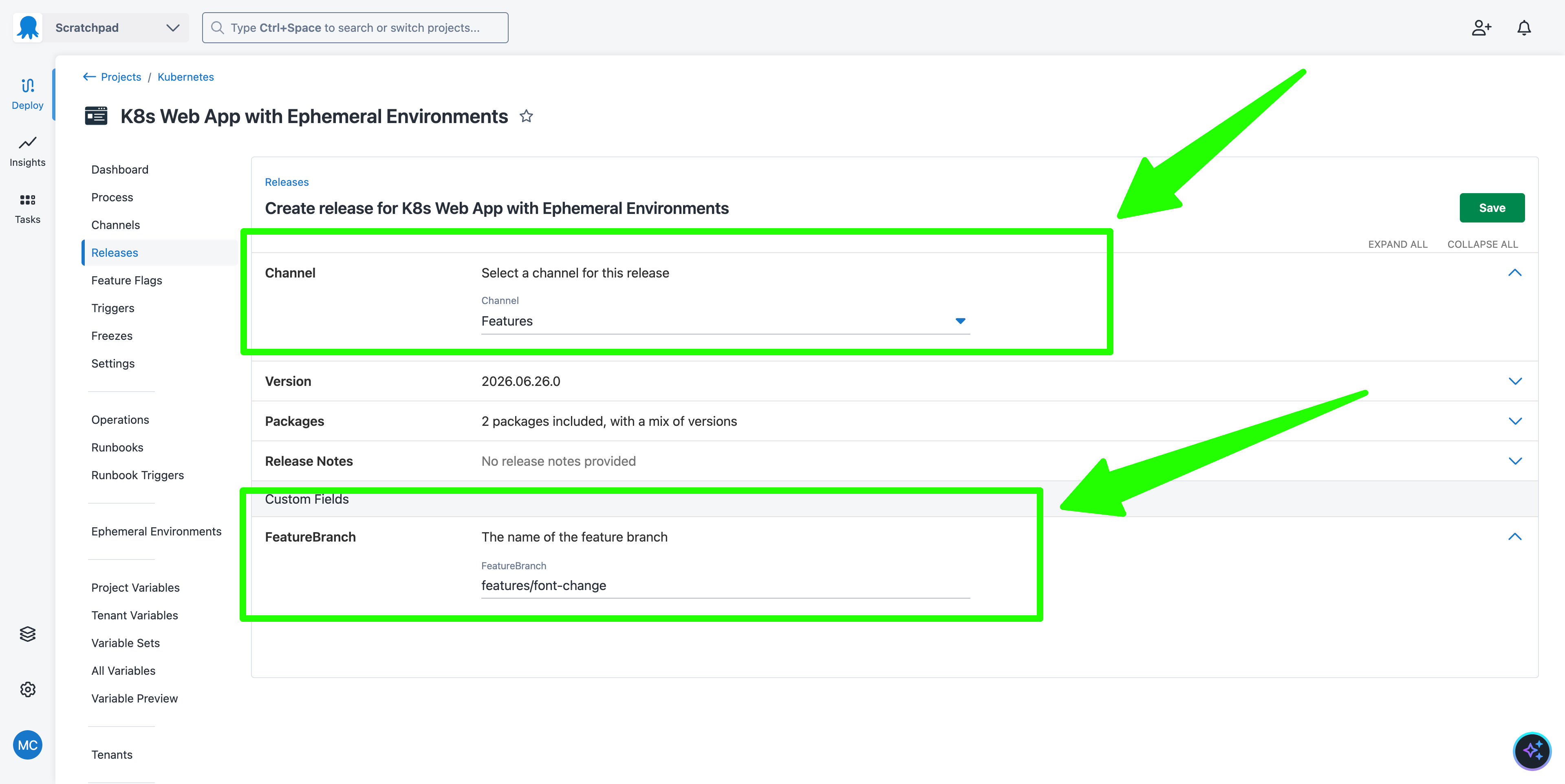
The value assigned to the custom field is used as the name for the new environment. Any invalid characters, like the backslash, are automatically sanitized to provide a valid environment name.
The deployment is visible in the Ephemeral Environments section:
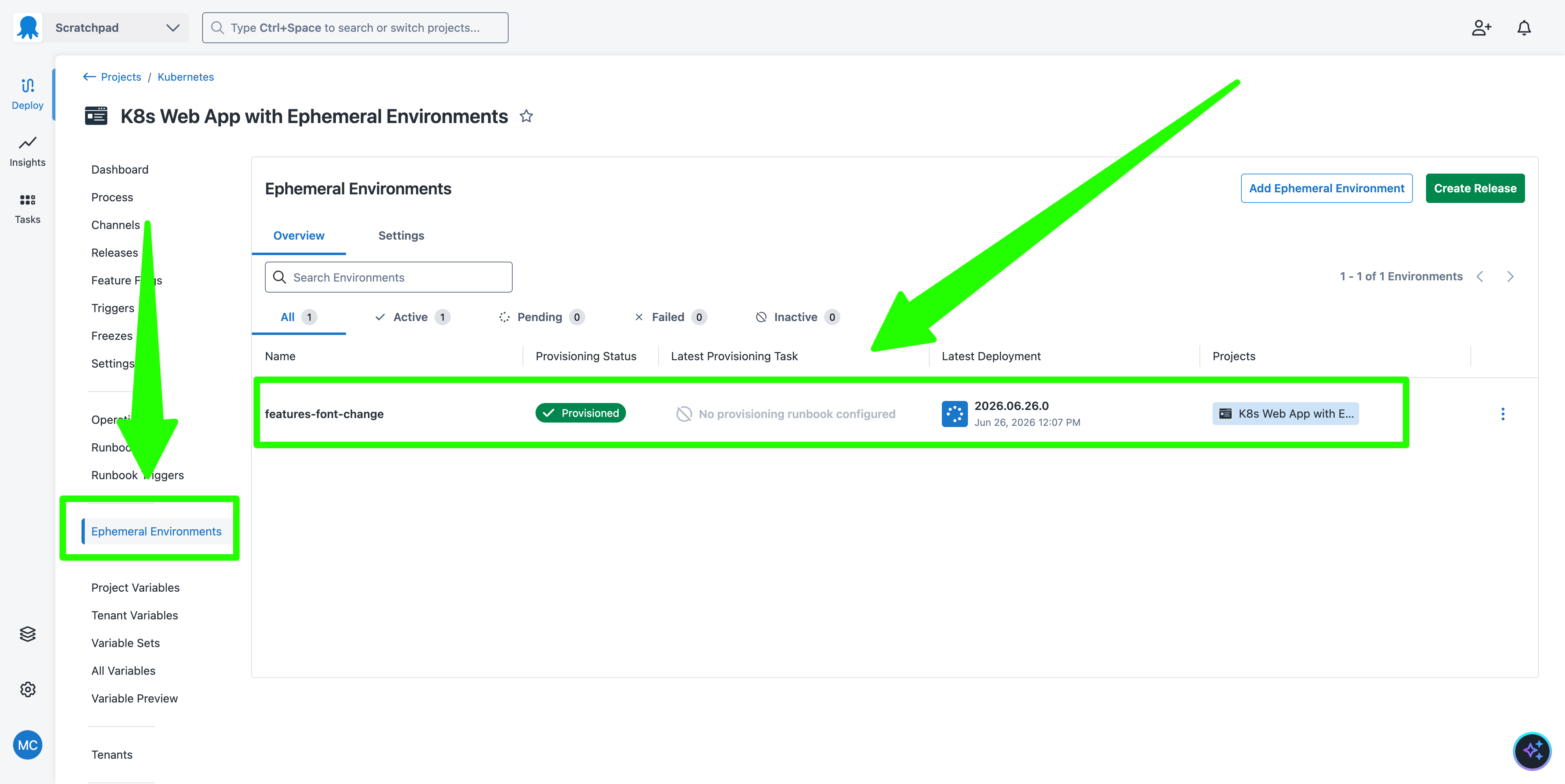
Because the Kubernetes step is configured to deploy resources to the namespace #{Octopus.Environment.Name | ToLower}, the ephemeral deployment creates resources in a namespace based on the ephemeral environment name, keeping it separate from the traditional deployments to the Development, Test, and Production environments.
You’ll also notice that the Kubernetes target was selected for the deployment because it was attached to the parent Features environment. This demonstrates how durable Octopus resources are linked to ephemeral environment deployments.
Runbooks can be used for those scenarios where you need to provision and deprovision the environment.
Run the following prompt to add two runbooks to the project:
Create a runbook called "Provision Environment" in the project "K8s Web App with Ephemeral Environments".
Allow the runbook to be run from the "Features" environment.
Add a "Run a kubectl script" step run against the target tag "Kubernetes" and echo the text "Provisioning the environment" from a bash script.
Run the step from the "Hosted Ubuntu" worker pool.

---

Create a runbook called "Deprovision Environment" in the project "K8s Web App with Ephemeral Environments".
Allow the runbook to be run from the "Features" environment.
Add a "Run a kubectl script" step run against the target tag "Kubernetes" and echo the text "Deprovisioning the environment" from a bash script.
Run the step from the "Hosted Ubuntu" worker pool.
In the Ephemeral Environments project section, open the Settings tab, and select the new runbooks from the Provisioning runbook and Deprovisioning runbook fields:
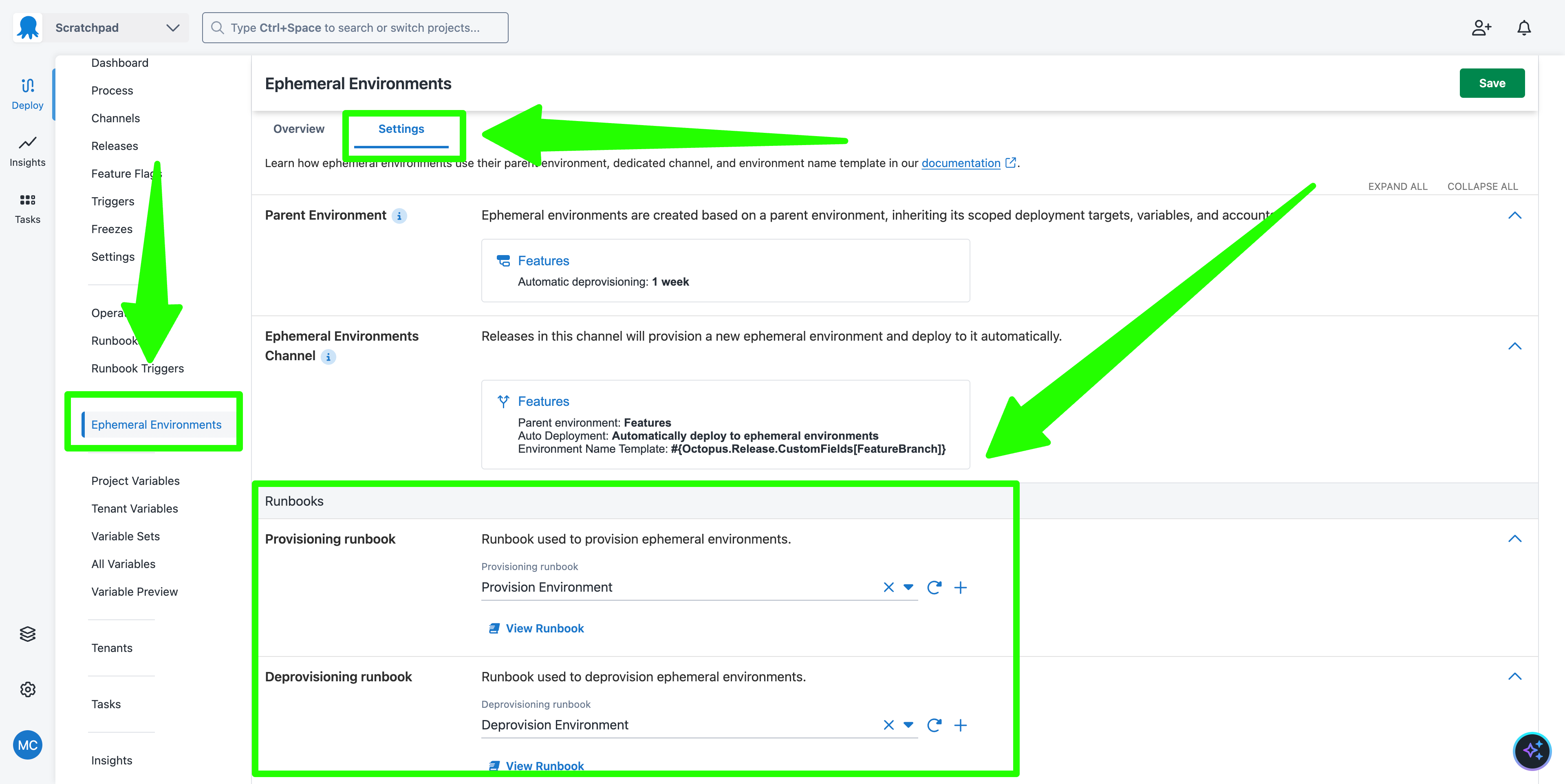
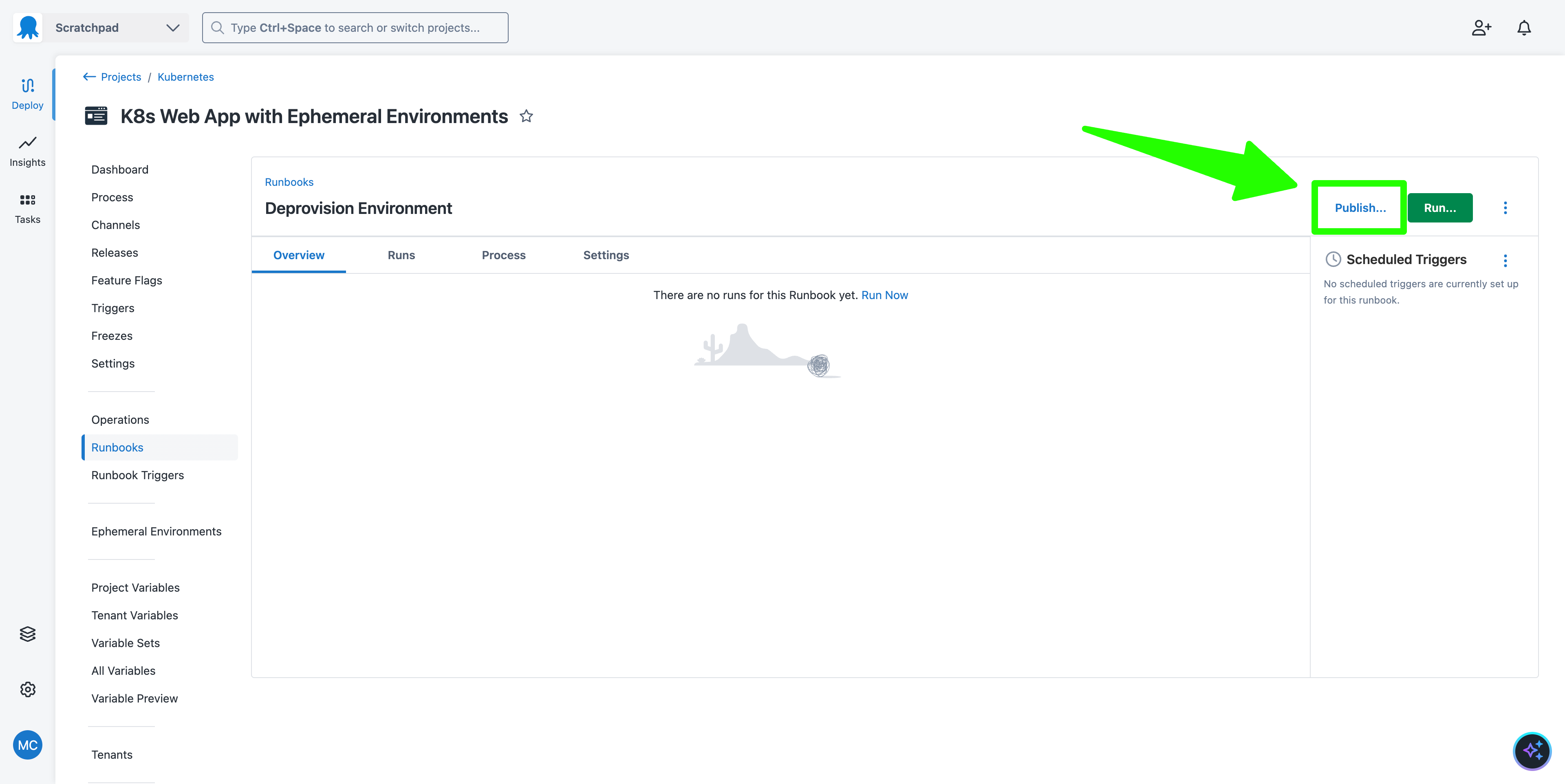
Both runbooks must have a published snapshot. Open each runbook, click the Publish button, and click the Publish button again:
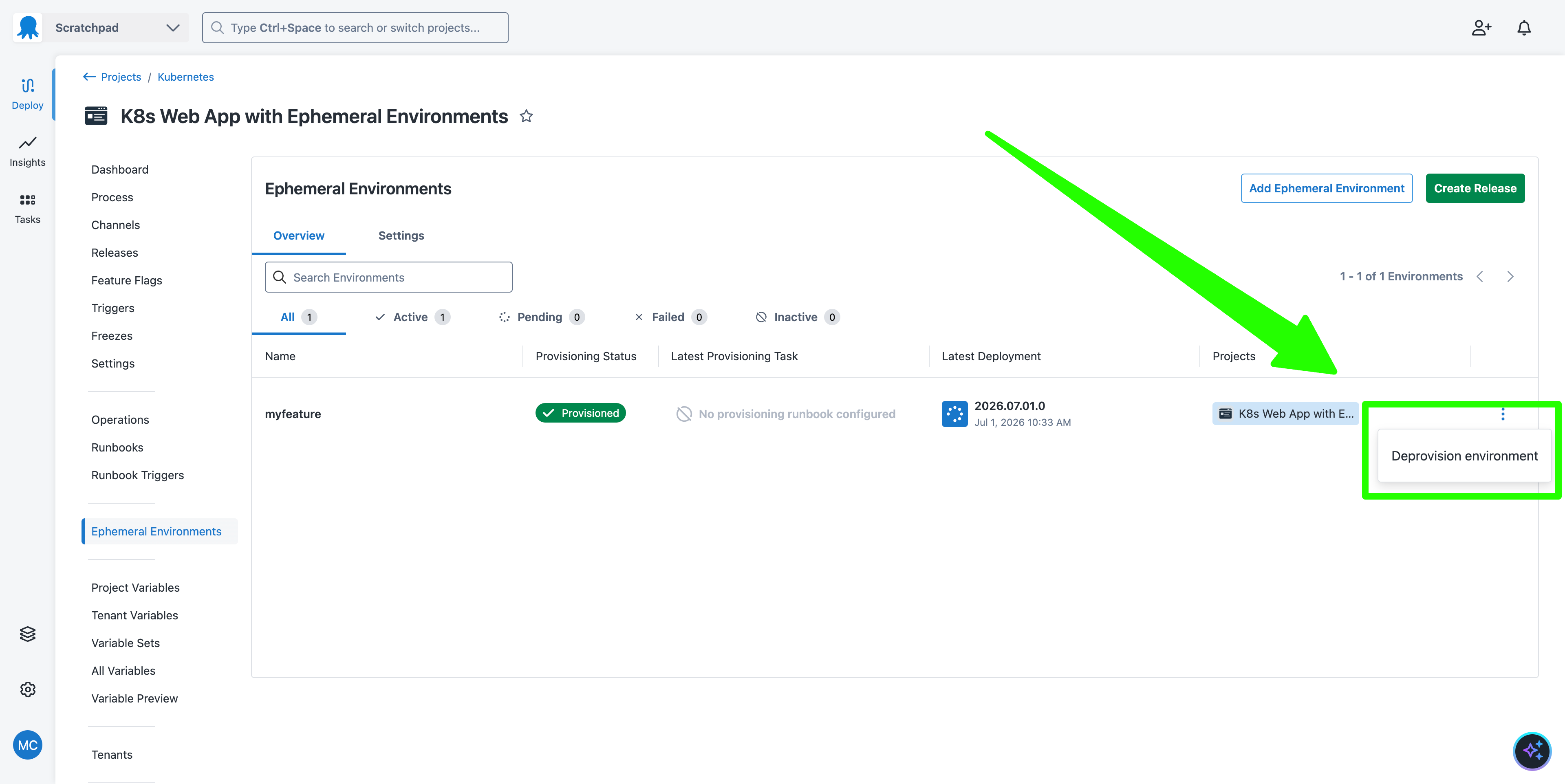
Now, when you deploy to an ephemeral environment, the Provision Environment runbook is executed. After one week, the Deprovision Environment runbook is automatically executed, or you can manually deprovision an environment in the Ephemeral Environments section under the Overview tab:
What just happened?
You created a sample Kubernetes project with:
- A channel called
Featuresto deploy to an ephemeral environment based on a custom field value - A Parent Environment called
Features - A Kubernetes target linked to the
Featuresparent environment - Two runbooks: one to provision the ephemeral environment, and another to deprovision it
What’s next?
The next step is an example of deploying an Argo CD Application with a GitOps based workflow.