
In the previous post, you created ephemeral environments to simulate the deployment of feature branches. In this post, you’ll create a project simulating updating an Argo CD Manifest file.
Prerequisites
- An Octopus Cloud account. If you don’t have one, you can sign up for a free trial.
- The Octopus AI Assistant Chrome extension. You can install it from the Chrome Web Store.
The Octopus AI Assistant will work with an on-premises Octopus instance, but it requires more configuration. The cloud-hosted version of Octopus doesn’t need extra configuration. This means the cloud-hosted version is the easiest way to get started.
Creating the project
Teams that have adopted GitOps workflows with Argo CD can use Octopus to commit changes to a Git repository to promote changes through environments. The Update Argo CD Application Manifests step in Octopus commits changes to the files referenced by an Argo CD Application.
Paste the following prompt into the Octopus AI Assistant and run it to create a sample project using the Update Argo CD Application Manifest step:
Create an Argo CD Manifest Update project called "16. Argo CD Manifest Update" with the slug "argo-cd-octopub-manifest" using a Git Connection called "Mock" with a random username and the allowed repository "https://mockgit.octopusdemos.com/*"This prompt creates an example project called 16. Argo CD Manifest Update with the project slug argo-cd-octopub-manifest. The slug is important because it links an Argo CD Application to an Octopus project.
We then create a Git Credentials defining the credentials required to interact with a Git repository. In this example, we are using a mocked Git repository hosted at https://mockgit.octopusdemos.com. This Git repository lets us use Argo CD steps in Octopus without providing credentials or creating a repository on a platform like GitHub.
Behind the scenes, we also create a mock Argo CD Instance called Mocked Argo CD Instance:
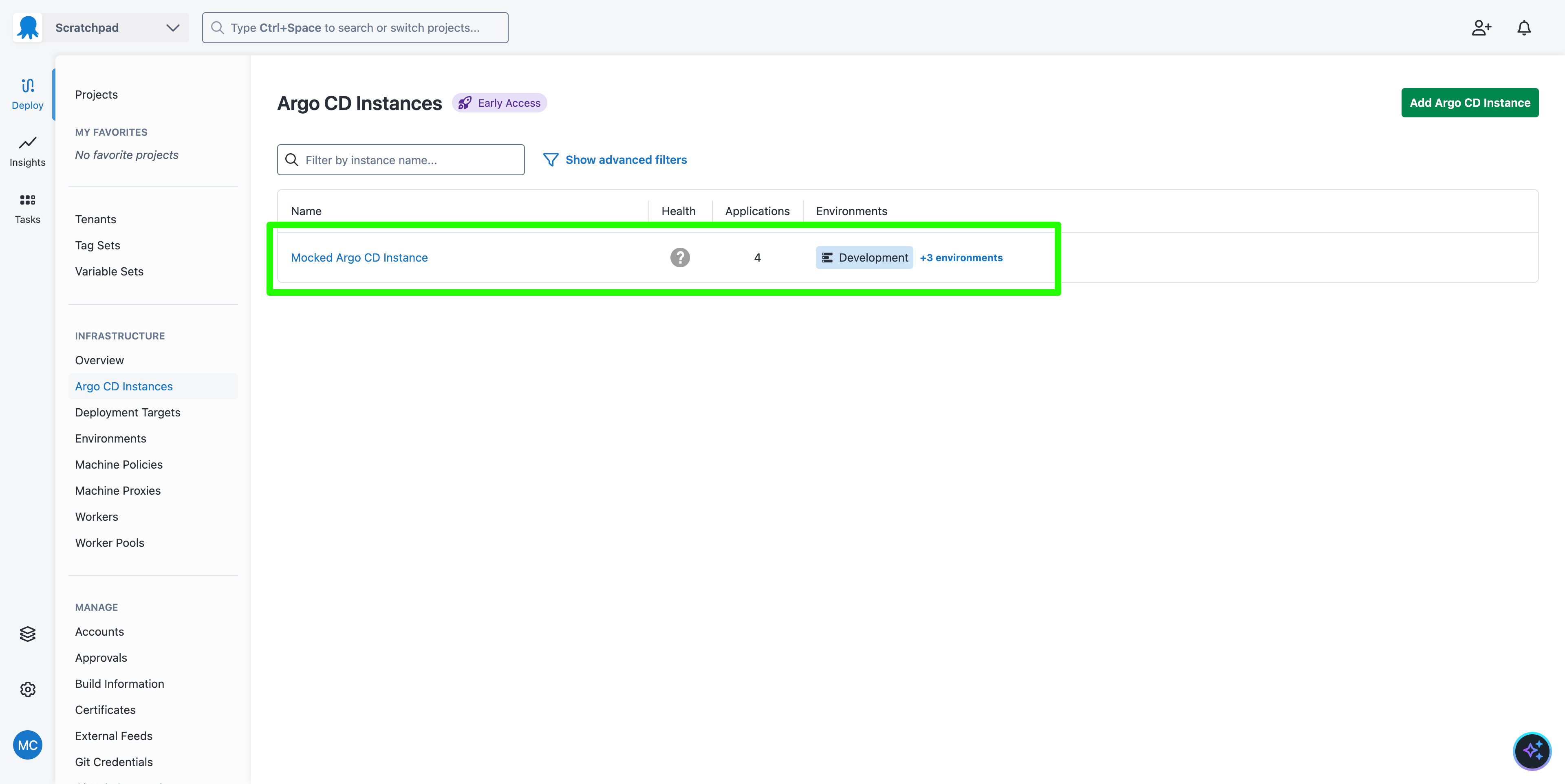
Typically, to create an Argo CD Instance, you must install the Octopus Argo CD Gateway in the Kubernetes cluster where Argo CD is running. This gateway then registers Argo CD Applications with Octopus and monitors the cluster for any changes.
For this demonstration, however, we register a mock Argo CD Instance and several mock Argo CD Applications. The mock Applications contain the information required for Octopus to modify the correct files in the mock Git repository during a deployment, without requiring an Argo CD cluster.
Some features of the mocked Argo CD Instance will always report errors or warnings. For example, the Gateway Connectivity tab will always report an error, because there was never a real Argo CD cluster to connect to. The manifests deployed by Octopus will always report Git drift because the Argo CD Applications are never updated to reflect the changes. And any attempt to sync Applications in Argo CD as part of the Update Argo CD Application Manifests step will fail.
These errors can be ignored or the features disabled without preventing Octopus from completing a deployment.
The sample step configuration
The Repository URL setting in the Update Argo CD Application Manifests step defines the Git repository that Octopus will commit to as part of the deployment. The value https://mockgit.octopusdemos.com/repo/argocd is matched to the Mock Git Credentials, providing the step with the credentials required to commit to the repository.
The Path setting, set to octopub-manifest/template/octopub.yml, defines the template file that will be read, have any binding syntax replaced, and persisted to the path defined in the Argo CD Application linked to the project and environment (how these Applications are linked is described later).
To see the contents of these files, check out the mock Git repository:
git clone https://somerandomusername@mockgit.octopusdemos.com/repo/argocdThe mocked Git repository accepts literally any username. However, commits made by unrecognized usernames are ignored. The Mock Git Connection created by the AI Assistant has unique and recognized credentials that allow Octopus to persist commits. However, the repository contents are reset periodically, so all commits are eventually reverted.
The contents of the Git repository cloned with the credentials above do not include the commits made by Octopus, as the mock Git server treats them as two separate repositories.
View the contents of the sample Argo CD Application:
cat argocd/octopub-manifest/octopub-development.ymlThis is the example Argo CD Application manifest.
Note the repoURL field matches the Repository URL setting. The path field, set to octopub-manifest/application/development, specifies the location in the Git repository where Argo CD finds the manifest files to apply to the cluster.
Also note the annotations argo.octopus.com/project.<application name> and argo.octopus.com/environment.<application name>. These annotations link an Argo CD Application to an Octopus project and environment. The step references only Argo CD Applications that match the project’s and environment’s slugs. The prompt to create the project specified the slug argo-cd-octopub-manifest because this value is hard-coded in the example YAML:
apiVersion: argoproj.io/v1alpha1
kind: Application
metadata:
  name: octopub-manifest-parent-development
  namespace: argocd
  annotations:
    argo.octopus.com/project.octopub-manifest-parent-development: "argo-cd-octopub-manifest"
    argo.octopus.com/environment.octopub-manifest-parent-development: "development"
spec:
  project: default
  sources:
    - name: octopub-manifest-parent-development
      repoURL: https://mockgit.octopus.com/repo/argocd
      # This is the destination folder where the template manifest files are placed
      path: "octopub-manifest/application/development"
      targetRevision: main

  destination:
    server: https://kubernetes.default.svc
    namespace: octopub-manifest-parent-development
  syncPolicy:
    automated:
      prune: true
      selfHeal: true
    syncOptions:
      - CreateNamespace=true
Display the octopub.yml file in the directory specified by the path field:
cat argocd/octopub-manifest/application/development/octopub.ymlThis is the file applied by Argo CD:
apiVersion: argoproj.io/v1alpha1
kind: Application
metadata:
  name: octopub-manifest-development
  namespace: argocd
spec:
  project: default
  sources:
    - name: octopub-development
      repoURL: https://mockgit.octopus.com/repo/argocd
      path: "octopub/octopub-frontend"
      targetRevision: main
      helm:
        values: |
          image:
            repository: ghcrfacade-a6awccayfpcpg4cg.eastus-01.azurewebsites.net/octopussolutionsengineering/octopub-frontend
            tag: latest
          mockBackend: true
          overrideTheme: blue

  destination:
    server: https://kubernetes.default.svc
    namespace: octopub-manifest-development
  syncPolicy:
    automated:
      prune: true
      selfHeal: true
    syncOptions:
      - CreateNamespace=true
Now display the template file defined by Path field on the Octopus step:
cat argocd/octopub-manifest/template/octopub.ymlNote that it includes the binding syntax #{Octopus.Environment.Name | ToLower} and #{Project.Frontend.Theme}:
apiVersion: argoproj.io/v1alpha1
kind: Application
metadata:
  name: octopub-manifest-#{Octopus.Environment.Name | ToLower}
  namespace: argocd
spec:
  project: default
  sources:
    - name: octopub-manifest-#{Octopus.Environment.Name | ToLower}
      repoURL: https://mockgit.octopus.com/repo/argocd
      path: "octopub/octopub-frontend"
      targetRevision: main
      helm:
        # Octopus will replace the value for overrideTheme during deployment
        values: |
          image:
            repository: ghcrfacade-a6awccayfpcpg4cg.eastus-01.azurewebsites.net/octopussolutionsengineering/octopub-frontend
            tag: latest
          mockBackend: true
          overrideTheme: #{Project.Frontend.Theme}

  destination:
    server: https://kubernetes.default.svc
    namespace: octopub-manifest-#{Octopus.Environment.Name | ToLower}
  syncPolicy:
    automated:
      prune: true
      selfHeal: true
    syncOptions:
      - CreateNamespace=true
The Project.Frontend.Theme variable is defined on the project. The Octopus.Environment.Name variable is provided as a system variable.
The pipe in the binding syntax #{Octopus.Environment.Name | ToLower} implements the ToLower filter.
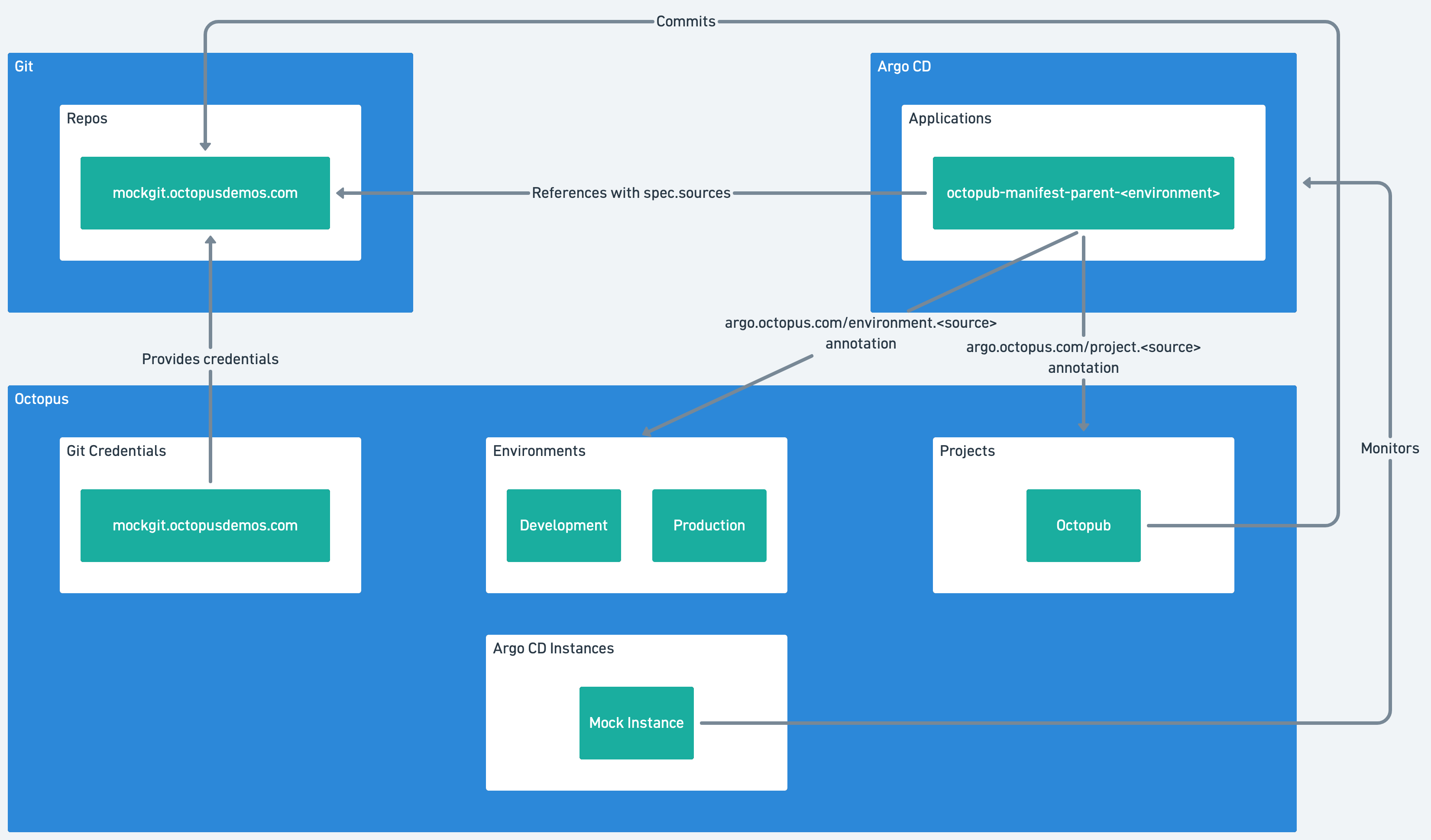
The purpose of the Update Argo CD Application Manifests step is to:
- Read the template file (
argocd/octopub-manifest/template/octopub.yml) - Replace any binding syntax with the value of the associated Octopus variable (
Project.Frontend.ThemeandOctopus.Environment.Name) - Commit the new file to the file of the same name (
argocd/octopub-manifest/application/development/octopub.yml) referenced by the Argo CD Application linked via theargo.octopus.com/project.<application name>andargo.octopus.com/environment.<application name>annotations
This allows Octopus to inject environment-specific configuration into the files referenced by an Argo CD Application as a deployment progresses through environments:
The Argo CD Application linked to a project and environment is not modified by Octopus. Only the files referenced by the Application are modified. Typically, these files will be plain Kubernetes manifests.
However, using the Argo CD App of Apps pattern, it is possible to modify a child Application referenced by a parent Application. This is the pattern used in this post.
Performing a deployment
Create a new release for the project and deploy it to the Development environment. Note that Octopus commits a change reflecting the new value of the Project.Frontend.Theme and Octopus.Environment.Name variables replaced in the template YAML file:
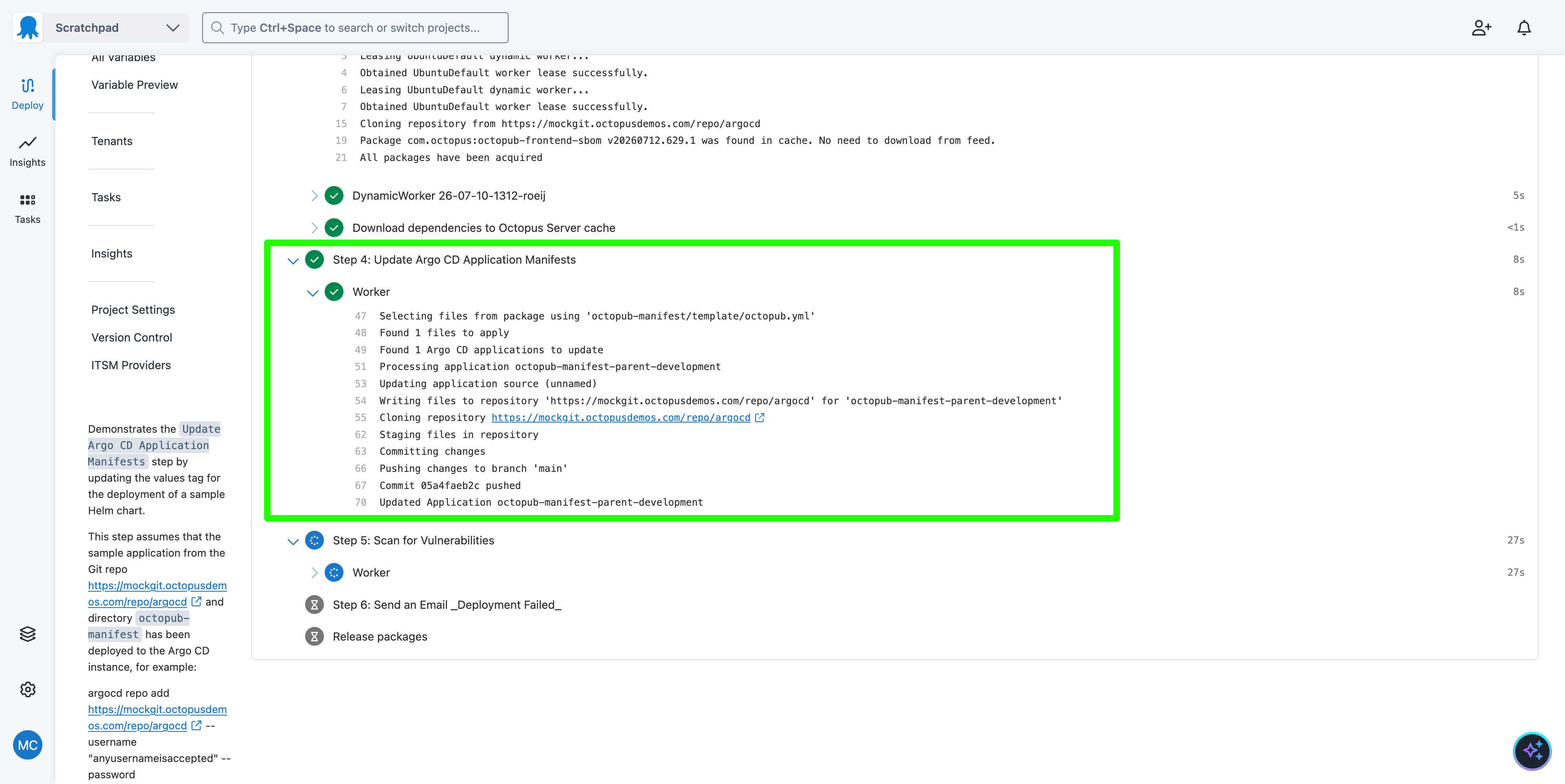
As you promote the deployment through environments, each new environment will inject a unique value for the Project.Frontend.Theme and Octopus.Environment.Name variables into the child Argo CD Application manifest.
In a production scenario, Argo CD will detect the changes and apply them to the Kubernetes cluster. Of course, in this example, there was no Kubernetes cluster, since everything is mocked, but you can still observe commits being made to the Git repository.
If you get a message saying These applications couldn't be updated because their details are out of date, delete the Mocked Argo CD Instance and rerun the prompt to create the project. This recreates the Mocked Argo CD Instance and marks all the mock Applications as up to date.
What just happened?
You created a sample project with:
- A mock
Argo CD Instanceand a number of mock Applications - A mock
Git Credentialspointing to a mock Git server - An
Update Argo CD Application Manifestsstep that commits a processed template file back to the mock Git repo
What’s next?
The next step is an example of categorizing and summarizing Octopus deployments using AI.