Project templates are in Public Preview. The feature is still evolving and standard SLAs don’t apply. We don’t recommend it for production workloads yet. It’s available to Enterprise customers on Cloud and to self-hosted customers running Octopus 2026.2+. We’d love your feedback as we work towards General Availability.
A templated project is a project created from a project template. It inherits the template’s deployment process, channels, and variables, which you can’t modify. You customize the project by supplying values for the parameters defined in the template.
Create a project from a template
To use a project template, you create a new project based on it.
- Select Projects from the main navigation and click Add Project.
- If there are any available project templates, you’ll see them listed here. Select the template you want to use.
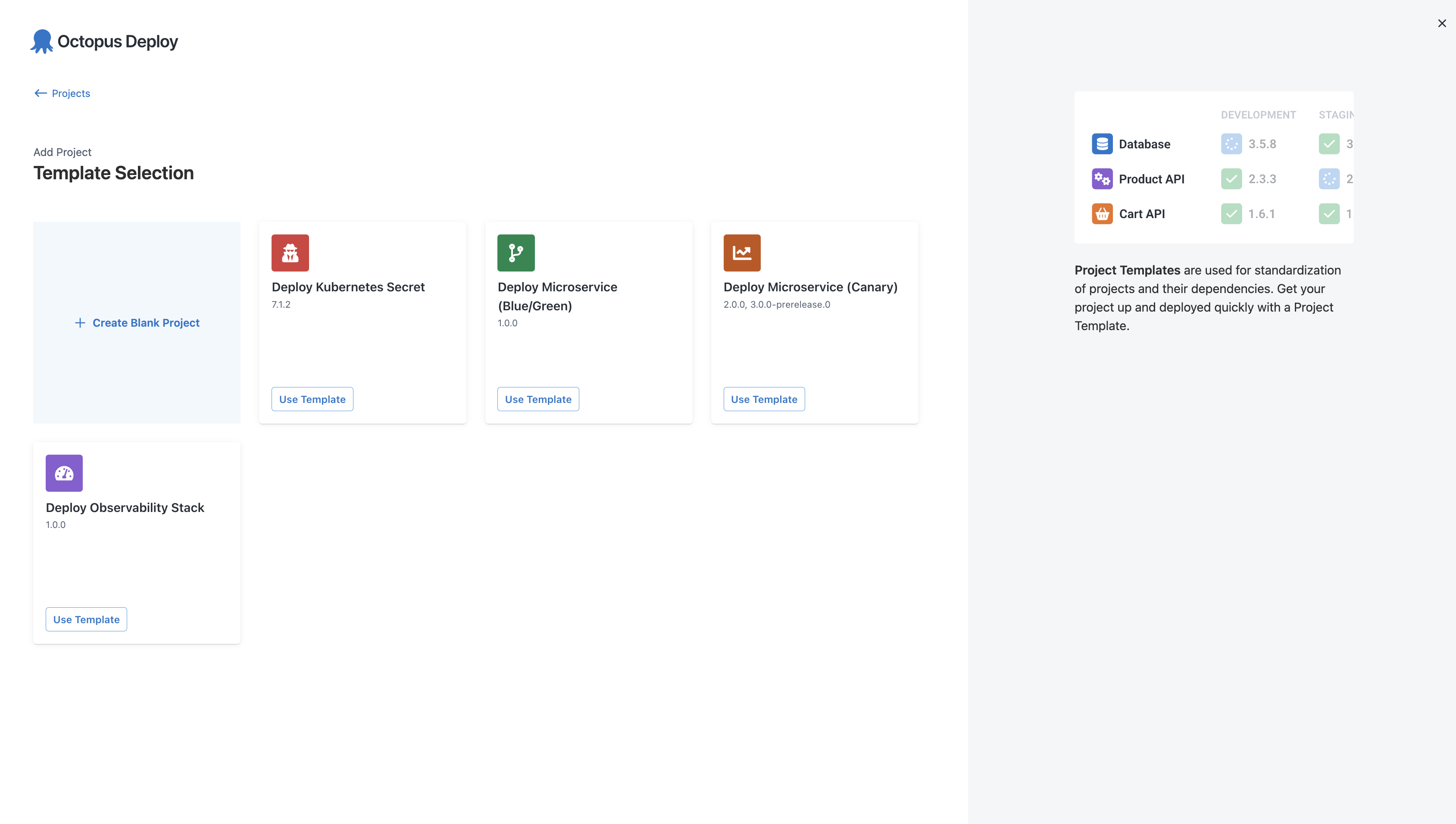
- Give the project a Name.
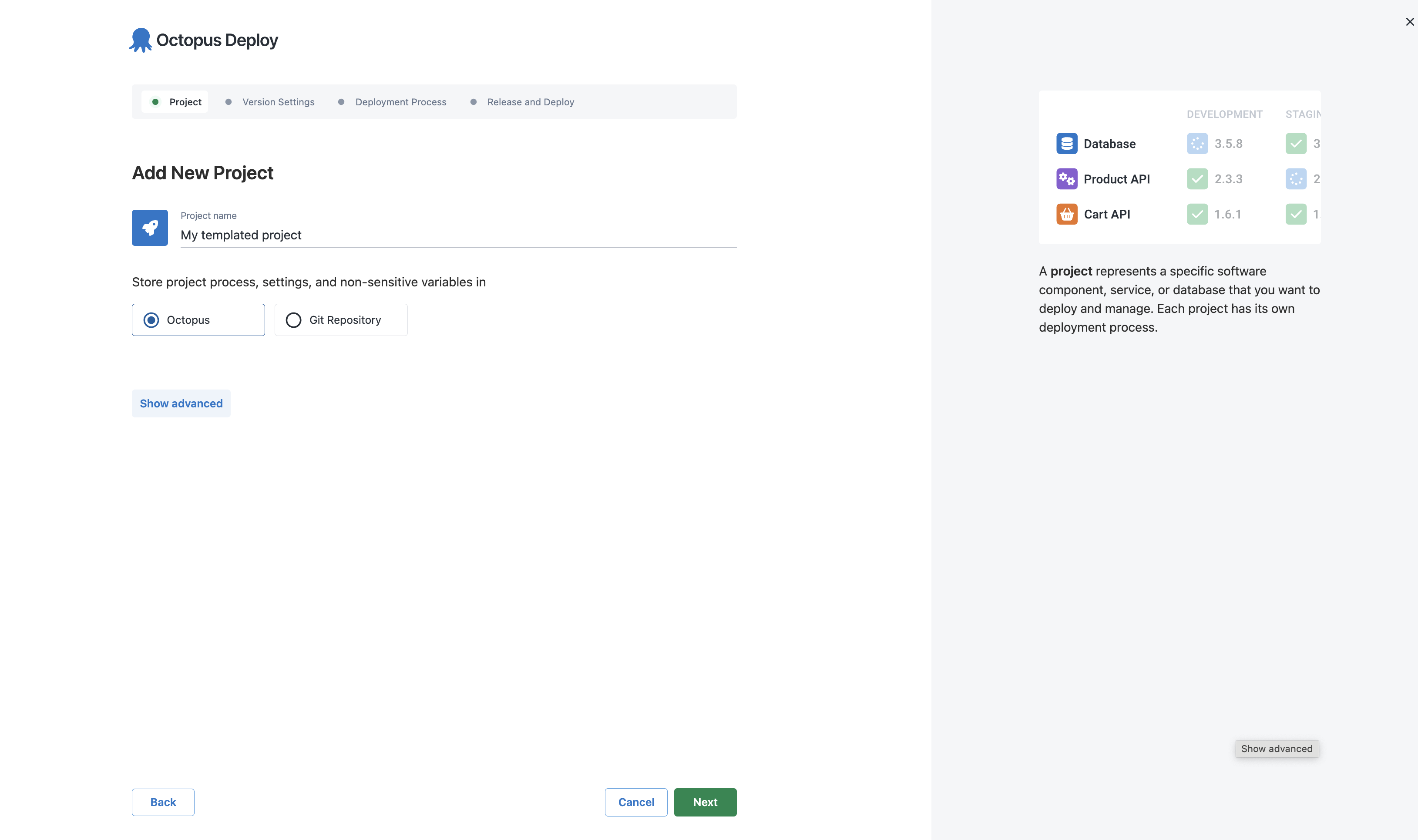
- Click Next to configure your versioning preferences. You can change these later in project settings.
If the template has pre-release versions, you’ll also be asked to choose a version type:
- Stable: Intended for production use
- Pre-release: Intended for testing purposes only, typically by the template owner. Not recommended for production use
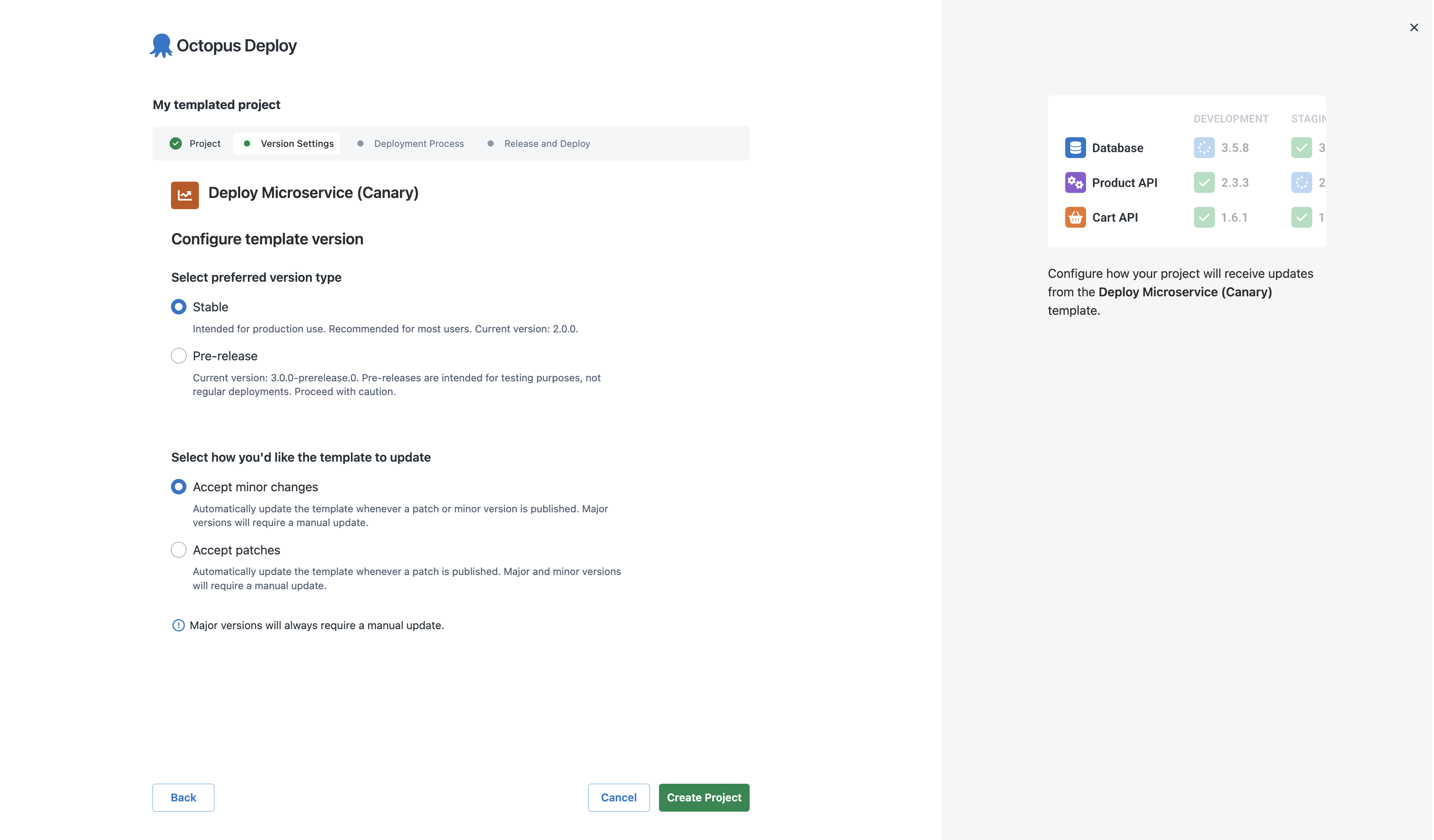
-
Select how you want the project to handle template updates:
- Accept minor changes: Automatically updates when a patch or minor version is published. Major versions require a manual update.
- Accept patches: Only automatically updates when a patch is published. Minor or major versions require a manual update.
Click Create Project. You’ll be taken to the Template values page.
Template values
Template values are the parameters the template owner has defined to let you customize the template for your project. They work like project variables: you can provide a value directly or use variable substitutions. Parameters with defaults are marked as optional.
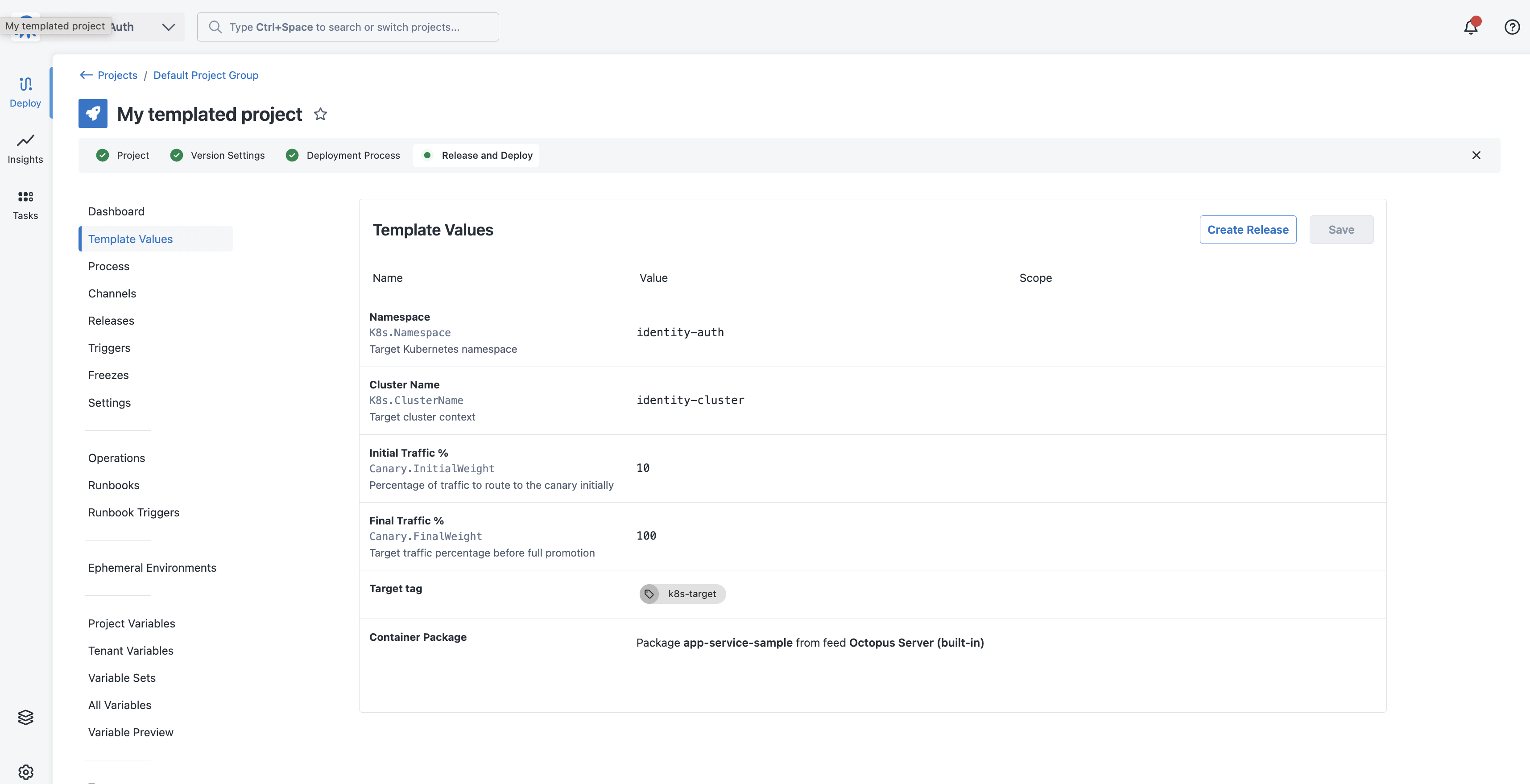
After you’ve provided the required values, you can create a release as usual.
You can’t modify the deployment process in a templated project. You can’t add, remove, reorder, or disable steps. If you need to change the process, contact the template owner.
Channels
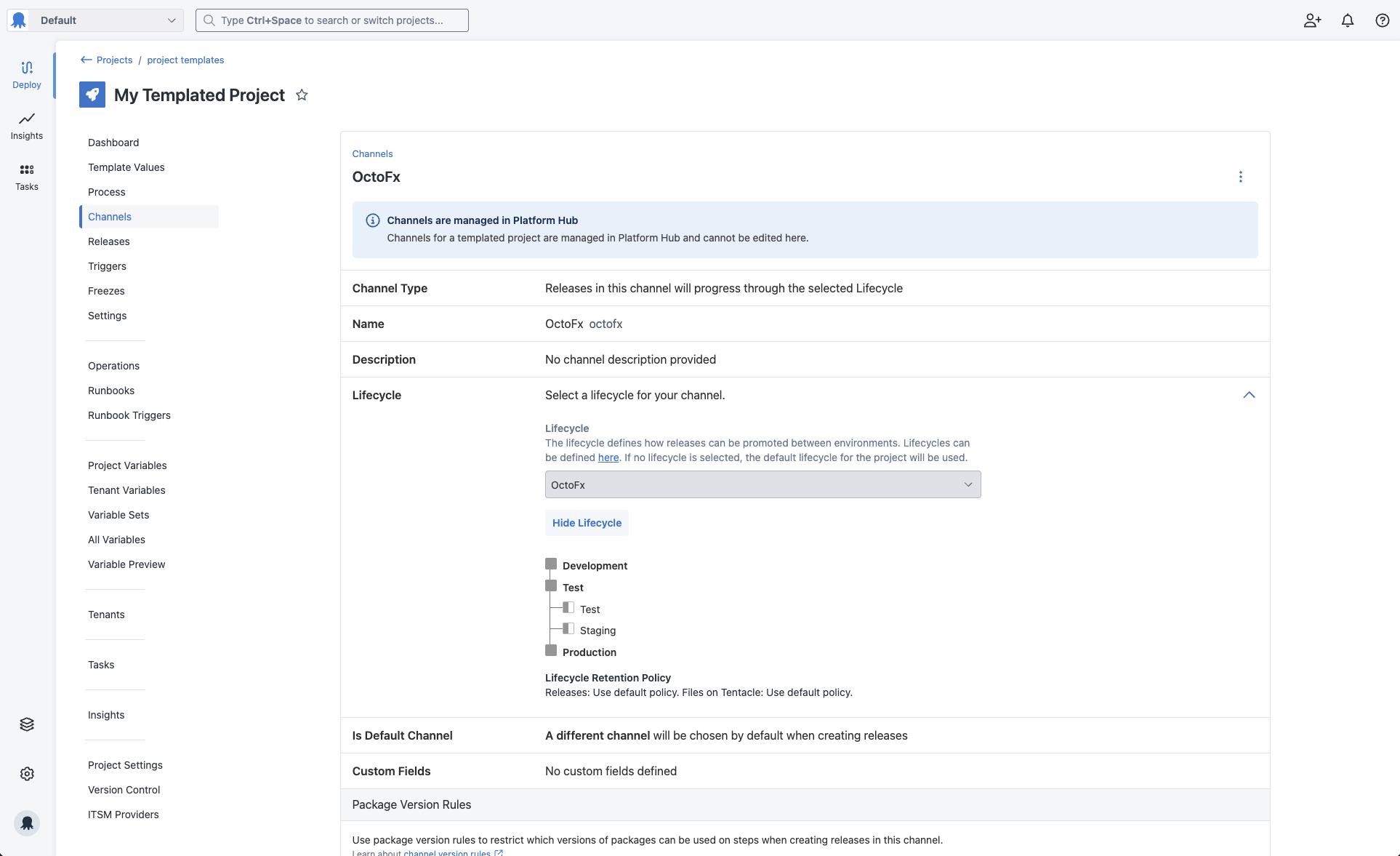
A templated project inherits its channels from the project template, along with the lifecycles each channel uses. You can view the channels like you would in any other project, but you can’t modify them.
The environments a channel can deploy to depend on the environment parameter values you set in your templated project. You can view the lifecycle configuration used by a channel after you’ve set all required environment parameter values.
Retention policies
A templated project uses the retention policies set on its template’s lifecycles. Octopus uses the environment parameter values you set in the project to determine which environments belong to each lifecycle phase.
On Octopus Cloud if the template’s policies exceed your license’s retention limits, Octopus limits them to match your license and shows a message on the Channels page.
For Config as Code projects, Octopus reads environment parameter values from the project’s default branch for every release, including releases created from other branches.
Template updates
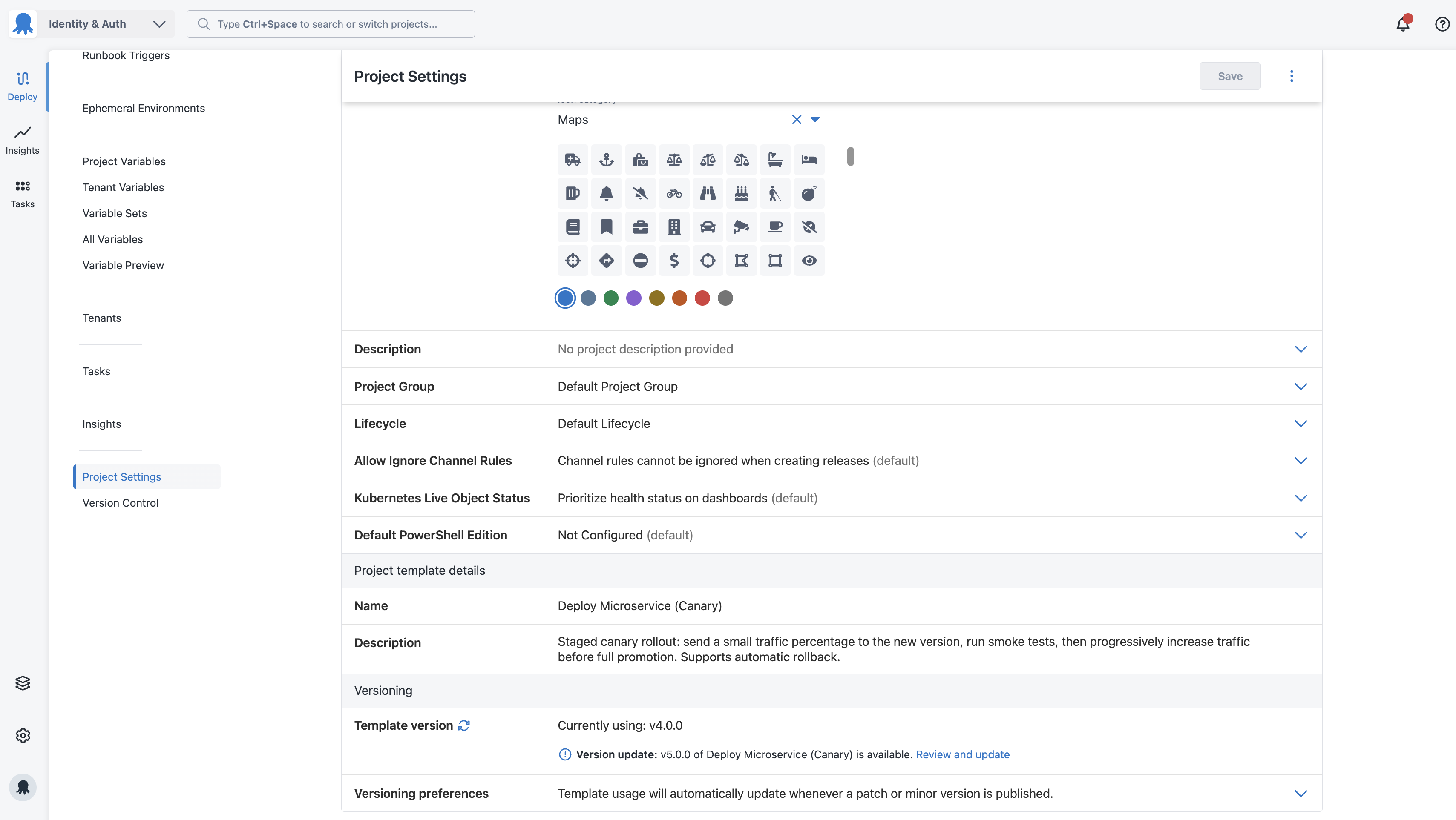
When a new version of the template is published, you’ll receive the update. How and when it’s applied depends on the versioning preferences you’ve set:
- Patch and minor updates: Octopus applies these automatically if you chose to accept them.
- Major updates: You must manually apply these manually, regardless of your preferences.
Limitations
Some features are not yet supported for templated projects. For a full list, see Troubleshooting.