
What you’ll learn in this post:
- The challenges of maintaining collections of MCP servers.
- Why simple tools can lead to higher token usage.
- Introducing the Octopus Easy Mode MCP server.
- Demonstrating how the Octopus Easy Mode MCP server can be used to expose runbooks as MCP tools.
All examples in this post are copy and paste prompts, so you will have a working MCP server executing runbooks in 30 minutes.
Introduction
Model Context Protocol (MCP) servers are the new AI layer specifically designed to support agentic workflows. The protocol has gained an enormous amount of support, and it is reasonable to expect that major software vendors will provide an MCP server. Exposing a combination of MCP servers to your AI harness allows you to complete complex tasks while leaving decisions about which service to call to the AI. Agentic workflows are very much founded on the idea that LLMs can ground themselves with trusted, external sources of truth, use tools to interact with the world, and consume feedback to make decisions about how to complete a task.
Challenges with MCP servers
However, maintaining collections of MCP servers is a non-trivial challenge. End users have to maintain a list of servers, which is challenging to standardize across an organization, and with the added complexity of embedding credentials in the mcp.json file. Like any desktop software, local MCP servers also need to be kept up to date, while remote MCP servers must be hosted and maintained by a dedicated team.
Exposing a collection of general-purpose tools to an LLM also increases token use. LLMs are quite capable these days of reasoning about how to complete a task, but this comes at the cost of lengthy chain-of-thought reasoning as the LLM works out how to combine otherwise disparate tools.
And there will always be gaps in MCP server coverage. A server may not be available, network security rules may prevent access, or the task to be automated may be too complex and bespoke for an LLM to reliably complete.
Octopus Easy Mode MCP server
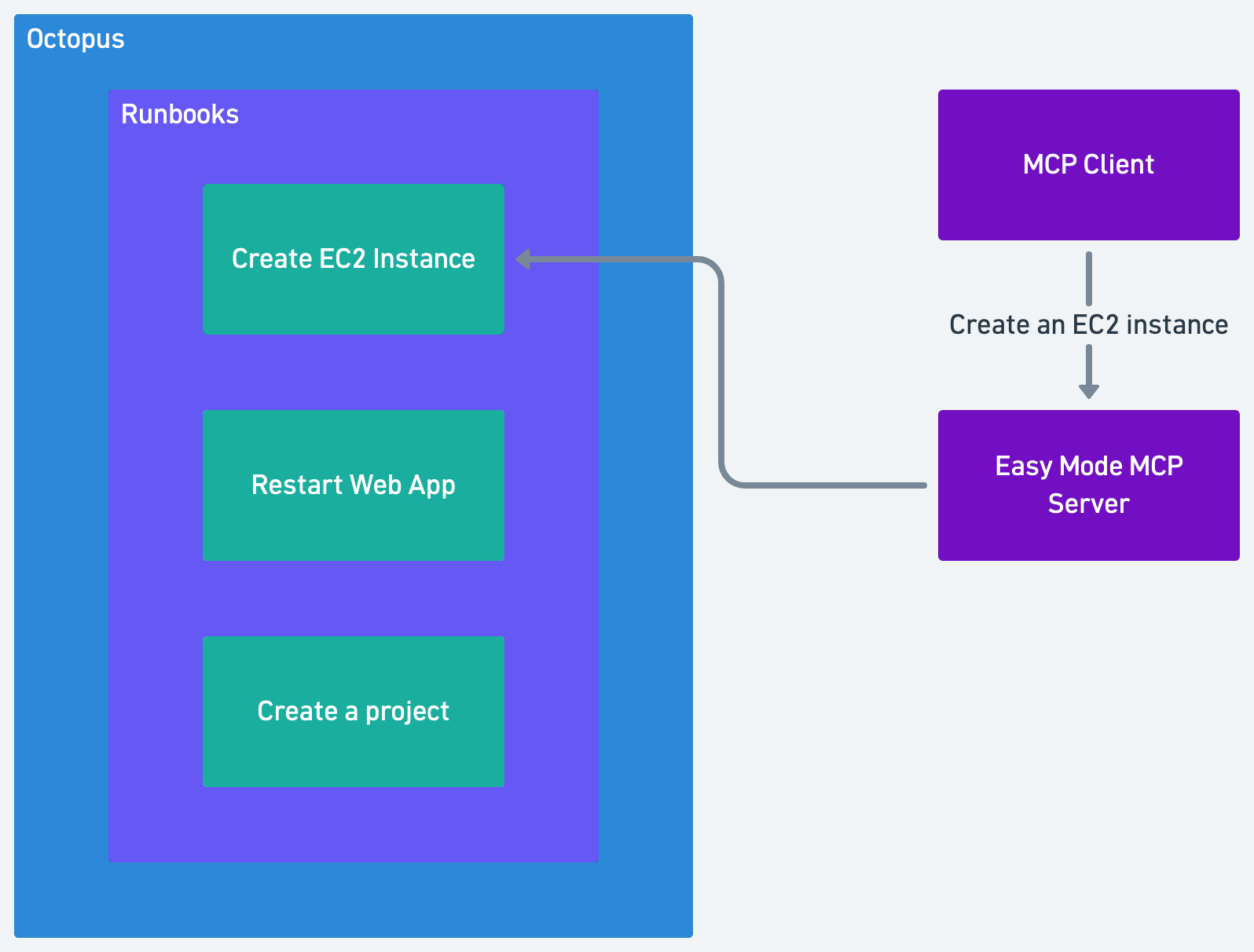
The Octopus Easy Mode MCP server is a community project that takes a different approach to traditional MCP servers by exposing runbooks as MCP tools. This allows any process that can be automated with a runbook to be executed by an LLM, which has a number of benefits:
- One MCP server can execute any process that can be automated with a runbook.
- Octopus orchestrates complex processes as a series of deterministic steps.
- Token count is reduced as the LLM can delegate the execution of complex processes to the Octopus server, rather than having to generate all the steps itself.
- Octopus provides security and auditing features, making it possible to restrict and trace the LLMs actions.
- There is no longer any specialized knowledge required to create an MCP server – anyone who can create a runbook can expose it as an MCP tool.
In this post, you’ll learn how to use the Octopus Easy Mode MCP server to expose a runbook as an MCP tool and then use that tool to automate a process.
Prerequisites
- An Octopus Cloud account. If you don’t have one, you can sign up for a free trial.
- The Octopus AI Assistant Chrome extension. You can install it from the Chrome Web Store.
The Octopus AI Assistant will work with an on-premises Octopus instance, but it requires more configuration. The cloud-hosted version of Octopus doesn’t need extra configuration. This means the cloud-hosted version is the easiest way to get started.
Creating the runbook
The first step is to create a runbook that will be exposed as an MCP tool. In this example, you’ll create a runbook that will print the current date and time.
Run the following prompt in the Octopus AI Assistant:
Create a project called "Easy Mode MCP" and then:
* Add a runbook description
* Add a runbook called "Get Current Time".
* The runbook must have a single script step that echoes the current time with the PowerShell command `Get-Date`.
* Create a single environment called "MCP". Do not create any other environments.
* Configure the runbook to only run in the MCP environment.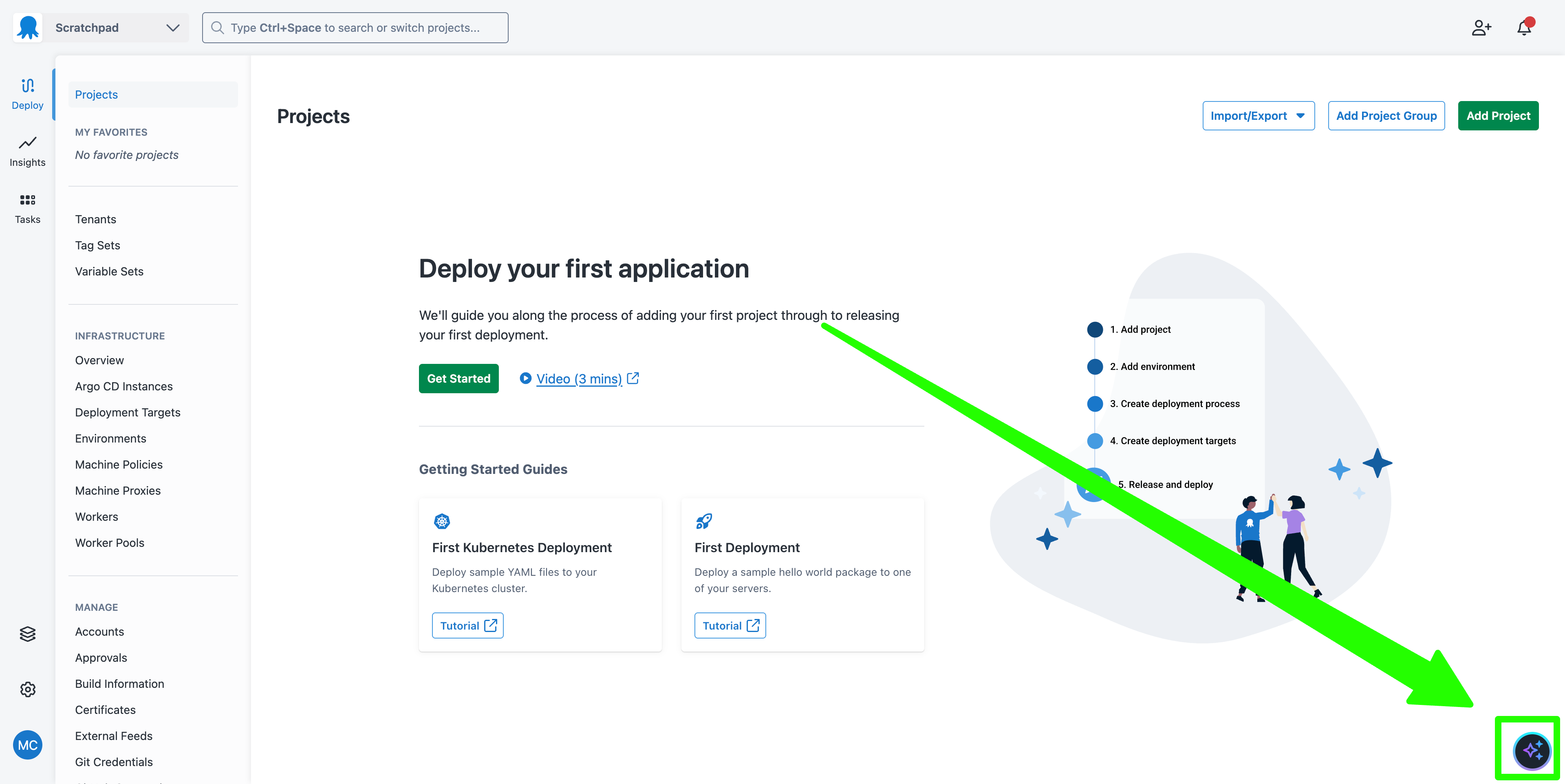
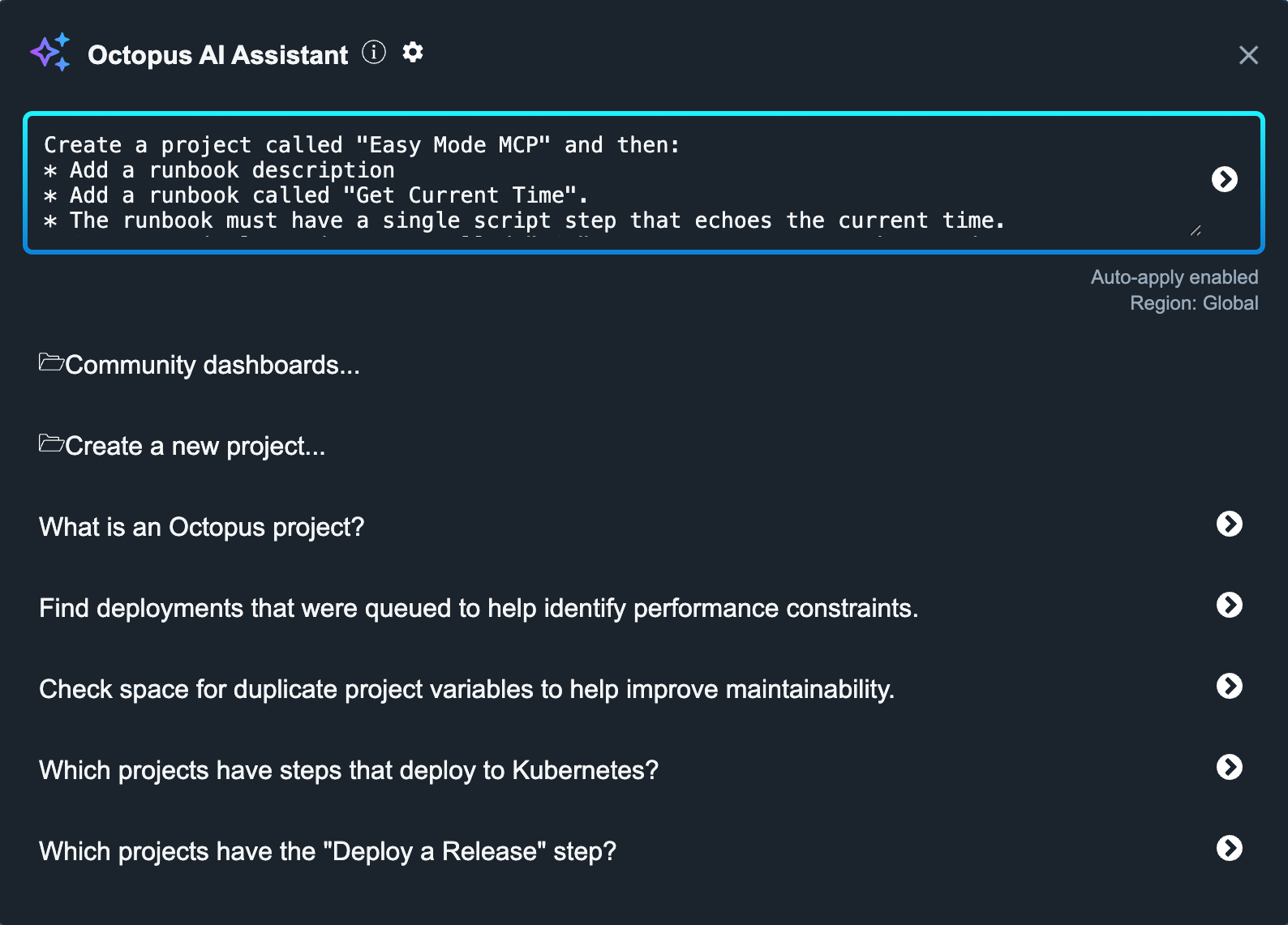
This prompt creates a project to host the runbooks used by the Easy Mode MCP server. It then creates a runbook that you’ll call from an MCP client.
Run the MCP Server
The easiest way to run the Octopus Easy Mode MCP server is to use the Docker image. The following mcp.json file can be used to configure the server:
{
  "servers": {
    "easymode": {
      "type": "stdio",
      "command": "docker",
      "args": [
        "run",
        "--rm",
        "-i",
        "--pull=always",
        "-e", "EASY_MODE_MCP_TRANSPORT=stdio",
        "-e", "EASY_MODE_MCP_AUTH_TYPE=none",
        "-e", "EASY_MODE_MCP_OCTOPUS_URL=https://yourinstance.octopus.app",
        "-e", "EASY_MODE_MCP_OCTOPUS_API_KEY=API-APIKEYGOESHERE",
        "-e", "EASY_MODE_MCP_OCTOPUS_SPACE_ID=Spaces-##",
        "ghcr.io/octopussolutionsengineering/octopuseasymodemcp:latest"],
      "timeout": 600000
    }
  }
}
Replace the following values in the mcp.json file:
EASY_MODE_MCP_OCTOPUS_URLwith the URL of your Octopus instance.EASY_MODE_MCP_OCTOPUS_API_KEYwith an API key that has access to the runbook you created.EASY_MODE_MCP_OCTOPUS_SPACE_IDwith the ID of the space that contains the runbook you created.
Now run the prompt from your chat client:
Get the current timeYour MCP client may be able to return the date and time without needing to call an MCP server. If so, you can force the LLM to call the Easy Mode MCP server with the prompt Get the current time from the easymode mcp server.
The MCP server will create a new snapshot of the runbook, run it, and return the result.
Importantly, you did not have to instruct the LLM to run a runbook. The Easy Mode MCP server does not require the end user to know that they are running runbooks, or even that the server is backed by Octopus. The runbooks are exposed directly as tools.
You can see this by asking the LLM to list the available tools from your chat client:
List the available toolsPassing parameters to the tool
Prompted variables are treated as parameters to the tool. For example, you can create a runbook that takes a name as a parameter and returns a greeting.
Run the following prompt in the Octopus AI Assistant:
Create a runbook called "Greet User" in the "Easy Mode MCP" project and then:
* Add a runbook description
* Add a single prompted variable called "Name" with the description "The name of the user to greet" and set the default value to "World".
* Scope the "Name" variable to the "Greet User" runbook.
* Add a single script step that echoes "Hello, #{Name}!".
* Configure the runbook to only run in the MCP environment.
Restart the MCP server to pick up the new tool, and then run the following prompt from your chat client:
Greet the user "Finn"The process of restarting the MCP server is different with each client. Visual Studio Code allows you to restart the MCP server by clicking the “Restart” link above the MCP server when editing the mcp.json file:
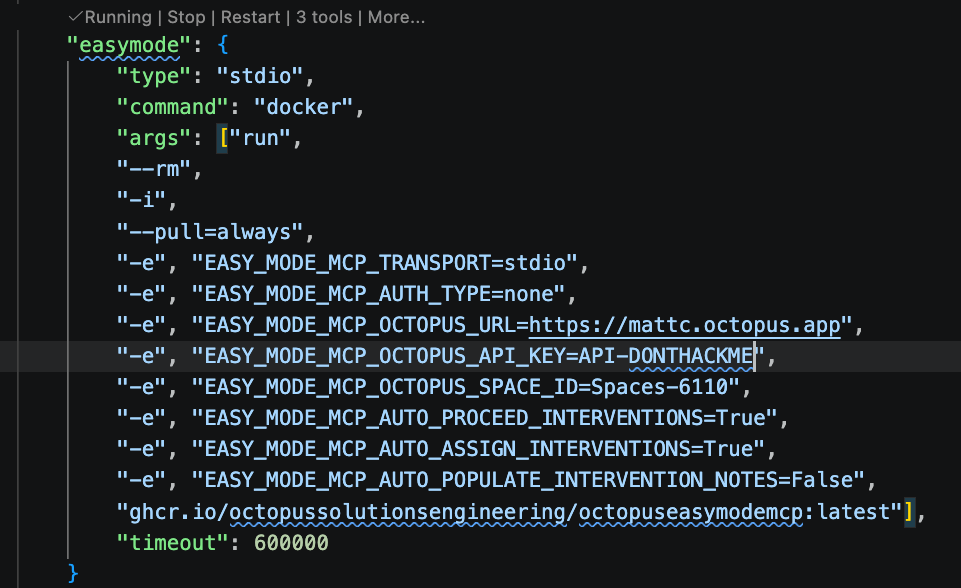
The MCP client is smart enough to know the name Finn must be passed to the Name variable in the Greet User runbook, and the MCP server will return the greeting.
Adding elicitation
Elicitation is the process of asking the user for information that is required to complete a task. The Octopus Easy Mode MCP server supports elicitation by adding manual intervention steps to a runbook.
Run the following prompt in the Octopus AI Assistant:
Create a runbook called "Welcome User" in the "Easy Mode MCP" project and then:
* Add a runbook description
* Add a single manual intervention step called "Ask for Name" with the instruction "Please enter your name" and the prompt "What is your name?".
* Add a single script step that echoes "Hello, #{Octopus.Action[Ask for Name].Output.Manual.Notes}!".
* Configure the runbook to only run in the MCP environment.
Restart the MCP server to pick up the new tool, and then run the following prompt from your chat client:
Welcome the userYou will be asked to enter your name and The MCP server will then return the greeting.
Not all MCP clients support elicitation. This post was tested with Visual Studio Code and the GitHub Copilot Chat extension.
You can automatically add generated notes to the manual intervention by setting EASY_MODE_MCP_AUTO_POPULATE_INTERVENTION_NOTES to True:
{
  "easymode": {
    "type": "stdio",
    "command": "docker",
    "args": ["run",
      "--rm",
      "-i",
      "--pull=always",
      "-e", "EASY_MODE_MCP_TRANSPORT=stdio",
      "-e", "EASY_MODE_MCP_AUTH_TYPE=none",
      "-e", "EASY_MODE_MCP_OCTOPUS_URL=https://yourinstance.octopus.app",
      "-e", "EASY_MODE_MCP_OCTOPUS_API_KEY=API-APIKEY",
      "-e", "EASY_MODE_MCP_OCTOPUS_SPACE_ID=Spaces-##",
      "-e", "EASY_MODE_MCP_AUTO_POPULATE_INTERVENTION_NOTES=True",
      "ghcr.io/octopussolutionsengineering/octopuseasymodemcp:latest"],
    "timeout": 600000
  }
}
The content placed into the notes section can be defined with the EASY_MODE_MCP_AUTO_POPULATE_INTERVENTION_NOTES_VALUE environment variable:
{
  "easymode": {
    "type": "stdio",
    "command": "docker",
    "args": ["run",
      "--rm",
      "-i",
      "--pull=always",
      "-e", "EASY_MODE_MCP_TRANSPORT=stdio",
      "-e", "EASY_MODE_MCP_AUTH_TYPE=none",
      "-e", "EASY_MODE_MCP_OCTOPUS_URL=https://yourinstance.octopus.app",
      "-e", "EASY_MODE_MCP_OCTOPUS_API_KEY=API-APIKEY",
      "-e", "EASY_MODE_MCP_OCTOPUS_SPACE_ID=Spaces-##",
      "-e", "EASY_MODE_MCP_AUTO_POPULATE_INTERVENTION_NOTES=True",
      "-e", "EASY_MODE_MCP_AUTO_POPULATE_INTERVENTION_NOTES_VALUE=Your custom note",
      "ghcr.io/octopussolutionsengineering/octopuseasymodemcp:latest"],
    "timeout": 600000
  }
}
Setting the EASY_MODE_MCP_AUTO_POPULATE_INTERVENTION_NOTES environment variable to True allows you to run runbooks that contain manual intervention steps without any user interaction. This is useful for MCP clients that do not support elicitation or for automating processes that require manual intervention.
Practical examples
Here are some practical Runbooks that you might expose to an MCP server.
Creating cloud resources
A common scenario for DevOps teams is to provision new cloud resources. This is often done with a combination of Terraform and Octopus.
Run the following prompt in the Octopus AI Assistant:
Create a runbook called "Create EC2 Instance" in the "Easy Mode MCP" project and then:
* Create a feed called "Docker Hub" pointing to "https://index.docker.io" using anonymous authentication.
* Add a runbook description
* Add a Terraform Apply step to the runbook called "Create EC2 Instance" with the following configuration:
```
# A mocked Terraform configuration simulating the construction of an EC2 instance
output "ec2_instance_id" {
  value = "i-1234567890abcdef0"
}
```
* Use the "Hosted Ubuntu" worker pool.
* Configure the Terraform step to use the execution container image "octopusdeploy/worker-tools:6.6.4-ubuntu.22.04" from the "Docker Hub" feed
* Add a step to run a script that writes `Your instance is #{Octopus.Action[Apply a Terraform template].Output.TerraformValueOutputs[ec2_instance_id]}` as a highlight.
* Configure the runbook to only run in the MCP environment.
* The runbook must be untenanted.
Restart the MCP server to pick up the new tool, and then run the following prompt from your chat client:
Create a new EC2 instanceDebugging a Kubernetes application
In this example, we’ll imagine that a support team needs to restart a Kubernetes application. The runbook will delete the pod, triggering a restart.
Run the following prompt in the Octopus AI Assistant:
Create a runbook called "Restart K8s Web App" in the "Easy Mode MCP" project and then:
* Define the first step as a kubectl script step to the runbook called "Restart K8s Web App"
* Use the "Hosted Ubuntu" worker pool.
* Configure the kubectl step to use the execution container image "octopusdeploy/worker-tools:6.6.4-ubuntu.22.04" from the "Docker Hub" feed
* Add a script that checks for a pod called "my-web-app-pod", and if it exists, deletes it. If the pod doesn't exist, the script should write a message to the log and exit successfully.
* Use client side apply in the Kubernetes step (the mock Kubernetes cluster only supports client side apply).
* Disable verification checks in the Kubernetes steps (the mock Kubernetes cluster doesn't support verification checks).
* Enable retries on the K8s deployment step.
* Define the second step as a Slack notification step to the runbook called "Notify Slack" that sends a message to the channel "#k8s-notifications" with the message "The K8s Web App has been restarted." using the web hook url "https://mockslackwebhook.octopusdemos.com/".
* Configure the runbook to only run in the MCP environment.
* The runbook must be untenanted.

---

Create a token account called "Mock Token".

---

Create a feed called "Docker Hub" pointing to "https://index.docker.io" using anonymous authentication.

---

Create a Kubernetes target with the tag "Kubernetes", the URL https://mockk8s.octopusdemos.com, using the health check container image "octopusdeploy/worker-tools:6.5.0-ubuntu.22.04" from the "Docker Hub" feed, using the token account, and the "Hosted Ubuntu" worker pool. Scope the target to the "MCP" environment.
Restart the MCP server to pick up the new tool, and then run the following prompt from your chat client:
Restart the Kubernetes Web AppWhat is neat about this example is that we have captured a lot of business logic in the runbook. The pod to be deleted is defined, eliminating the need for the end user to know which pod to delete. The Slack notification step is also defined, so the team is notified when the pod is restarted.
While this logic could be captured in an LLM skill, you can imagine how many tokens would be required for the LLM to reason about the steps to restart a Kubernetes application and send a Slack notification. By exposing the process as a deterministic set of steps in a runbook, the LLM only needs to know that a tool exists to restart the Kubernetes application, and it can delegate execution of that process to the Octopus server.
Bootstrapping a new project
Here is an example where we create a runbook to call the AI Assistant to create a new Terraform project. The Octopus - Prompt AI step allows you to run the same prompts you have been typing into the AI Assistant directly from a runbook.
Run the following prompt in the Octopus AI Assistant:
Create a runbook called "Create new Terraform project" in the "Easy Mode MCP" project and then:
* Define the first step as an "Octopus - Prompt AI" step
* Set the prompt to "Create a new Terraform project with the following name: #{ProjectName} in the #{Octopus.Space.Name} space." and enable auto approve.
* Add a prompted variable called "ProjectName" with the description "The name of the new Terraform project" and scope it to the "Create new Terraform project" runbook.
* Configure the runbook to only run in the MCP environment.
* The runbook must be untenanted.
You will need to create an API key for the “Octopus - Prompt AI” step and define it in the Project.Octopus.Api.Key variable.
Restart the MCP server to pick up the new tool, and then run the following prompt from your chat client:
Create a new Terraform project called "My New Project"A new project will be created in the same space as the runbook to deploy a sample Terraform configuration.
You’re now chaining AI agents:
- The MCP client calls the Easy Mode MCP server
- The Easy Mode MCP server calls a runbook
- The runbook calls the AI Assistant to create a new Terraform project
- The AI Assistant calls an LLM to create a new Terraform project
Governance and compliance
Because the Easy Mode MCP server is backed by Octopus, it inherits all the governance and compliance features of Octopus.
You get audit logs showing what was run, when, and a persistent log of all the output:
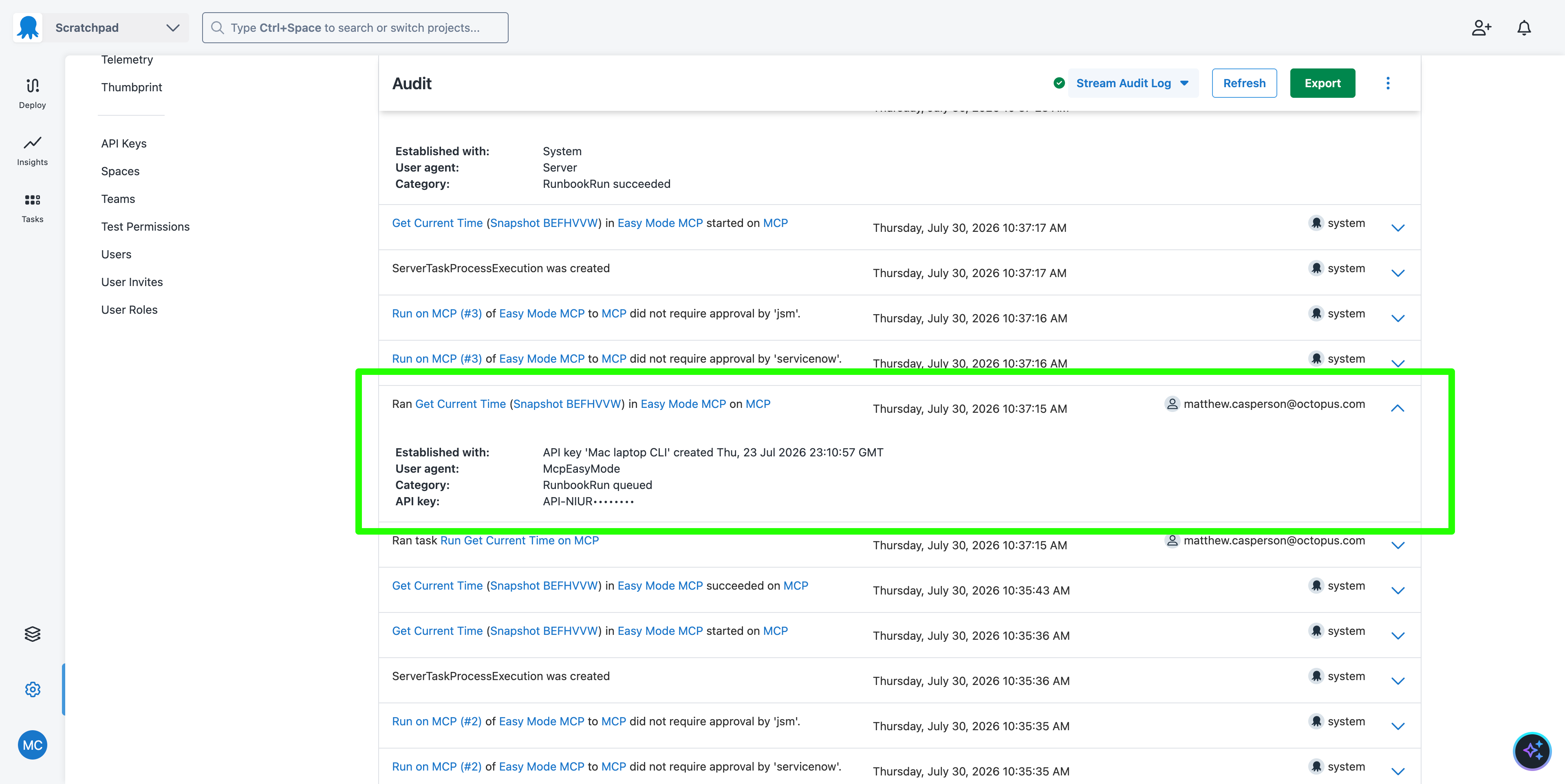
These logs can optionally be sent to an external log aggregation service, such as Splunk or Datadog, for long-term retention and analysis.
The runbooks can be subject to Platform Hub policies, and can consume process templates.
Runbook events can trigger webhooks to notify external systems of runbook execution.
All credentials are centrally managed and can be sourced from external secret management systems, such as HashiCorp Vault.
Octopus provides a robust platform with proven governance and compliance features, all of which are now available to AI agents through the Easy Mode MCP server.
Difference between the Easy Mode MCP server and the Octopus MCP server
Octopus provides a general purpose MCP server that allows MCP clients to execute common Octopus operations, such as creating releases, deploying releases, running runbooks, getting deployment logs, etc.
The Octopus MCP server is more than capable of running runbooks, but it does not inherently know about the existence of runbooks, nor does it have a reason to link a runbook to a specific task.
For example, to run the “Get Current Time” runbook, you would write a prompt like this:
Run the runbook "Get Current Time" in the "Easy Mode MCP" project in the "MCP" environment in the "Default" space.This command queries the space to get the space ID, the project to get the project ID, and the runbook to get the runbook ID. It then runs the runbook and returns the result. It then executes the runbook and returns the result.
In Claude Code, this was the token usage:
Usage by model:
    claude-haiku-4-5:  549 input, 17 output, 0 cache read, 0 cache write ($0.0006)
       claude-opus-5:  16 input, 1.5k output, 157.8k cache read, 12.7k cache write ($0.1956)
Running the same runbook with the Easy Mode MCP server, the token count is significantly lower:
Usage by model:
    claude-haiku-4-5:  521 input, 14 output, 0 cache read, 0 cache write ($0.0006)
       claude-opus-5:  4 input, 145 output, 29.0k cache read, 5.0k cache write ($0.0497)
By directly exposing runbooks as tools, the Easy Mode MCP server provides a more efficient way for LLMs to execute runbooks, reducing token usage and improving performance.
Conclusion
The Easy Mode MCP server provides a simple way for AI agents and MCP clients to execute Octopus runbooks as tools. This means AI-based workflows gain the scale, reliability, auditability, governance, and convenience of Octopus. And because most of the work is performed by Octopus, AI agents reduce their token use by offloading the execution of complex processes to Octopus.