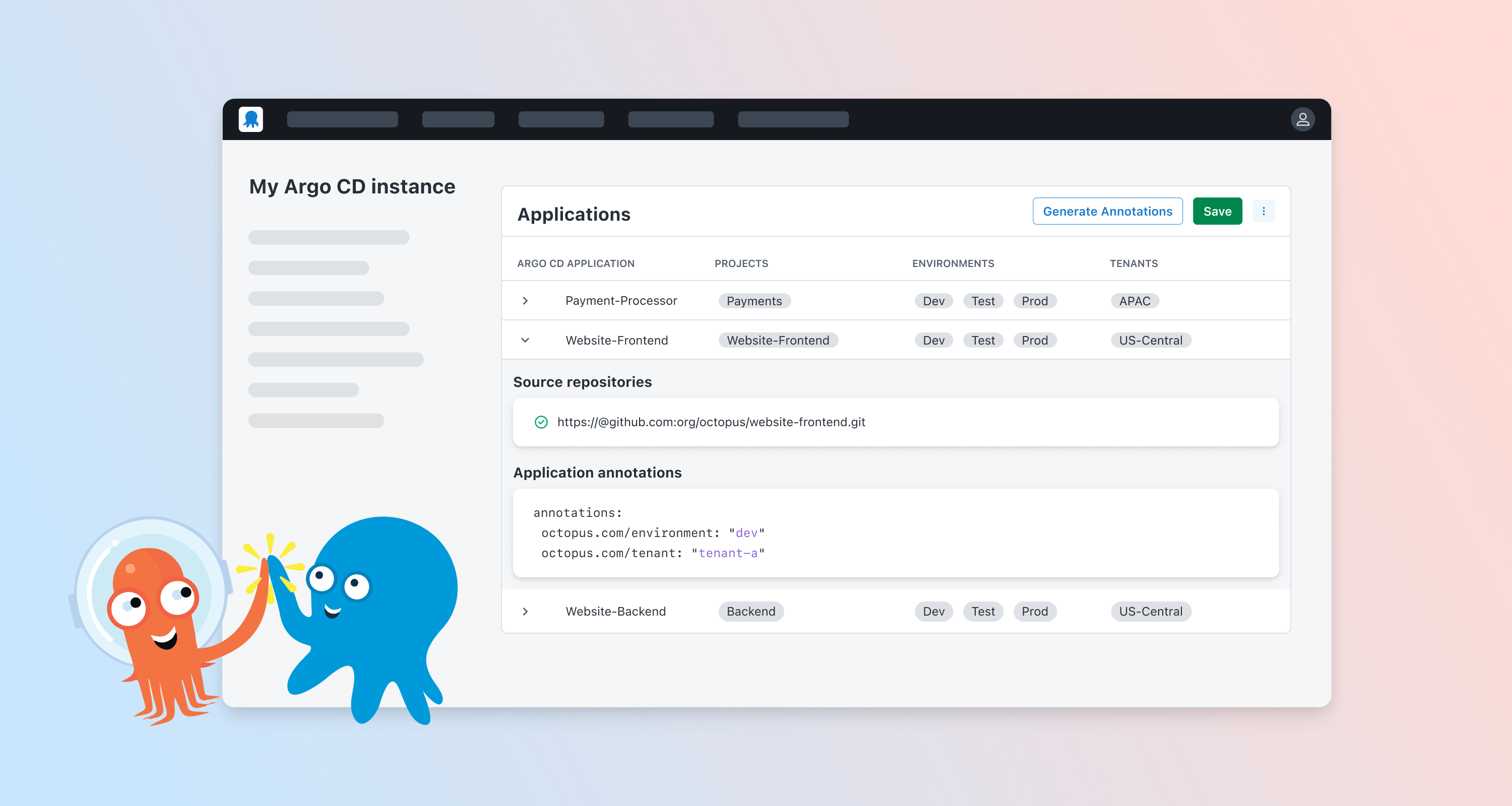

The Octopus Gateway for Argo CD connects Argo CD instances to Octopus Deploy server installations. The Gateway attaches Argo CD applications to Octopus Deploy projects so you can configure deployment orchestration, environmental progression, and non-Kubernetes deployment steps all while adhering to GitOps principles.
For Octopus Cloud customers, the experience of connecting the technologies is seamless as Octopus has already configured the necessary rules for communication. Both on-premises and cloud Kubernetes clusters connect (assuming there aren’t any egress rules in place on the network where the Argo CD instance resides) using the generated Helm commands from the wizard. Self-hosted Octopus customers have a similar experience connecting self-hosted clusters, however, cloud clusters have a networking hurdle that must be overcome for the connection to be established. This post focuses on the required configuration for the Octopus Gateway on an Azure Kubernetes Service (AKS) Argo CD instance to connect to a self-hosted Octopus Deploy server.
Retrieving outbound cluster IP address
It is a security best practice to keep your attack surface to a minimum when it comes to firewalls. To that end, the first thing that you’ll want to do is to get the outbound IP address of the cluster. This will allow you to restrict inbound traffic on your network to the specific IP or IPs of the cluster(s). The following PowerShell commands will reveal the outbound IP address of the cluster
# Define the cluster name and resource group name
$clusterName = "YourClusterName"
$resourceGroupName = "YourResourceGroupName"


# Retrieve the public identifier value from the AKS cluster
$publicIpIdentifier = (az aks show -g $resourceGroupName -n $clusterName --query networkProfile.loadBalancerProfile.effectiveOutboundIPs[].id | ConvertFrom-Json)


# Display the outbound IP address of the cluster
az network public-ip show --ids $publicIpIdentifier --query ipAddress -o tsv
Networking configuration
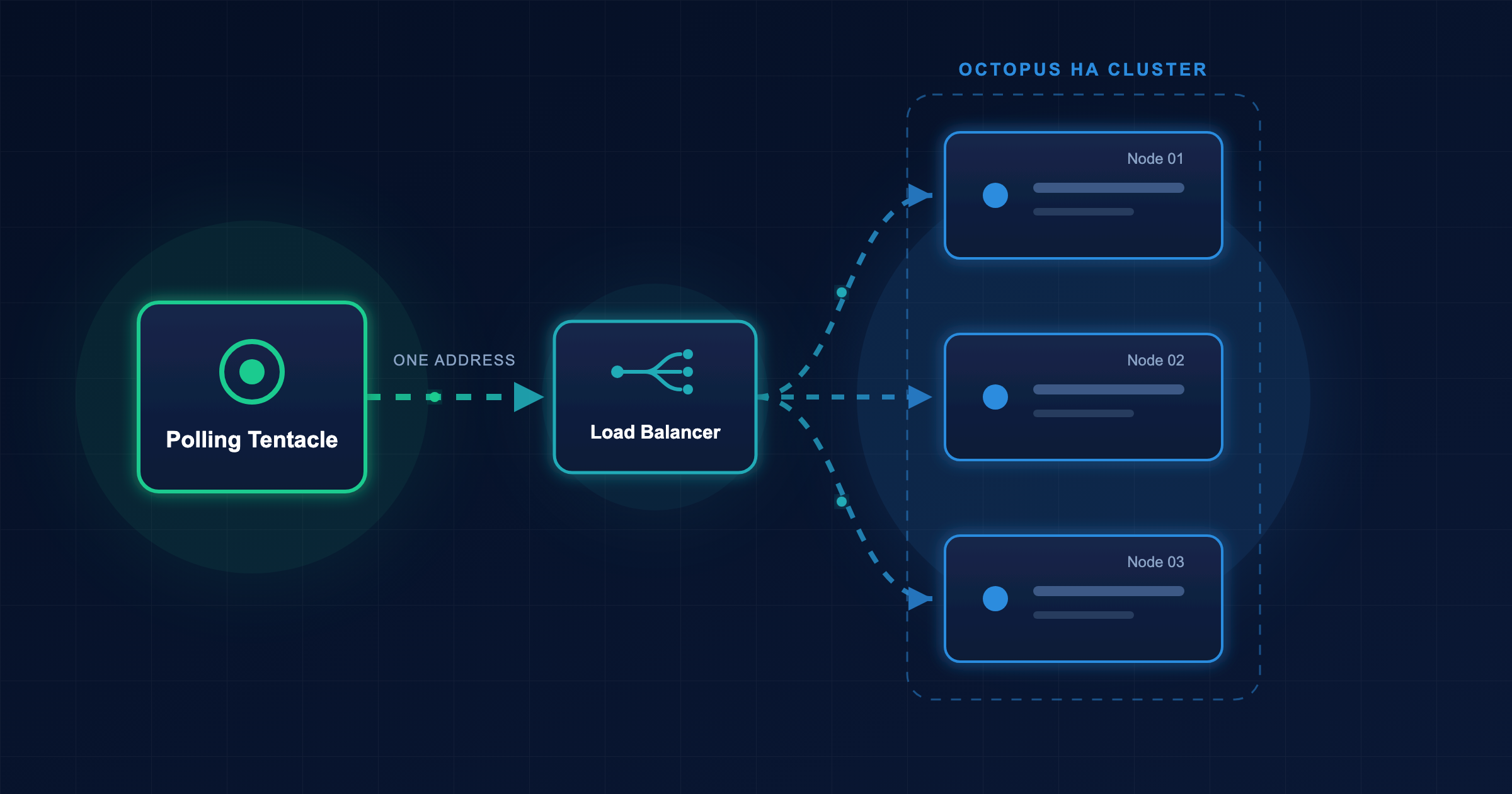
The Octopus Gateway uses outbound (egress) connections to the Octopus server to avoid needing to configure potentially complex configurations for Ingress or API Gateway controllers. This means that inbound networking rules to your organization will need to be configured to allow the cloud cluster to talk to your Octopus Deploy server on your local network. There are only two ports that you’ll need to open and possibly forward to your Octopus server:
- Port 443
- Port 8443
Port 443
Registration of the Octopus Gateway requires it to make an API call to the Octopus Server. Once the Gateway has been registered, it no longer needs port 443, so it is possible to close (to the Internet) this port without consequence.
Port 8443
The Octopus Gateway uses the Google Remote Procedure Call (gRPC) server to communicate between the Argo CD instance and the Octopus Deploy server. The gRPC server for the Octopus Deploy server is configured on port 8443.
DNS
It is common for customers to configure a DNS entry for access to their Octopus Deploy server. However, these DNS entries are often configured on the internal network and are not well-known to the Internet. The wizard places the URL of the Octopus Server as the registration URL by default, you may need to put something in place that will resolve the DNS entry to an IP address within the cluster.
Apply a config map for custom DNS entries
One solution to DNS is to apply a coredns-custom configmap to the kube-system namespace, which can map IP addresses to DNS entries. Create a file called coredns-custom.yaml and add the following:
apiVersion: v1
kind: ConfigMap
metadata:
  name: coredns-custom
  namespace: kube-system
data:
  # This field name must end with the .server extension.
  hosts.server: |
    octopusdemos.app:53 {
        errors
        hosts {
            XXX.XXX.XXX.XXX  shawnsesna.octopusdemos.app
            fallthrough
        }
        forward . /etc/resolv.conf
    }
Replace the IP address with the public IP address of the device that has been configured with the ports from above, and the DNS entry with whatever your organization uses.
Load balancers
If your organization has a Highly Available (HA) configuration using multiple Octopus servers configured behind a load balancer, there is additional configuration that will be required for proper gRPC communication. The gRPC is built upon HTTP/2, the load balancer will need to be configured for HTTP/2 on port 8443 at a minimum.
NGINX example (the following is not a full nginx.conf file, it is a configuration that can be imported from folders such as sites-enabled)
        upstream octopusdeploy {
            server OctopusServer1;
            server OctopusServer2;
        }


        upstream octopusdeploy_grpc {
            server OctopusServer1:8443;
            server OctopusServer2:8443;
        }


        server {
            client_max_body_size 2048M;
            server_name shawnsesna.octopusdemos.app;
            listen      443 ssl;
            ssl_certificate     /path/to/certificate.pem;
            ssl_certificate_key /path/to/certificate.key;
            location  / {
                proxy_set_header Host $host;
                proxy_pass http://octopusdeploy;
            }
        }


        server {
            listen 8443 ssl http2;


            ssl_certificate     /path/to/certificate.pem;
            ssl_certificate_key /path/to/certificate.key;


            location / {
                proxy_set_header Host $host;
                grpc_pass grpcs://octopusdeploy_grpc;
                grpc_ssl_verify off;
            }
        }
In this example you can see that the listening port of 8443 is configured for http2 and uses the grpc_pass functionality of NGINX.
Load balancer health checks
Load balancer solutions, such as F5, give you the ability to configure health checks for endpoints. If the load balancer does not have the options of HTTP/2 or gRPC, the health check should be configured for TCP. In most scenarios, the load balancer will not route traffic to endpoints with failing health checks.
Local Certificate Authorities (CA)
If your Octopus Server, or the load balancer it sits behind, uses a certificate that is signed by a local CA server, there are a couple of additional helm chart values overrides that will need to be added to the generated statement for the Argo CD Gateway:
--set gateway.octopus.serverCertificate
--set registration.octopus.serverCertificate
Both entries use the base 64 encoded value of the root CA certificate in PEM format.
-----BEGIN CERTIFICATE-----
...
-----END CERTIFICATE-----
$base64String = [System.Convert]::ToBase64String([System.IO.File]::ReadAllBytes("path\to\your_file.pem"))
Write-Output $base64StringConclusion
Connecting an AKS Argo CD instance to a self-hosted Octopus server isn’t terribly difficult, but there are a few extra steps that are required to enable the communication. In this post, I outlined what is necessary to get the two technologies to talk to each other in hopes I could save you time in figuring out what is required.
Happy Deployments!
Tags: