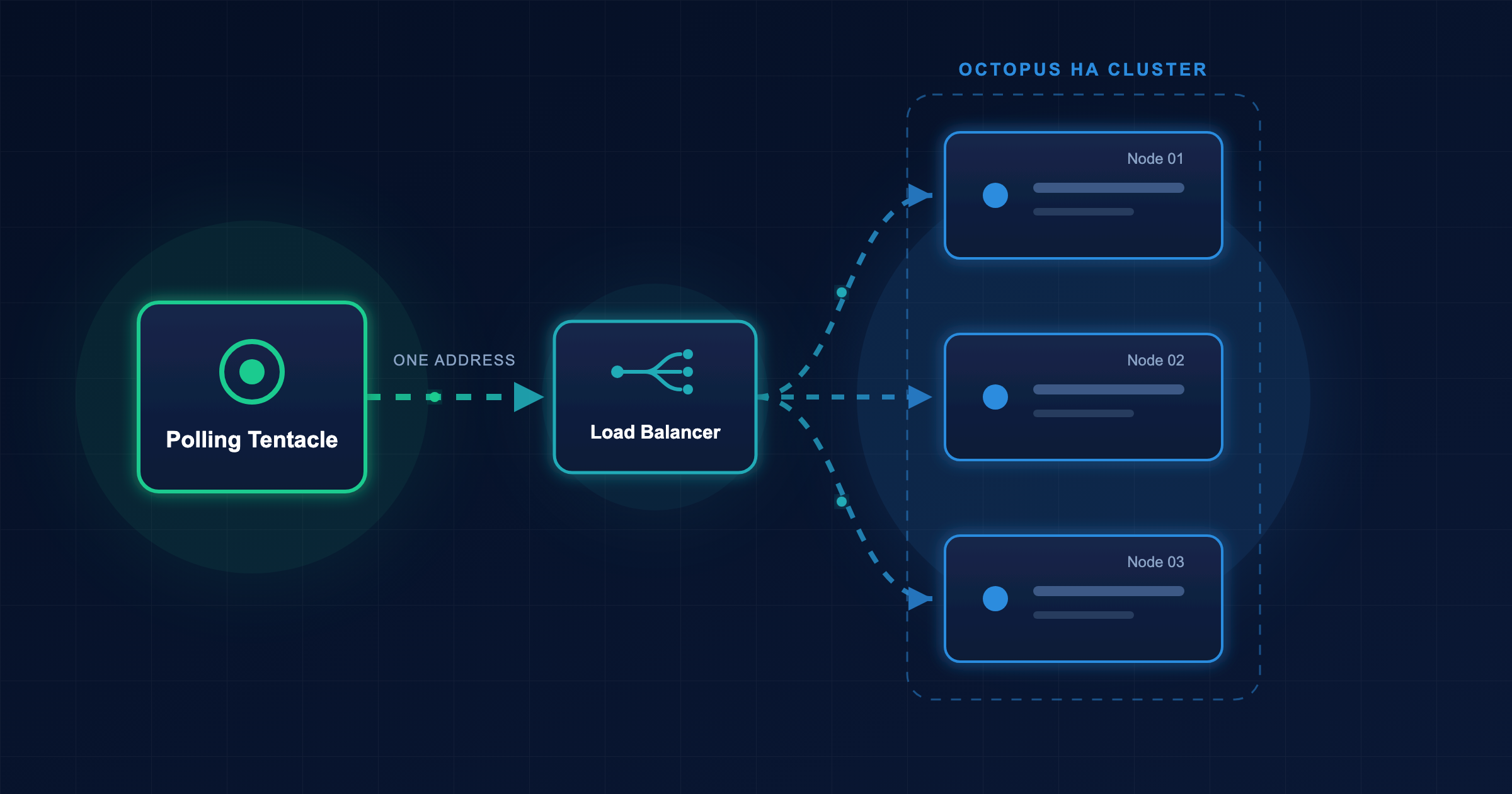

In the previous post, you defined tenant templates in a library variable set. In this post, you’ll define a tenant variable directly in the project.
Octopus Easy Mode - Project Tenant Variables
Prerequisites
- An Octopus Cloud account. If you don’t have one, you can sign up for a free trial.
- The Octopus AI Assistant Chrome extension. You can install it from the Chrome Web Store.
The Octopus AI Assistant will work with an on-premises Octopus instance, but it requires more configuration. The cloud-hosted version of Octopus doesn’t need extra configuration. This means the cloud-hosted version is the easiest way to get started.
Creating the project
Paste the following prompt into the Octopus AI Assistant and run it:
Create a Script project called "10. Script App with Library Variable Set and Project Tenant Variables", and then:
* Create a project tenant variable called "TenantNamespace"
* Change the script step to echo the values of the variables using the syntax "#{TenantNamespace}"
* Create two tenants called "Tenant C" and "Tenant D"
* Link the tenants to the project
* Define the "TenantNamespace" project tenant variable for each tenant set to "TenantC" and "TenantD" respectively
* Require tenanted deployments for the project. Do not allow untenanted deployments.
This defines a tenant variable directly on the project and ensures any tenants linked to the project provide their own value for the variable.
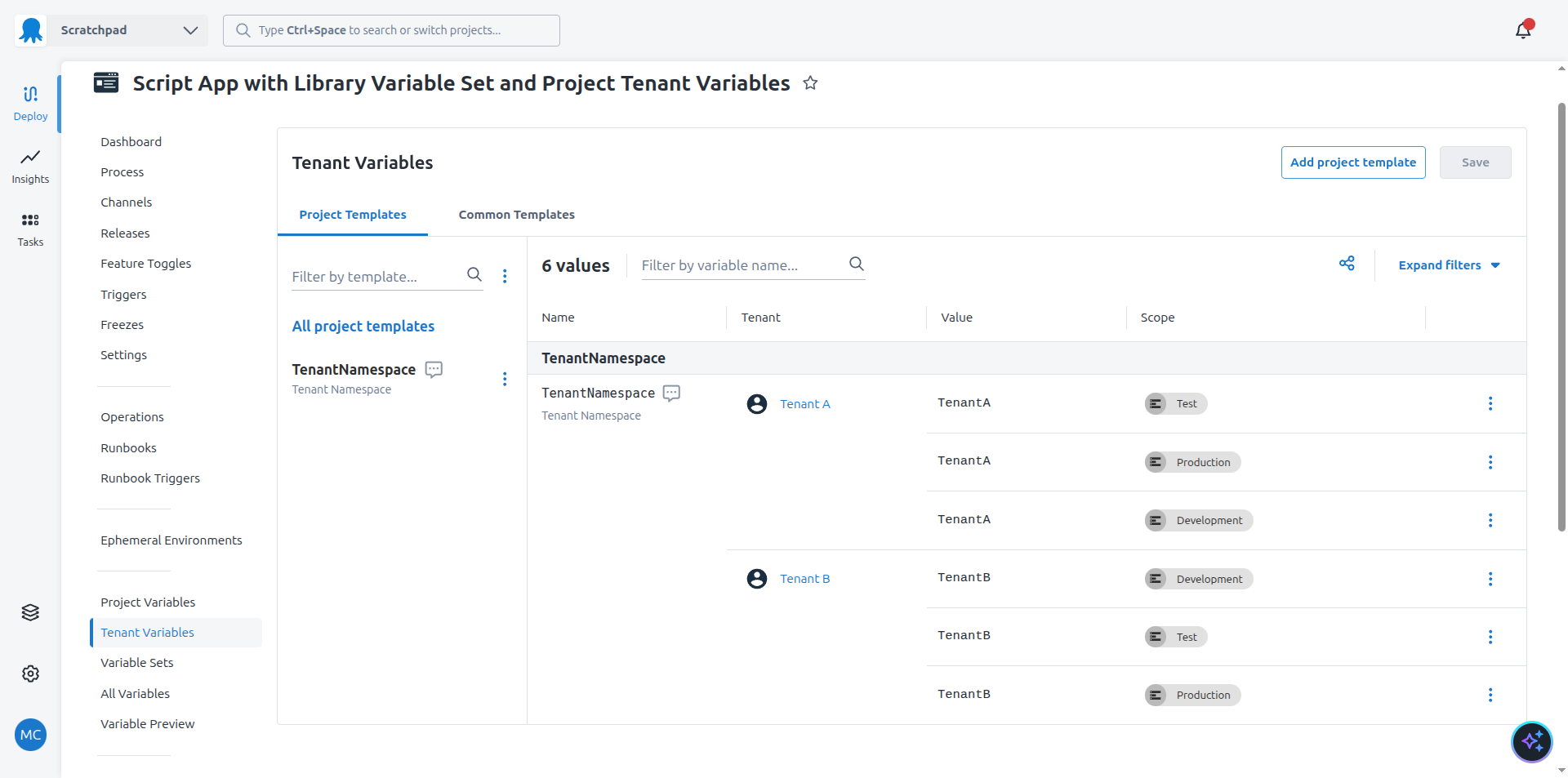
You can now create a release and deploy it to the first environment. The script step prints out the values of the variables defined by each tenant.
What just happened?
You created a sample project with:
- A project tenant variable that must be defined by tenants linked to the project.
- Two tenants linked to it, each providing their own value for the project tenant variable.
- A script step that echoes the value of the project tenant variable using variable substitutions.
What’s next?
The next step is to include community step templates in the project.