
In the previous post, you added a community step template to the project. In this post, you’ll define project channels.
Prerequisites
- An Octopus Cloud account. If you don’t have one, you can sign up for a free trial.
- The Octopus AI Assistant Chrome extension. You can install it from the Chrome Web Store.
The Octopus AI Assistant will work with an on-premises Octopus instance, but it requires more configuration. The cloud-hosted version of Octopus doesn’t need extra configuration. This means the cloud-hosted version is the easiest way to get started.
Creating the project
Paste the following prompt into the Octopus AI Assistant and run it:
Create a Script project called "12. Script App with Channel", and then:
* Define a lifecycle called "Hot Fix" that includes the "Production" environment as the only phase
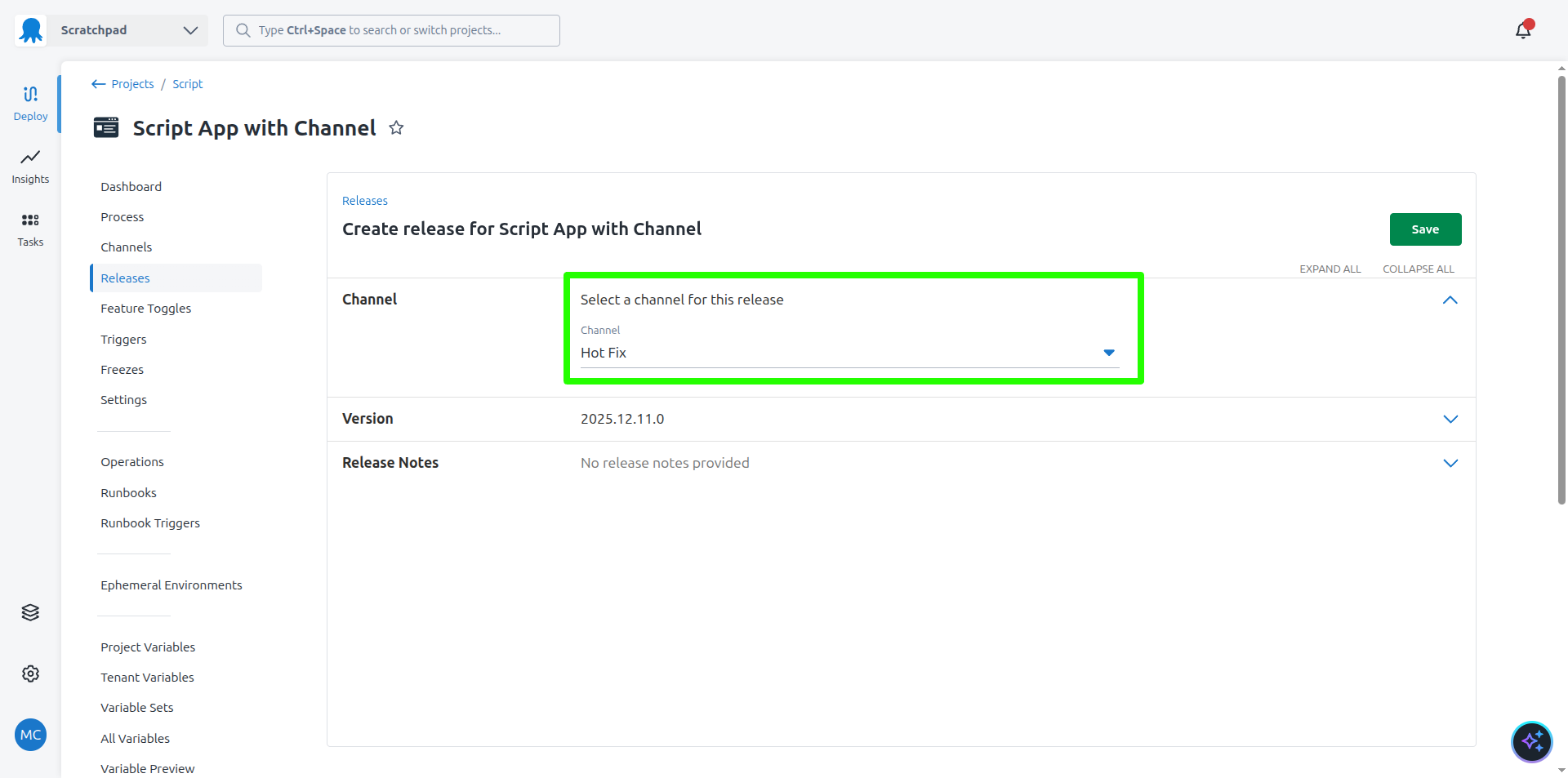
* Add a channel to the project called "Hot Fix" that uses the "Hot Fix" lifecycle
You can now create a release and deploy it to the new “Hot Fix” channel. This channel deploys directly to the “Production” environment, skipping the earlier environments. This is useful for deploying urgent fixes directly to production without going through the standard deployment pipeline.
What just happened?
You created a sample project with:
- A new channel called
Hot Fixthat uses a custom lifecycle to deploy directly to theProductionenvironment.
What’s next?
The next step is to define a custom lifecycle.