
We built our policy engine on Rego, the language of the Open Policy Agent (OPA), to give you control over your deployments and runbooks. Rego is powerful and flexible, but it comes with a learning curve. Until now, getting a policy working meant switching between your Octopus instance and our documentation, with no guarantee a snippet would behave as expected. That kind of friction discourages teams from adopting the guardrails that keep deployments safe.
Starter Policies are designed to change that.
How it works
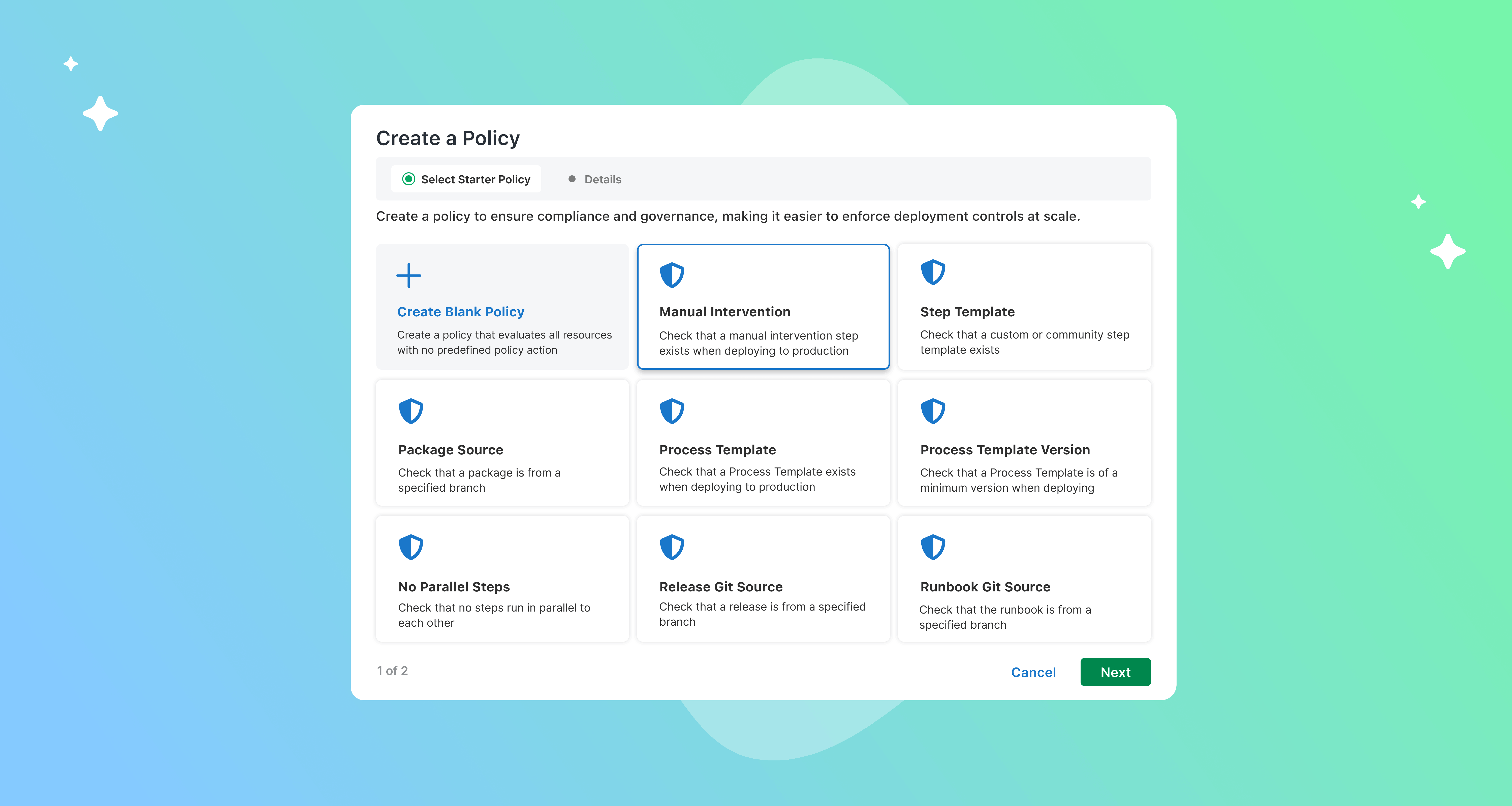
A guided wizard takes the guesswork out of writing your first policy. When you add a new policy in Platform Hub, you’ll find a library of starter policies built around common compliance use cases we see across our community.
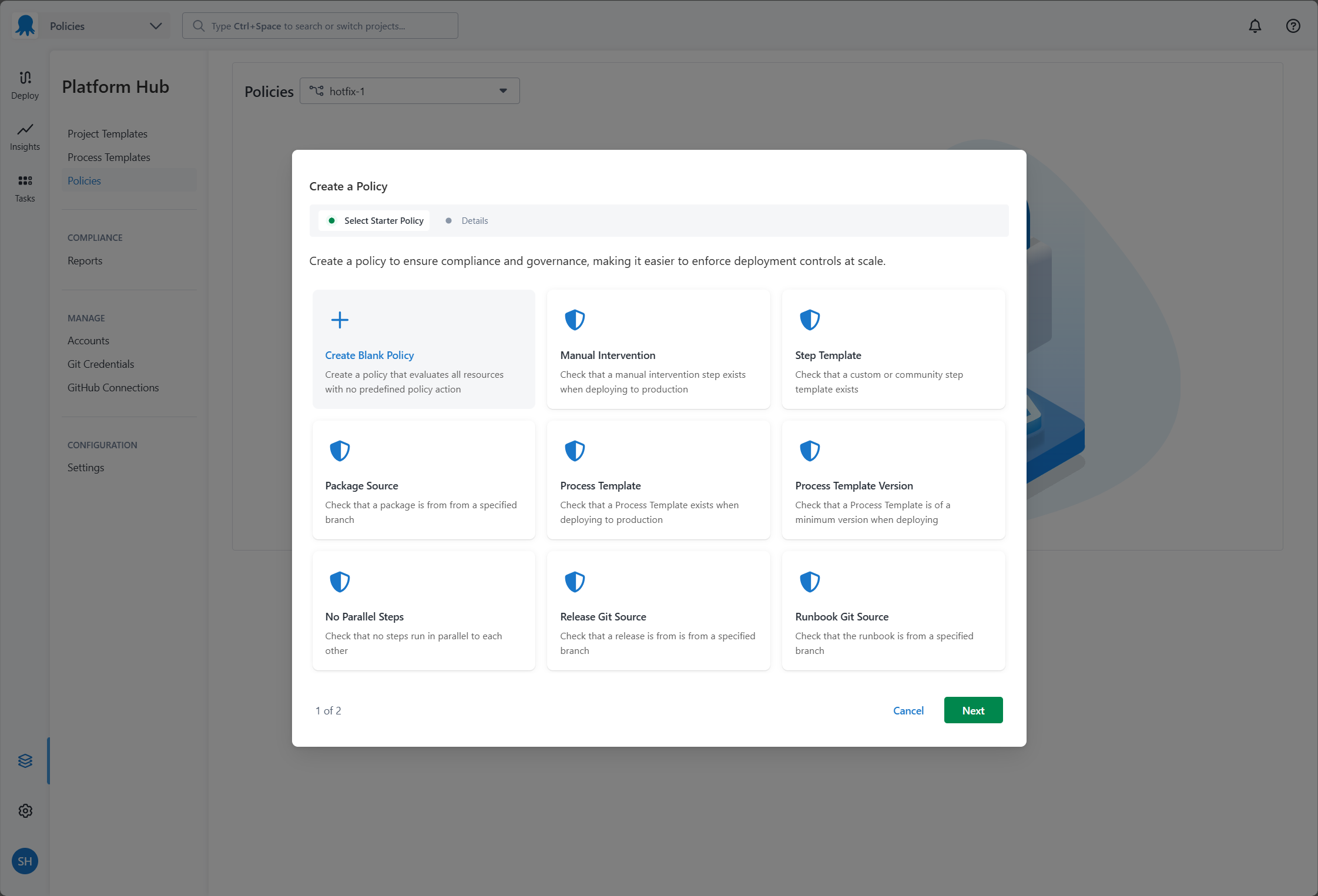
Open Platform Hub, head to Policies, and select a starter policy that matches your goal. Give it a name, and Octopus takes it from there. It generates the boilerplate code with the name, scope, and conditions already filled in.
From there, it’s yours to customize. The editor includes Rego syntax highlighting to make the logic easier to read, and inline comments explain exactly which parts to modify for your team.
Governance in Platform Hub
Starter policies are a new addition to the Policies feature in Platform Hub, available on the Enterprise tier.
Platform Hub is your central home for software delivery, insights, and governance in Octopus. If you’re on Enterprise, you can use Policies to define and enforce standards at scale across all your deployments and Runbook runs. This includes things like ensuring production deployments always have an approval workflow, or preventing deployments from using outdated package versions.
Starter policies make it easier to get started with all of this, regardless of how familiar you are with Rego.
Learning by doing
We want you to understand the code, not just copy it. Each starter policy includes inline comments explaining how the Rego logic works, highlighting the specific sections you need to modify to customize the policy for your team.
This gives you something you can run immediately, not just read. Direct links to the policy schema are built into the editor too, so if you want to go deeper, the reference material is already there.
To see this in practice, here is a real-world example: enforcing an approval workflow for all deployments and runbook runs in your Production environments.
This policy is made up of two parts.
The policy scope defines when the policy applies. In this case, it targets any Environment named Production.
package require_manual_intervention

# Default: Do not evaluate unless conditions are met
default evaluate := false

evaluate if {
  input.Environment.Name == "Production"
}
The default evaluate := false line is worth noting. Unlike a policy that applies everywhere by default, this one’s off unless the condition input.Environment.Name == "Production" is met. Scoping it to Production means the approval requirement only activates in environments with that name, leaving other environments unaffected.
The policy conditions define what is enforced. It checks that at least one manual intervention step exists in the Deployment or Runbook run, and that none of those steps are being bypassed:
package require_manual_intervention

# Default: Deny all
default result := {"allowed": false}

# Helper: True if any manual intervention step is present in the skipped steps list
manual_intervention_skipped if {
  some step in input.Steps
  step.Id in input.SkippedSteps
  step.ActionType == "Octopus.Manual"
}

# Allow: Manual intervention steps exist and none are being bypassed
result := {"allowed": true} if {
  some step in input.Steps
  step.ActionType == "Octopus.Manual"
  not manual_intervention_skipped
}

# Deny: Block Deployment if manual intervention is bypassed
result := {
  "allowed": false,
  "reason": "Manual intervention steps cannot be skipped in this Environment"
} if {
  manual_intervention_skipped
}
There are three possible outcomes this policy can produce:
- Deny by default: If no manual intervention step is present, the policy is non-compliant. The
default result := {"allowed": false}line ensures this is the baseline behavior. - Allowed: A manual intervention step exists and has not been skipped. The approval workflow is intact, and the Deployment or Runbook run proceeds.
- Non-compliant with a reason: A manual intervention step exists but has been explicitly skipped. Octopus surfaces the reason to the team: “Manual intervention steps cannot be skipped in this Environment.”
Violation actions
How Octopus responds to a non-compliant policy (the first and third outcomes above) depends on the configured Violation Action:
- Block (default): The Deployment or Runbook run is stopped from progressing until the issue is resolved.
- Warning: The execution continues, but the team is shown a warning so the non-compliance is visible without being a hard stop.
The right violation action will depend on your team’s processes and how strictly you need to enforce compliance in an Environment. Either way, the outcome is recorded. Every policy evaluation is captured in your audit log, including the policy name, verdict, action taken, and the reason. When something is blocked, your team can see exactly why and what needs to change.
Get started
Starter policies are available now. Head over to the Platform Hub section of your Octopus instance and start building out your guardrails.
We’re continuing to expand policy management in Platform Hub, and your feedback shapes what we build next. If you have suggestions, share them on the Octopus Deploy Roadmap.
Happy deployments!
Tags: