Outbound Azure Private Links provide private connectivity from your Octopus Cloud instance to resources in your virtual network. They simplify network architecture and secure the connection between endpoints in Azure by eliminating data exposure to the public Internet.
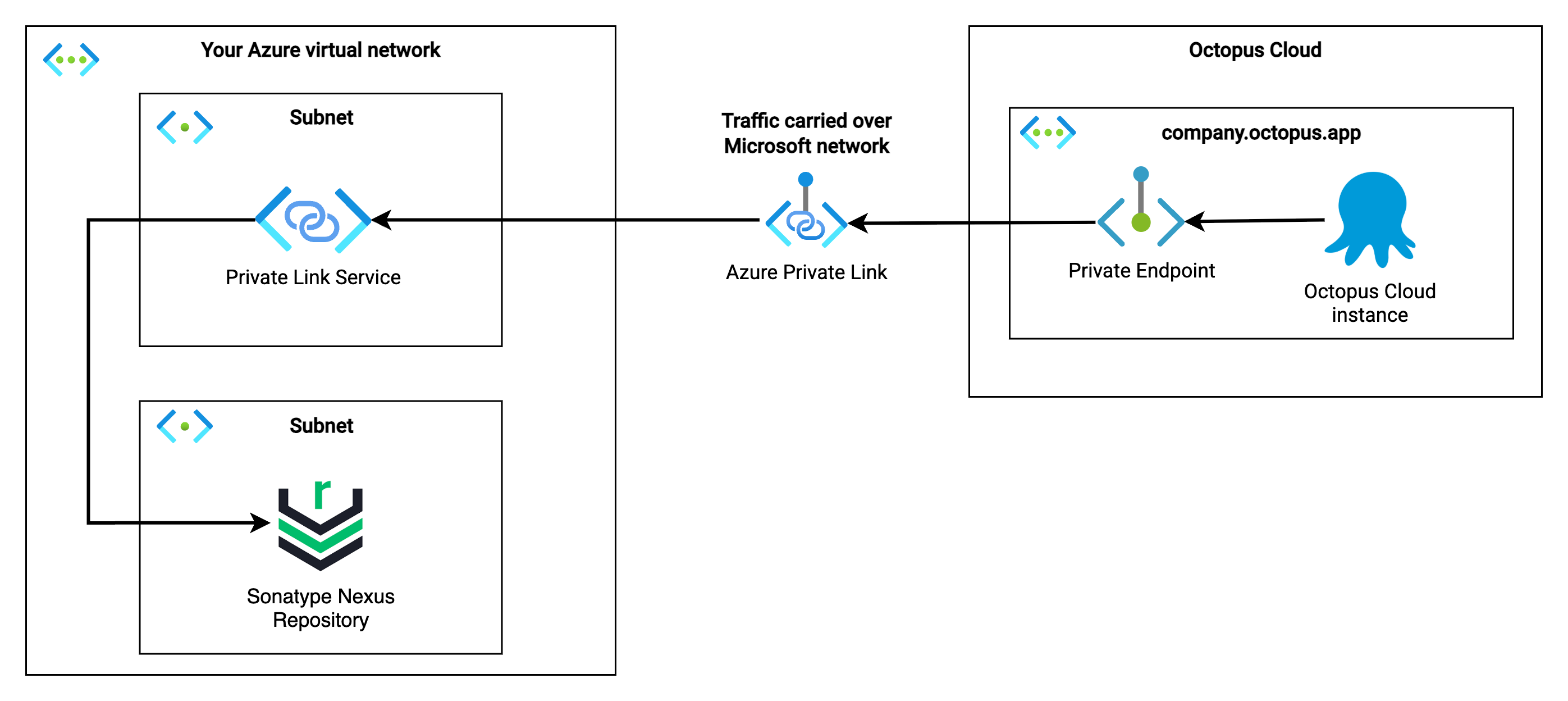
Azure Private Link is not a service provided by Octopus Deploy. It is a Microsoft service that Octopus Deploy enables for use with your Octopus Cloud instance.
Customers maintain configuration within their own network in order to use Azure Private Links. Octopus Deploy is not responsible for customer configuration. For issues with configuration, please contact Microsoft Support.
How to access this feature
Outbound Azure Private Links are currently in Preview, available to a select group of customers.
If you would like to access this feature, please reach out to our support team so we can discuss how best to meet your private networking requirements. We are working through a waitlist and will be in touch when we are ready to onboard you.
Prerequisites
Before connecting your Octopus Cloud instance, you will need an Azure Private Link Service configured in your network. The setup of a Private Link Service involves a number of decisions specific to your network architecture, so we recommend following Microsoft’s documentation to create one.
Your Private Link Service must be configured with access security to allow connections from anyone with the alias, so that your Octopus Cloud instance can connect to it.
Once your Private Link Service is ready, you will need its alias to complete the steps below.
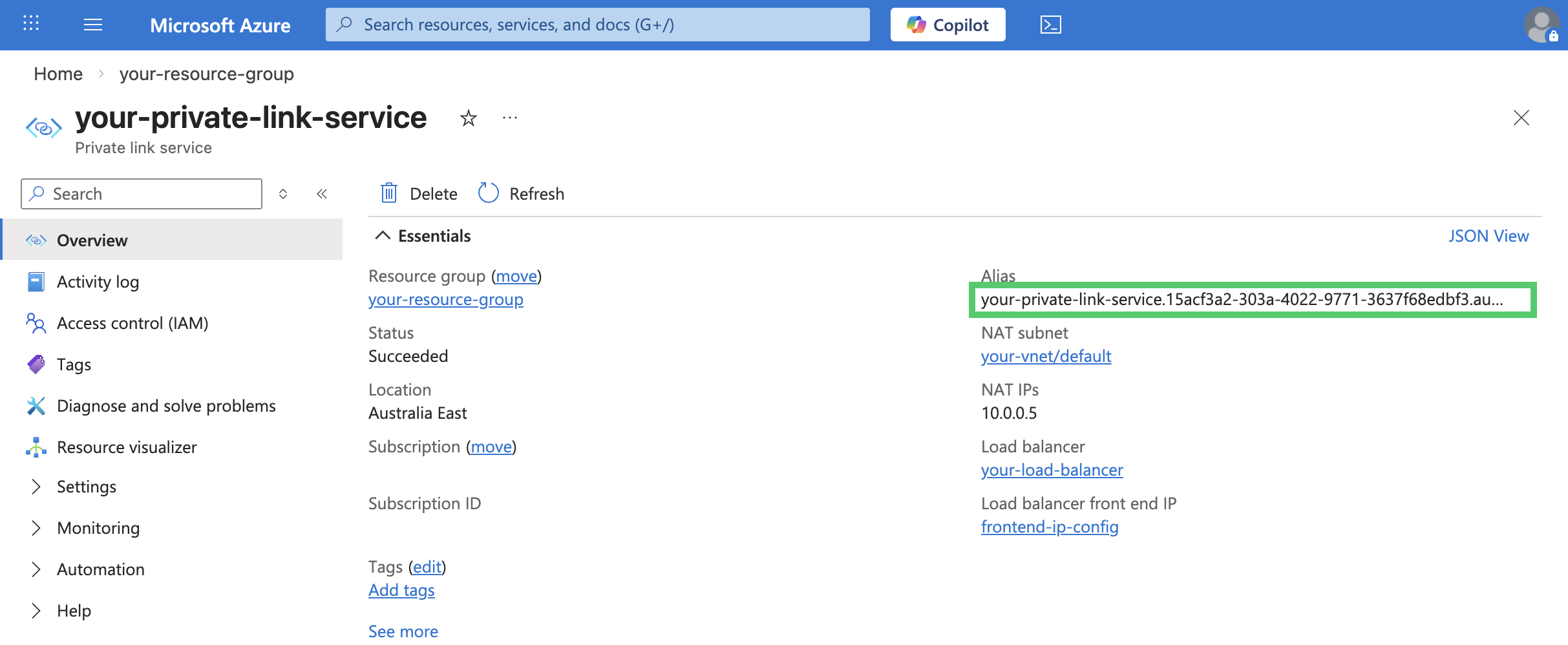
Connect your Octopus Cloud instance to your Private Link Service
Connecting your Octopus Cloud instance to your Private Link Service can be done in Control Center. Users with Cloud Subscription Owner role can administer the feature from the Configuration menu.
-
Click the Configure link in the Outbound Azure private links section
-
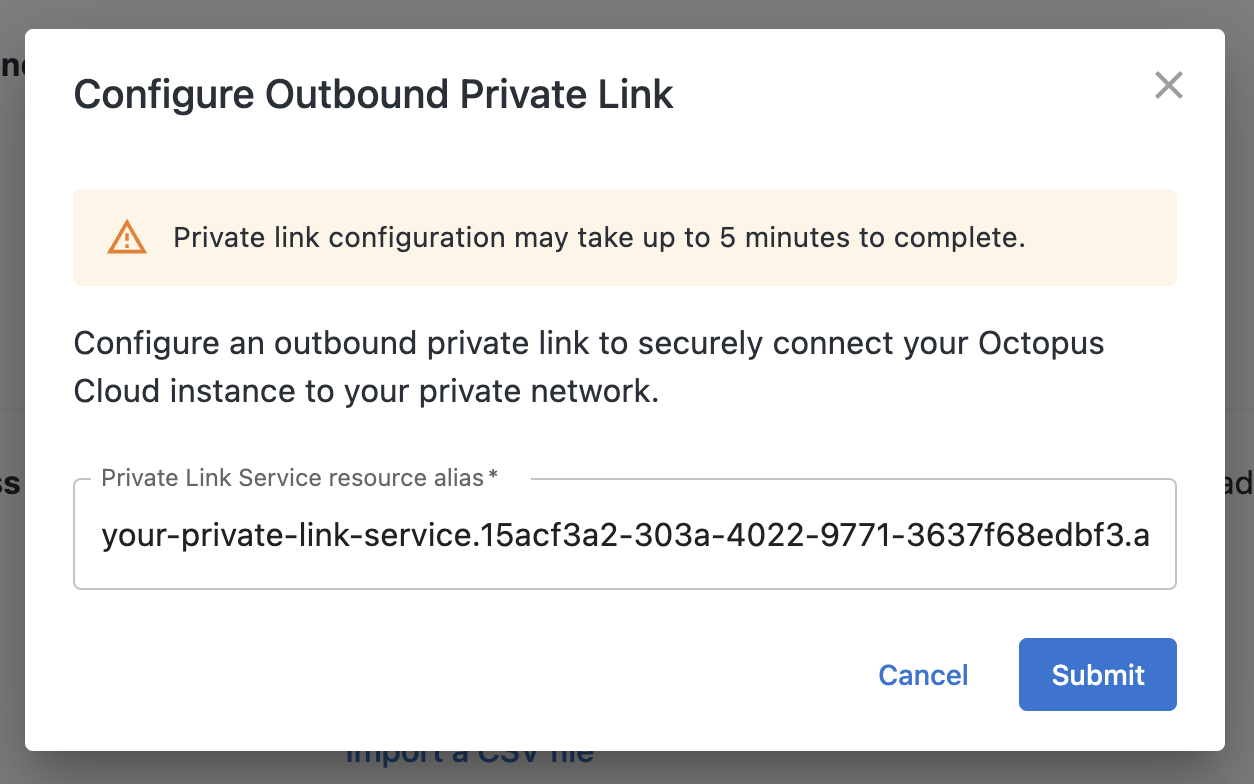
Copy the Alias for your Private Link Service from Azure Portal and paste into the displayed field. Click Submit.
-
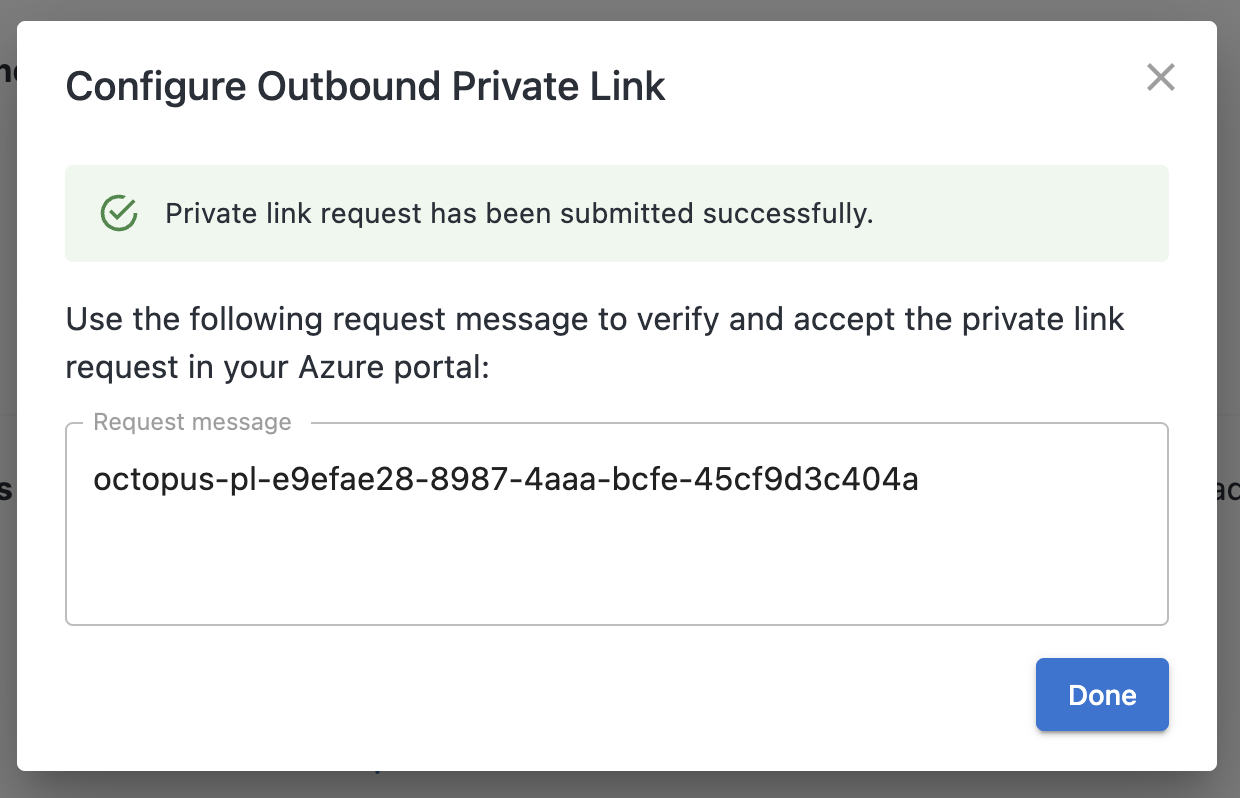
A request message will be displayed. This will be used to verify the incoming private endpoint request to your network. This value will remain visible in Control Center after the dialog is dismissed.
Approve the incoming Private Endpoint request
Once Octopus has initiated a connection to your Private Link Service, you will need to approve the incoming Private Endpoint request before traffic can flow.
The incoming request will have a connection state of Pending. You can find it in either of these locations in the Azure Portal:
- Navigate to your Private Link Service and select Private endpoint connections from the left-hand menu.
- Navigate to Private Link Center and select Pending connections.
Before approving, verify that the Description on the incoming connection matches the request message displayed in Control Center. This confirms the request originated from your Octopus Cloud instance.
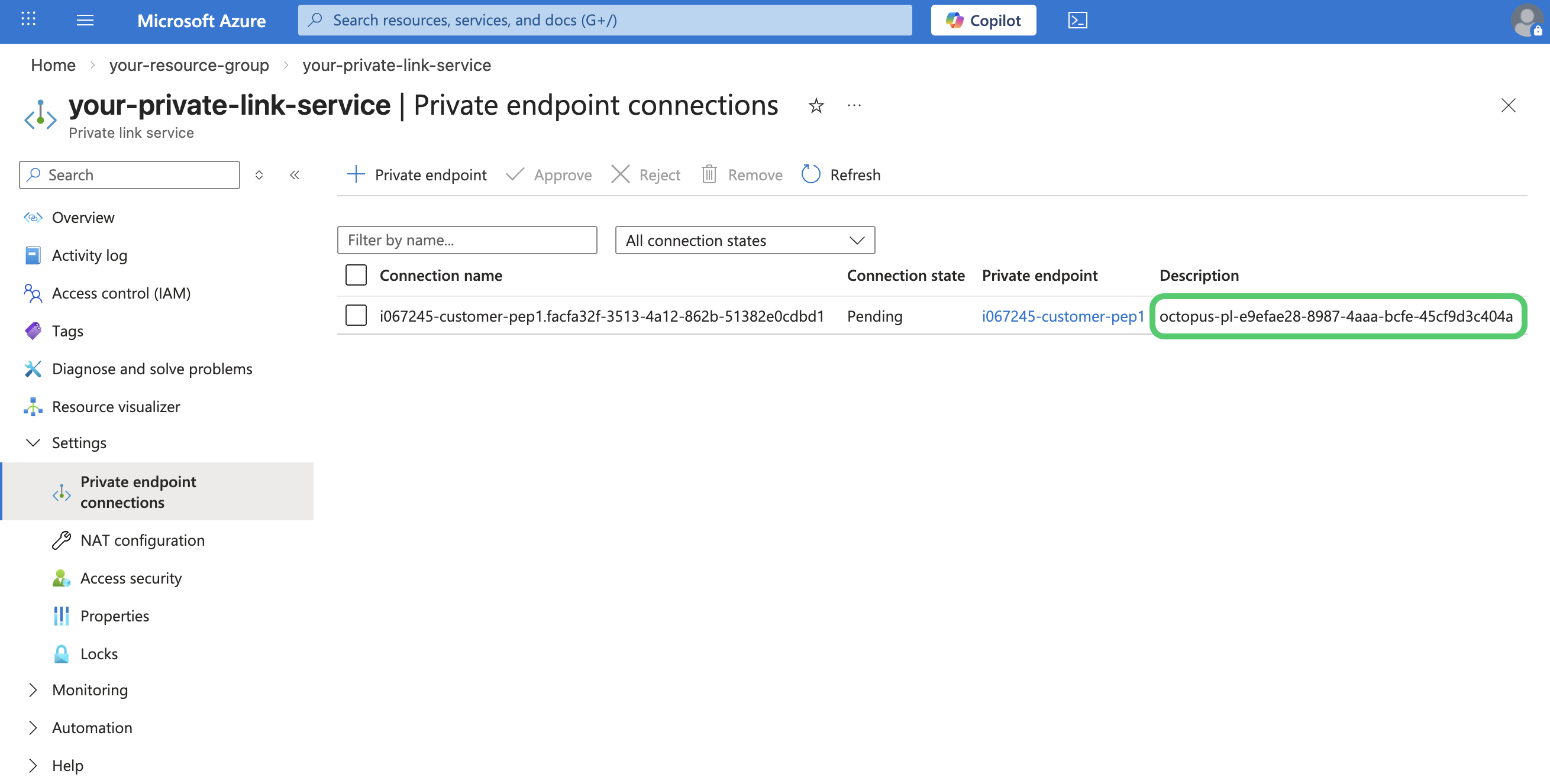
Once verified, select the connection and click Approve.
Configure DNS
DNS entries tell your Octopus Cloud instance which hostnames should be routed through the private link, rather than over the public internet. You should add an entry for each hostname you want to access privately through your Private Link Service.
This is configured in Control Center from the same Outbound Azure private links section used in the previous step.
-
Click Add new DNS entry.
-
Enter the Subdomain and Root Domain of the hostname you want to route privately. Click Add.
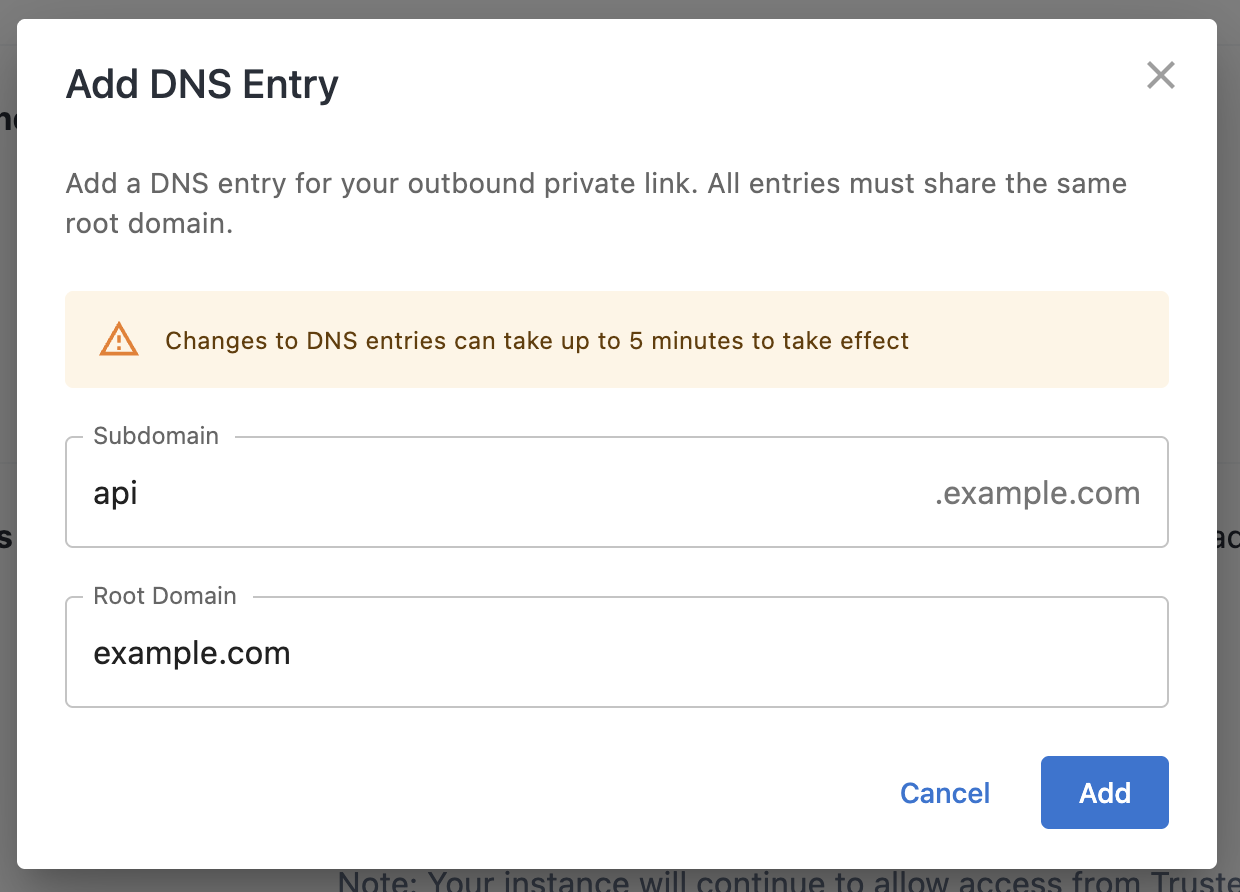
-
Repeat for any additional hostnames. Note that all entries must share the same root domain.
Changes to DNS entries can take up to 5 minutes to take effect.
Once your DNS entries are saved, your Octopus Cloud instance will route requests to those hostnames through your Private Link Service.
Additional information
Configuring your Octopus Cloud instance to support Azure Private Links brings a higher degree of privacy and security to your networking.
Activating this feature introduces the following considerations:
Static IP address change
Depending on your requirements for Azure Private Links, we may need to change the IP address range your Octopus Cloud instance uses. This has an additional benefit of moving your instance to an exclusive set of IP addresses, rather than sharing an IP range with other customers.
Dynamic workers
To avoid any possibility of unintentional access, Azure Private Links are not available on Dynamic Workers we provide to Octopus Cloud.