
Practical Platform Engineering in 5 Lunches is a series of blog posts that takes you through the process of building a hands-on Internal Developer Platform (IDP) using Octopus Deploy.
This is part 2 of the series. In the previous post, you set up your Octopus instance and learned about the core concepts we’ll be using throughout the series.
In this post, you’ll create a simple Kubernetes deployment project and begin exploring the features of Platform Hub.
Prerequisites
Sign up for a free trial of Octopus Cloud at https://octopus.com/start. The cloud-hosted version of Octopus is the easiest way to get started, as it doesn’t require any additional configuration to work with the Octopus AI Assistant.
Then install the Octopus AI Assistant Chrome extension from the Chrome Web Store.
What is the AI Assistant?
The AI Assistant is an extension of Octopus that enables several AI-powered features. You’ll use the AI Assistant to build a sample Kubernetes project and configure Platform Hub against a mock Git repository.
Creating the project
Click the AI Assistant icon in the bottom right-hand corner of the screen to open the AI Assistant chat. Then paste the following prompt into the chat and run it:
You will need to skip the welcome screen on a fresh instance of Octopus.
Create a Kubernetes project called "K8s Web App", and then:
* Use client side apply in the Kubernetes step (the mock Kubernetes cluster only supports client side apply).
* Disable verification checks in the Kubernetes steps (the mock Kubernetes cluster doesn't support verification checks).
* Enable retries on the K8s deployment step.

---

Create a token account called "Mock Token".

---

Create a feed called "Docker Hub" pointing to "https://index.docker.io" using anonymous authentication.

---

Create a Kubernetes target with the tag "Kubernetes", the URL https://mockk8s.octopusdemos.com, using the health check container image "octopusdeploy/worker-tools:6.5.0-ubuntu.22.04" from the "Docker Hub" feed, using the token account, and the "Hosted Ubuntu" worker pool.
The document separator (---) is used to split the prompt into multiple sections. Each section is applied sequentially, which allows you to create different types of resources in a single prompt.
You can review the changes that the AI Assistant is proposing to make to your Octopus instance before approving them. Once you approve the changes, the AI Assistant will create a new project called K8s Web App in your Octopus instance with the specified configuration.
You can enable the auto-apply option in the AI Assistant settings to automatically apply changes.
You may need to refresh the page to show the newly created project.
The mock Kubernetes cluster at https://mockk8s.octopusdemos.com exposes just enough of the Kubernetes API to allow Octopus to complete a deployment. No actual Kubernetes resources are created, and the server resets itself every few minutes. This allows you to explore Octopus’s Kubernetes deployment features without needing access to a real Kubernetes cluster.
Configuring Platform Hub
Enter this prompt into the AI Assistant to configure Platform Hub with a mock Git repository:
Configure the Platform Hub git repo to point to https://mockgit.octopusdemos.com/repo/platformhubrepo using the ".octopus" base path.The mock Git repository at https://mockgit.octopusdemos.com/repo/platformhubrepo provides a pre-configured repository with sample Platform Hub resources. The repository contents are reset periodically, allowing you to explore Platform Hub’s features without setting up your own Git repository or providing credentials.
Exploring process templates
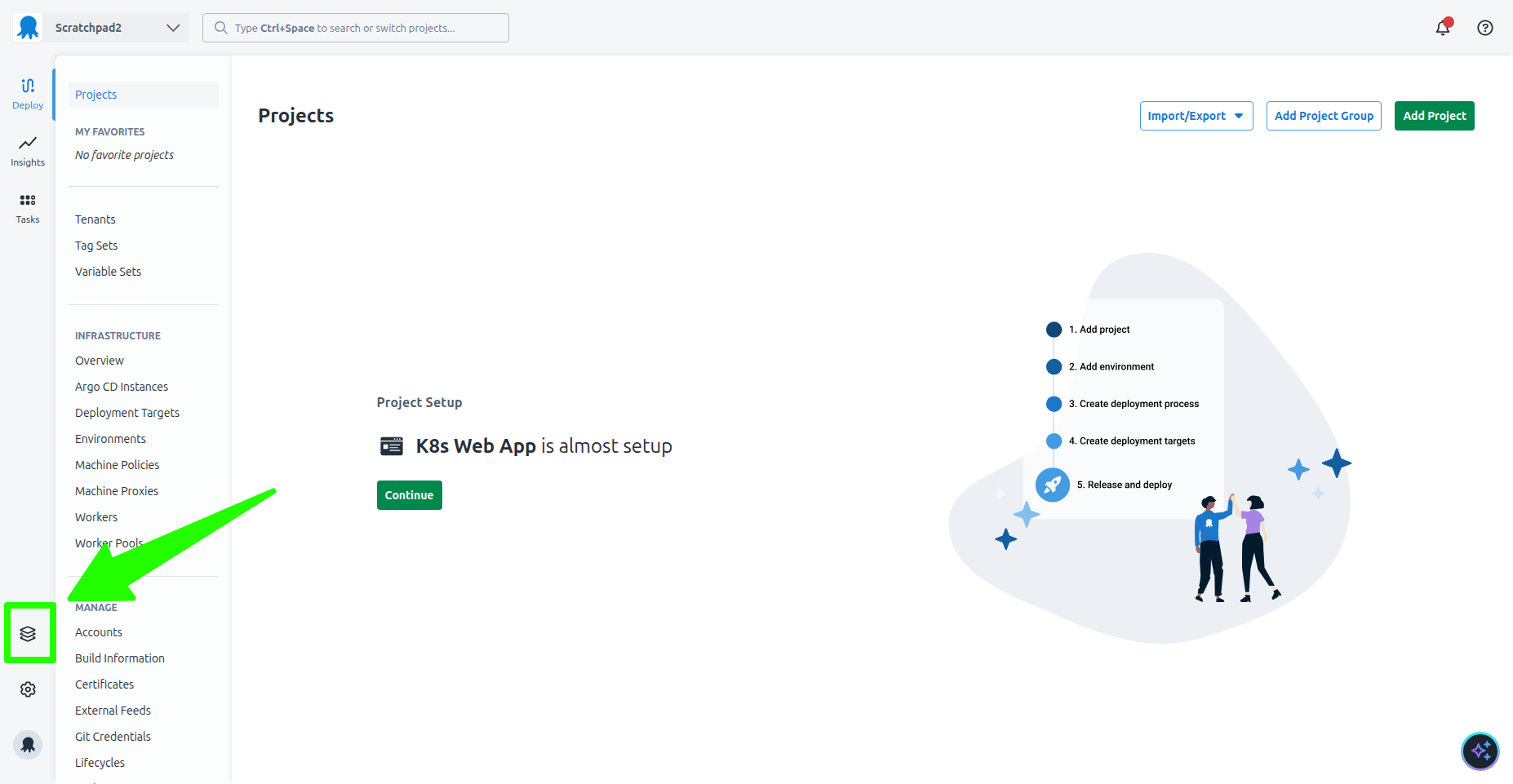
Open Platform Hub from the left-hand menu:
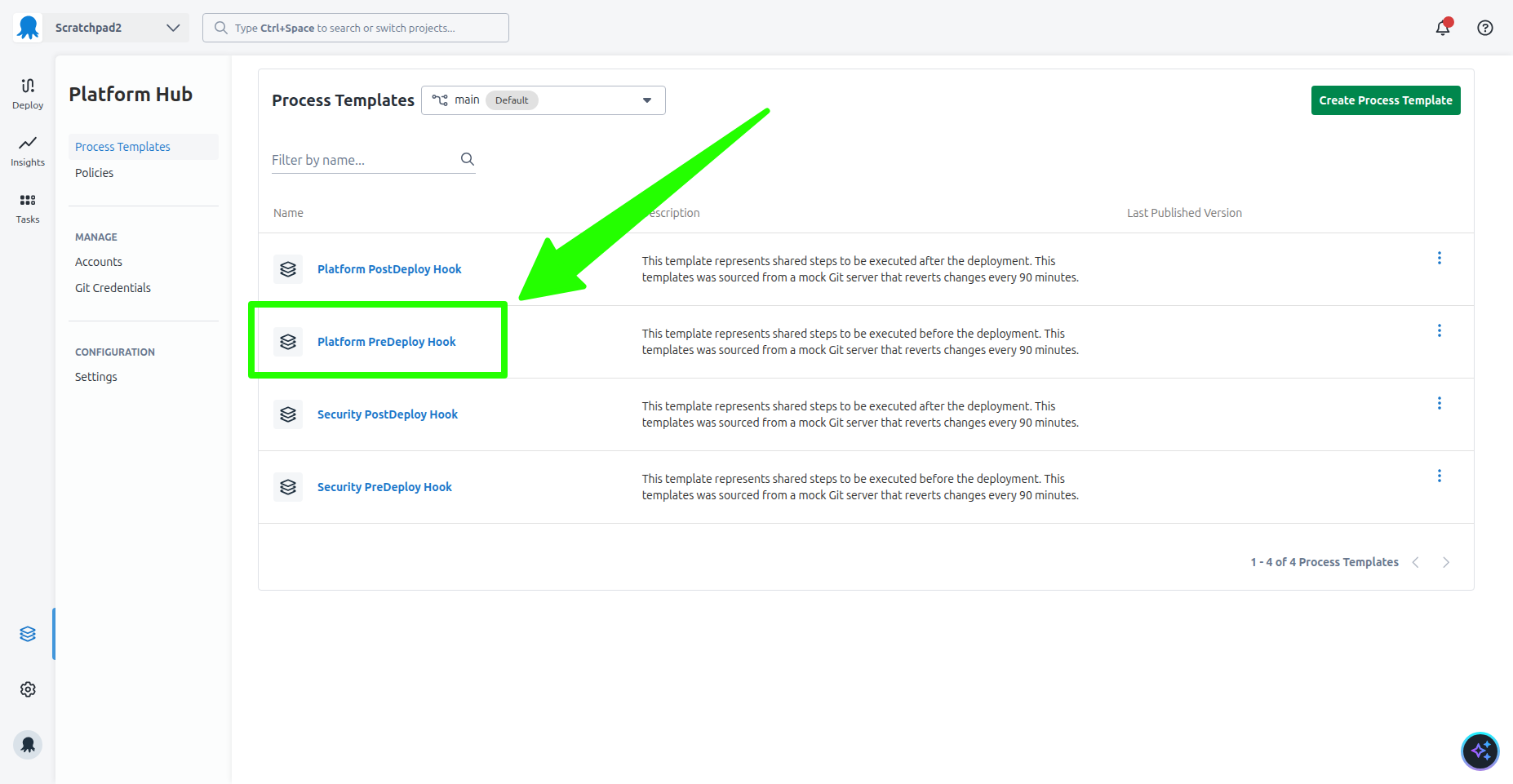
You will then be taken to the list of sample process templates preconfigured in the mock Git repository. Open the Platform PreDeploy Hook process template:
You’ll explore the patterns around these sample process templates in a subsequent post. For now, you’ll experience the process of publishing and sharing a template.
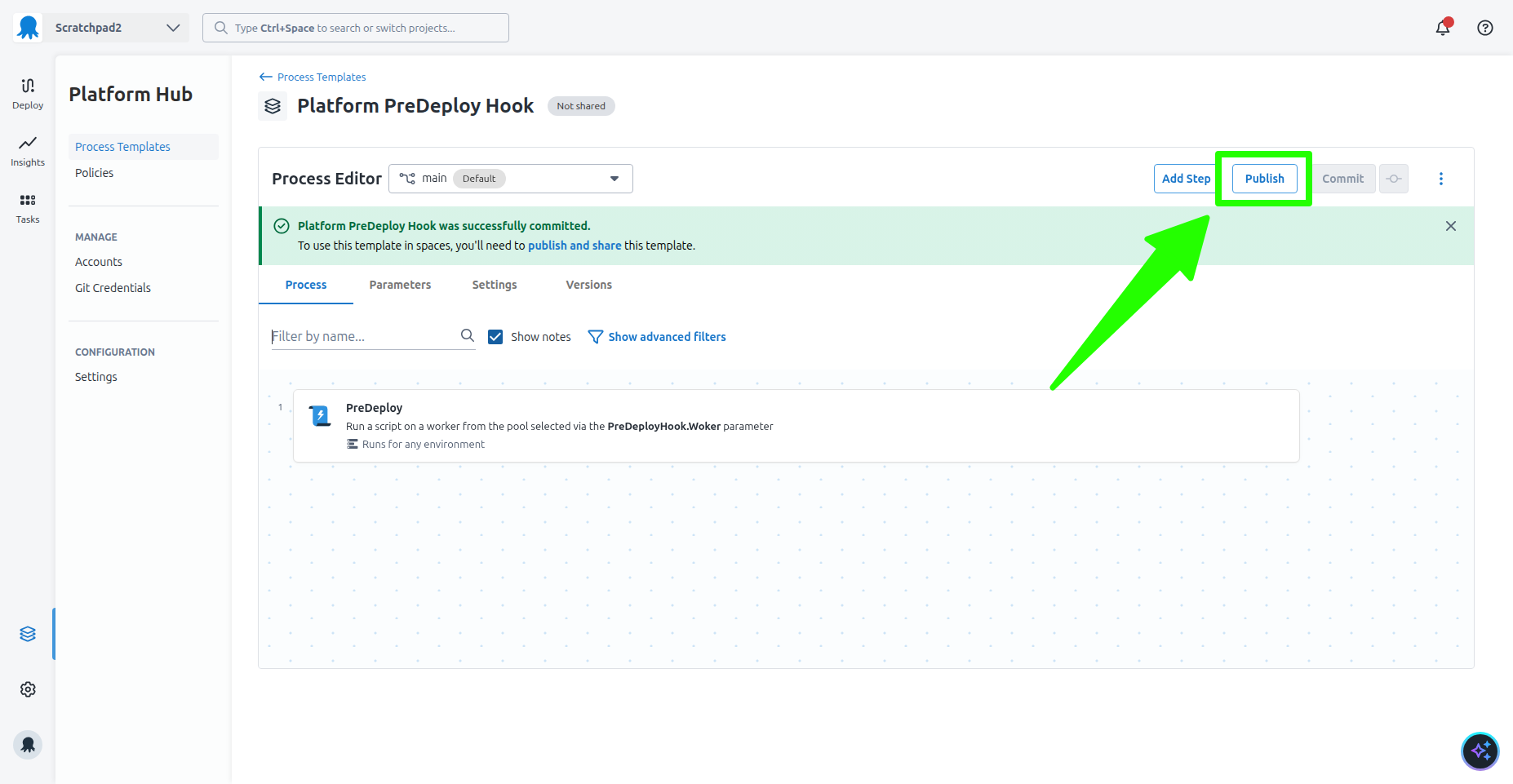
Click the Publish button to publish the process template to your Octopus instance:
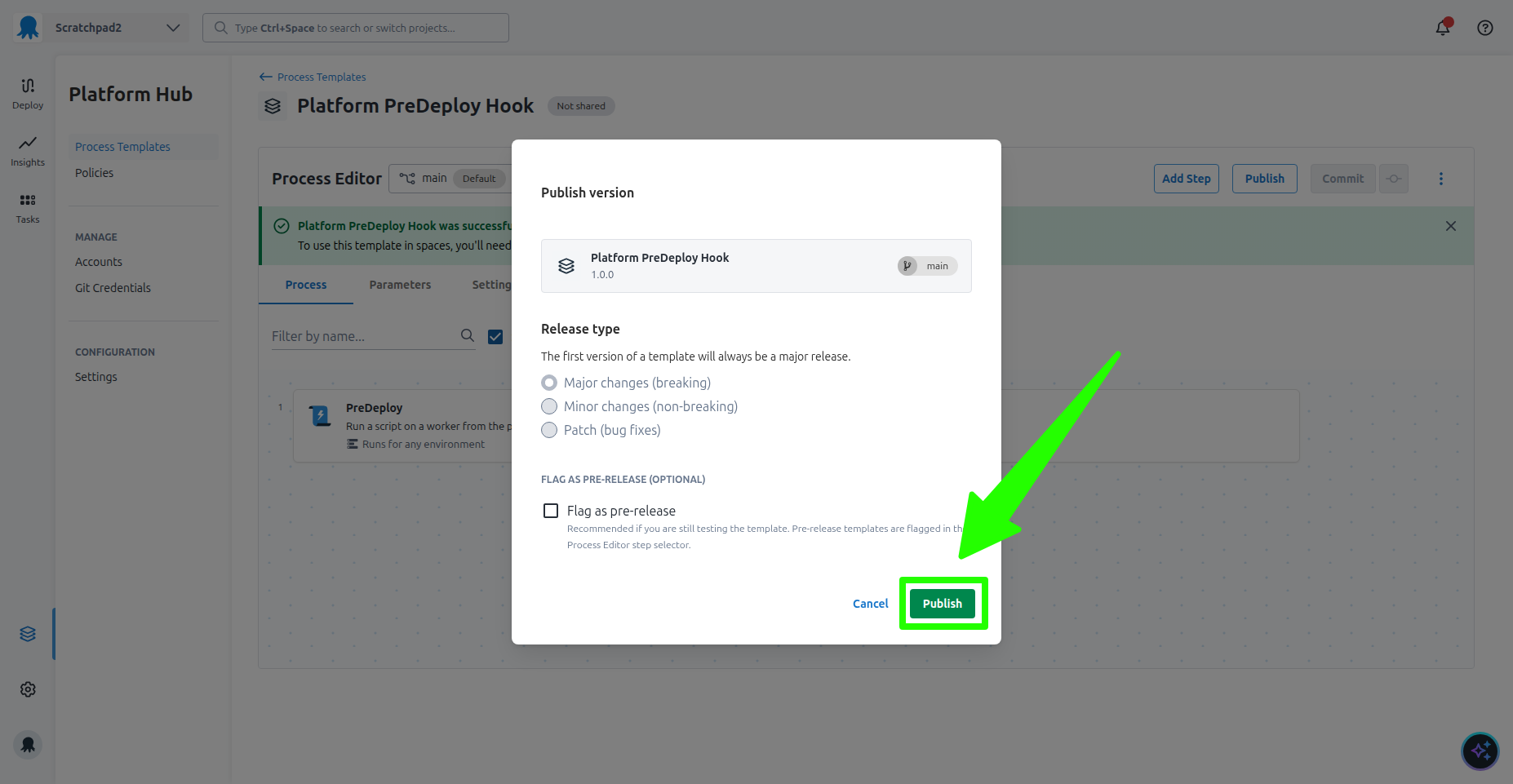
The first version of a template is always 1.0.0. Click the Publish button to publish the template with the selected version:
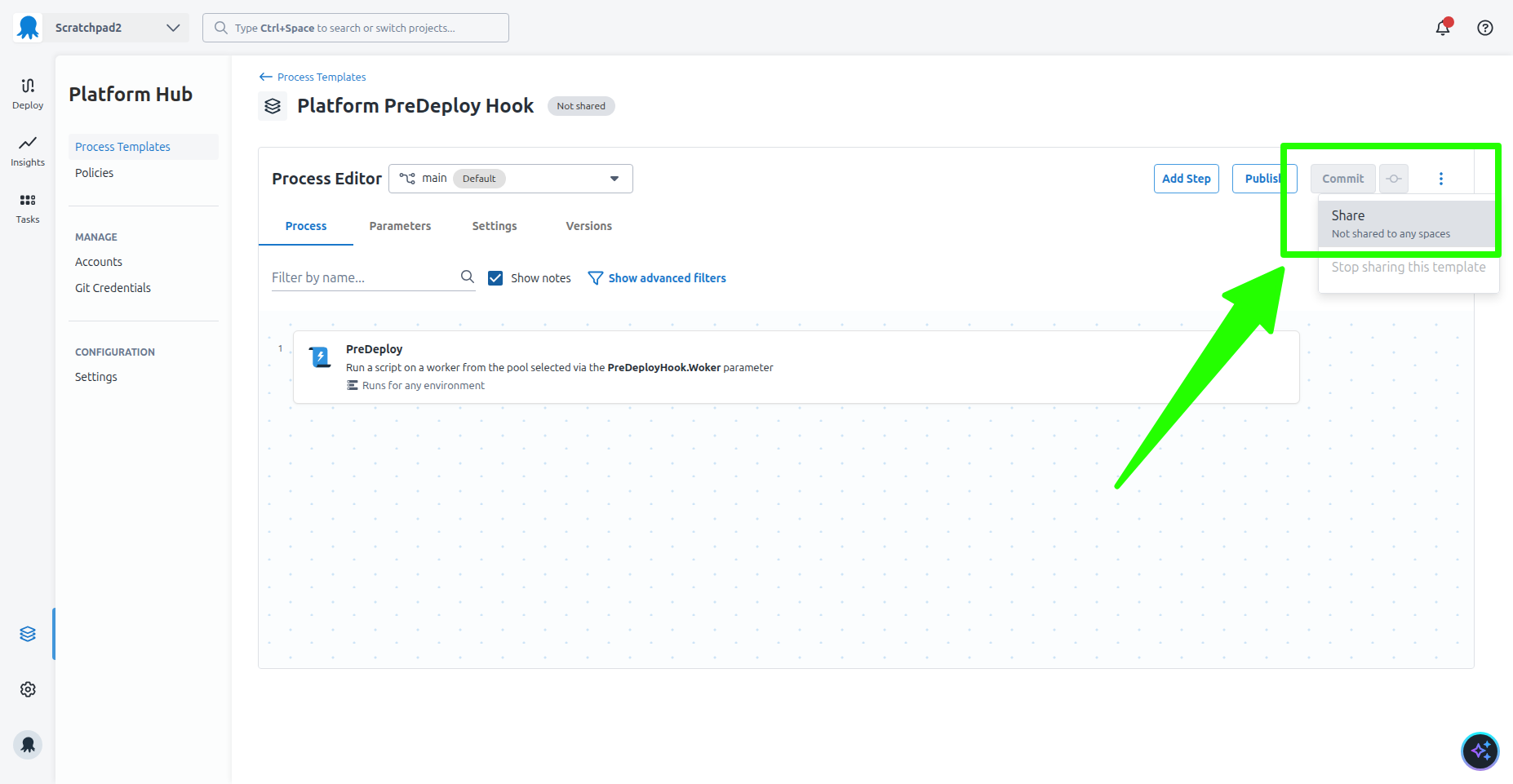
Templates must also be shared with a space, or all spaces, before projects can consume them. Click the kebab menu and then click the Share button:
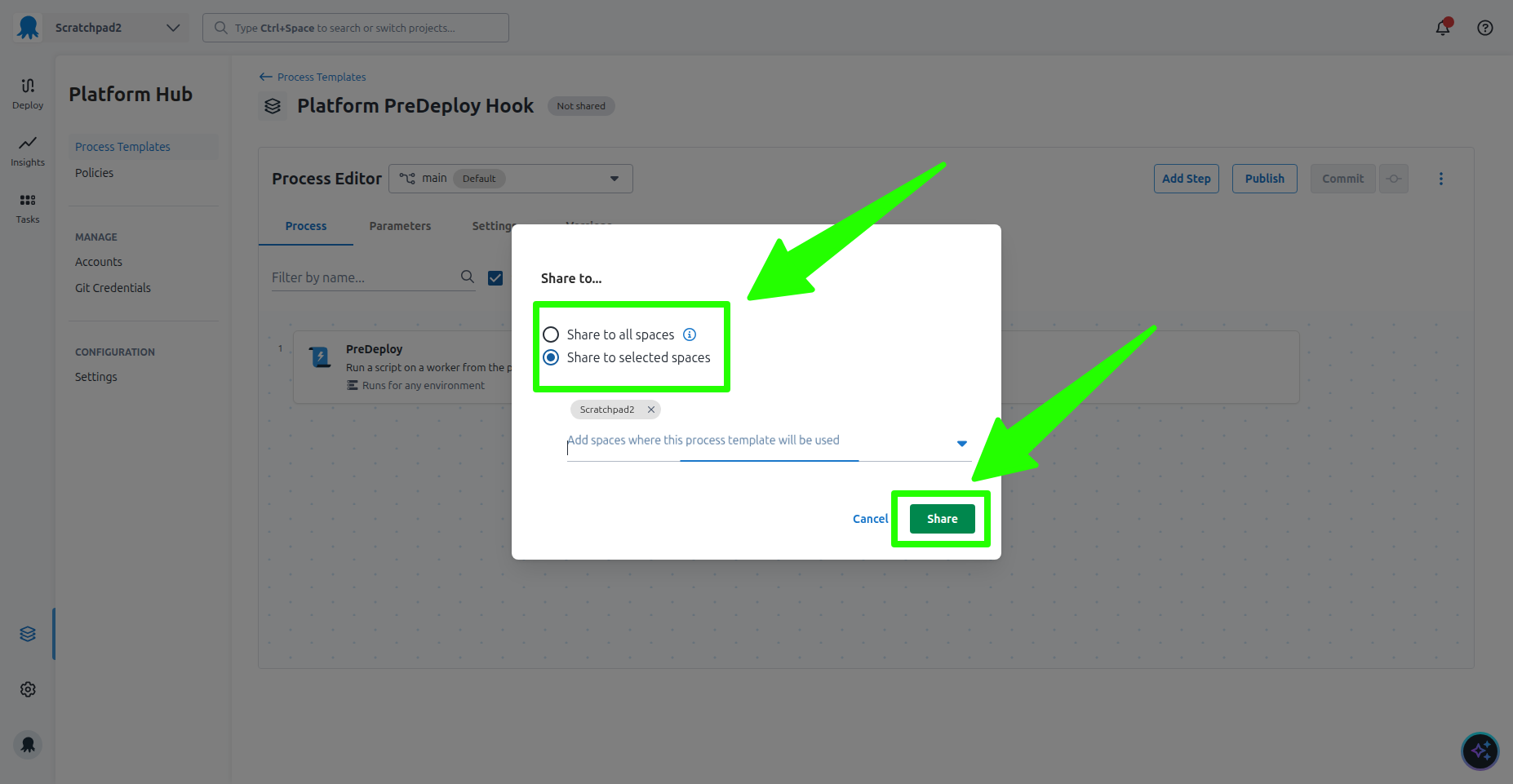
Select the spaces you wish to share the template with (you can select all spaces if you wish), and then click the Share button:
Your process template is now published, shared, and ready to be consumed in a deployment process.
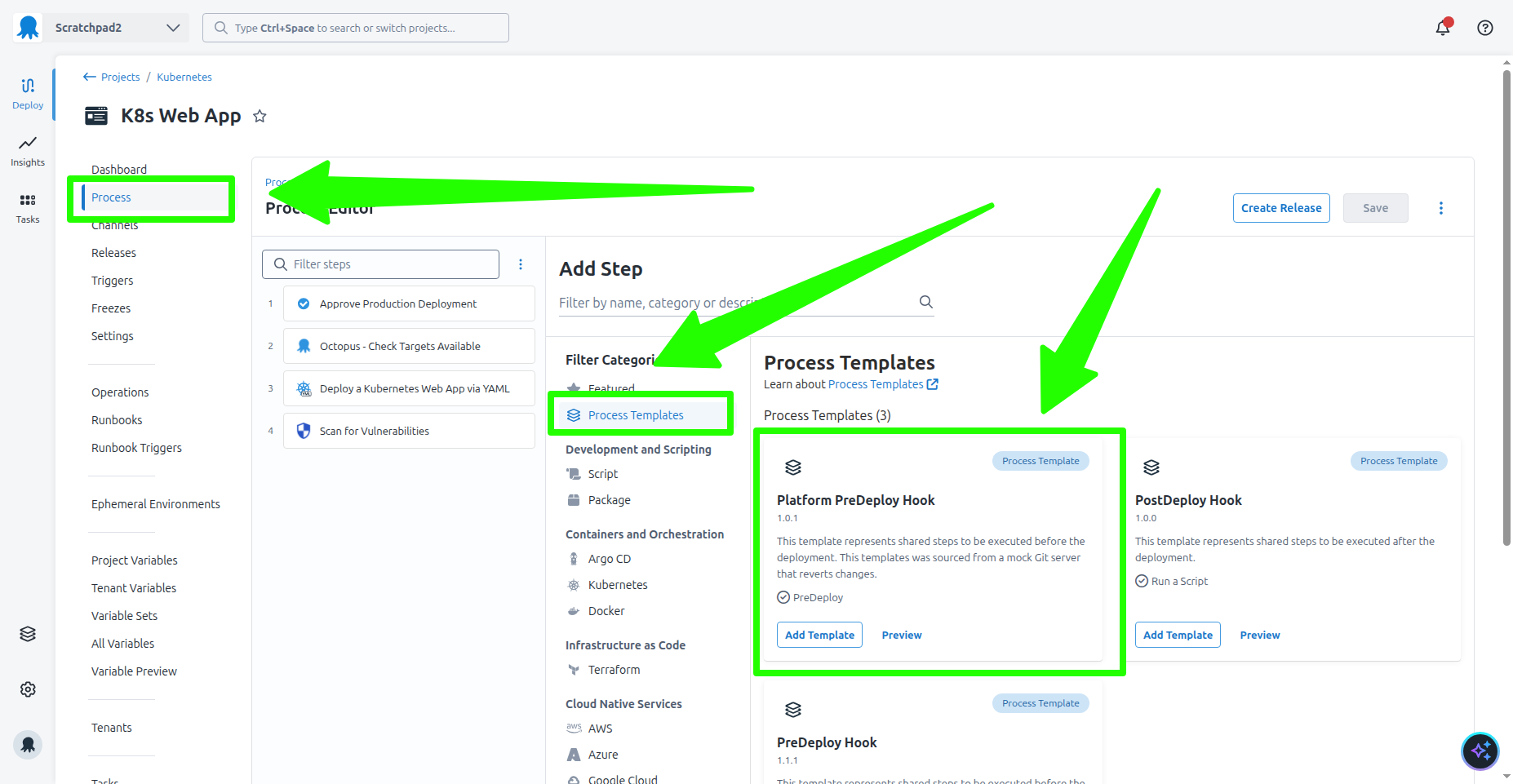
Open the K8s Web App project that you created earlier, and click the Process tab. Click the Add a step button, click Process Templates under the filter category, and click the Add Template button on the Platform PreDeploy Hook template that you just published:
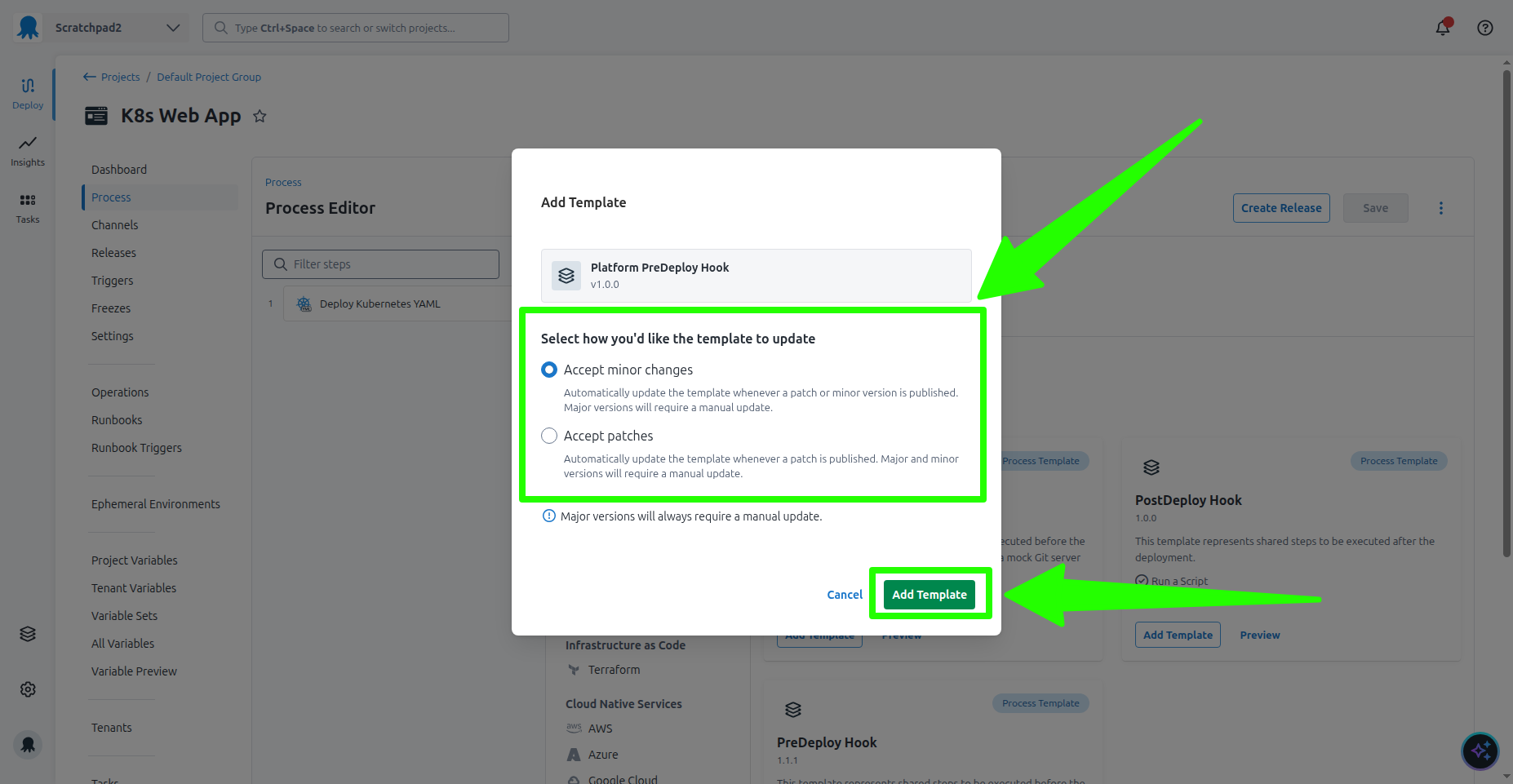
You are prompted to select the changes you wish to opt into automatically. Select Accept minor changes to accept any change to the y and z components of the x.y.z SemVer version scheme used by Platform Hub. Alternatively, you can select Accept patches to only accept changes to the z component.
The ability to automatically opt into new versions of a process template is a strong opinion of Platform Hub. It allows platform teams to update and distribute architectural decisions, in the form of process templates, at scale with the click of a button:
The process template exposes a parameter called PostDeployHook.WorkerPool that defines the worker pool on which the step is run. Assign the Hosted Ubuntu worker pool to this parameter:
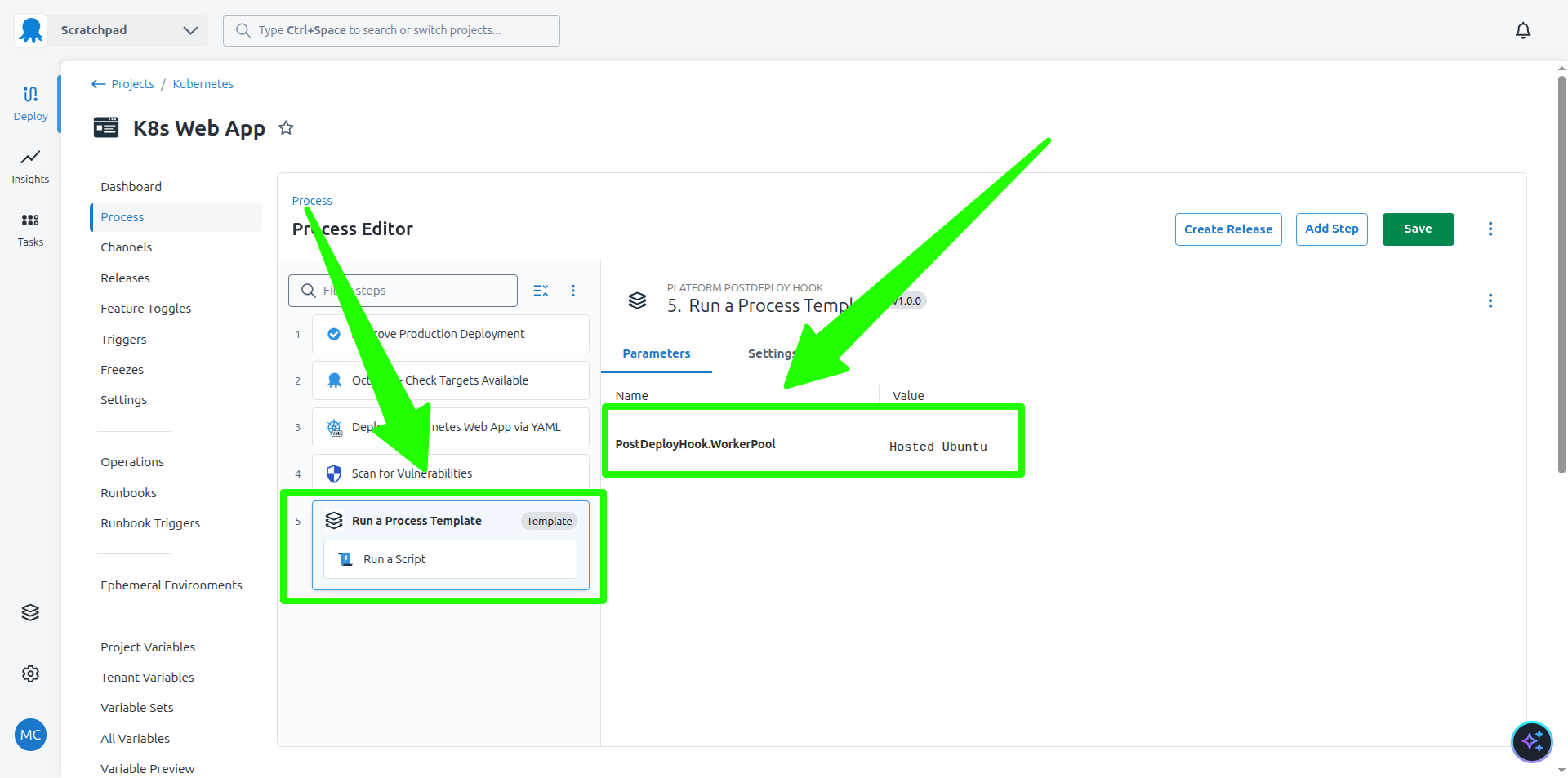
Because this was a template designed to be run at the start of a deployment process, the order of the steps will have to be changed to place the new step before the Deploy Kubernetes YAML step:
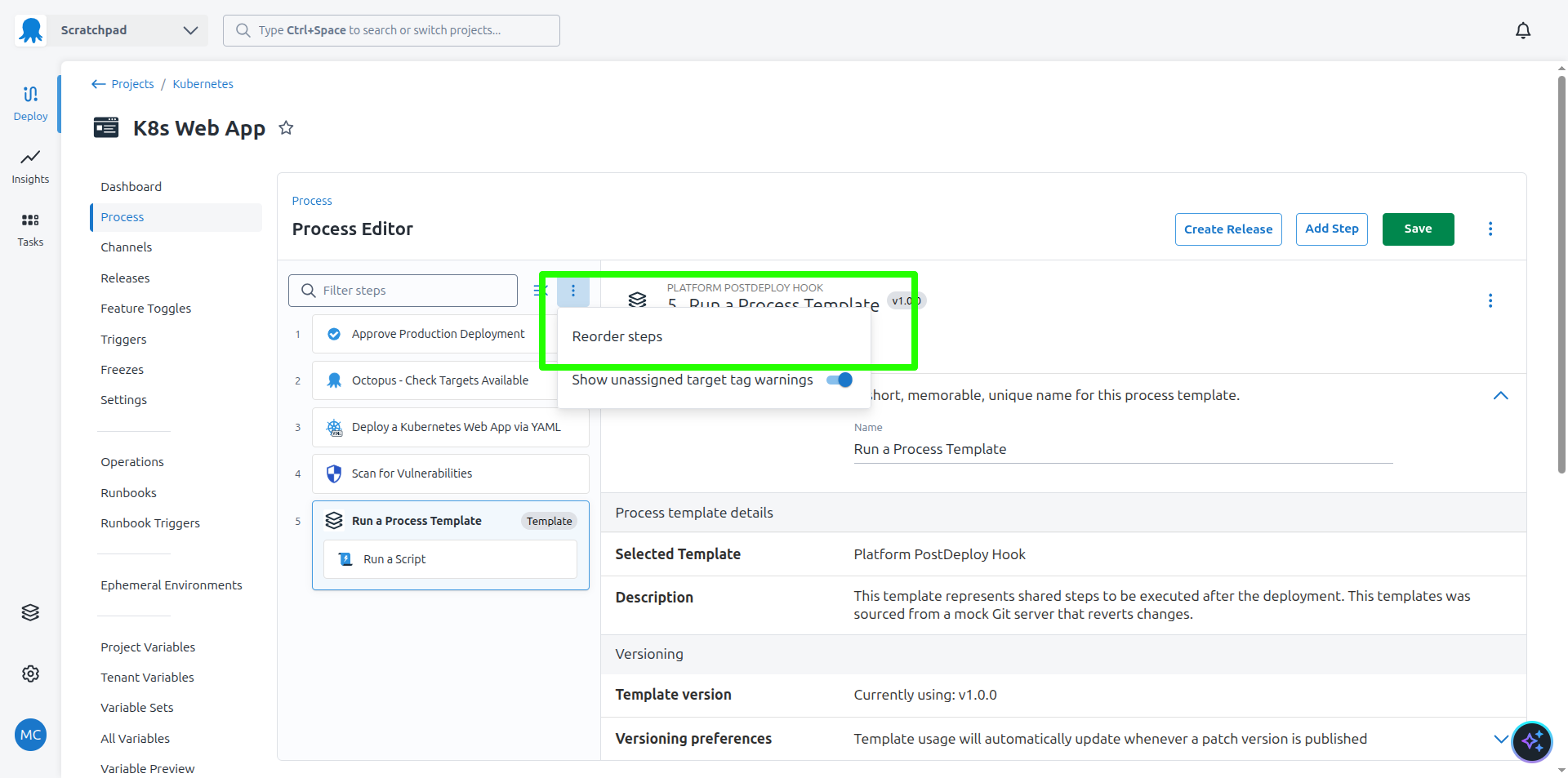
Save the changes to the project, create a release, and deploy it to see the new step in action.
What just happened?
At the end of this post, you have:
- Created a new Kubernetes deployment project using the AI Assistant.
- Configured Platform Hub against a mock Git repository containing sample resources.
- Published a process template from Platform Hub and shared it with the default space.
- Added a step to your deployment process using the shared process template.
What’s next?
You are 40% done with the series. In the next post, you’ll explore how to update and maintain shared resources in Platform Hub by making changes to the process template in the mock Git repository, publishing the changes with versioning, and consuming those changes in your project.
Tags: