
In a perfect world, applications are loosely coupled and independently deployable. But the real world is often messy. In service-based architectures, front-end applications need specific versions of back-end services to be deployed to Production first. Often, those back-end services are managed by other teams.
In the past, Octopus Deploy users used the Deploy a Release built-in step, the Chain Deployment step template, or the Deploy Child Octopus Deploy Project step template to solve this problem. But because they were single steps, the solutions were difficult to configure and brittle.
Platform Hub’s Process Templates solve this problem at scale. This post will walk through the new Verify Dependencies Process Template.
The use cases
I created the Verify Dependencies Process Template based on previous experience as an Octopus Deploy user. I automated the deployment of my application, including code, infrastructure, and database components. The coordination and scheduling were still manual.
Service dependencies
Before working for Octopus Deploy, I was the lead developer on a loan origination system at a bank. The loan origination system depended on multiple REST API services.
- Customer Information Service: Truth center for the customer PII data.
- Financial Service: Truth Center for the customer’s financial information.
- Credit Service: Checked the customer’s credit against the big three credit agencies.
- Collateral Service: Truth center for the customer’s collateral.
- Decision Engine Service: Rules-based engine that would auto-approve the loan or require more verification.
Each of those services was managed by a different team, which had different priorities and deployment schedules. The challenge my team ran into is that we’d make a change to our application based on functionality added in version 2.1.x of the Financial Service, but Production was running 2.0.5.
It required significant coordination and grit to ensure that all the loan origination system’s dependent services were on the correct version in Production before we deployed. There were several close calls and a few extended deployment windows.
Release orchestration
Often, a back-end service and the loan origination system were deployed on the same night. For obvious reasons, the deployment of back-end service changes occurred before the loan origination system. The low-friction and fastest solution was to schedule the back-end service’s deployment for 7:00 pm and the loan origination system for 7:30 pm.
That worked until multiple back-end services needed to be deployed on the same night. For example, the collateral service, credit service, and customer information service had changes to deploy on the same night.
- The collateral service was dependent upon the customer information service.
- The credit service was also dependent upon the customer information service.
- The collateral and credit services were not dependent upon each other.
The result was:
- Schedule the customer information service deployment for 7:00 pm
- Schedule the credit and collateral service deployments for 7:30 pm
- Schedule the loan origination system deployment for 8:00 pm
All that coordination occurred at a daily Change Approval Board (CAB) meeting at 11:00 am.
An unsolved problem
This problem is the silent killer of Continuous Delivery. As a developer, after automating my application’s deployments, I was rarely concerned about production deployments. That is because using Octopus Deploy, my application’s deployment processes were tested multiple times before Production.
What kept me up at night was post-deployment verification. Specifically, if the change depended on other back-end services. Runtime errors that appeared during specific conditions were the most frustrating. It’s easy to debug a missing endpoint or a contract change. It was maddening when all the changes were hidden in the business logic.
Leveraging a message bus wouldn’t have fixed this issue. Yes, that would’ve decoupled hard dependencies between applications. But that doesn’t account for business requirement changes that span multiple applications or services. A new rule may not impact the message contract, but the business logic can change.
The primary reason for creating this Process Template was the lack of a better alternative. I have yet to find a solution that can handle the nuances of dependency management across applications.
A better solution with Process Templates
I’m the author of the Deploy Child Octopus Deploy Project. I created that step to address limitations in the Deploy a Release and Chain Deployment steps. At the time, working within the constraints of what was possible with a 2021 version of Octopus Deploy, I was happy with the solution.
But the solution had multiple problems.
Creating an approval workflow with that step is incredibly messy for consumers. See the approval in parent project only section in the announcement blog post as an example. A consumer has to:
- Add the
Deploy Child Octopus Deploy Projectfor each of the dependent projects configured in what-if mode. - Add a manual intervention step and set the instruction message using output variables from the previous step.
- Add the
Deploy Child Octopus Deploy Projectfor each of the dependent projects configured for deployment mode. Set the version to deploy to the output variables from the previous step.
A project with five dependent projects would require 11 steps just for approval. A release manager attempting to coordinate the release of 50 applications would need a process with 101 steps!
Process Templates enabled a better solution by supporting multiple steps. As the producer of the step, I can abstract away all the complexity from the consumer. Consumers no longer have to add multiple steps for each dependent project. Nor do they have to know the correct Octostache for the output variables. Adding a new dependency is as simple as editing a JSON array.
Now consumers can focus on answering:
- Which projects are this project dependent upon?
- What is the version required for each project?
- Do you want to stop the deployment, continue the deployment, or attempt to deploy when a dependency is not in the target environment?
- If you choose to deploy, do you want to pause for approval?
- If you choose to deploy, in what order should the dependencies be deployed?
Verify Dependencies Process Template
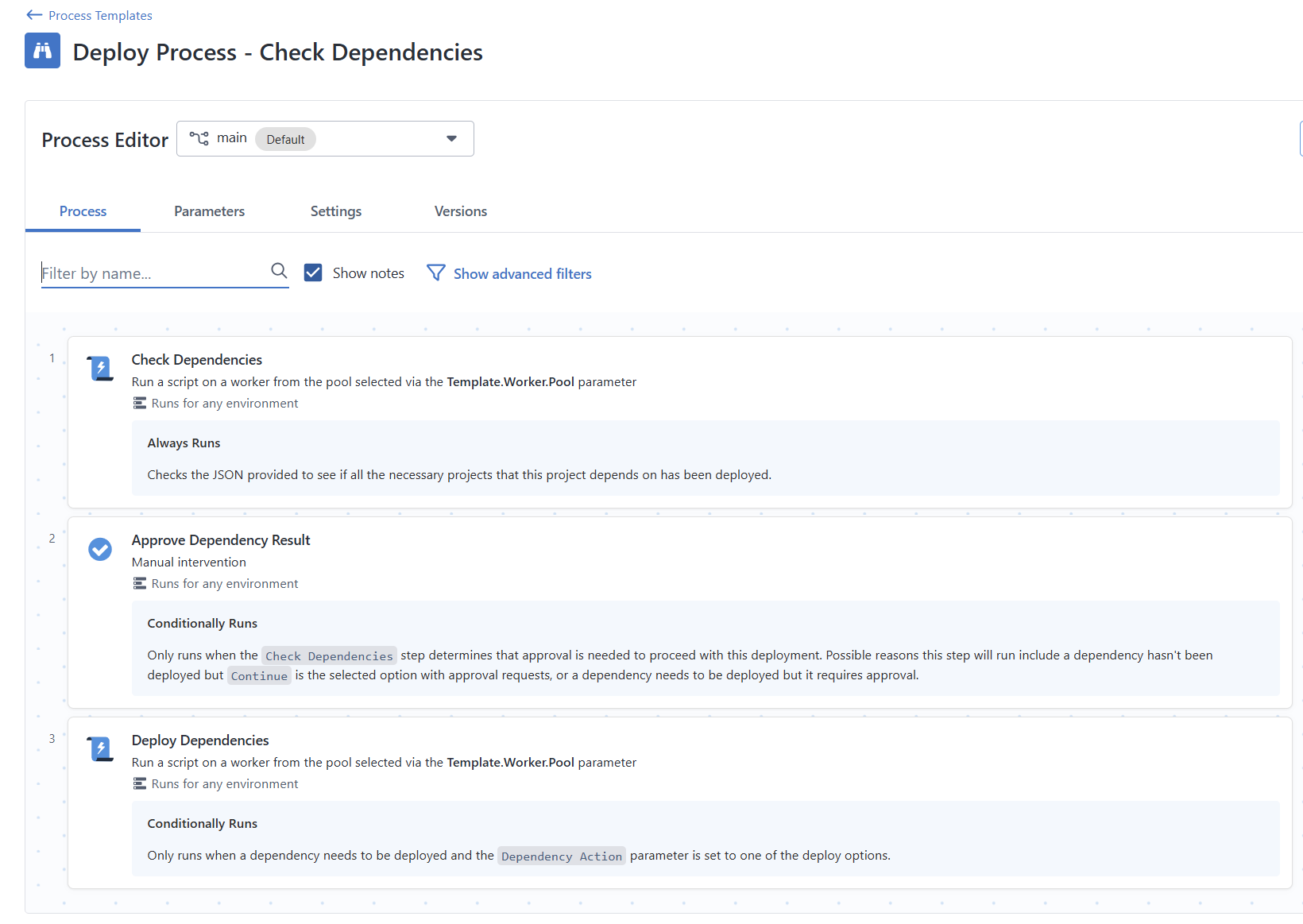
The Verify Dependencies Process Template has three steps.
- Check Dependencies - Loops through all the dependencies to determine if an appropriate version is in the target environment.
- Approve Dependency Result - When configured, the Process Template pauses the deployment for verification when a dependency doesn’t have an appropriate version in the target environment.
- Deploy Dependencies - When configured, the Process Template will initiate deployments for all the dependencies found in the Check Dependencies step.
It has the following parameters.
- Worker Pool - The worker pool to execute all the scripts in the Process Template
- Octopus Deploy API key - The API key of a service account that has permissions to view the dependent projects, and if configured, deploy those dependencies.
- Target Environment - The environment to check, and if configured, deploy the dependencies.
- Project Dependencies - A JSON array containing all the dependencies, the version pattern, and deployment order. See the section below for more details.
- Default Dependency Action - Indicates what the Process Template should do if a dependency doesn’t have the appropriate version in the target environment. The possible options are
Stop,Continue,Deploy when newer matching found, andDeploy only when no matching found. Default isStop. - Approval requested to proceed - Determines if the Process Template should pause and wait for approval when a dependency doesn’t have the appropriate version in the target environment and the dependency action is
Continue,Deploy when newer matching found, orDeploy only when no matching found. Default isYes. - Reuse Change Request Number in Dependencies - Tells the Process Template to re-use the ITSM change request number when initiating deployments. Only applicable when the dependency action is
Deploy when newer matching foundorDeploy only when no matching found. Default isNo. - Target Tenant - Only used when verifying a multi-tenanted dependency. By default, the Process Template ignores this parameter when used in a non-tenanted project. When used in a tenanted project, the Process Template uses the current tenant of the deployment.
Project dependencies
I opted for a JSON array as a parameter for dependencies. Requiring a consumer to add multiple Process Templates is an awful experience.
[
  {
    "projectName": "Spear",
    "versionPattern": ">1.0.54",
    "deployGroup": 1,
    "promptedVariables": [
         {
             "name": "Prompted.Input.Variable",
             "value": "Dependency Checker"
         }
     ]
  },
  {
    "projectName": "TAKA",
    "versionPattern": "~2.4.0",
    "deployGroup": 1
  },
  {
    "projectName": "TAWA",
    "versionPattern": "^4.0.0",
    "dependencyAction": "Continue",
    "deployGroup": 2
  },
 {
    "projectName": "StoreHub",
    "versionPattern": ">1.0.3",
    "spaceName": "Default",
    "tenantName": "Internal",
    "deployGroup": 3
  }
]
The properties for each JSON object are:
- projectName (Required): the name of the project of the dependency.
- versionPattern (Required): the version pattern to match on. See below for more details.
- deployGroup (Optional): Projects in the same deploy group are deployed concurrently. Projects in different deploy groups are deployed sequentially. If omitted, all dependencies are deployed sequentially. See below for more details.
- spaceName (Optional): overrides the current space.
- tenantName (Optional): the name of the tenant to deploy. If not specified, during a multi-tenanted deployment, it will use the current deployment’s tenant.
- promptedVariables (Optional): an array that lets you send in prompted variable values to the dependency project. It will only work with string variable types, text, and sensitive values.
- dependencyAction (Optional): overrides the default dependency action parameter. For example, if you want to continue for a specific dependency but stop for all other dependencies. The options are:
-
Stop: which will stop the deployment -Continue: which will continue the deploy -DeployNoMatchingInTarget: which will deploy only when no matching version in the target environment exists. -DeployNewerMatching: which will deploy only when the source environment contains a newer matching version.
Version pattern
Versioning is the heart of the Verify Dependencies Process Template. Octopus Deploy uses SemVer for release versioning. All previous step templates were specific versions (2.2.5), the latest version (2.2.x), or a wildcard (2.2.x).
I can’t predict all the dependencies and their versioning requirements. So, I decided to implement a version pattern similar to Node.js. I modified it slightly because we support .NET and they allow Major.Minor.Patch.Build.
- Exact version: 1.2.3.4 - only version 1.2.3.4 will be accepted.
- Greater than current: >1.2.3.4 - Any version greater than or equal to 1.2.3.4 will be accepted.
- Caret range: ^1.2.3.4 - Allows minor, patch, and build updates, locking the major version. Similar to 1.x.
- Tilde range: ~1.2.3.4 - Allows patch and build updates only, locking the major and minor versions.
- Major wildcard: 2.x - Allows any version or any version within a major range.
The .Build part of the version is optional. Version patterns like 1.2.3, >1.2, ~1.2, and 2.x are accepted.
Deploy group
Earlier in this post, I discussed the deployment order of the back-end services because of these rules:
- The collateral service was dependent upon the customer information service.
- The credit service was also dependent upon the customer information service.
- The collateral and credit services were not dependent upon each other.
I wanted to make it very easy to deploy projects in a specific order. But, at the same time, allow for concurrent deployments of non-dependent projects. The deploy group property in the JSON object solves for that.
- All deployments in the group must finish before moving to the next group.
- Any projects in the same deploy group can run concurrently.
- A failure in a deploy group will prevent subsequent deploy groups from being processed.
The deploy group property is optional.
- If no projects have a deploy group in the JSON array, then deploy the projects in the order they appear in the array.
- If a deploy group appears for some objects in the JSON array, deploy those projects based on the specified deploy group. After that, deploy projects without a deploy group in the order they appear in the array.
Respecting the task cap
The ability to concurrently initiate deployments raised a major concern: the task cap. It would be very easy to consume all the available tasks quickly.
For example, you have a task cap of 10, and a deploy group with 15 projects. If all 15 projects require deployment, you could end up blocking any other deployments until those 15 are finished. Even worse, what happens if some of those 15 projects trigger a runbook during deployment?
Before initiating a deployment, the Process Template will ensure that at least three tasks are available. It will check every five seconds until it finds at least three available tasks.
Dependency action and approvals
Every company, environment, and application is different. When deploying to a testing environment, you might only need a warning if a dependency isn’t on the correct version. But you’d want to fail the deployment if a dependency isn’t on the correct version in pre-production or Production.
The Verify Dependencies Process Template will use Octopus Deploy’s API to determine the version of each dependency in the target environment.
In the event a match doesn’t occur, the step can:
- Stop: If one or more of the dependency checks fail, it will stop and fail the deployment. This option is the default.
- Continue: Will proceed with the deployment even if the dependency check fails. Will not attempt to deploy any dependent projects.
- Deploy when newer matching found: Will always deploy the latest matching version from the previous environment.
- Deploy only when no matching found: Will trigger a deployment to the target environment only if the target environment has a matching version.
The deploy options control when a deployment will occur. Imagine a dependency with a version pattern set to >4.5.2.
- Example #1 - The latest version in Production is
4.1.2, and in Test it is4.5.7. Deploy when newer matching found will deploy4.5.7. Deploy only when no matching found will deploy4.5.7. - Example #2 - The latest version in Production is
4.5.3, and in Test it is4.5.7. Deploy when newer matching found will deploy4.5.7. Deploy only when no matching found WILL NOT deploy4.5.7because4.5.3in production matches the pattern>4.5.2.
It takes time to build trust in a new process. The Verify Dependencies Process Template allows you to pause the deployment and wait for a person to approve the changes.
Reusing change request numbers
The ServiceNow and Jira Service Management (JSM) ITSM integrations have led to interesting requests and use cases from our customers. One of the most common requests is the ability to create a single change request number and reuse that for all deployments in a deployment window.
The Verify Dependencies Process Template, when configured, will send the change request number from the parent project to all dependent projects when a deployment is invoked. It doesn’t matter whether the parent project created the change request or a user supplied the change request number.
There are a few limitations.
- Projects can use different SNoW or JSM instances. The Process Template’s logic assumes that the parent project and its dependent projects all use the same ITSM instance.
- ITSM has to be configured for the dependent projects. The Process Template cannot modify the project settings. The Process Template will never send the change request number to any project without the ITSM settings configured.
Prompted variables
It is safe to say that at least one project will require a prompted variables value to be supplied. The challenge is that each dependent project will have different prompted variable names and values. That is why the prompted variables are part of the Project Dependencies JSON array.
[
  {
    "projectName": "Spear",
    "versionPattern": ">1.0.54",
    "deployGroup": 1,
    "promptedVariables": [
         {
             "name": "Prompted.Input.Variable",
             "value": "Dependency Checker"
         }
     ]
  },
  {
    "projectName": "TAKA",
    "versionPattern": "~2.4.0",
    "deployGroup": 1
  }
]
The Verify Dependencies Process Template will match the provided name in the JSON array to the name or the label of the prompted variable. That is how our CLI handles it, so it makes sense to be consistent.
Permissions
The Verify Dependencies Process Template requires an API key because it invokes the Octopus Deploy API. I highly recommend using an API key from a new service account with limited permissions.
When configuring the Process Template to Stop or Continue, the recommended roles are:
- Project Viewer
- Environment Viewer
When configuring the Process Template to Deploy when newer matching found or Deploy only when no matching found, then the recommended roles are:
- Project Viewer
- Environment Viewer
- Deployment Creator
Scenarios
The combination of the chosen dependency action, the approval-required setting, and a dependency’s current state can result in 16 possible outcomes for each dependency. Below is a table I created to help keep track of the possible outcomes.
| Matching running in Target Env (Prod) | Matching running in Source Env (Test) | Source is Newer | Chosen Action | Approval Requested | Failure | Deployment Needed | Approval Required |
|---|---|---|---|---|---|---|---|
| No | No | N/A | Stop | Yes or No | TRUE | FALSE | FALSE |
| No | No | N/A | Continue | Yes | FALSE | FALSE | TRUE |
| No | No | N/A | Continue | No | FALSE | FALSE | FALSE |
| No | No | N/A | Deploy* | Yes or No | TRUE | FALSE | FALSE |
| Yes | N/A (Is first env in lifecycle) | N/A | Any | Yes or No | FALSE | FALSE | FALSE |
| No | Yes | N/A | Stop | Yes or No | TRUE | FALSE | FALSE |
| No | Yes | N/A | Continue | Yes | FALSE | FALSE | TRUE |
| No | Yes | N/A | Continue | No | FALSE | FALSE | FALSE |
| No | Yes | N/A | Deploy* | Yes | FALSE | TRUE | TRUE |
| No | Yes | N/A | Deploy* | No | FALSE | TRUE | FALSE |
| Yes | Yes | No | Any | Yes or No | FALSE | FALSE | FALSE |
| Yes | Yes | Yes | Stop | Yes or No | FALSE | FALSE | FALSE |
| Yes | Yes | Yes | Continue | Yes or No | FALSE | FALSE | FALSE |
| Yes | Yes | Yes | DeployNoMatchingInTarget | Yes or No | FALSE | FALSE | FALSE |
| Yes | Yes | Yes | DeployNewerMatching | Yes | FALSE | TRUE | TRUE |
| Yes | Yes | Yes | DeployNewerMatching | No | FALSE | TRUE | FALSE |
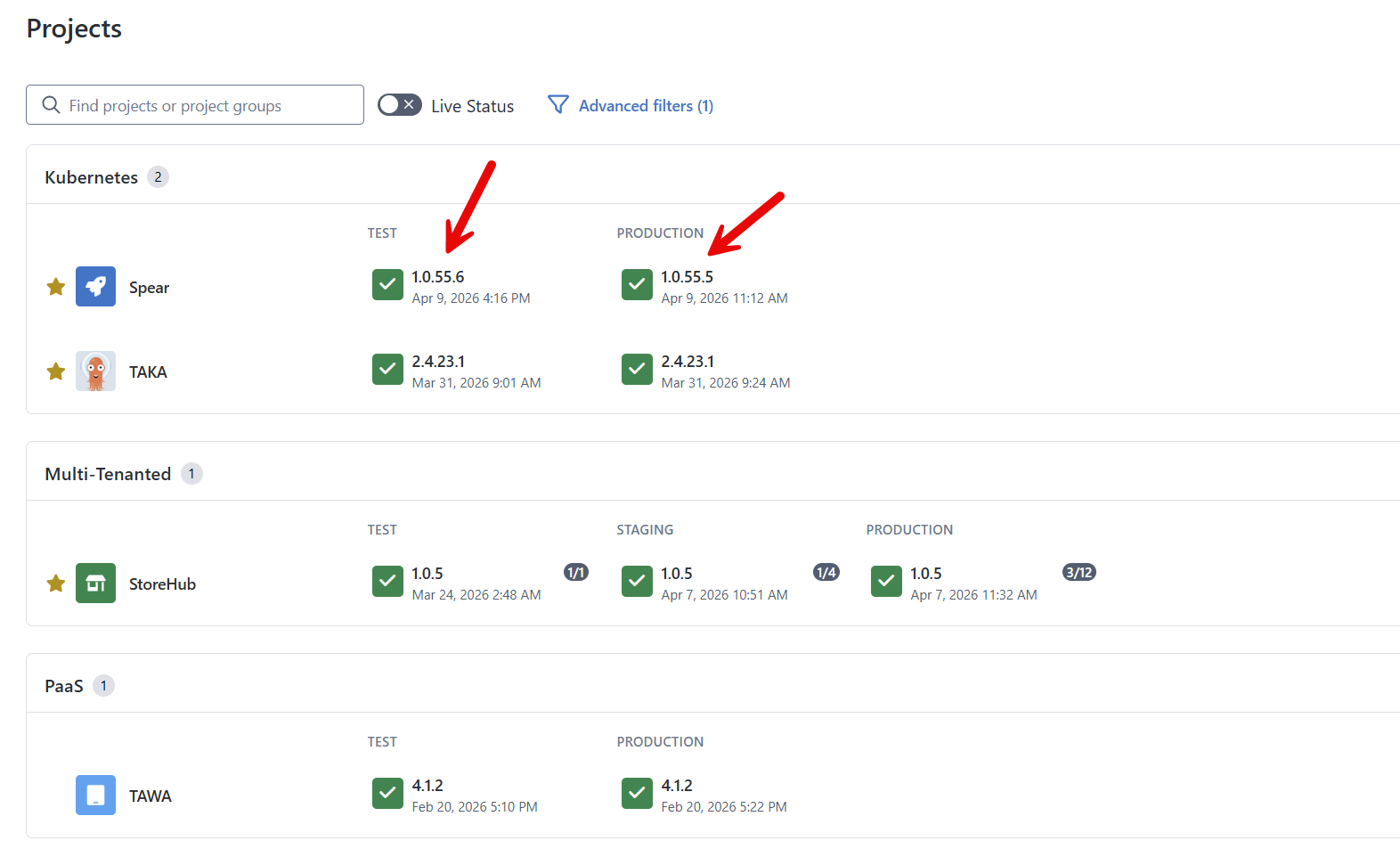
It can be hard to visualize results from a table. I set up my instance with a project that depends on these projects.
- Spear
- TAKA
- TAWA
- StoreHub - multi-tenanted
The dependency configuration is:
[
  {
    "projectName": "Spear",
    "versionPattern": ">1.0.56",
    "deployGroup": 1
  },
  {
    "projectName": "TAKA",
    "versionPattern": "~2.4.0",
    "deployGroup": 1
  },
  {
    "projectName": "TAWA",
    "versionPattern": "^4.0.0",
    "deployGroup": 2
  },
 {
    "projectName": "StoreHub",
    "versionPattern": ">1.0.5",
    "tenantName": "Internal",
    "deployGroup": 4
  }
]
Right now, only Spear doesn’t have a version in Test or Production that matches the version pattern.
Warning with approval
In this scenario, I’ve configured the Verify Dependencies Process Template parameters to be:
- Default Dependency Action: Continue
- Approval requested to proceed: Yes
The result of a deployment to the test environment was:
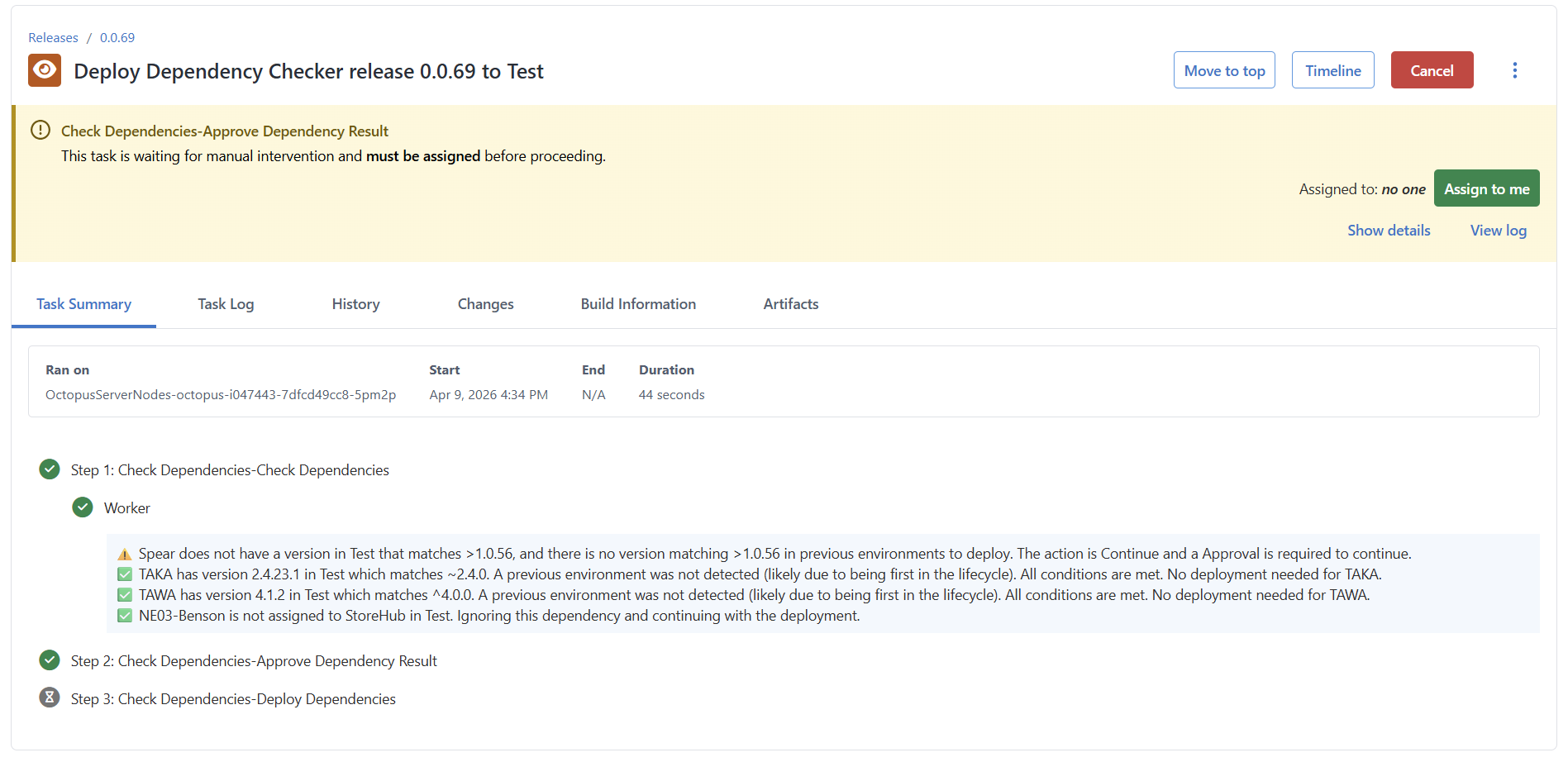
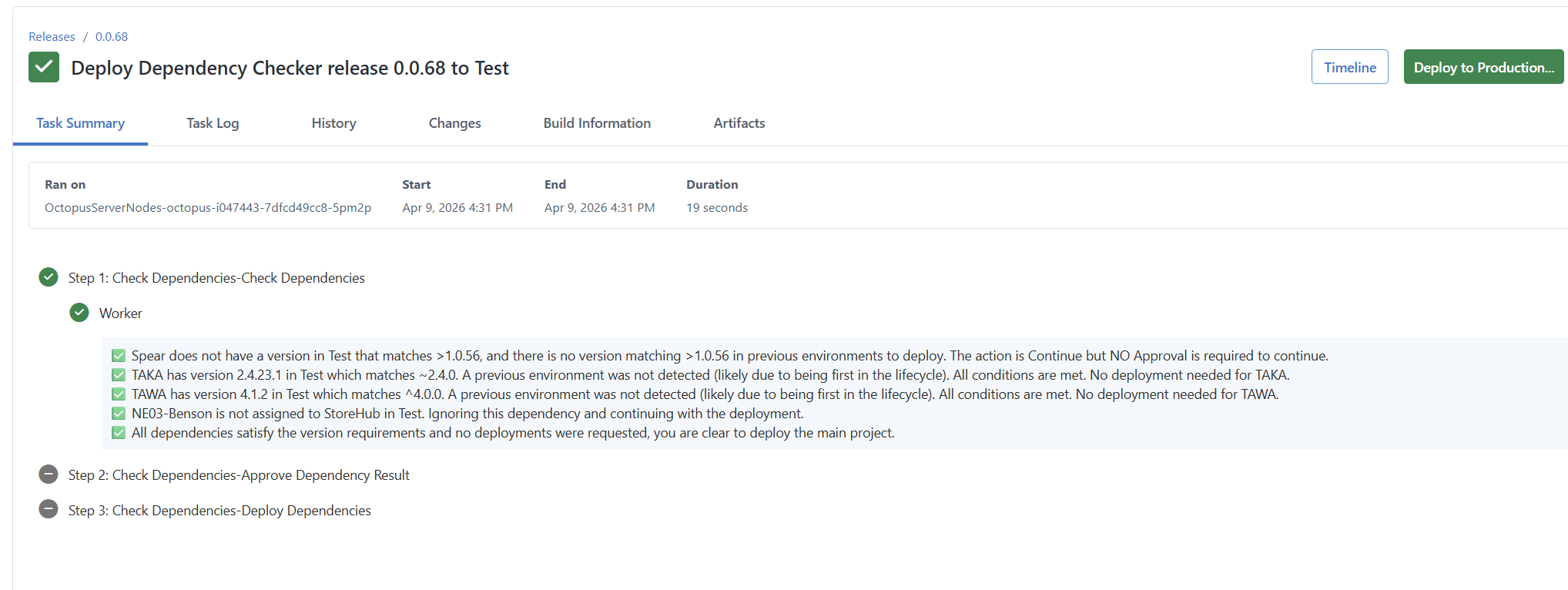
Turning off approval would yield the same result, but without the manual intervention step.
Stopping deployments
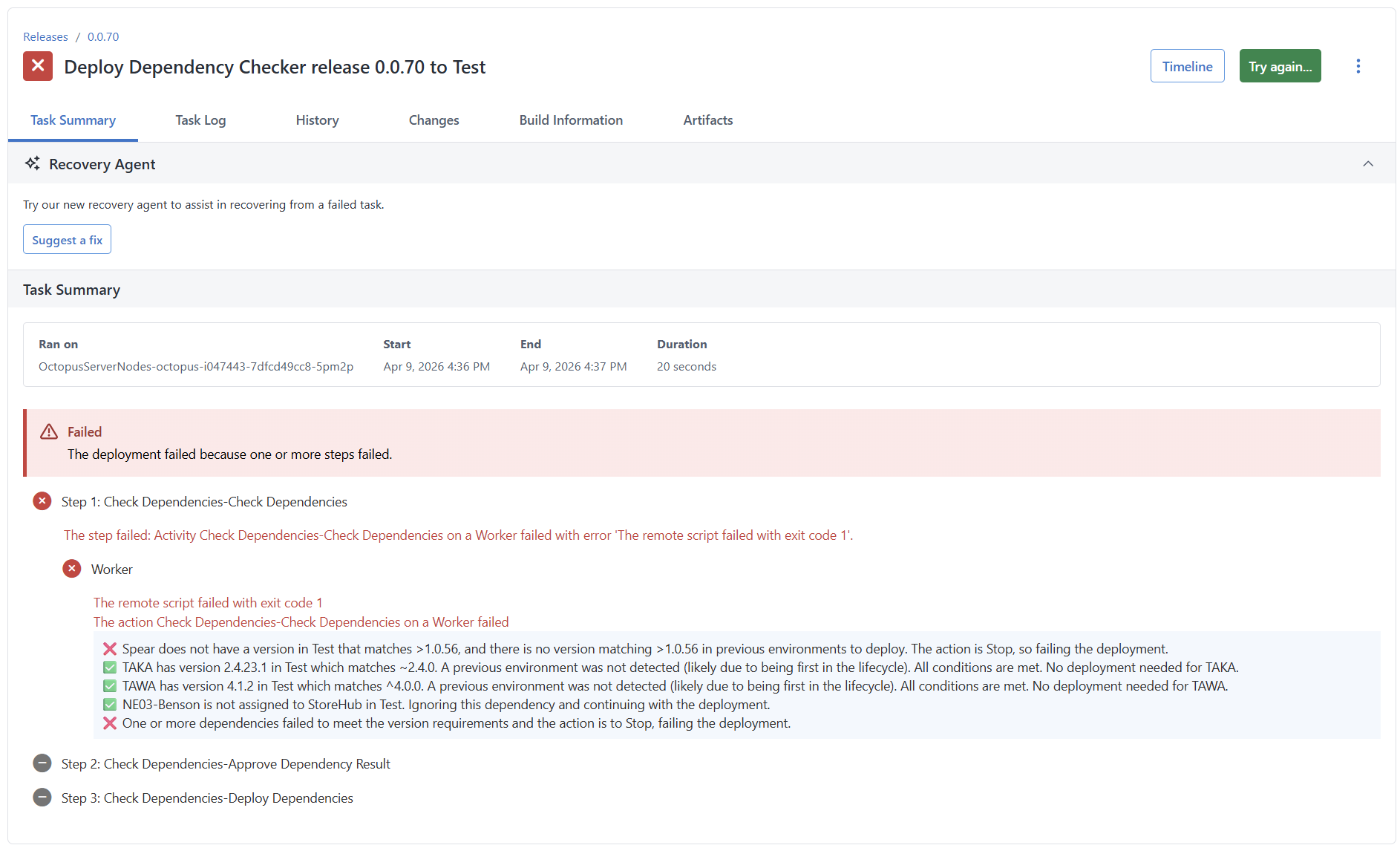
In this scenario, I’ve configured the Verify Dependencies Process Template parameters to be:
- Default Dependency Action: Stop
- Approval requested to proceed: Yes
The result of a deployment to the test environment was:
Deploying dependencies
In this scenario, version 1.0.56 for the Spear application exists in the testing environment.
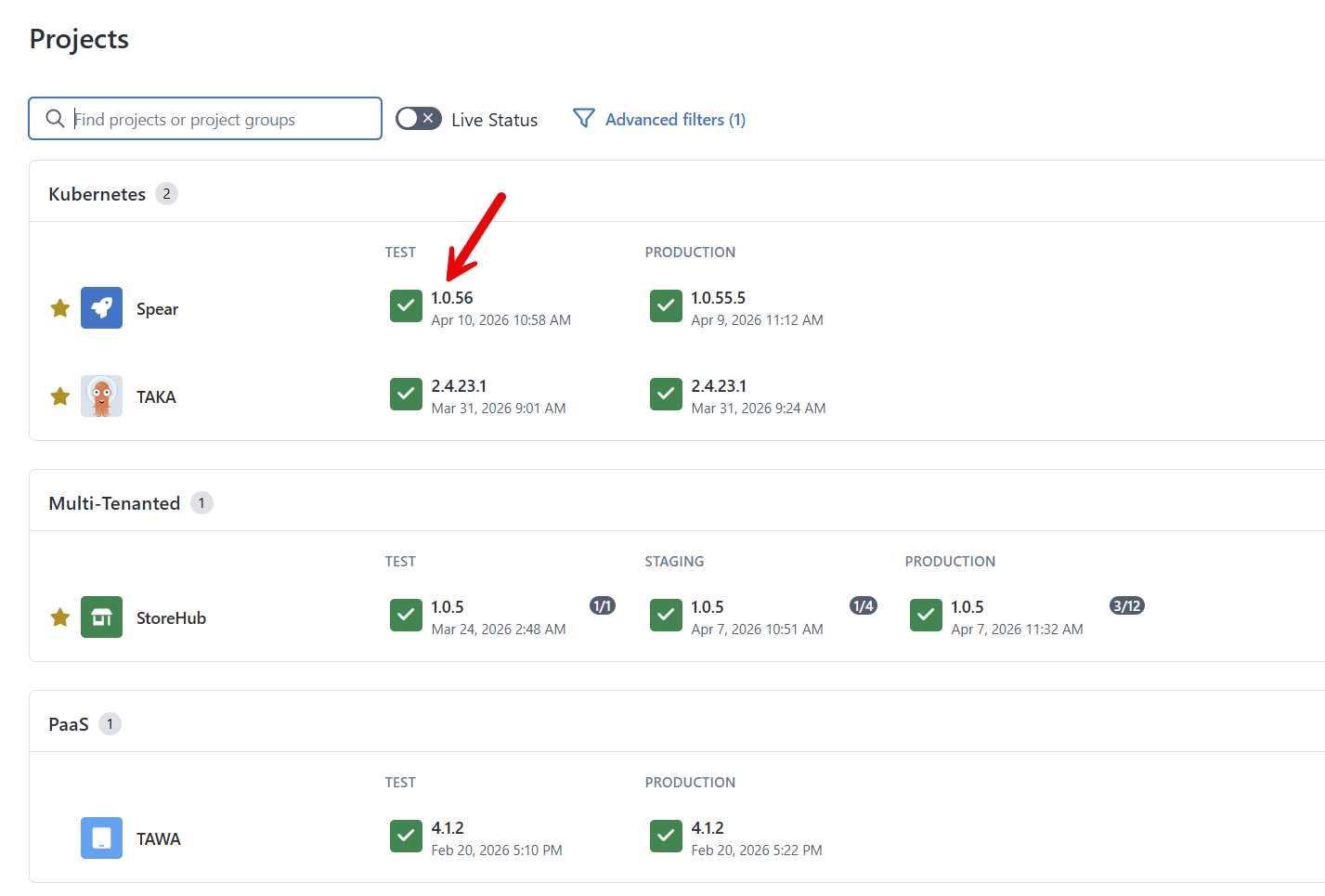
I want to deploy that to the production environment. The parameters are updated to be:
- Default Dependency Action: Deploy when newer matching found
- Approval requested to proceed: Yes
- Reuse Change Request Number in Dependencies: Yes
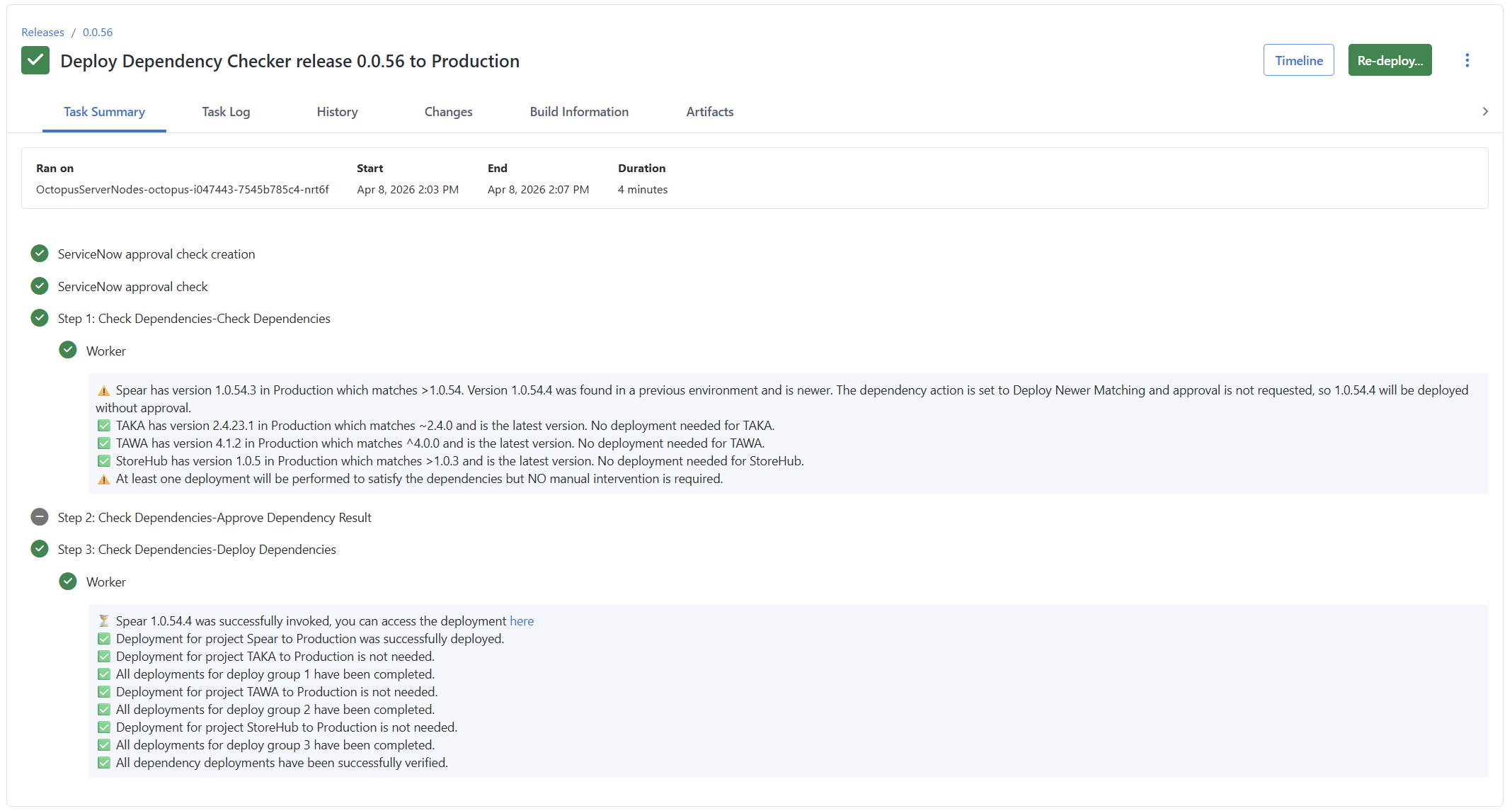
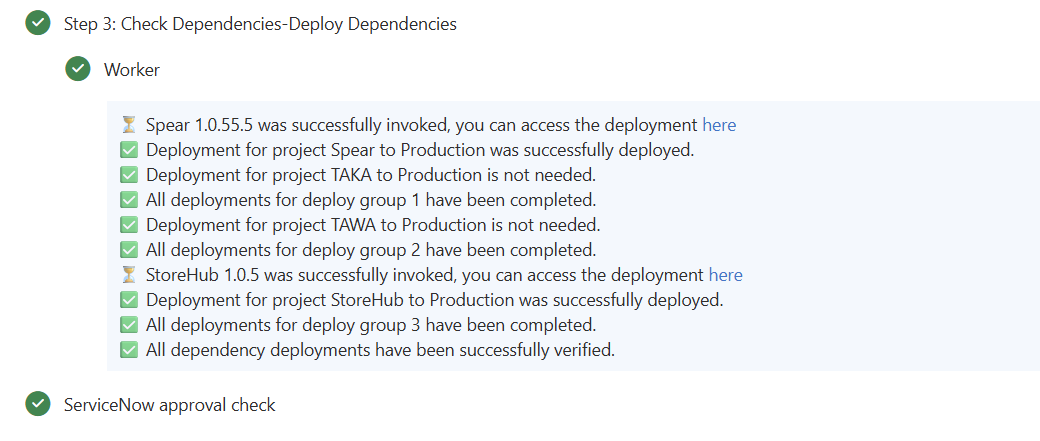
The deployment to the test environment first checks for problems.
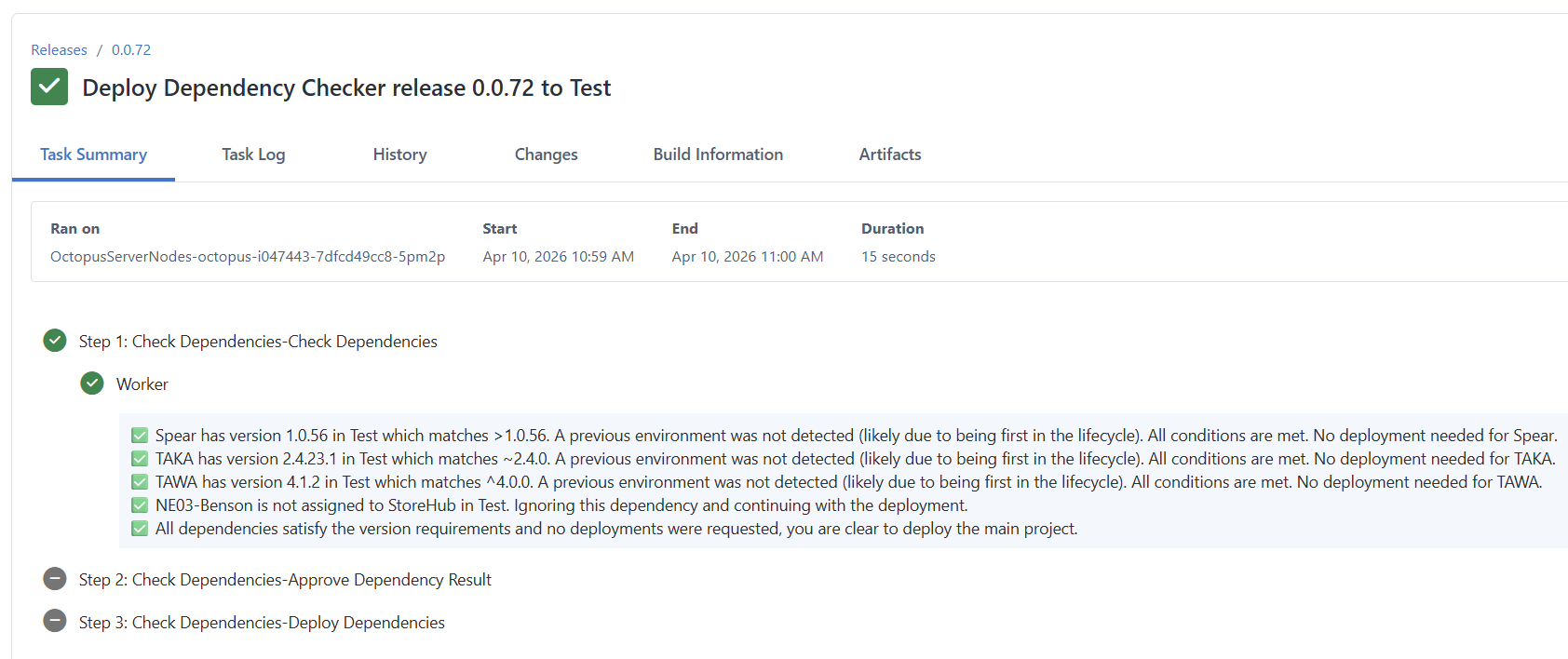
When Verify Dependencies runs in production, it will see that 1.0.56 needs to be deployed and pause the deployment waiting for approval.
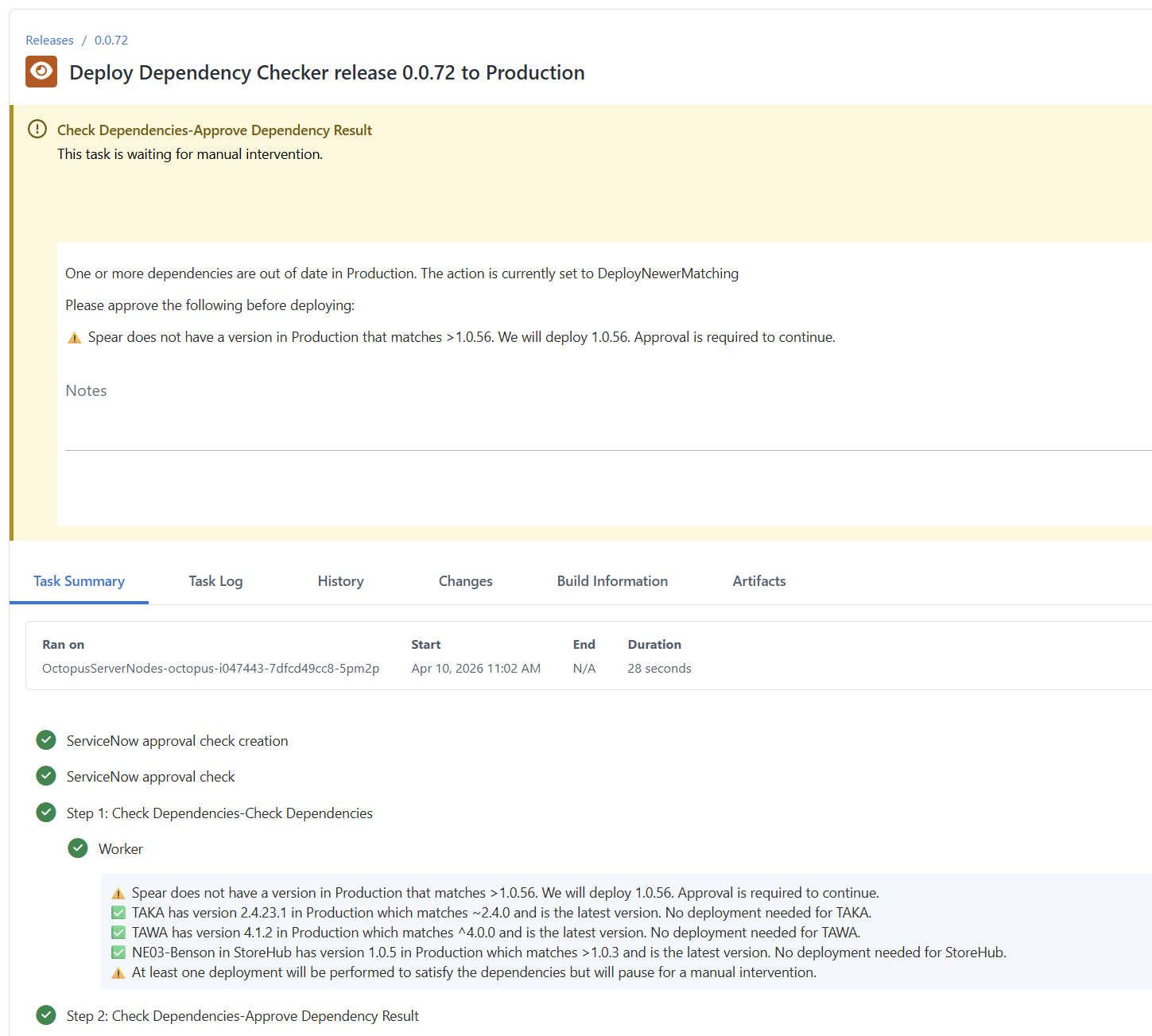
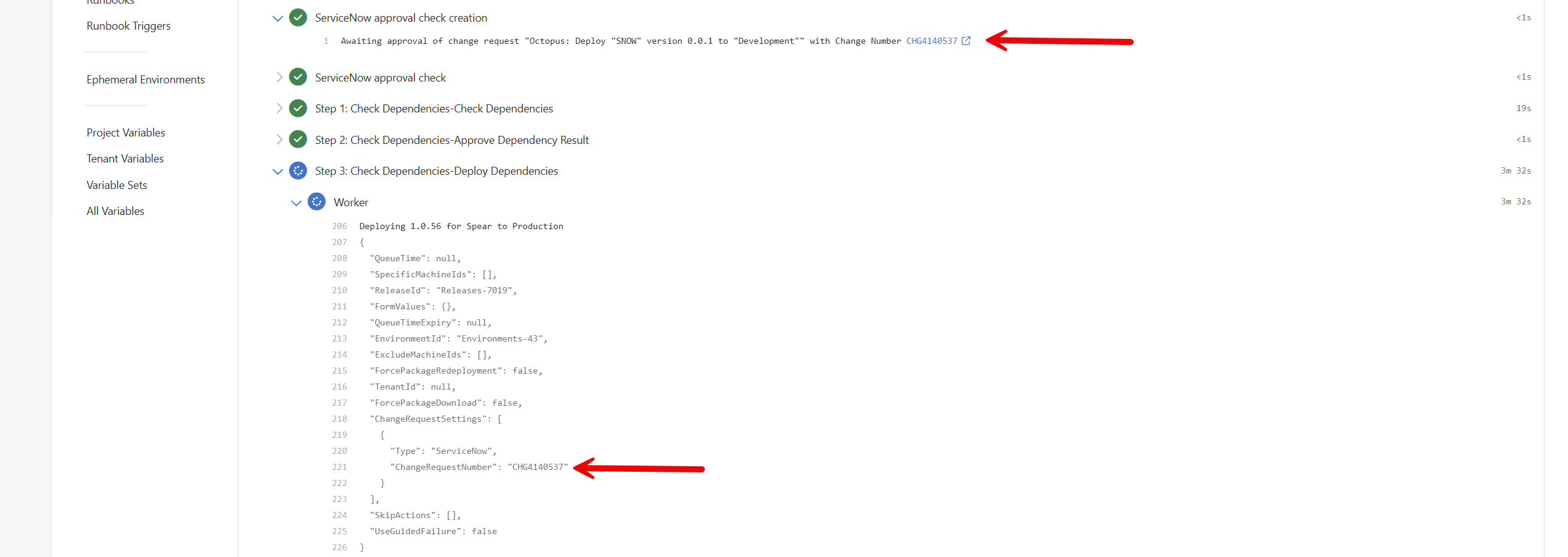
After clicking the Proceed button, the deployment will begin. Note that this project also required ITSM approval before the deployment could start.
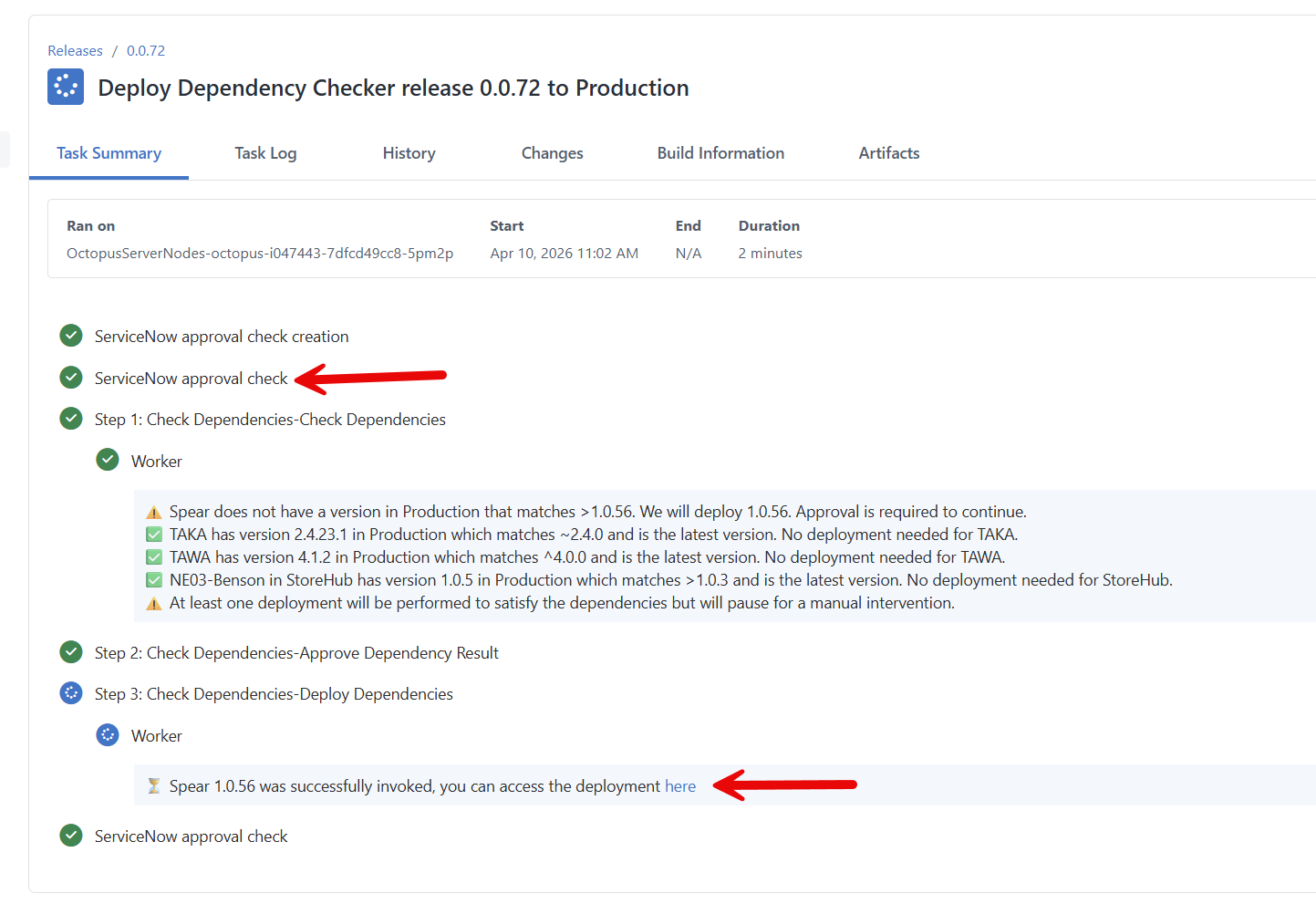
Spear also requires ITSM approval. Because of the parent project configuration, the Process Template sends that change request number to Spear’s production deployment.
Skipping unnecessary deployments
In this scenario, version 1.0.57 for the Spear application exists in the Test environment.
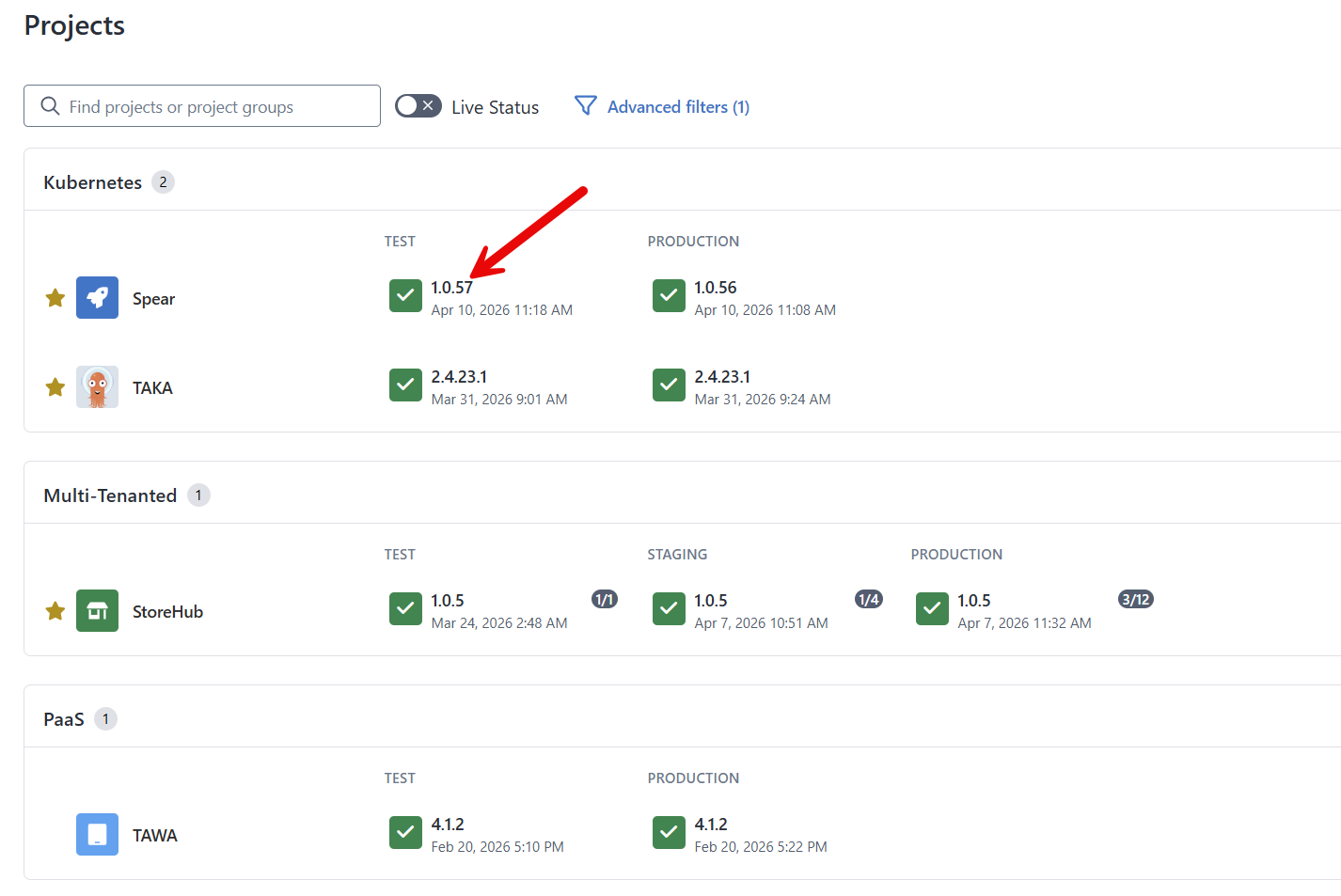
The version pattern is still >1.0.56, but the parameters have been changed to:
- Default Dependency Action: Deploy only when no matching found
- Approval requested to proceed: Yes
- Reuse Change Request Number in Dependencies: Yes
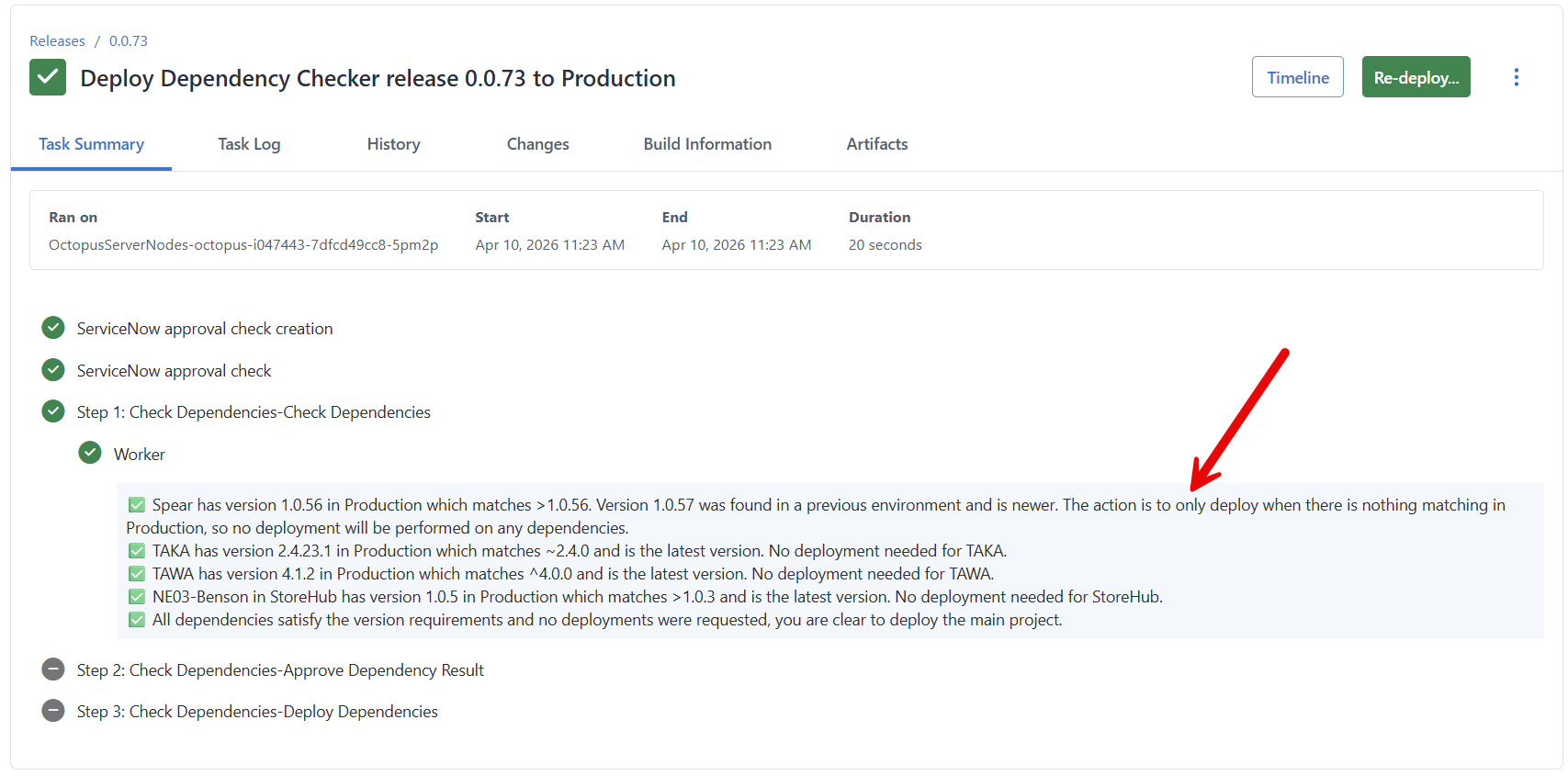
The parent project will not deploy Spear 1.0.57 to Production because it already has a version in Production that matches the pattern >1.0.56.
Storing dependencies JSON array outside of Octopus Deploy
One advantage of using a JSON array for the project dependencies is the ability to use a prompted variable for the Project Dependencies parameter.
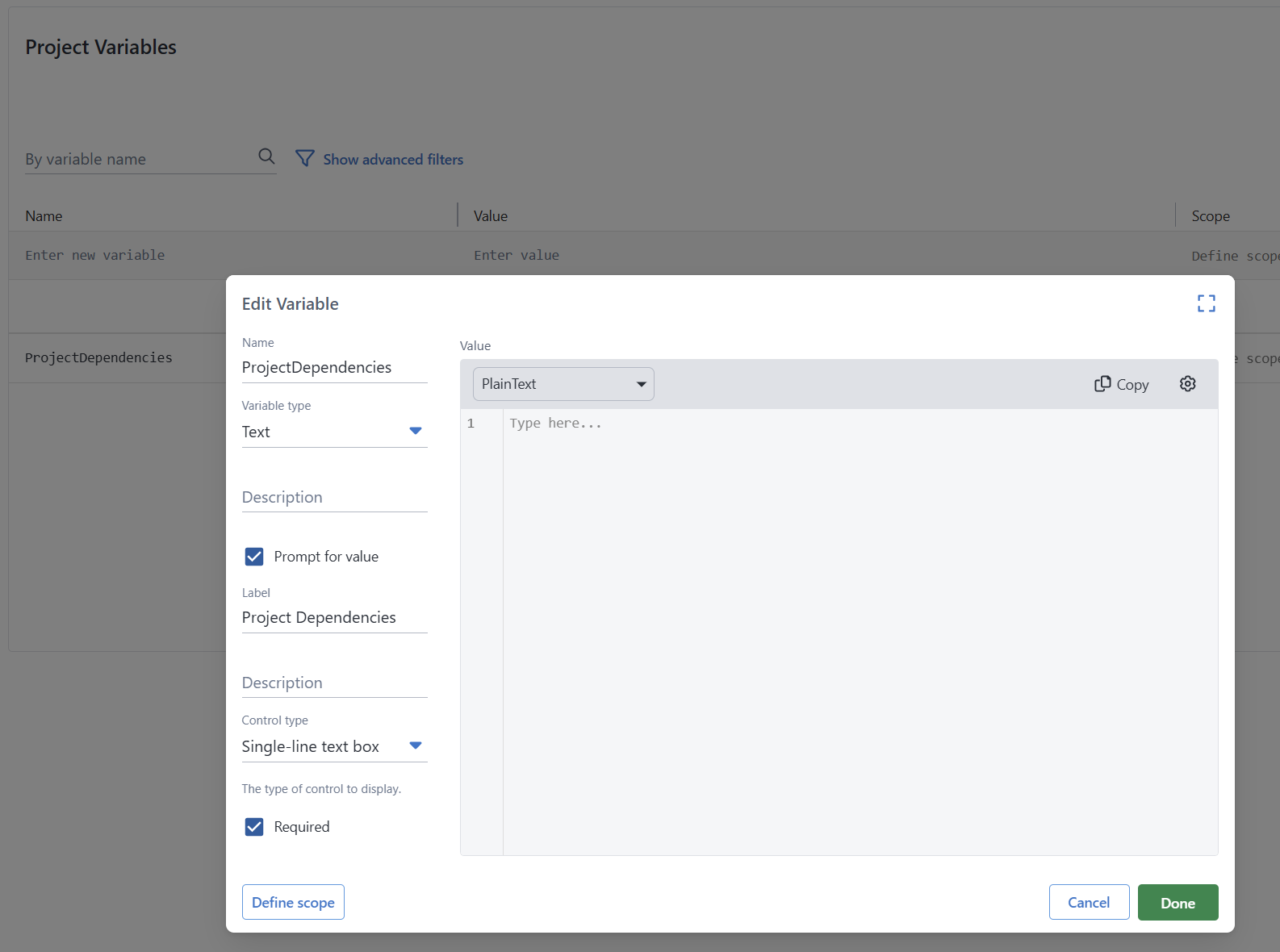
You’d do that so you could initiate a deployment using a script + Octopus Deploy’s CLI. Where that JSON Array is created or stored is up to you.
$projectDependencies = @'
[
  {
    "projectName": "Spear",
    "versionPattern": ">1.0.56",
    "deployGroup": 1,
  },
  {
    "projectName": "TAKA",
    "versionPattern": "~2.4.0",
    "deployGroup": 1
  },
  {
    "projectName": "TAWA",
    "versionPattern": "^4.0.0",
    "deployGroup": 2
  },
 {
    "projectName": "StoreHub",
    "versionPattern": ">1.0.3",
    "tenantName": "Internal",
    "deployGroup": 3
  }
]
'@
$projectVersionToDeploy = "0.0.74"
$projectName = "Dependency Checker"
$spaceName = "Default"
$environmentName = "Test"
$apiKey = "Your API Key"
$octopusServer = "https://Octopus.YourDomain.com"

& octopus login --api-key $apiKey --server $octopusServer
& octopus release deploy --project $projectName --version $projectVersionToDeploy --environment $environmentName --variable "ProjectDependencies:$projectDependencies" --space $spaceName --no-prompt
Installing the Verify Dependencies Process Template
To install the Verify Dependencies Process Template, you’ll need to:
- Configure Platform Hub on your Octopus Deploy instance.
- Important Platform Hub is available to customers with
Enterpriselicenses running2025.4or newer. - If you are not on anEnterpriselicense and wish to try out Platform Hub, reach out to sales@octopus.com. - If you are not running2025.4or newer, then you can download the latest version of Octopus Deploy on our downloads page - Copy the
deploy-process-verify-dependencies.oclfrom our Samples Platform Hub Library GitHub Repository to the.octopus/process-templatesin your Platform Hub git repository. - Go to Platform Hub in the Octopus Deploy UI and publish the new Process Template.
Release orchestration for a project per component
If you’ve been a long-time reader of Octopus Deploy’s blog, you likely read the blog post Better Release Management with Octopus Deploy. In that blog post, I said that a project per application component was the best solution.
For example, an application has four components, so it’d have five projects.
- Database
- Scheduling Service
- Web API
- Web UI
- Orchestration
That blog post reflected Octopus Deploy as it existed in 2021. Upon reflection, it was a bad recommendation. It significantly increases complexity for scenarios that rarely occur in the real world. In addition, we’ve added numerous features and functionality since 2021. For example, Process Templates make it easier than ever to scale complex deployment processes to 1000s of applications. With Process Template’s versioning capabilities, it is easy to push out a change that skips the deployment step if nothing has changed.
Conclusion
The Verify Dependencies Process Template demonstrates how to create robust deployment processes at scale using Octopus Deploy’s Platform Hub functionality. Unlike my Deploy Child Octopus Deploy Project, it enabled me to abstract away many decisions and complexity from consumers like you. With step templates, I’d be required to provide extensive documentation, examples, or even videos to show how to create a complex approval process. Now, consumers only need to add the template to a project and populate a few sensible parameters.
Happy deployments!
Tags: