What is Jenkins?
Jenkins is an open-source automation server used for Continuous Integration (CI) and Continuous Delivery (CD) in software development. It automates software’s build and testing phases, allowing developers to detect problems early in their applications.
Jenkins supports various version control tools and can be extended with numerous plugins, making it adaptable to different project needs. As a Java-based application, Jenkins is platform-independent, allowing it to run on any operating system with Java runtime installed. This flexibility extends to various environments, including cloud-based setups.
Jenkins is available under the MIT license. It has over 20,000 stars on GitHub, more than 700 contributors, and is estimated to have over 1 million active users.
You can get Jenkins from the official repo.
This is part of an extensive series of guides about CI/CD.
You can explore Jenkins alternatives using our AI Agent which features information about more that 20 Jenkins alternatives.
Understanding core Jenkins concepts
Jenkins node
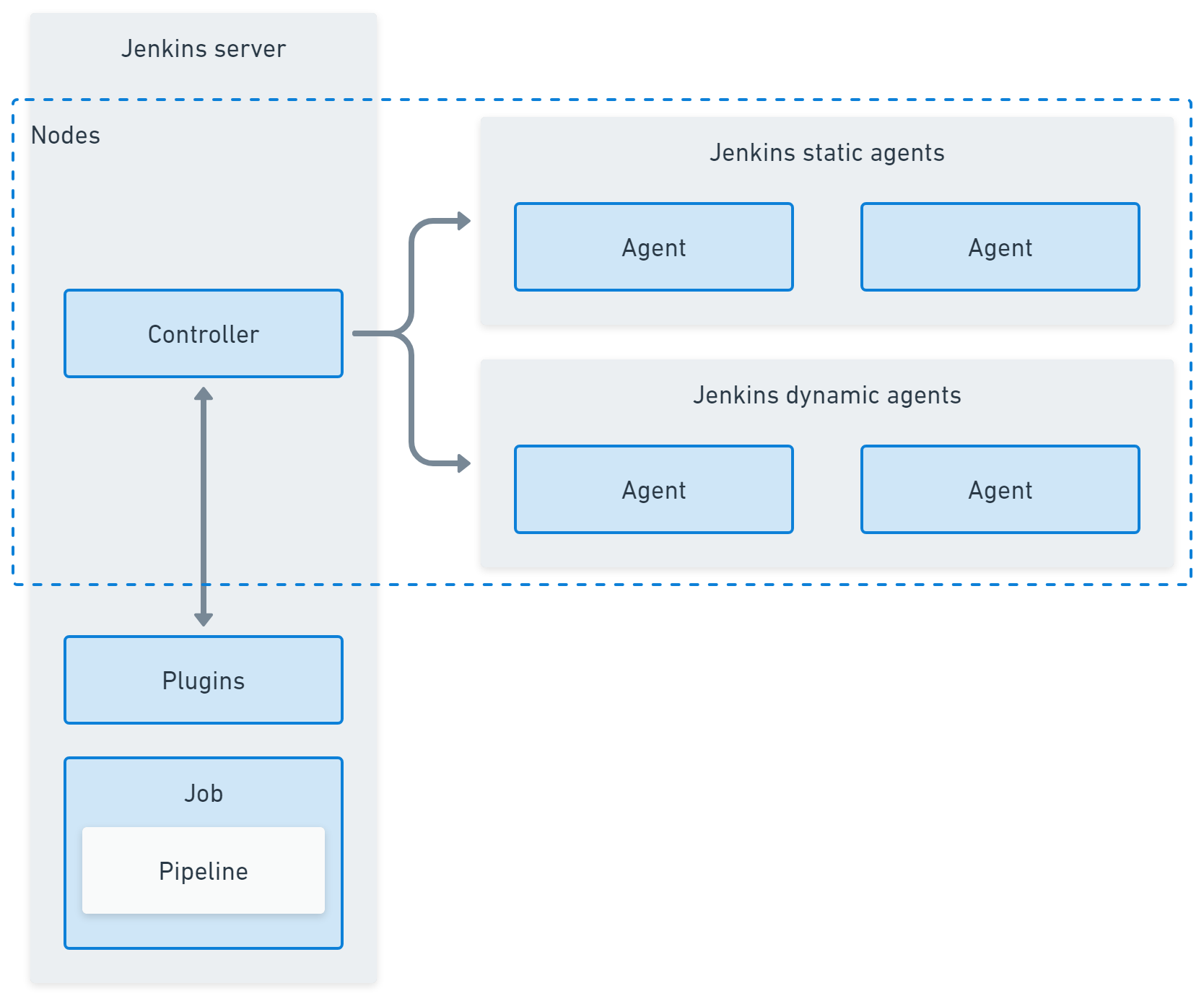
In Jenkins, a node is any machine that is part of the Jenkins environment that can execute pipelines or jobs.The controller and agents are all nodes. By splitting work across nodes Jenkins can divide the workload between machines and enlist different operating systems and capabilities where they are needed.
Jenkins controller (formerly master)
The Jenkins controller serves as the central management hub in a Jenkins environment. It is responsible for loading plugins, orchestrating builds, distributing them to agents, and maintaining project configuration. It also handles scheduling and dispatches tasks to Jenkins agents. The controller also serves as the UI for managing Jenkins jobs, plugins, and configurations.
Jenkins agent (formerly slave)
Jenkins agents are lightweight, distributed workers that execute tasks the controller assigns. They run jobs, perform testing, and send results to the controller. Agents can be configured on different operating systems, enabling diverse execution environments reflecting production settings. Using Jenkins agents helps distribute the workload across multiple machines, optimizing resource use.
Jenkins plugins
Jenkins plugins extend the platform’s functionality, enabling integration with various external tools and services. Plugins are available for version control, build tools, cloud providers, and more. They aid in customizing Jenkins to fit organizational technology stacks and development needs. However, managing plugins requires careful attention to compatibility and updates.
Jenkins job (formerly project)
A Jenkins project, or job, represents an automated task within Jenkins, like builds or tests. Projects are configured individually, specifying the source code repository and build trigger settings. They determine how, when, and where builds should take place, integrating into software workflows. Using Jenkins projects, developers can automate tasks such as documentation generation and deployment processes.
Jenkins pipeline
A Jenkins pipeline is a suite of plugins for implementing Continuous Delivery pipelines in Jenkins. It provides a syntax used to define workflows as code, allowing scripts to version control alongside the application source code. Pipelines can be used to define environments and development stages at various levels of complexity.
Jenkins updates in 2026
Several Jenkins releases in early 2026 introduced updates focused on platform requirements, UI improvements, security, and reliability. These changes mainly refine the user interface, improve system stability, and strengthen security and credential management.
-
Java runtime requirement updated
-
Jenkins now requires Java 21 or newer to run.
-
The minimum supported version of
remoting.jarwas increased to3176.v207ec082a_8c0. -
Security improvements
-
February 2026 releases included important security fixes.
-
API tokens can now include expiration dates, improving credential lifecycle management.
-
Experimental UI updates
-
Jenkins introduced updates to the experimental Manage Jenkins interface.
-
CLI subpages were adapted to the new UI.
-
An experimental Plugin Manager UI was added.
-
The Clouds configuration page was redesigned.
-
User interface improvements
-
Improvements were made to dialogs, dropdowns, and repeatable list controls.
-
The New Item screen was refined.
-
The time zone list in help documentation can now expand.
-
Breadcrumb navigation in the directory browser now uses the display name.
-
Telemetry additions
-
Jenkins added telemetry for:
-
password field masking
-
Java property usage
-
Build and job behavior fixes
-
Fixed incorrect estimated build numbers in the Build History widget.
-
Resolved false “Build Scheduled” notifications in disabled multibranch projects.
-
Build buttons are hidden when multibranch projects or organization folders are disabled.
-
Builds no longer fail if the tool installation directory is read-only.
-
Agent and infrastructure fixes
-
Fixed an issue where
afterDisconnect()could run twice when an agent disconnects. -
Corrected behavior when copying cloud configurations.
-
General stability improvements
-
Fixed a rare error that could occur during form submission.
-
Addressed issues related to RunMap optimization during reloads.
-
Fixed navigation and rendering problems in several UI components.
-
Resolved issues involving non-ASCII names, plugin page links, and sidebar navigation.
What is Jenkins used for?
Here’s a look at some of the main use cases for Jenkins.
Deploying code into production
Jenkins automates the transition of code from repository to production. It ensures code is built and tested, meeting predefined quality metrics before deployment. Jenkins orchestrates this process, linking source control management, build tools, and deployment artifacts, reducing manual intervention and human error.
Through its automated pipelines, Jenkins facilitates rapid deployment cycles and continuous updates, leading to increased agility in software development. By integrating with various tools and platforms, Jenkins supports a range of deployment strategies and environments, improving delivery speed while maintaining stability across releases.
Enabling task automation
Jenkins automates build processes, testing suites, and deployment tasks, allowing teams to focus on feature development rather than operational overhead. This leads to improved productivity and reduced time-to-market.
Jenkins supports automation through its flexible architecture, accommodating diverse tools and workflows suited to various tasks. By leveraging Continuous Integration and Continuous Delivery practices, teams can automatically integrate and evaluate code changes, fostering a more agile and error-resistant development cycle.
Increasing code coverage
Jenkins improves code quality by automating testing and increasing code coverage during development. Automated test execution ensures code is continually reviewed and validated against requirements. By integrating with testing frameworks, Jenkins enables continuous feedback loops, helping discover potential issues early in the cycle.
Through its reporting capabilities, Jenkins provides insights into code coverage metrics, helping teams target improvement areas. Consistent testing reduces defects, ensures compliance with coding standards, and contributes to a healthier codebase.
Simplifying audits
Jenkins simplifies audits by providing detailed logs and reports of build processes, showing how code transitions from development to release. These logs are a transparent audit trail, making compliance checks and performance evaluations straightforward. Jenkins records vital build data, enabling easy access during inspections.
Audit logs help organizations meet regulatory requirements and ensure coding practices align with corporate policies. Jenkins’ ability to document each step of the build process supports clear accountability, aiding in troubleshooting and compliance.
What are the key limitations of Jenkins?
While Jenkins is a popular choice for CI, it has several limitations that prompt developers to seek alternatives, especially in more complex DevOps environments with full Continuous Delivery or Continuous Deployment pipelines.
Single server architecture
Jenkins operates using a single-server architecture, meaning all the core processing happens on one server, whether it’s a physical machine, virtual server, or container. This architecture creates a bottleneck in large-scale environments where multiple teams or projects need to run CI and CD tasks simultaneously.
Because Jenkins does not support server-to-server federation, it can’t distribute the workload across multiple machines or servers automatically. As a result, if too many tasks are scheduled, the server’s resources (CPU, memory, etc.) can become overwhelmed, leading to slower build times, delays, or even server crashes.
This limitation often leads to what’s called “Jenkins sprawl,” where organizations create multiple standalone Jenkins instances to spread the workload. While this might alleviate the resource constraint on a single server, managing multiple isolated Jenkins servers can become chaotic, as there’s no centralized control or coordination. This makes Jenkins less suited for large, enterprise-grade environments.
Not container native
Jenkins was developed before the widespread adoption of containers and Kubernetes, meaning its architecture does not inherently align with container-native principles. While Jenkins does support Docker containers and can run jobs inside containers, this support is more of an add-on rather than a built-in, optimized feature.
Integrating Jenkins with container orchestration platforms like Kubernetes requires additional configurations. It lacks the deep native support found in tools designed specifically for containerized environments, such as Tekton or Argo CD. For example, Jenkins struggles with managing dynamic scaling in containerized environments.
In modern cloud-native applications, services must scale up or down based on demand. However, Jenkins doesn’t have a solid mechanism to automatically scale its agents or controllers in response to changing workloads. This can result in underutilization of resources during low-demand periods or resource shortages during peak times.
Difficult to implement in production environments
Setting up and maintaining Jenkins in production environments can be labor-intensive and complex, particularly when dealing with advanced pipelines for Continuous Integration and Continuous Delivery. Creating Jenkins pipelines involves writing scripts, usually in Jenkinsfiles, which can be defined using either declarative or scripted syntax.
These pipelines are typically written in Groovy, a programming language that is not as commonly used as others like Python or JavaScript, making it harder for teams to work with. Developers unfamiliar with Groovy may face a steep learning curve, slowing pipeline creation and troubleshooting.
Jenkins pipelines can also become complex, especially when dealing with large projects that require multiple build steps, testing frameworks, deployment environments, and integration with third-party services. Debugging these pipelines is not straightforward, as errors can occur at different stages, requiring a deep understanding of Jenkins and the underlying scripting language.
Complicated plugin management
Jenkins has an extensive plugin ecosystem with nearly 2,000 plugins available for various tasks, such as integrating with version control systems, cloud platforms, build tools, and other services.
While this plugin library provides flexibility, finding and selecting the appropriate plugins can be overwhelming, and managing existing plugins can be difficult in large deployments. Many Jenkins plugins have dependencies, meaning one plugin requires the installation of other plugins.
Over time, plugin versions may become incompatible with each other, leading to build failures or system instability. In some cases, plugins may be deprecated or no longer maintained by their creators, leaving organizations vulnerable to security risks or loss of functionality.

Tony Kelly is a DevOps marketing leader who drives innovation and awareness of the latest trends in Continuous Delivery.
Installing Jenkins with Docker
Below is a tutorial on how to install Jenkins using Docker in a Windows environment.
Prerequisites
- Docker installed: Make sure Docker is installed and running on your Windows system. You can download Docker Desktop from Docker’s official website and follow the installation instructions.
- Docker configuration: Ensure Docker is set to use Linux containers, as Jenkins runs best in a Linux environment. This setting can be adjusted in Docker Desktop’s settings.
Step 1: Pull the Jenkins Docker image
First, you need to pull the Jenkins image from the Docker Hub repository. Open a terminal (Command Prompt or PowerShell) and execute:
docker pull jenkins/jenkins:ltsThe :lts tag specifies the Long Term Support version of Jenkins, ensuring a stable and reliable release.
Step 2: Create a Docker network (optional)
To manage multiple Docker containers easily, you can create a custom Docker network. This step is optional but recommended if you plan to run Jenkins alongside other containers, such as a database.
docker network create jenkins-networkStep 3: Run Jenkins in a Docker container
Now, you can start a Jenkins container. This command sets up a Jenkins container with a mapped port and persistent storage:
docker run -d --name jenkins-container \
 -p 8080:8080 -p 50000:50000 \
 --network jenkins-network \
 -v jenkins_home:/var/jenkins_home \
jenkins/jenkins:lts-d: Runs the container in detached mode (in the background).--name jenkins-container: Assigns a name to the container.-p 8080:8080: Maps port 8080 on the local machine to port 8080 on the container (Jenkins UI).-p 50000:50000: Maps port 50000 for Jenkins agent communications.--network jenkins-network: Connects the container to the custom network created earlier (optional).-v jenkins_home:/var/jenkins_home: Creates a persistent volume namedjenkins_hometo store Jenkins data.
Step 4: Access Jenkins
Once the container is up and running, access Jenkins using a web browser:
http://localhost:8080
Step 5: Retrieve the initial admin password
To complete the Jenkins setup, you need the initial admin password, which is located in the Docker container’s logs. Retrieve it using:
docker exec jenkins-container cat /var/jenkins_home/secrets/initialAdminPasswordCopy the password and paste it into the Jenkins setup page to continue.
Step 6: Complete the setup
Perform the following steps:
- Install suggested plugins: Once logged in, Jenkins will prompt you to install plugins. You can either choose the suggested plugins or select specific ones that suit your requirements.
- Create admin user: Follow the prompts to create an admin user and finalize the setup.
Step 7: Manage Jenkins data persistence
Docker automatically stores Jenkins data in a volume (jenkins_home). This ensures your configurations, jobs, and plugins persist even if the container is removed. To back up or migrate Jenkins data, you can manage this volume using Docker commands:
docker volume ls
docker volume inspect jenkins_home
You should now have a running Jenkins instance, ready for CI/CD configuration and job automation.
Installing Jenkins on Kubernetes
Many DevOps teams use Kubernetes to manage containers at scale. When using Jenkins for large-scale projects, it can be useful to deploy Jenkins on Kubernetes. This lets you automatically scale Jenkins as needed and manage resource use.
To deploy Jenkins on Kubernetes, you need to follow a few steps. These involve setting up the Kubernetes environment, creating required configurations, and deploying Jenkins. Below is a step-by-step guide to getting Jenkins up and running on your Kubernetes cluster. Instructions are adapted from the official Jenkins documentation.
Create a namespace
Namespaces in Kubernetes provide a way to separate environments and resources. It’s a best practice to create a separate namespace for DevOps tools like Jenkins:
kubectl create namespace devops-toolsThis command creates a devops-tools namespace that will be used to host Jenkins and other related resources.
Create a service account with Kubernetes admin permissions
Jenkins requires administrative permissions to manage resources within the Kubernetes cluster. You can create a service account with admin privileges by defining a YAML file for the ClusterRole and ServiceAccount:
---
apiVersion: rbac.authorization.k8s.io/v1
kind: ClusterRole
metadata:
 name: jenkins-admin
rules:
 - apiGroups: [""]
resources: ["*"]
verbs: ["*"]
---
apiVersion: v1
kind: ServiceAccount
metadata:
 name: jenkins-admin
 namespace: devops-tools
---
apiVersion: rbac.authorization.k8s.io/v1
kind: ClusterRoleBinding
metadata:
 name: jenkins-admin
roleRef:
 apiGroup: rbac.authorization.k8s.io
 kind: ClusterRole
 name: jenkins-admin
subjects:
 - kind: ServiceAccount
name: jenkins-admin
namespace: devops-tools
Save this configuration in a file called serviceAccount.yaml and apply it using the following command:
kubectl apply -f serviceAccount.yamlThis creates the jenkins-admin service account, a cluster role with full permissions, and binds the role to the service account.
Create local persistent volume for persistent Jenkins data on pod restarts
Jenkins requires persistent storage to retain data between pod restarts.
-
You can define a persistent volume and persistent volume claim using the following YAML:
--- kind: StorageClass apiVersion: storage.k8s.io/v1 metadata: name: local-storage provisioner: kubernetes.io/no-provisioner volumeBindingMode: WaitForFirstConsumer --- apiVersion: v1 kind: PersistentVolume metadata: name: jenkins-pv-volume labels: type: local spec: storageClassName: local-storage Capacity: storage: 10Gi accessModes: - ReadWriteOnce local: path: /mnt nodeAffinity: required: nodeSelectorTerms: - matchExpressions: - key: kubernetes.io/hostname operator: In values: - worker-node01 --- apiVersion: v1 kind: PersistentVolumeClaim metadata: name: jenkins-pv-claim namespace: devops-tools spec: storageClassName: local-storage accessModes: - ReadWriteOnce resources: requests: storage: 3Gi -
Replace
worker-node01with your actual worker node hostname, which can be retrieved using:kubectl get nodes -
After saving the configuration in a file named
volume.yaml, apply it using:kubectl create -f volume.yaml
This will create a persistent volume that Jenkins can use to store its data.
Create a deployment YAML and deploy it
Next, you need to deploy Jenkins using a deployment YAML file. This file defines how Jenkins will be deployed and what resources it will consume:
apiVersion: apps/v1
kind: Deployment
metadata:
 name: jenkins
 namespace: devops-tools
spec:
 replicas: 1
 selector:
matchLabels:
 app: jenkins-server
template:
metadata:
 labels:
   app: jenkins-server
spec:
 serviceAccountName: jenkins-admin
 containers:
   - name: jenkins
     image: jenkins/jenkins:lts
     resources:
       limits:
         memory: "2Gi"
         cpu: "1000m"
       requests:
         memory: "500Mi"
         cpu: "500m"
     ports:
       - name: httpport
         containerPort: 8080
       - name: jnlpport
         containerPort: 50000
     volumeMounts:
       - name: jenkins-data
         mountPath: /var/jenkins_home
 volumes:
   - name: jenkins-data
     persistentVolumeClaim:
         claimName: jenkins-pv-claim
Save this configuration in a file called deployment.yaml and apply it:
kubectl apply -f deployment.yamlThis will deploy Jenkins in the devops-tools namespace, with the appropriate persistent volume attached.
Create a service YAML and deploy it
To expose Jenkins to the outside world, you need to create a service that will map external requests to the Jenkins pod:
apiVersion: v1
kind: Service
metadata:
 name: jenkins-service
 namespace: devops-tools
spec:
 selector:
   app: jenkins-server
type: NodePort
 ports:
- port: 8080
 targetPort: 8080
 nodePort: 32000
Save this as service.yaml and apply it:
kubectl apply -f service.yamlThis service exposes Jenkins on port 32000 of all Kubernetes node IPs. You can access Jenkins by visiting http://<node-ip>:32000.
Access Jenkins
To access Jenkins, you’ll need the initial admin password, which can be retrieved from the pod logs:
kubectl logs <jenkins-pod-name> --namespace=devops-toolsAlternatively, you can directly extract the password using:
kubectl exec -it <jenkins-pod-name> cat /var/jenkins_home/secrets/initialAdminPassword -n devops-toolsOnce you log in, follow the setup wizard to install plugins and create an admin user.
Notable Jenkins alternatives
1. Octopus
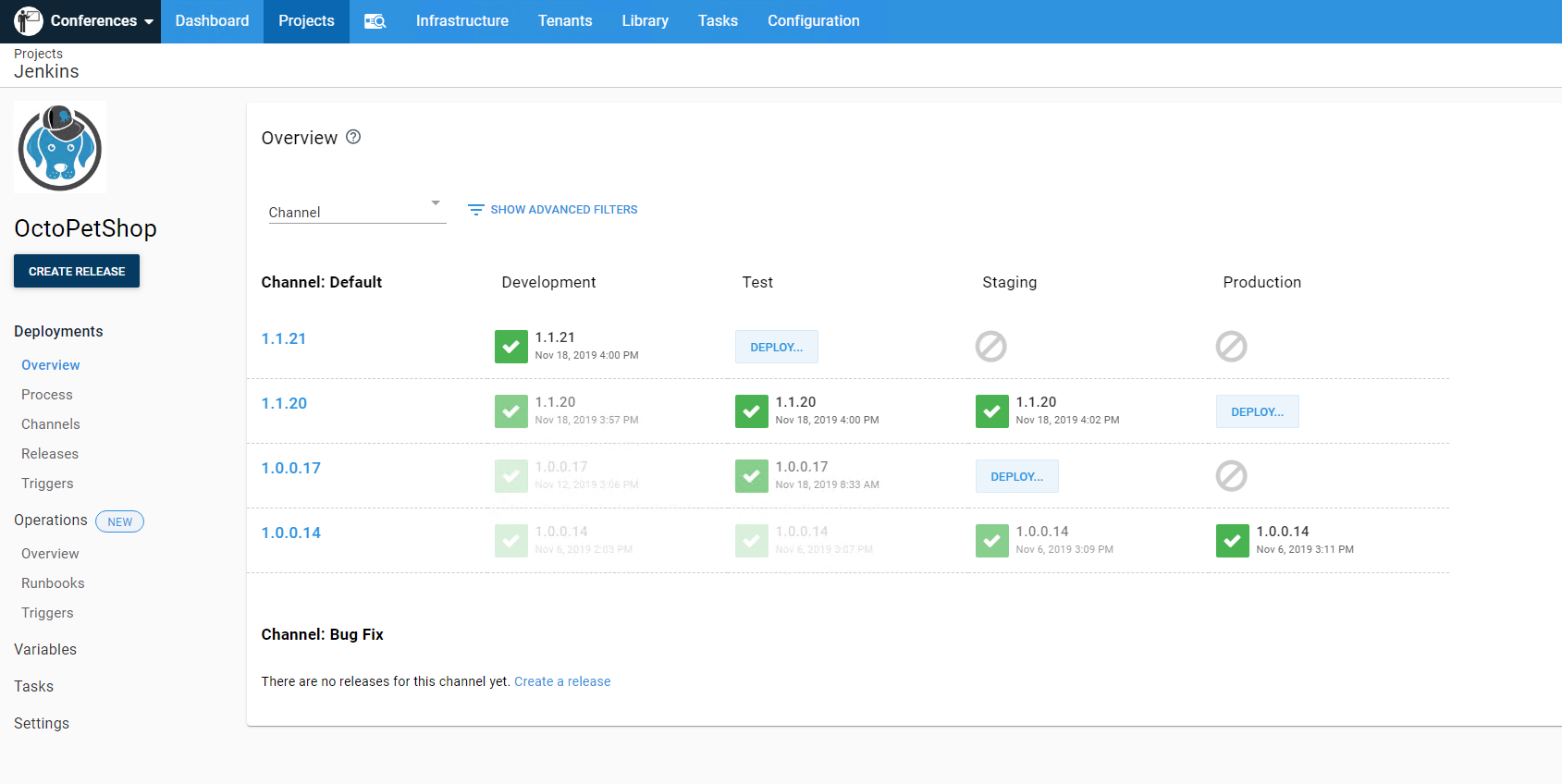
Octopus Deploy is a sophisticated, best-of-breed Continuous Delivery (CD) platform for modern software teams. It offers powerful release orchestration, deployment automation, and runbook automation while handling the scale, complexity, and governance expectations of even the largest organizations with the most complex deployment challenges.
License: Commercial
Features of Octopus:
- Reliable risk-free deployments: Octopus lets you use the same deployment process across all environments. This means you can deploy to production with the same confidence you deploy to everywhere else. Built-in rollback support also makes it easy to revert to previous versions.
- Deployments at scale: Octopus is the only CD tool with built-in multi-tenancy support. Deploy to two, ten, or thousands of customers without duplicating the deployment process.
- One platform for DevOps automation: Runbooks automate routine and emergency operations tasks to free teams for more crucial work. They can also be used to provide safe self-service operations to other teams.
- Streamlined compliance: Full auditing, role-based access control and single sign-on (SSO) as standard to make audits a breeze and to provide accountability, peace of mind, and trust.

2. Codefresh
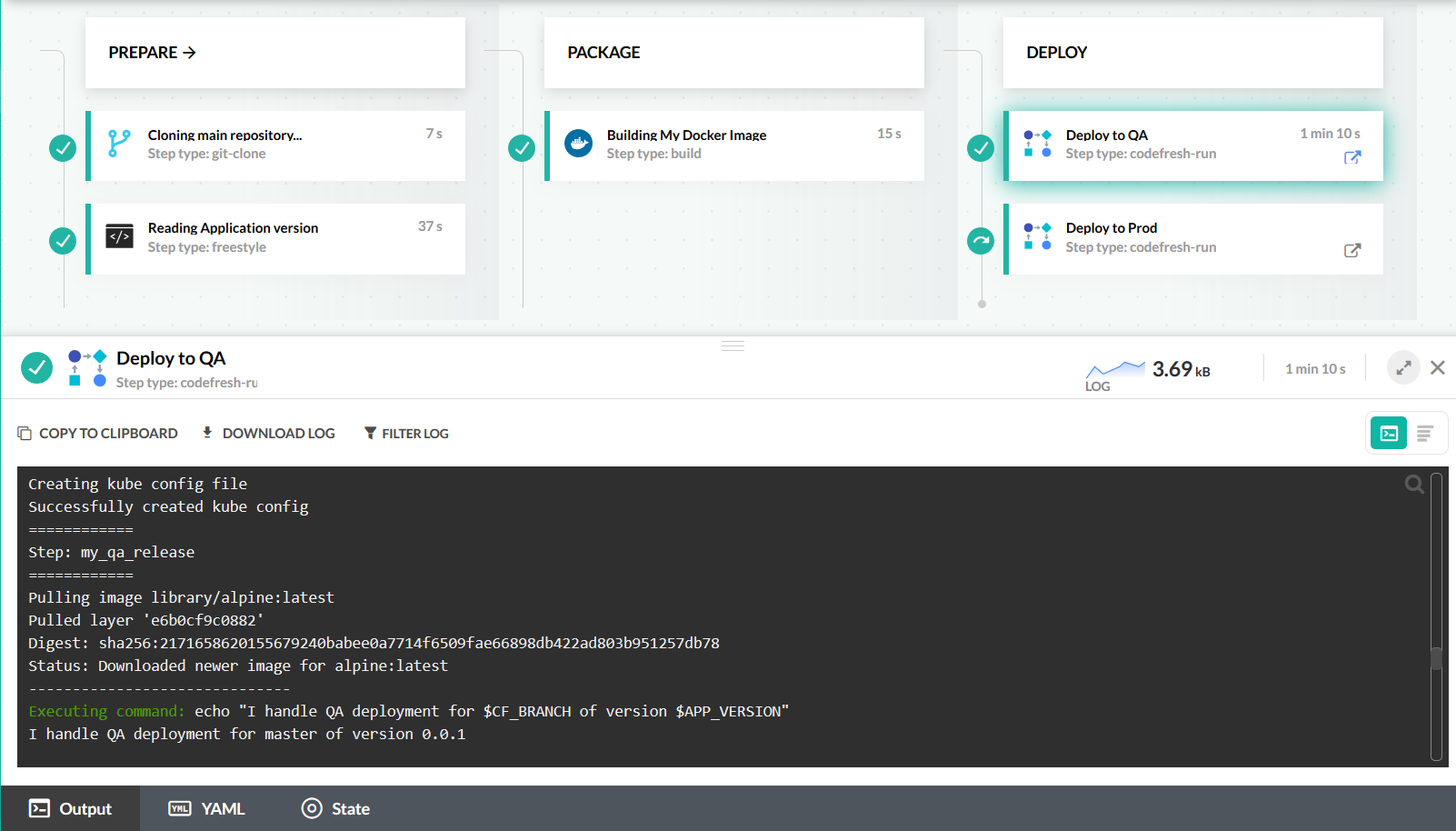
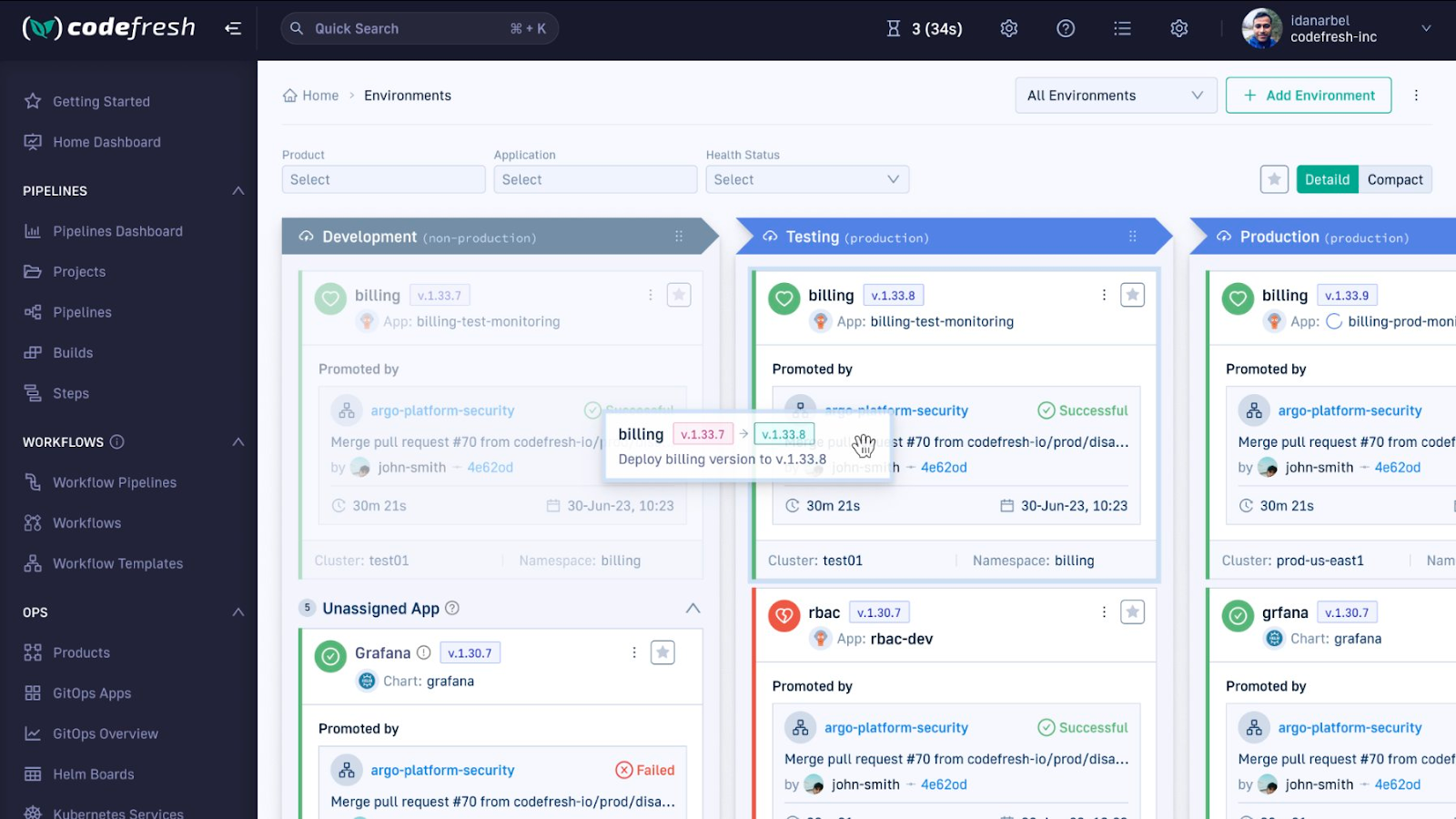
Codefresh is a CI/CD platform for cloud-native applications that integrates features like Kubernetes-native pipelines, GitOps, and observability tools, enabling teams to build, test, and deploy faster and with more control.
License: Commercial
Features of Codefresh:
- Pipeline caching: Speeds up builds with multi-layer caching and parallel testing.
- DRY pipelines: Reduces pipeline duplication by sharing pipelines across multiple repositories.
- Container-native step marketplace: Provides built-in steps and the ability to run custom steps in containers.
- Enhanced observability: Offers dashboards to track changes, providing insights for troubleshooting.
- GitOps support: Integrates with Argo CD for seamless GitOps and progressive delivery with canary and blue/green deployments.
Source: Codefresh
3. GitHub Actions
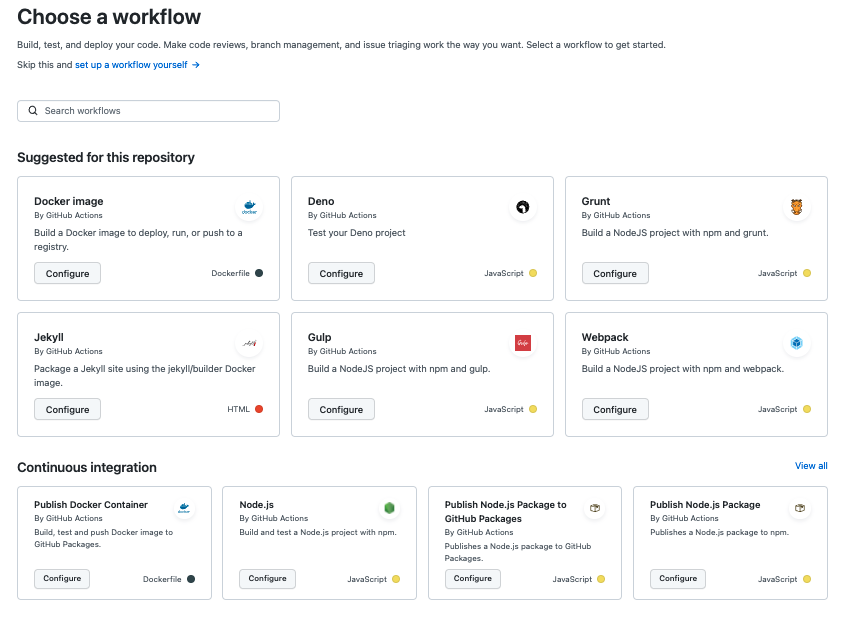
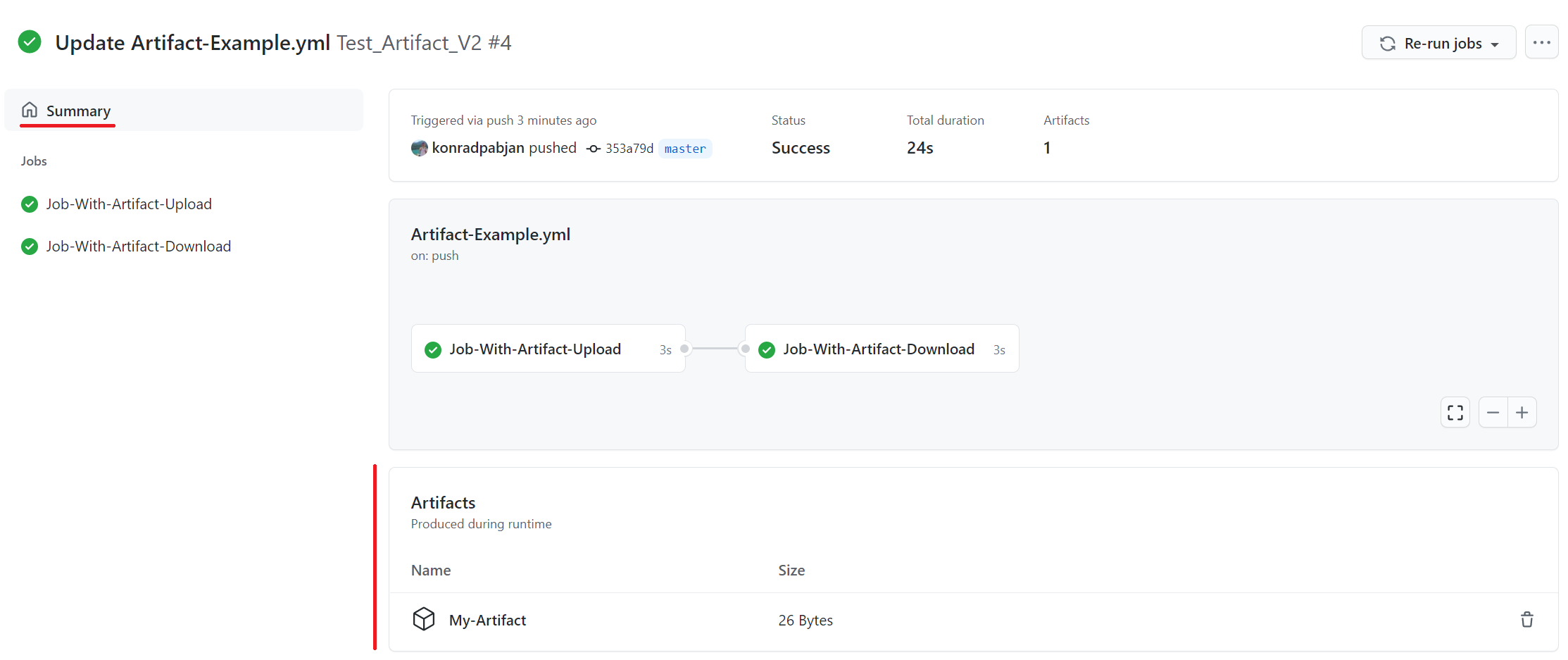
GitHub Actions is a workflow automation service built into GitHub. It runs build, test, deployment, and repository tasks from workflow files stored in the repository. Workflows can start from GitHub events, run on hosted or self-hosted runners, and use marketplace actions or custom actions written in JavaScript or containers.
License: MIT
Repo: github.com/actions/starter-workflows
GitHub stars: 8k+
Contributors: 300+
Features of GitHub Actions:
- Event-based workflows: Workflows can start from repository events such as pushes, releases, issue activity, and manual triggers to automate software and repository tasks.
- Hosted and self-hosted runners: Jobs can run on GitHub-hosted Linux, macOS, Windows, ARM, GPU, and container environments, or on self-hosted virtual machines.
- Matrix builds: Matrix workflows test across multiple operating systems and runtime versions at the same time to reduce execution time.
- Multi-language support: The service supports Node.js, Python, Java, Ruby, PHP, Go, Rust, .NET, and other languages for build and deployment workflows.
- Live workflow logs: Workflow runs provide realtime logs with links to specific lines, making it easier to inspect failures and share debugging details.
- Built-in secret store: Secrets can be stored in GitHub and used in workflow files so credentials do not need to be written directly in pipeline definitions.
- Marketplace and custom actions: Teams can use actions from the marketplace or create their own actions in JavaScript or containers for custom automation.
Source: GitHub Actions
4. GitLab CI/CD
GitLab CI/CD is a continuous integration and delivery system within GitLab. It uses a YAML configuration file to define stages, jobs, variables, and execution rules. Pipelines run on runners, can be triggered by commits, merges, or schedules, and support reusable components and dynamic expressions.
License: MIT
Features of GitLab CI/CD:
- YAML pipeline configuration: Pipelines are defined in a
.gitlab-ci.ymlfile that stores stages, jobs, scripts, variables, and execution rules in the repository. - Stages and jobs: Pipelines are organized into stages such as build, test, and deploy, while jobs define the tasks performed in each stage.
- Runner-based execution: Jobs run on runners that can operate on physical machines or virtual instances, including Linux, Windows, and macOS environments.
- Flexible pipeline triggers: Pipelines can run from commits, merges, schedules, and other events, allowing teams to automate different development and release flows.
- CI/CD variables: Variables store configuration values and sensitive information for jobs, with protected and masked options to control access and log exposure.
- Dynamic expressions: Expressions can inject input and matrix data into pipeline configuration to support more dynamic and parameterized workflows.
- Reusable components: CI/CD components let teams reuse pipeline configuration across projects to reduce duplication and keep pipeline logic consistent.

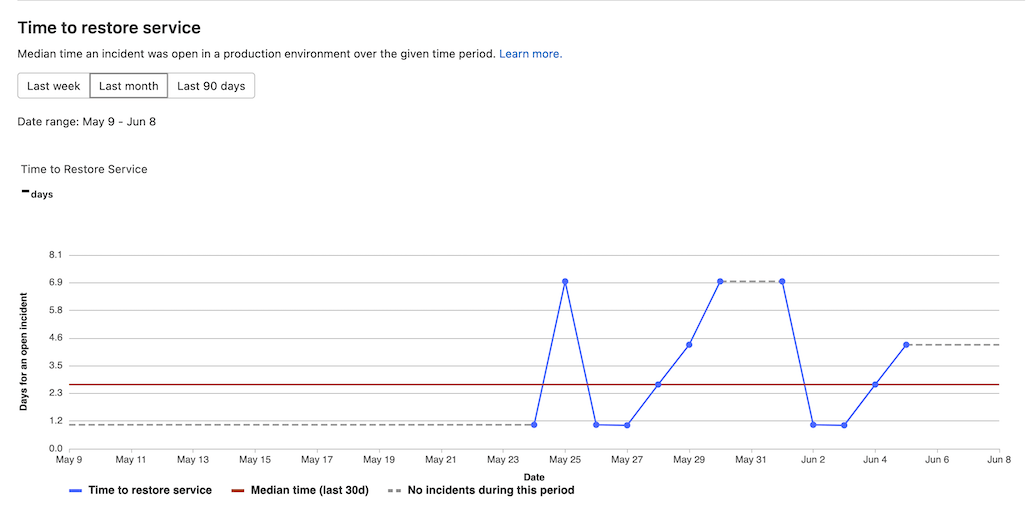
Source: GitLab CI/CD
5. TeamCity
TeamCity is a CI/CD system for building, testing, and delivering software across different project sizes and technology stacks. It supports build chains, caches, concurrent builds, typed configuration as code, and deployment in cloud or on-premises environments.
License: Open Source Development License
Features of TeamCity:
- Build chain optimization: Build chains can reuse parts of earlier builds and use caches to reduce repeated work across connected pipelines.
- Concurrent build scaling: The platform supports workflows ranging from single projects to thousands of concurrent builds, including multi-node setups.
- Realtime build feedback: Build logs and test reporting provide feedback during builds so teams can identify failures earlier in the pipeline.
- Configuration as code: Pipelines can be configured in the web interface or created programmatically with a strongly typed DSL.
- Build configuration templates: Templates help teams reuse pipeline definitions and maintain consistency as projects grow.
- REST API access: A RESTful API is available for integrating TeamCity with other systems and automating management tasks.
- Cloud and on-premises deployment: TeamCity can run as a JetBrains-hosted cloud service or on infrastructure managed by the user.

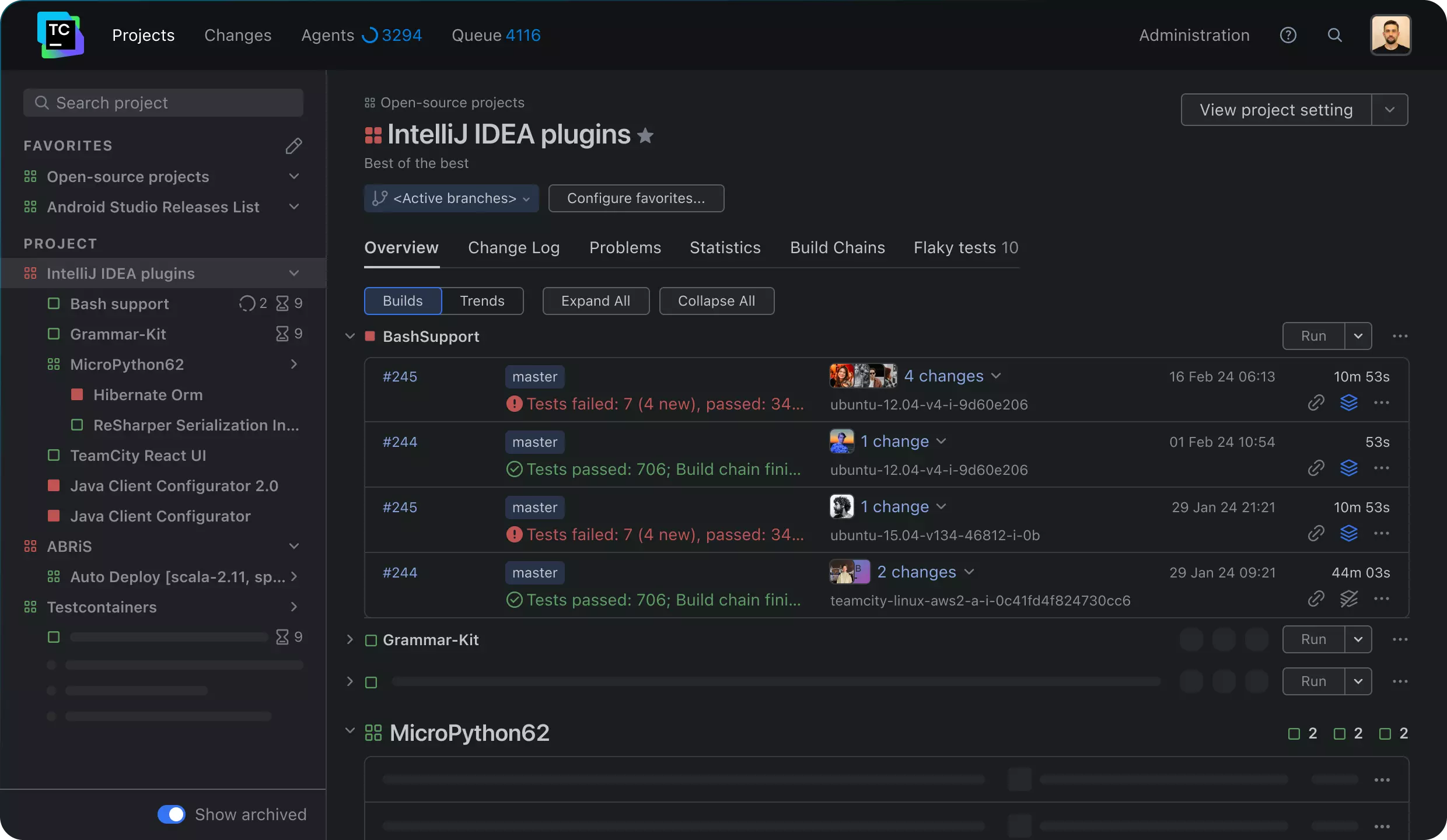
Source: JetBrains
6. Bamboo
Bamboo is a continuous delivery tool for building, testing, and deploying software. It includes workflow automation, disaster recovery features, growth-oriented capacity options, and integrations with Atlassian and deployment tools for traceability and release management.
License: Commercial, academic, and starter licenses
Features of Bamboo:
- Workflow automation: Bamboo automates software delivery tasks from code changes through deployment using defined continuous delivery workflows.
- Built-in disaster recovery: The platform includes disaster recovery capabilities intended to keep build systems available during failures.
- High availability support: Bamboo Data Center includes resilience features designed to keep teams working when infrastructure problems occur.
- Scalable build capacity: It supports increasing workload demands as organizations grow while maintaining build performance.
- Atlassian tool integration: Bamboo connects with Bitbucket and Jira to link development activity, work tracking, and deployment steps.
- Deployment integrations: The service integrates with Docker and AWS CodeDeploy for deployment workflows.
- Incident investigation integration: Bamboo integrates with Opsgenie so response teams can investigate incidents connected to builds and releases.

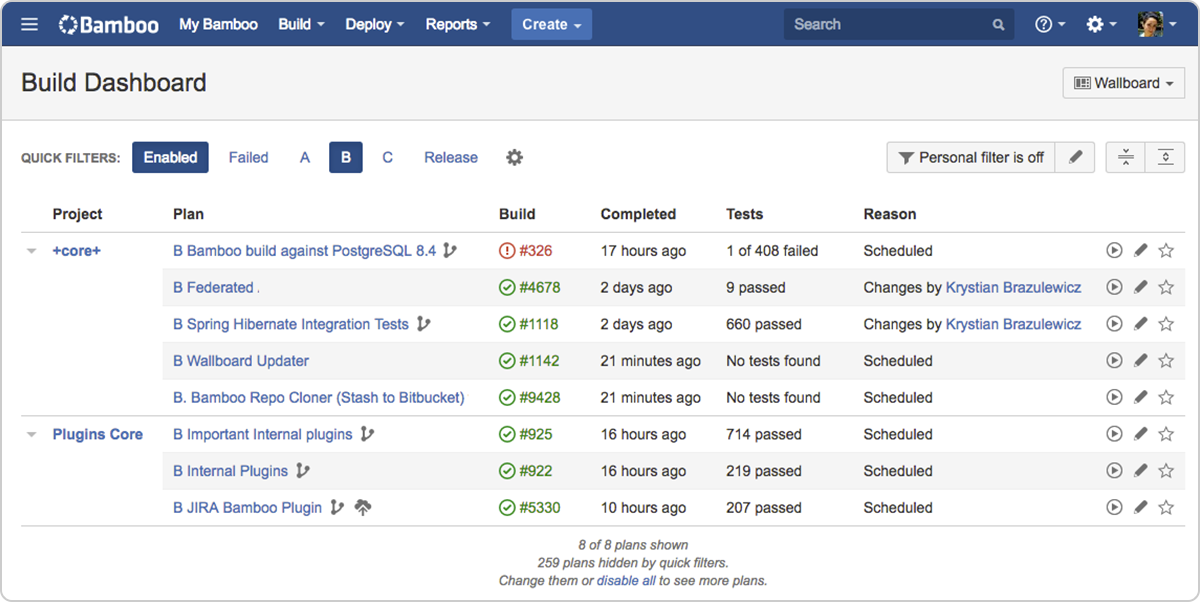
Source: Bamboo
7. CircleCI
CircleCI is a CI/CD platform for automating build, test, deployment, and release workflows. It supports cloud, hybrid, and on-premises setups, connects with common repositories and cloud providers, and includes build optimization, autoscaling, reusable integrations, and debugging features.
License: MIT
Repo: github.com/circleci/circleci-docs
GitHub stars: <1K
Contributors: 800+
Features of CircleCI:
- Multiple execution environments: CircleCI supports cloud, hybrid runner, and server deployment options for teams with different infrastructure requirements.
- Build optimization tools: The platform includes caching, build optimization, and autoscaling features to reduce build time and manage execution capacity.
- Repository and cloud integrations: It integrates with GitHub, GitLab, Bitbucket, AWS, GCP, Azure, and Kubernetes for common CI/CD workflows.
- Reusable orbs: Orbs provide reusable configuration packages for common deployment tasks and third-party integrations.
- Support for varied workloads: CircleCI supports many application types, languages, operating systems, and delivery targets across software teams.
- Automation for release workflows: The platform supports continuous integration, release orchestration, and security-oriented delivery processes.
- Debugging and developer support: Documentation, support resources, and workflow tooling help teams inspect builds and maintain CI/CD pipelines.

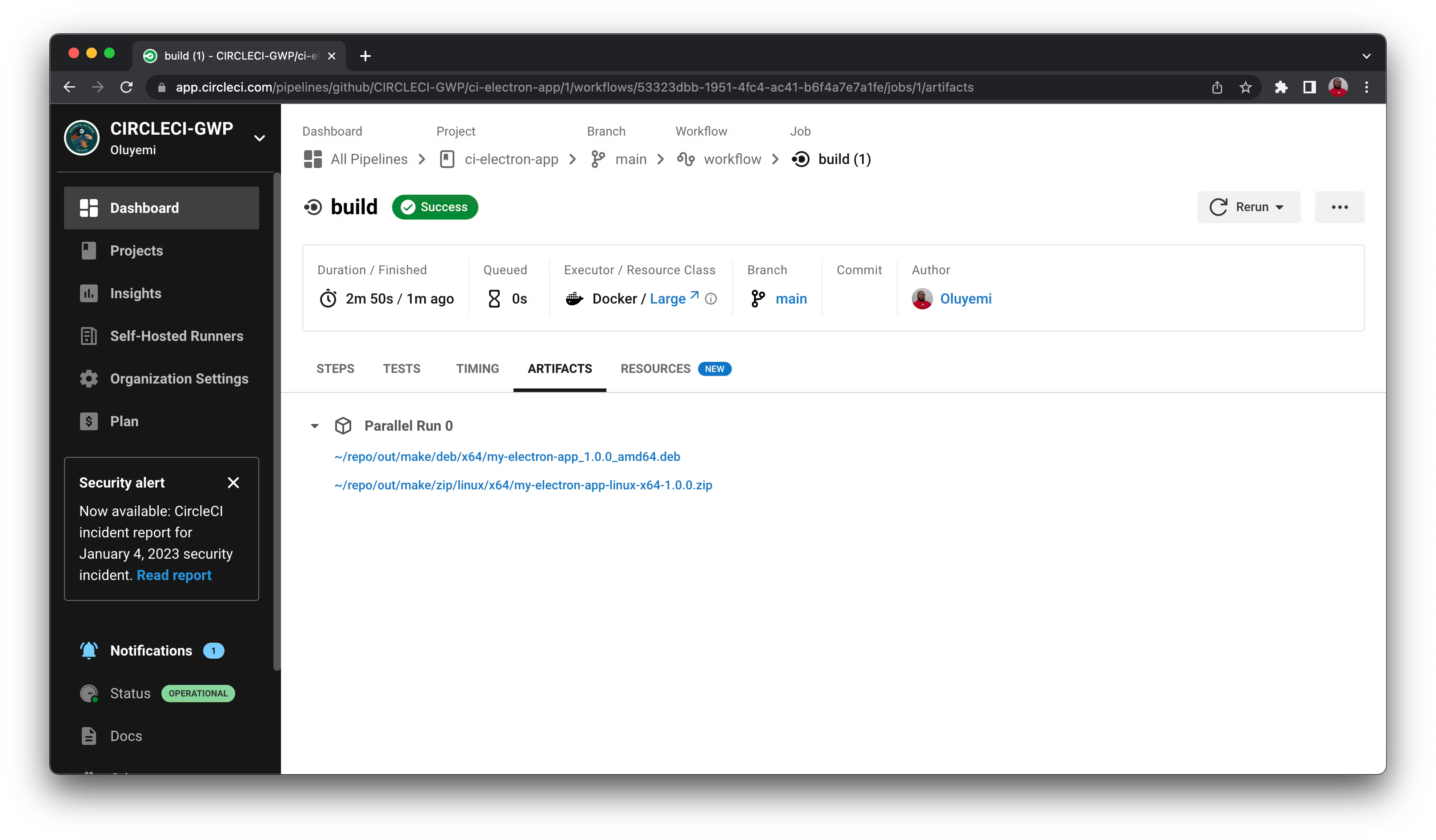
Source: CircleCI
8. CloudBees
CloudBees is a software delivery platform for enterprise environments. It focuses on pipeline governance, release orchestration, security, compliance, and multi-tool management across hybrid and multi-cloud infrastructure. It is intended to work with existing systems rather than replace all delivery tools.
License: Support for GPL-3.0
Features of CloudBees CI:
- Pipeline governance: The platform governs CI/CD pipelines across environments with controls intended for enterprise delivery processes.
- Release orchestration: CloudBees includes orchestration tools for coordinating complex software releases across teams and systems.
- Security and compliance controls: It provides policy-driven controls for security, compliance, auditability, and risk management across the delivery lifecycle.
- Hybrid and multi-cloud support: The platform manages delivery workflows across on-premises, hybrid, and multi-cloud environments.
- Multi-tool integration: CloudBees is designed to work with existing delivery tools and systems instead of requiring a full platform replacement.
- Jenkins modernization support: It includes capabilities for Jenkins modernization and migration in organizations with large Jenkins estates.
- Centralized delivery context: The platform provides a shared control layer for automation, governance, analytics, and security across software delivery workflows.

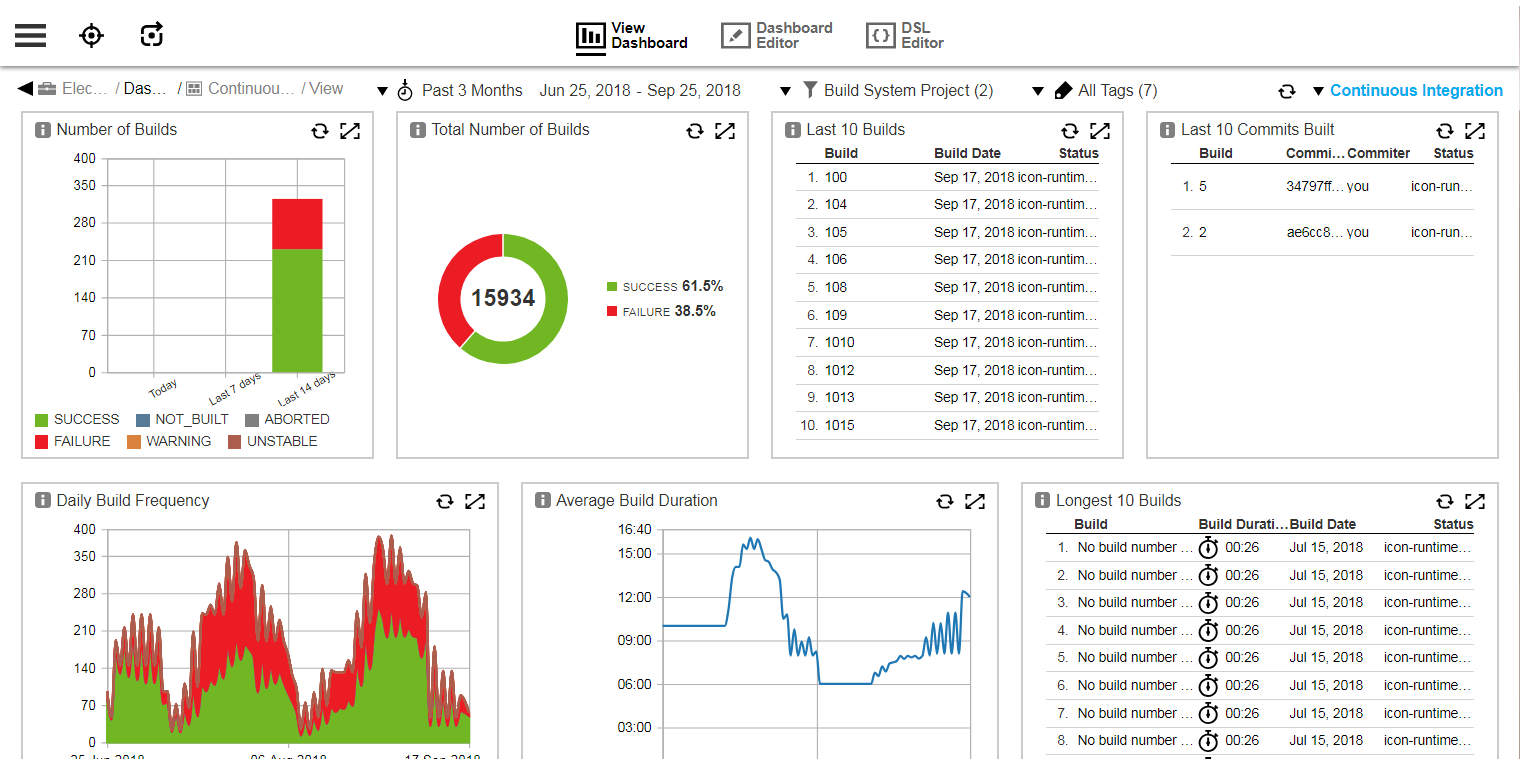
Source: CloudBees
Conclusion
Jenkins remains a widely adopted tool for CI/CD, primarily valued for its flexibility and large ecosystem of plugins. However, it has some limitations, particularly in handling modern, large-scale, and cloud-native environments, prompting some development teams to look for alternatives. Despite Jenkins’ adaptability, other tools may be better suited for use cases ranging from simple CI setups to more complex, multi-stage CD pipelines.
See additional guides on key CI/CD topics
Together with our content partners, we have authored in-depth guides on several other topics that can also be useful as you explore the world of CI/CD.
Continuous Delivery
Authored by Octopus
- [Guide] Continuous Delivery: Origins, 5 principles, and 7 key capabilities
- [Guide] Continuous Integration versus Continuous Deployment [2025 guide]
- [Ebook] The importance of Continuous Delivery
- [Product] Octopus Deploy | Continuous Delivery and deployment platform
Platform Engineering
Authored by Octopus
GitHub Actions
Authored by Octopus
- [Guide] GitHub Actions: Complete 2025 Guide With Quick Tutorial
- [Guide] Secrets In GitHub Actions
- [Ebook] Measuring Continuous Delivery and DevOps
- [Product] Octopus Deploy | Continuous Delivery and Deployment Platform
Help us continuously improve
Please let us know if you have any feedback about this page.