What are Jenkins build triggers?
Jenkins build triggers are mechanisms that start a build process in Jenkins. Triggers determine when and under what conditions a build should be initiated. This automation is crucial for Continuous Integration and Continuous Deployment (CI/CD), as it allows developers to integrate code changes more frequently, identifying issues early in the development cycle.
Build triggers in Jenkins cover various scenarios, such as code commits, scheduled times, or external systems initiating a build. Understanding these triggers helps in improving the efficiency and reliability of software delivery pipelines. Each type of trigger serves different purposes, providing flexibility in managing build workflows.
Types of Jenkins build triggers
1. Manual build trigger
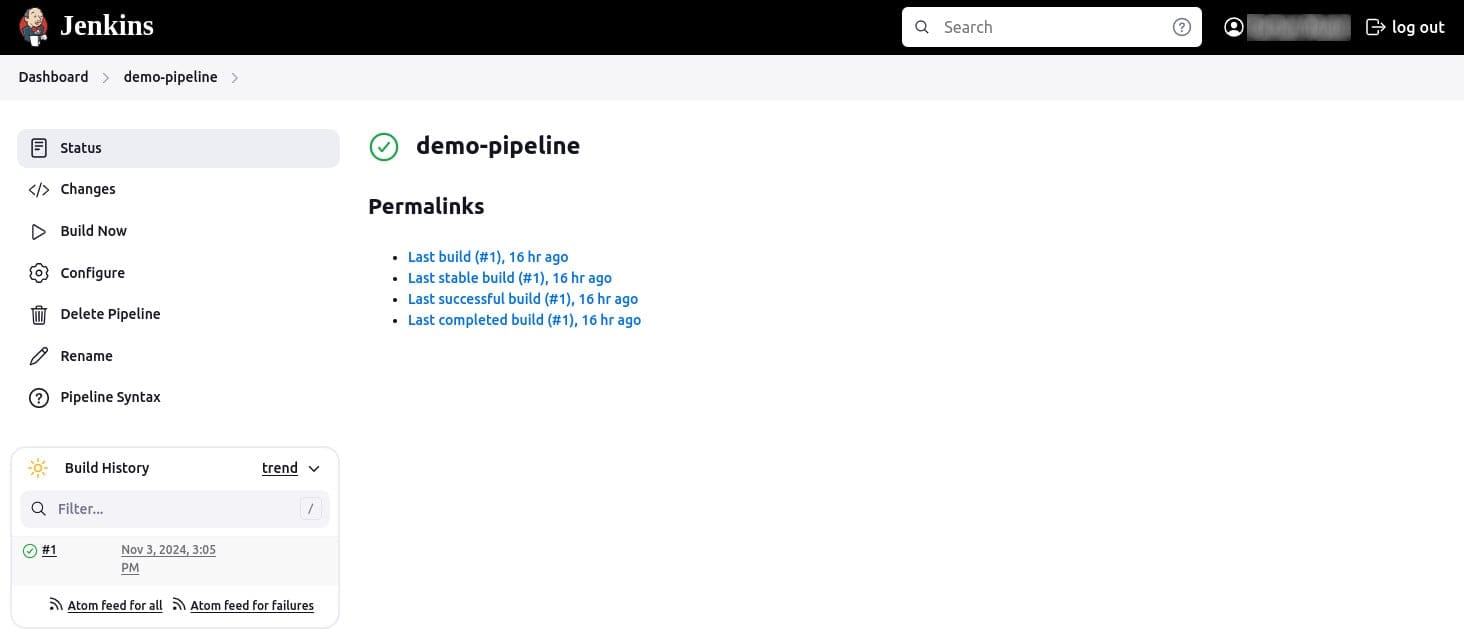
A manual build trigger in Jenkins allows users to start a build process manually through the Jenkins user interface. This trigger is useful for jobs that require human oversight or intervention, such as builds that need to be run after a thorough code review or jobs that should be executed to test specific features or fixes.
How to set up a build trigger:
To initiate a manual build, users log into the Jenkins dashboard, navigate to the specific job they want to build, and click the Build Now button. This action immediately triggers a build, providing instant feedback on the changes being tested. Manual triggers are beneficial in scenarios where automatic triggers might be too frequent or unnecessary, giving developers the flexibility to manage builds on-demand.
2. Scheduled build trigger
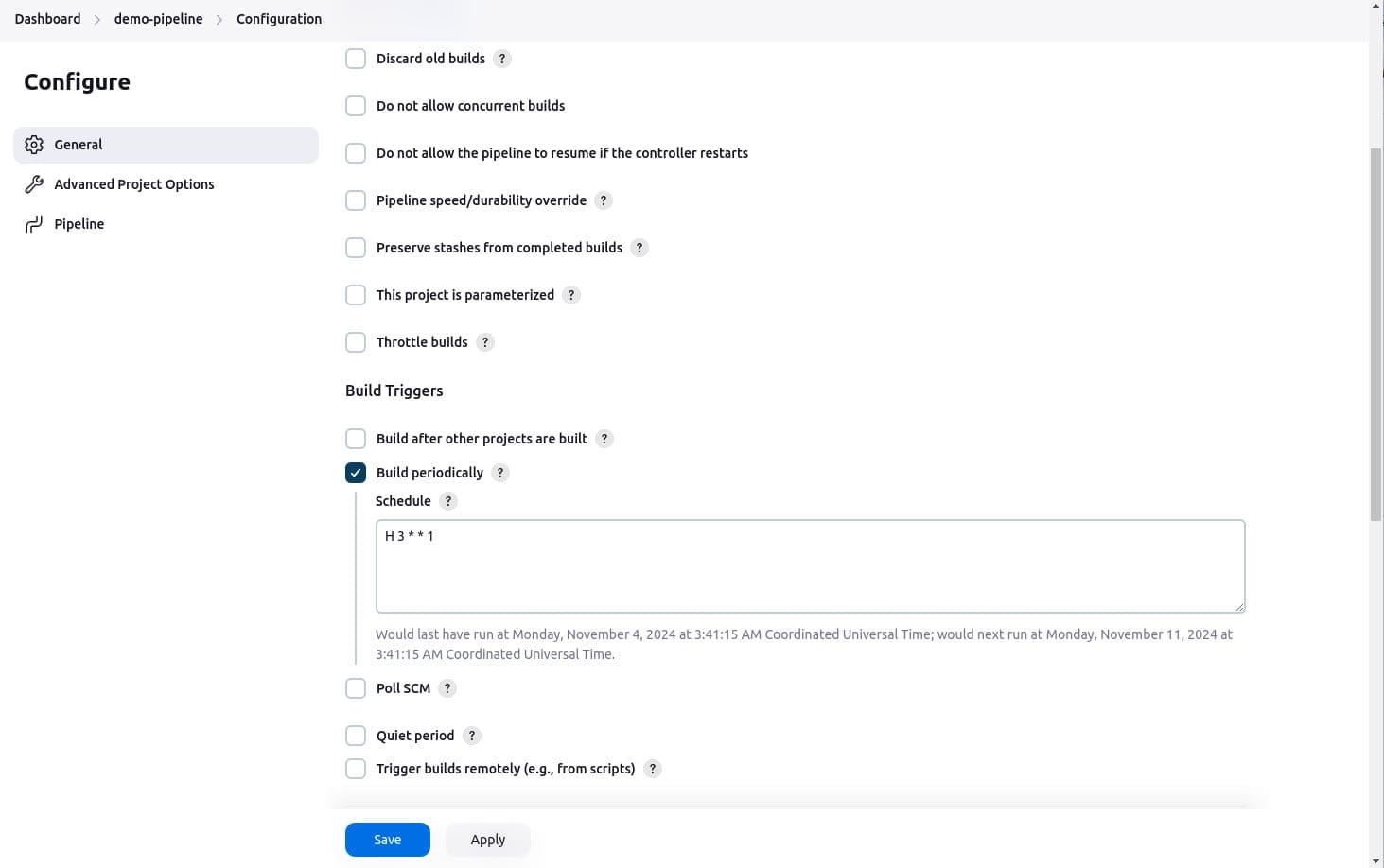
Scheduled build triggers in Jenkins enable builds to be started at predefined times using cron-like scheduling syntax. This feature is ideal for tasks that need to run at regular intervals without manual intervention, such as nightly builds, weekly reports, or periodic integration tests.
How to set up a scheduled build trigger:
To set up a scheduled build, users configure the job settings to specify the schedule using cron syntax. For example, a schedule might be set to trigger a build every day at midnight (H 0 * * *) or every Monday at 3 AM (H 3 * * 1).
3. SCM (Source Code Management) trigger
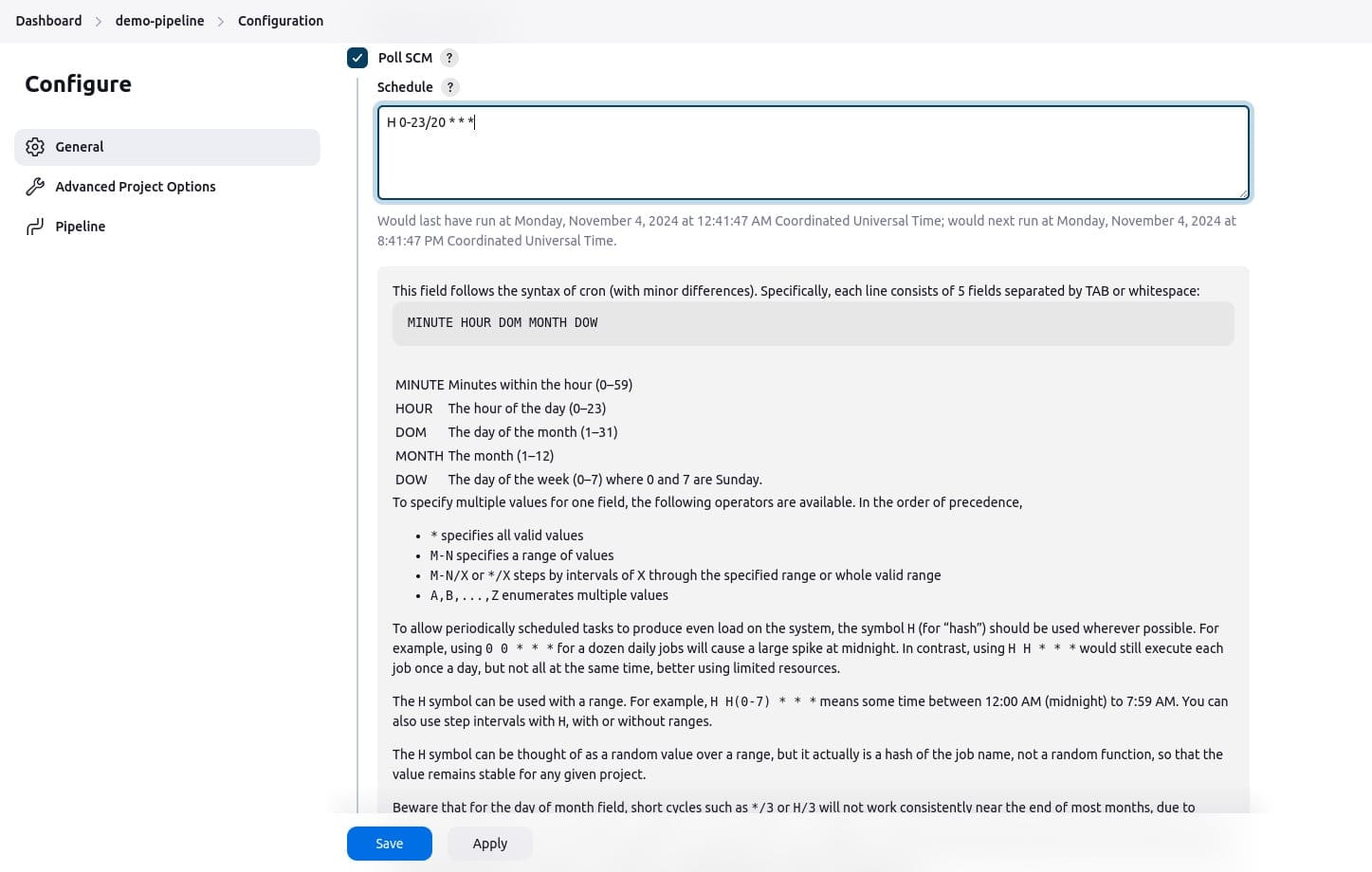
The SCM trigger is one of the most commonly used build triggers in Jenkins, initiating a build whenever changes are detected in the source code repository. This trigger is crucial for Continuous Integration practices, as it ensures that the latest code changes are automatically tested and integrated into the main codebase.
How to set up an SCM trigger:
Jenkins can be configured to poll the SCM at regular intervals or to use webhooks that notify Jenkins immediately when a commit is made. When a change is detected, Jenkins triggers a build, compiling the new code and running tests to validate the changes.
4. Webhook trigger
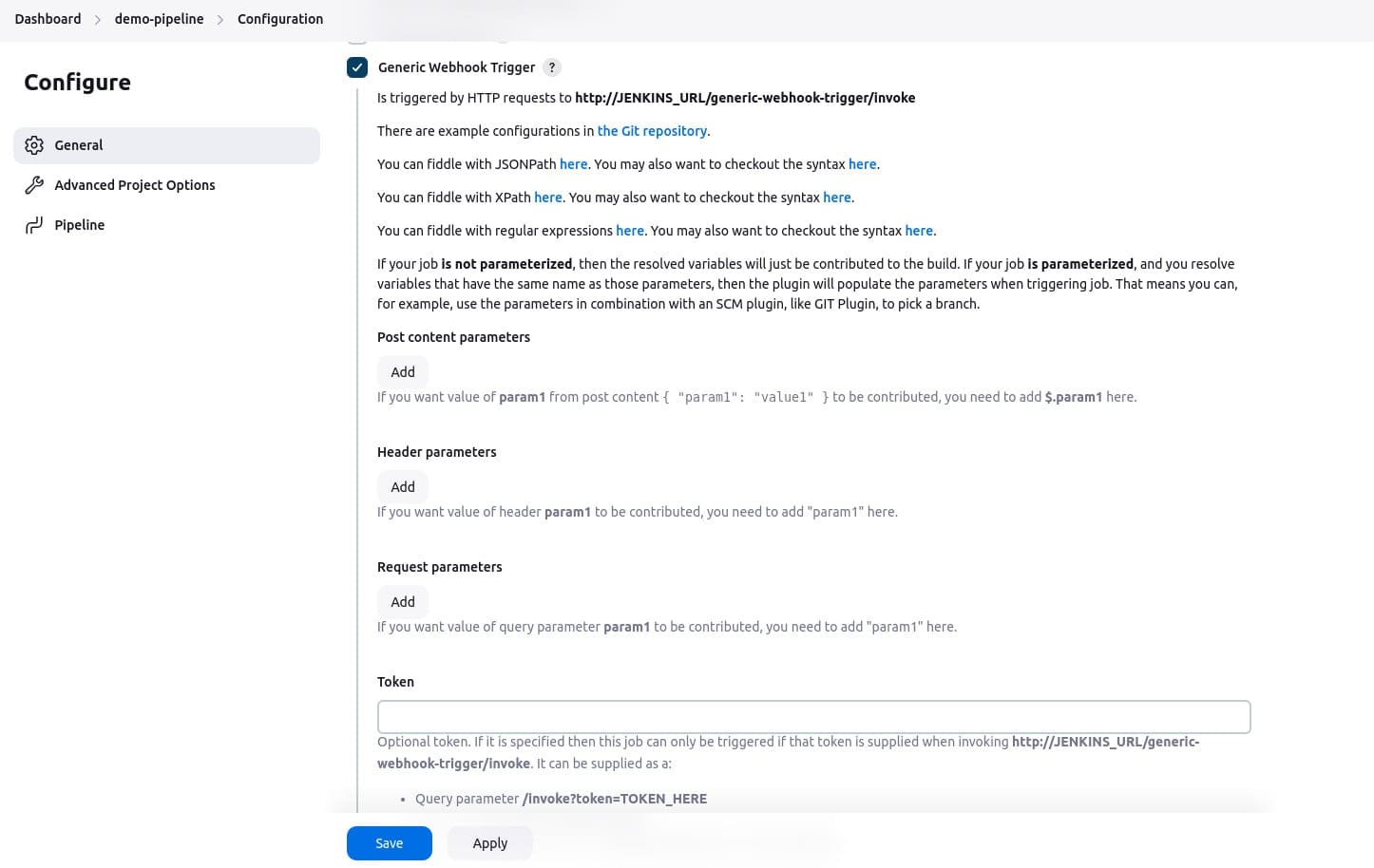
A webhooks trigger allows Jenkins to automatically start a build when a specific event occurs in an external system. This is particularly useful for integrating Jenkins with tools like GitHub or Bitbucket, where a webhook can be configured to notify Jenkins immediately when a new commit is made, a pull request is created, or another repository event takes place. It eliminates the need for polling and ensures that builds are triggered as soon as relevant changes happen.
How to set up a webhook trigger:
To set up a webhooks trigger, install the Generic Webhook Trigger plugin. Then, configure the job to listen for incoming webhook payloads from the repository or external system. The configuration allows users to define conditions, such as event types or JSON field values, to control when the build should be triggered.

Dan is a seasoned leader in the tech industry with a strong focus on open source initiatives. Currently serving as VP of Open Source at Octopus Deploy, contributing as an Argo maintainer, co-creator of Open GitOps, and leveraging extensive experience as a co-founder of Codefresh, now part of Octopus Deploy.
5. Dependency build trigger
The dependency build trigger in Jenkins allows a build to be triggered when another specified job completes. This feature is essential for coordinating complex build workflows where certain jobs depend on the outputs or completion of others. For example, a deployment job might be configured to run only after a build job successfully compiles and tests the code.
How to set up a dependency builder trigger:
To configure a dependency build trigger, users specify the upstream job that, upon completion, will trigger the downstream job. This setup ensures that builds occur in the correct order, managing dependencies effectively and preventing scenarios where jobs run out of sequence. For instance, a pipeline might include jobs for building the application, running tests, and deploying the application, each triggered by the completion of the previous job.
6. Parameterized build trigger
A parameterized build trigger allows users to start a build with predefined parameters, enabling greater flexibility and control over the build process. This is particularly useful for passing specific variables or options to a build job, such as selecting different environments (staging, production) or defining feature flags.
How to set up a parameterized build trigger:
To configure a parameterized build trigger, first install the Parameterized Trigger plugin. Then, define the required parameters (e.g., strings, choices, or boolean values) in the job settings. These parameters can be passed from one job to another or entered manually when triggering the build. This setup allows more customized and dynamic builds.
7. Pipeline trigger
A pipeline trigger in Jenkins is used to orchestrate and manage complex, multi-stage workflows. This trigger allows jobs or stages in a pipeline to be automatically started based on predefined conditions or the status of earlier stages. By using pipeline triggers, users can build, test, and deploy in sequence, ensuring that each stage proceeds only when the previous one has successfully completed.
How to set up a pipeline trigger:
In a Jenkins pipeline, triggers are defined in the Jenkinsfile at specific stages, giving fine-grained control over the pipeline’s flow. For example, developers can set a trigger to start the deployment stage only after the test stage has passed. The pipeline syntax also allows users to specify conditions, such as triggering a build for certain branches or based on the success or failure of earlier stages.
8. Remote API trigger
The Remote API trigger enables Jenkins to start a build through external systems by sending an HTTP request. This trigger is useful for integrating Jenkins with other automation tools, such as custom scripts or third-party platforms, allowing builds to be initiated remotely via a REST API call. It provides a straightforward method to programmatically control Jenkins jobs without requiring manual intervention.
How to set up a remote API trigger:
To set up a remote API trigger, developers first need to enable the remote access API in Jenkins. This can be done by generating an API token for the user account that will be making the HTTP requests. After that, configure the external system to send a request to Jenkins’ REST API endpoint for the job. Users can pass parameters and additional data via the API.
9. Plugin-based triggers
Plugin-based triggers in Jenkins are custom triggers provided by various Jenkins plugins to meet specific needs. These triggers extend Jenkins’ functionality, enabling builds to be started based on events or conditions not covered by the standard triggers. For example, a plugin might trigger a build based on file system changes, integration with a specific development tool, or custom business logic.
How to set up a plugin-based trigger:
Plugins can be installed from the Jenkins plugin repository and configured to provide additional triggering mechanisms. For example, the Build Result Trigger plugin can trigger a build based on the result of another job, while the Gerrit Trigger plugin integrates with Gerrit code review to start a build when a new patch set is created.
Best practices for using Jenkins triggers
Use appropriate trigger types for your use case
Different triggers serve different purposes, and it’s important to choose the most suitable one for your use case. For example:
- SCM triggers are ideal for Continuous Integration workflows as they automatically build and test code upon every commit, ensuring immediate feedback.
- Scheduled triggers are perfect for tasks that need to run at regular intervals, such as nightly builds or weekly reports.
- Manual triggers are best for builds requiring human oversight, like those following a code review. Understanding and using the appropriate trigger type ensures that your builds are timely and relevant to your workflow.
Avoid over-triggering
Over-triggering can lead to unnecessary builds, resource exhaustion, and longer build queues. To prevent this, carefully configure your triggers. Use throttling settings to limit the number of builds that can be triggered in a given time frame.
Combining triggers judiciously can also help, such as using SCM triggers with specific branch filters or incorporating additional conditions to avoid redundant builds. By preventing over-triggering, you ensure that your Jenkins server remains responsive and that builds are only initiated when necessary.
Monitor and log trigger events
Implementing logging and monitoring for trigger events provides valuable insights into build initiations. Monitoring helps identify patterns, debug issues, and optimize the triggering strategy.
Set up detailed logs for each trigger event to track when and why builds are initiated. Use monitoring tools to visualize these events, allowing you to quickly spot anomalies or inefficiencies. Regularly review the logs and adjust trigger configurations as needed.
Secure remote triggers
Remote API and webhook triggers are tools for integrating Jenkins with external systems, but they also pose security risks if not properly secured. Always use authentication and authorization mechanisms to protect these triggers.
Implement API tokens or SSH keys and limit permissions to only what is necessary for the task. Regularly rotate these credentials and review access logs to detect any unauthorized attempts. By securing remote triggers, you protect your Jenkins environment from potential breaches.
Test trigger configurations
Regularly testing your trigger configurations is essential to ensure they work as intended. Validate cron syntax for scheduled triggers to confirm that builds are initiated at the correct times.
Test webhook integrations by simulating the events that should trigger a build, such as pushing a commit to a repository. For SCM triggers, simulate code changes to verify that Jenkins detects and responds appropriately. Periodic testing helps catch misconfigurations early.
Integrate notifications
Setting up notifications for build triggers keeps the team informed about build initiations and statuses, fostering better communication and quicker response times.
Integrate Jenkins with communication tools like Slack, Microsoft Teams, or email to provide real-time updates. Customize notifications to alert relevant team members about build successes, failures, and other critical events.
Regularly review and update triggers
As projects evolve, trigger requirements may change, making it necessary to review and update trigger configurations periodically. Schedule regular reviews of your Jenkins triggers to ensure they still align with your project’s needs and workflow.
Update triggers to reflect changes in the development process, such as new branches, modified schedules, or additional integration points. By keeping triggers up to date, you ensure that your build pipeline remains efficient and relevant, adapting to the evolving requirements of your software development lifecycle.
Help us continuously improve
Please let us know if you have any feedback about this page.