What is Docker deployment automation?
Docker deployment automation involves simplifying the process of deploying containerized applications using tools and workflows that minimize manual intervention. This includes using CI/CD pipelines, container orchestration, and infrastructure-as-code solutions. Key benefits include faster deployments, reduced errors, improved consistency, and better resource use across environments.
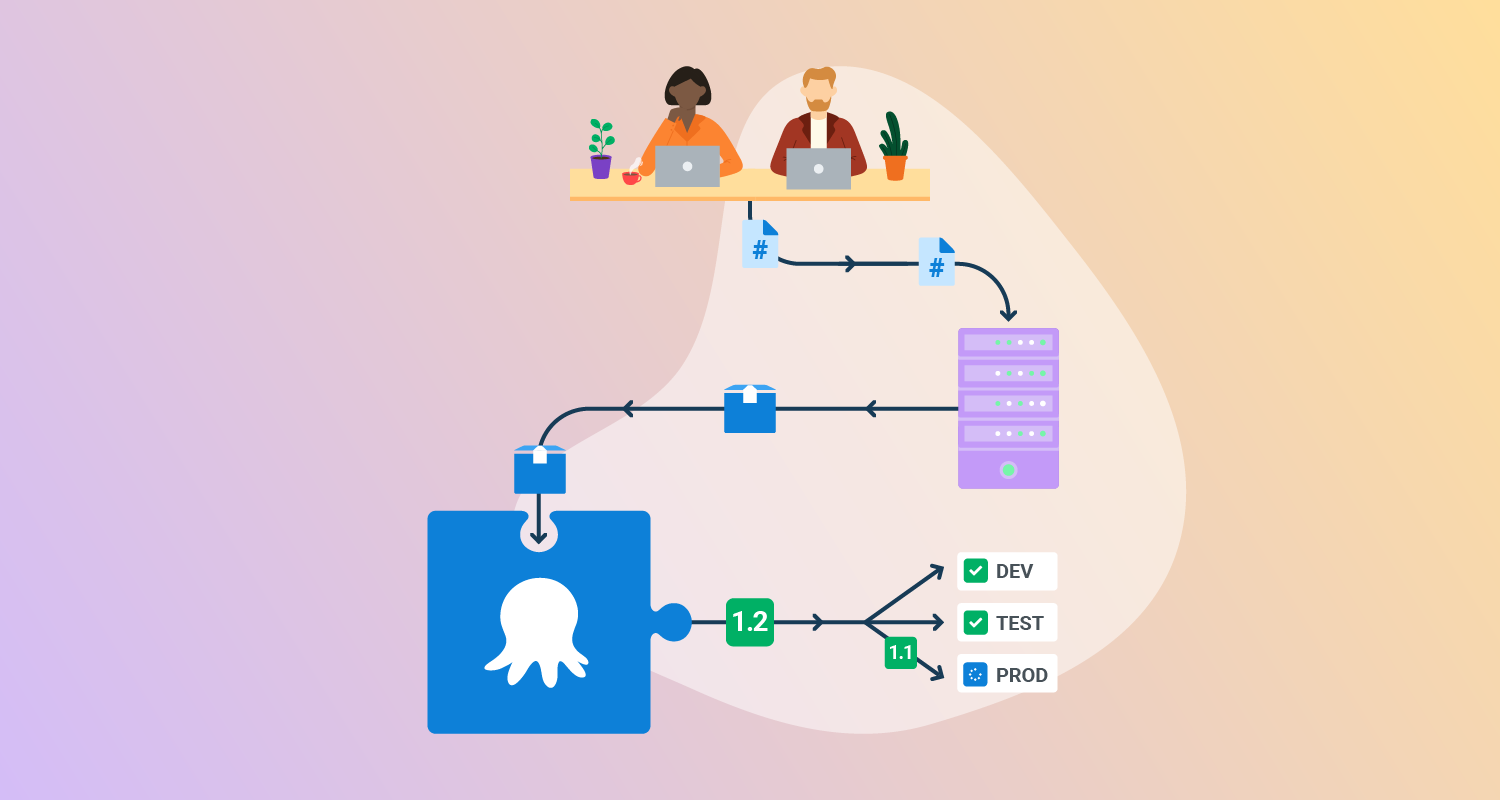
Here’s an example of the basic workflow:
- Code changes: Developers push code changes to a Git repository.
- CI/CD trigger: The push triggers a CI/CD pipeline (e.g., GitHub Actions).
- Docker build: The pipeline builds a new Docker image from the updated code.
- Testing: The pipeline runs automated tests against the new image.
- Deployment: If the tests pass, the pipeline deploys the new image to the target environment (e.g., a server, Kubernetes cluster).
- Rollback: If a deployment fails, the pipeline can automatically roll back to the previous working version.
- Clean up: A Docker cleanup command removes objects such as unused images and containers to conserve disk space.
Benefits of automating Docker deployment
Automating Docker deployment has several important benefits for software delivery processes:
- Faster deployments: Automation significantly reduces the time it takes to deploy applications. What previously took hours can now be completed in minutes.
- Fewer errors: By removing manual steps, automation minimizes the risk of human error during builds, updates, and rollouts. This leads to more consistent deployments and fewer post-deployment issues.
- Environment consistency: Automation ensures that applications run the same way in development, staging, and production. Docker containers package all dependencies together, and automated pipelines make sure they’re deployed uniformly across environments.
- Better resource use: Automated systems can dynamically scale services and manage resources more efficiently than manual operations. Docker’s lightweight containers, paired with automation, reduce overhead compared to traditional virtual machines.
- Faster feedback: With CI/CD pipelines automating the entire deployment process, teams can receive feedback from testers and end users sooner. This allows them to fix issues faster and increase the frequency of releases.
A basic Docker deployment automation workflow
Automating Docker deployment typically involves configuring a Continuous Integration and deployment (CI/CD) pipeline that builds, tests, packages, and ships applications without manual intervention.
Below is a step-by-step breakdown of a basic Docker deployment workflow using a CI/CD provider, a container registry, and remote deployment via SSH.
- Trigger build on code push: The workflow begins when a developer pushes code to the master branch. This push triggers the CI/CD pipeline, which is configured to react to events on this branch only.
- Run tests and build the application: The first stage in the CI job is to install dependencies and execute tests. This ensures that only tested and functioning code proceeds to deployment. If any test fails, the process is stopped.
- Build and tag Docker image: After tests pass, a new Docker image is created. This image is tagged with a unique identifier—often the short git commit hash—and also with the latest tag to mark the current version.
- Push image to container registry: The image is pushed to a container registry like Docker Hub. Authentication credentials are securely stored as environment variables in the CI provider. Both the unique tag and the latest tag are uploaded.
- Authenticate and connect to production server: The CI job then prepares for remote deployment by decoding an SSH private key and updating known hosts to avoid interactive prompts. These are also stored as environment variables to keep credentials secure.
- Deploy via remote SSH: Using SSH, the CI server logs into the production host. It pulls the new image from the container registry, stops the existing container, removes it, and then starts a new container using the updated image. The deployment includes flags like
--init,-dfor detached mode, and port mappings based on the application’s needs. - Rollback: If the deployment fails a post-deploy health check or smoke test, the pipeline reverts to the previous known-good image by pulling the prior tag (or commit-hash tag) from the registry, stopping and removing the failed container, and starting a new container from that earlier image. Because Docker images are immutable and uniquely tagged, this restores the previous version without rebuilding, typically in seconds.
- Clean up unused Docker objects: To conserve disk space, the script runs a Docker cleanup command (
docker system prune -af) that removes unused images, containers, and other objects.
This workflow ensures that any change merged into the master branch is automatically built, tested, and deployed with no manual steps.
Shortcomings of Docker deployment and the need for deployment automation platforms
While Docker simplifies containerization, managing deployments manually or with basic scripts exposes several limitations as applications scale. These shortcomings often drive the adoption of specialized deployment automation platforms:
- Operational complexity: In simple setups, SSH-based scripts can deploy a container to a single server. However, as the number of services, environments, and nodes grows, managing configurations, secrets, and network topologies quickly becomes error-prone. Coordinating updates across clusters without downtime requires orchestration logic that ad-hoc scripts rarely provide.
- Lack of built-in orchestration: Docker alone does not handle scheduling, service discovery, or health monitoring across distributed systems. Without orchestration, teams must manually restart containers, rebalance workloads, and implement rolling updates, which introduces risk during deployments.
- Scaling challenges: Scaling services up or down manually requires updating multiple containers and networking rules. This is impractical in dynamic environments where demand changes. Automation platforms can abstract scaling logic, automatically provisioning or decommissioning containers based on load.
- Security risks: Manual deployments often expose credentials, environment variables, and SSH keys in plaintext or within scripts. Without integrated secrets management, securing these sensitive assets at scale becomes increasingly difficult. Automation platforms enforce stricter controls around secrets and permissions.
- Inefficient rollbacks and updates: Rolling back a failed deployment manually requires detailed tracking of previous container versions, configuration states, and dependencies. Automation platforms support versioned deployments and enable instant rollbacks to known-good states, reducing downtime.
Deployment automation platforms like Kubernetes, Docker Swarm, and commercial CI/CD tools address these challenges by providing:
- Declarative configuration: Define the desired state of applications and let the platform reconcile the system to match it.
- Built-in orchestration: Automate container scheduling, service discovery, and rolling updates across clusters.
- Scalability: Dynamically adjust resources based on workload.
- Secrets management: Securely store and inject sensitive data into containers at runtime.
- Resilience: Monitor container health and automatically restart failed instances.

Tony Kelly is a DevOps marketing leader who drives innovation and awareness of the latest trends in Continuous Delivery.
Tutorial: Set up Docker automated deployment builds
Docker Hub supports automated builds that create and push container images each time you update code in a connected source control repository. Below is a step-by-step tutorial on setting up automated builds using Docker Hub and GitHub. These instructions are based on the Docker Hub documentation.
1. Create and push your code repository
First, ensure your application has a GitHub (or Bitbucket) repository with a Dockerfile in the root or a known subdirectory.
git init my-app
cd my-app
touch Dockerfile
git add .
git commit -m "Initial commit with Dockerfile"
git remote add origin git@github.com:username/my-app.git
git push -u origin main
Make sure your Dockerfile is correctly set up to build your application.
2. Link your GitHub repository to Docker Hub
Follow these steps to link your GitHub repo to Docker Hub:
- Log in to Docker Hub
- Go to My Hub > Repositories
- Create a new repository (public or private)
- After creation, select the Builds tab
- Choose Configure automated builds
- Link your GitHub or Bitbucket account (you may be redirected to authorize)
3. Configure build rules
After linking your repository:
- In the Build Rules section, select a source branch like main
- Set the Docker tag as latest or use a dynamic value
Source type: Branch
Source: main
Docker Tag: latest
Dockerfile location: /
Build context: /
Autobuild: Enabled
Build Caching: Optional
You can add more build rules to tag images by branch names or tags. For example:
Source: /^release-(.*)$/
Docker Tag: release-{\1}
This rule builds images from branches like release-1.0 and tags them release-1.0.
4. Enable automated tests or environment variables (optional)
If your project has test scripts, you can configure them to run during the build process. Only images from successful builds will be pushed.
In addition, for builds that require secrets (e.g., access tokens), you can set secure environment variables. These are only accessible during the build and are not exposed in the resulting image:
- In the build configuration, click + next to Build environment variables
- Add variables such as:
NODE_ENV=production
API_KEY=your_api_key_here
5. Save and trigger a build and pull the Docker image
Click Save and Build to run an initial build and verify the setup. Docker Hub automatically adds a webhook to GitHub to trigger builds on new pushes.
Once the image is built and pushed, you can deploy it as follows:
docker pull username/my-app:latest
docker run -d -p 80:3000 username/my-app:latest
Replace the tag if you used a branch or regex-based tagging rule.
Best practices for Docker deployment automation
Use modular configurations
Structuring your deployment automation with modular configuration files helps manage complexity as your infrastructure grows. Using tools like Docker Compose or Kubernetes YAML manifests with reusable templates ensures that changes are easy to apply across multiple projects. Modularization allows teams to maintain environment-specific variables separately, promoting consistency and reducing the likelihood of errors during deployment.
Another advantage of modular configurations is their support for collaboration and maintenance. By breaking down configurations into independent units, teams can more easily test, update, and reuse components. This enables more manageable code reviews and streamlined debugging, as issues are contained within smaller, well-defined modules.
Ensure idempotence
Idempotence in automation ensures that running the same deployment scripts multiple times produces the same result every time. This characteristic is vital for maintainability and reliability, especially in complex environments. Tools like Ansible or declarative Kubernetes manifests are designed to be idempotent, meaning they only make necessary changes instead of repeating operations that have already been executed.
By writing idempotent deployment playbooks, teams avoid introducing subtle bugs or inconsistencies when re-running scripts after partial failures. Idempotence also improves recovery speed, since restarting a failed deployment does not require manual cleanup.
Regularly update playbooks and dependencies
Maintaining up-to-date playbooks and automation dependencies is essential for security and compatibility. Outdated modules, container images, or third-party actions can introduce vulnerabilities and hinder the reliability of automated deployments. Establishing a regular cadence for reviewing and updating playbooks—along with associated plugins or libraries—ensures that the automation remains effective as underlying technologies evolve.
Updates should also include patching container base images and testing new versions of core dependencies within the automation pipeline itself. Automating these checks and incorporating them into your CI workflows reduces manual workloads and minimizes risk.
Adopt version control and collaborative tools
All automation scripts and configuration files should reside in version control systems, such as Git. Tracking changes, rollbacks, and the evolution of deployment pipelines is much more efficient with commit histories, branches, and tags. Version control also allows for peer reviews and transparent workflows, reducing single points of failure and enabling knowledge sharing within engineering teams.
Collaborative tools such as pull requests, code review platforms, and issue tracking help coordinate changes, fostering a culture of continuous improvement. Integrating issue tracking with code commits provides context and historical insights for each deployment, enhancing traceability and reducing onboarding friction for new team members.
Enforce security at every stage
Automated Docker deployments must integrate security from the earliest stages. This includes scanning images for vulnerabilities, using secrets management for credentials, and restricting permissions in both pipelines and runtime environments. Embedding automated security checks into the CI/CD workflow ensures that every build and deployment adheres to best practices before reaching production.
Enforcing security also means regularly auditing access controls and pipeline configurations. Automated monitoring and alerts for suspicious activity further reduce risk. By prioritizing security at every stage of Docker deployment automation, organizations protect themselves against emerging threats and comply with industry regulations.
Related content: Read our guide to deployment automation tools (coming soon)
Help us continuously improve
Please let us know if you have any feedback about this page.