What are build parameters in Jenkins?
Build parameters in Jenkins are variables that allow users to pass dynamic values to Jenkins jobs at runtime. These parameters enable customization by allowing users to influence the build process without modifying the job’s configuration. By defining build parameters, users can input values such as environment settings, file paths, or any other necessary information directly when triggering a build.
Build parameters play an important role in creating reusable Jenkins jobs. They help streamline Continuous Integration and deployment processes by providing a mechanism to handle varying inputs and conditions. This makes it easier to manage workflows, automate tasks, and maintain consistency across different builds and environments. By leveraging build parameters, Jenkins jobs can become more responsive to changing requirements.
Two ways to use build parameters in Jenkins
Traditional jobs
In traditional Jenkins jobs, also known as freestyle projects, build parameters can be used in various build steps. The most common steps involve executing shell scripts or Windows batch commands. These parameters act as environment variables that can be easily referenced within the scripts.
For example, let’s say you have a build parameter named packageType. This parameter can be accessed in a shell script as follows:
echo "The package type is: ${packageType}"In Windows batch commands, the syntax is slightly different:
echo The package type is: %packageType%These build parameters can also be used in build steps that execute Gradle tasks or Maven goals. These tools can access build parameters just like any other environment variable.
Pipelines
In Jenkins pipelines, build parameters can be accessed in multiple ways. First, all build parameters are placed into a params variable. This allows access to parameter values using dot notation. For instance, if you have a parameter jdkVersion, it can be accessed and used in a pipeline stage condition as follows:
pipeline {
agent any
stages {
    stage('Build') {
        when {
            expression { params.jdkVersion == "14" }
        }
        steps {
            echo 'Building with JDK 14'
            // Add build steps for JDK 14
        }
    }
}
}
Second, the build parameters are also added to the environment of the pipeline. This means you can use the shorter shell syntax inside a step that executes a shell script:
pipeline {
agent any
parameters {
    string(name: 'packageType', defaultValue: 'default', description: 'Type of package to build')
}
stages {
    stage('Build') {
        steps {
            sh 'echo "Building package type: ${packageType}"'
        }
    }
}
}
In this example, the packageType parameter is used directly in a shell script within the Build stage.

Kostis Kapelonis is a Principal Developer Advocate at Octopus Deploy. He lives and breathes automation, good testing practices and stress-free deployments with GitOps. He is also a member of the Argo team focusing mainly on Argo Rollouts and Argo CD.
Types of build parameters in Jenkins with examples
1. Boolean
A Boolean parameter in Jenkins allows users to pass a simple true or false value to a job. This is useful for toggling features or conditions in the build process.
Here is an example:
pipeline {
agent any
parameters {
    booleanParam(name: 'INCLUDE_DEBUG', defaultValue: false, description: 'Include debug information in the deployment')
}
stages {
    stage('Build') {
        steps {
            script {
                if (params.INCLUDE_DEBUG) {
                    echo 'Debug information will be included in the deployment.'
                    // Add steps to include debug information
                } else {
                    echo 'Debug information will NOT be included in the deployment.'
                    // Proceed without debug information
                }
            }
        }
    }
}
}
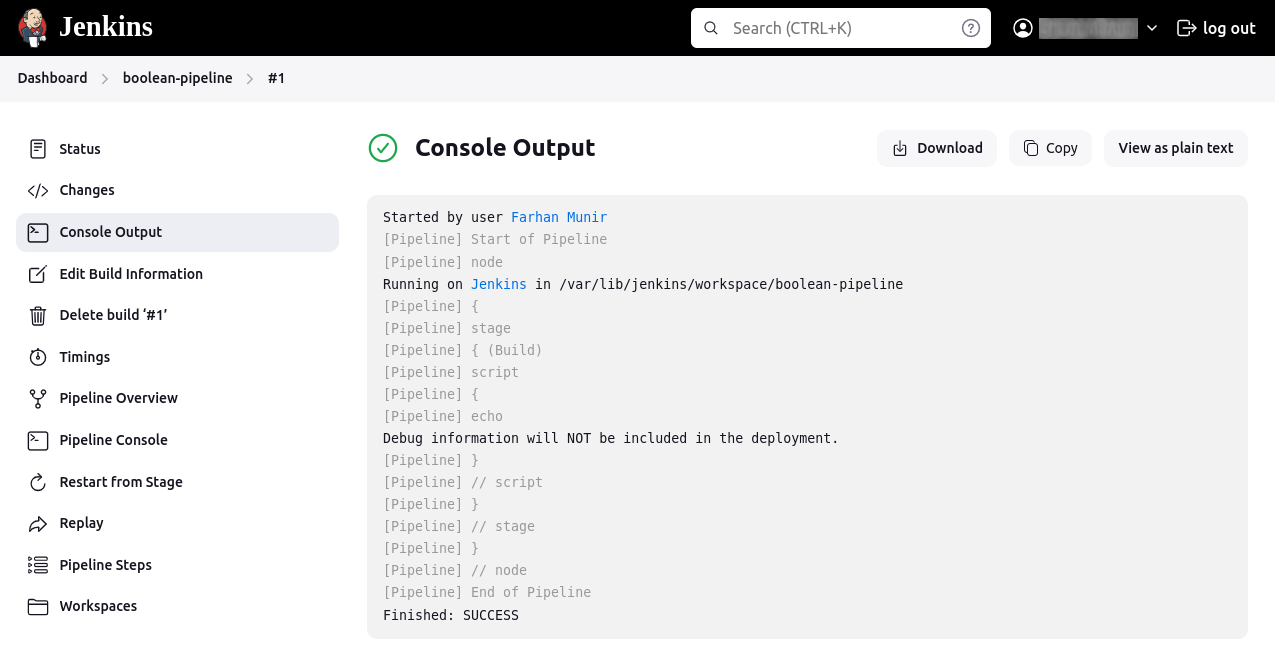
This pipeline defines a Boolean parameter INCLUDE_DEBUG. During the build, it checks the value of this parameter and includes or excludes debug information accordingly.
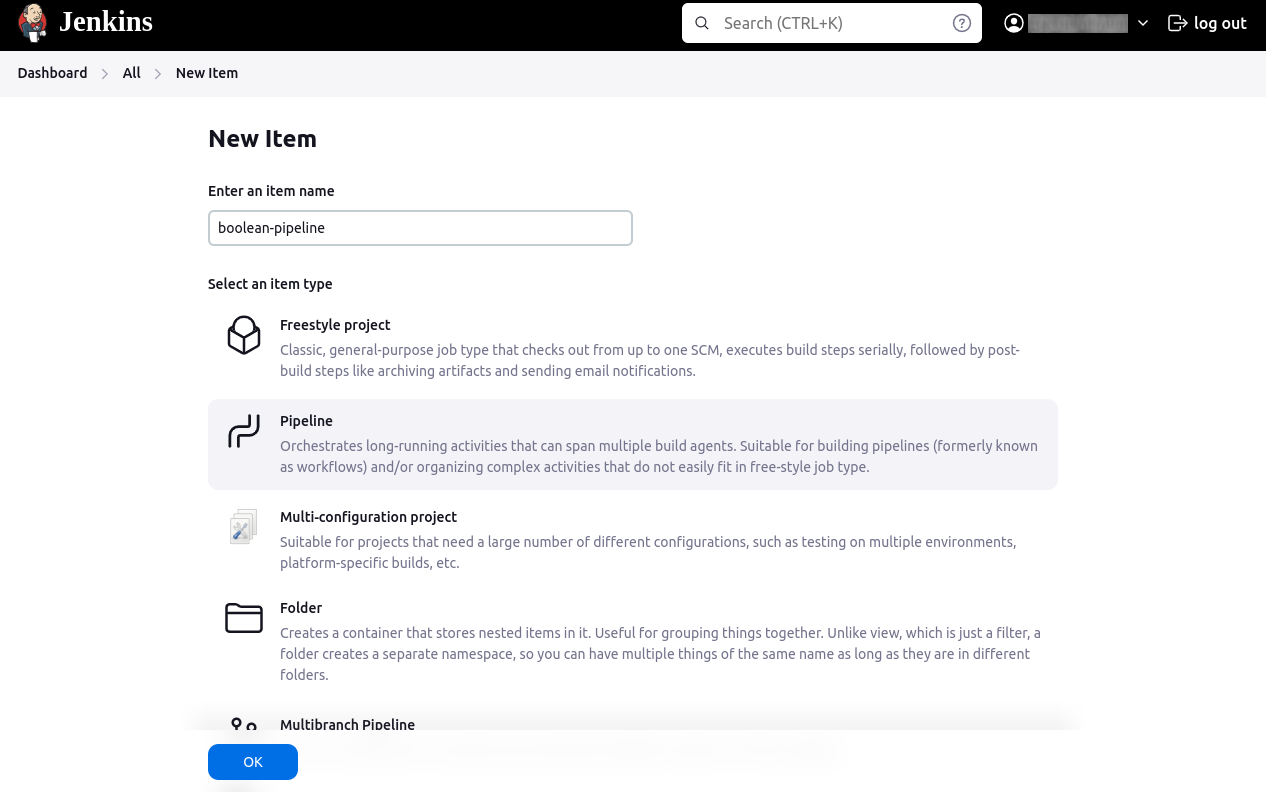
Here is how to create this pipeline in the Jenkins interface:
The output looks something like this:
2. Choice
A Choice parameter allows users to select a single value from a predefined list of options. This is useful for selecting different environments, versions, or configurations.
Here is an example:
pipeline {
agent any
parameters {
    choice(name: 'TARGET_ENV', choices: ['dev', 'staging', 'production'], description: 'Select the target environment')
}
stages {
    stage('Test') {
        steps {
            echo "Running tests in the ${params.TARGET_ENV} environment."
            // Add steps to run tests in the selected environment
        }
    }
}
}
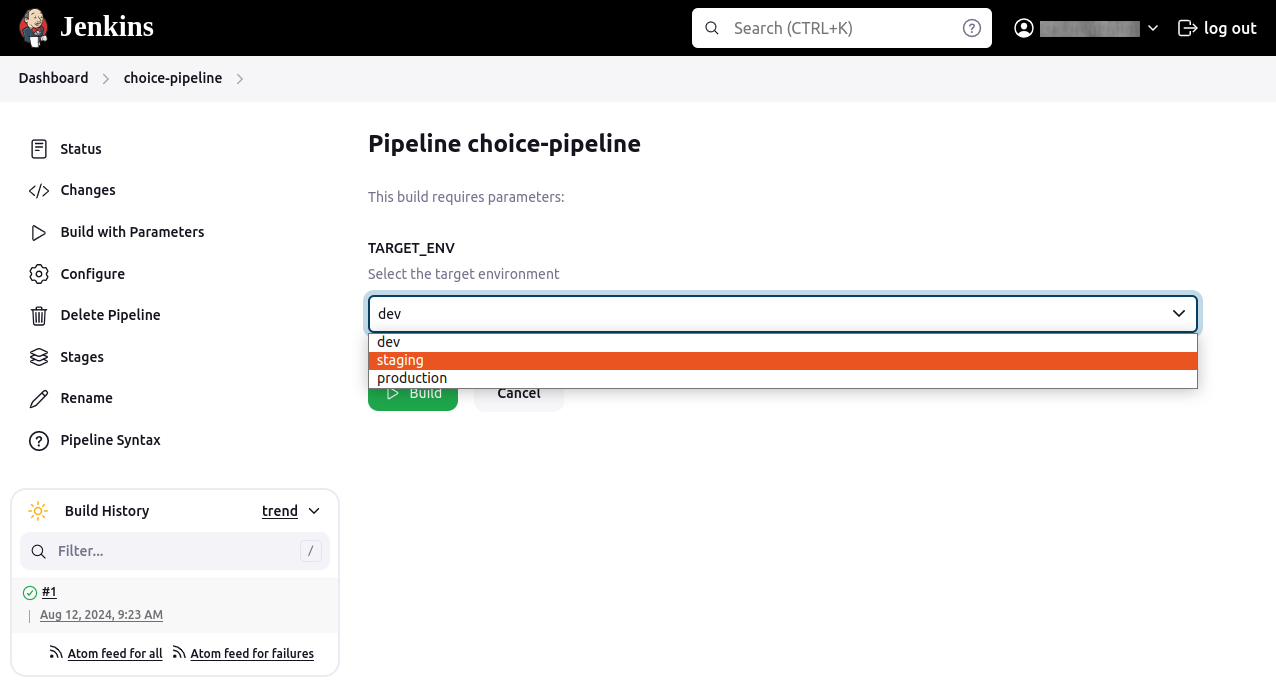
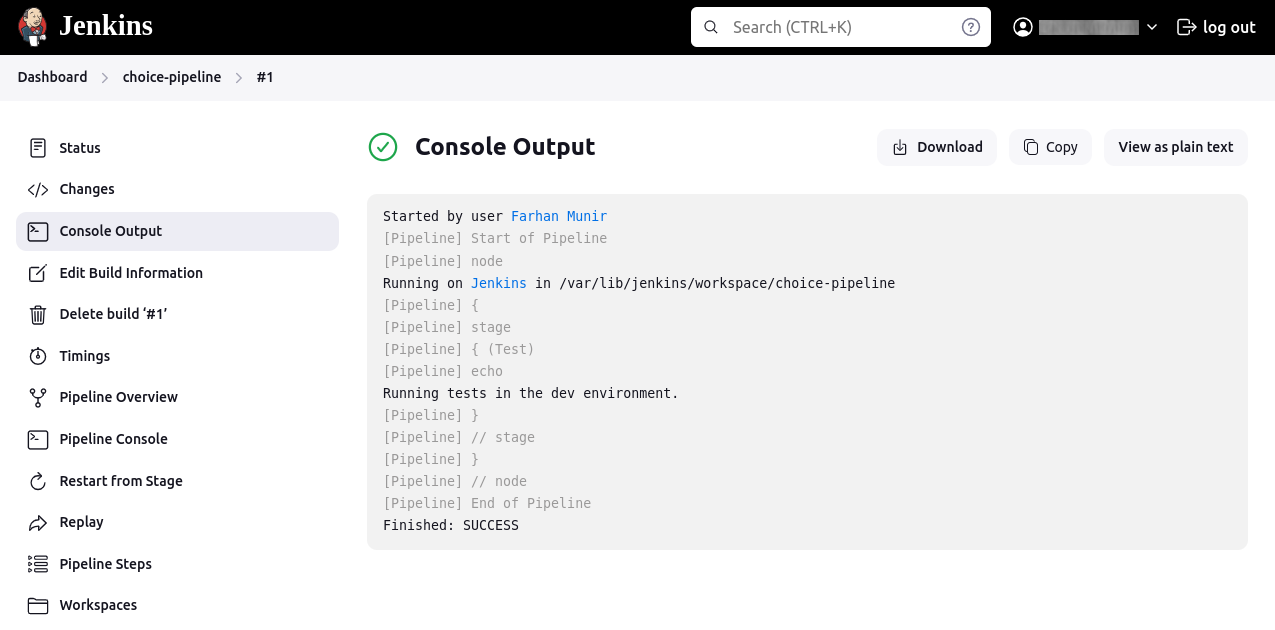
This pipeline defines a Choice parameter TARGET_ENV with options ‘dev’, ‘staging’, and ‘production’. It then runs tests in the selected environment.
Here is how to define a pipeline with a Choice parameter:
The console output looks something like this:
3. Credentials
A Credentials parameter allows users to select credentials from Jenkins’ stored credentials. This is essential for securely passing sensitive information like passwords, SSH keys, or tokens to the build process.
Here is an example:
pipeline {
agent any
parameters {
    credentials(name: 'DEPLOY_KEY', description: 'SSH key for deployment')
}
stages {
    stage('Deploy') {
        steps {
            withCredentials([sshUserPrivateKey(credentialsId: 'DEPLOY_KEY', keyFileVariable: 'SSH_KEY')]) {
                sh 'ssh -i $SSH_KEY user@server "deploy-script.sh"'
            }
        }
    }
}
}
This pipeline defines a Credentials parameter DEPLOY_KEY. It uses the withCredentials step to securely pass the SSH key to the deployment script.
Here is how a pipeline with a Credentials parameter looks in the Jenkins UI:
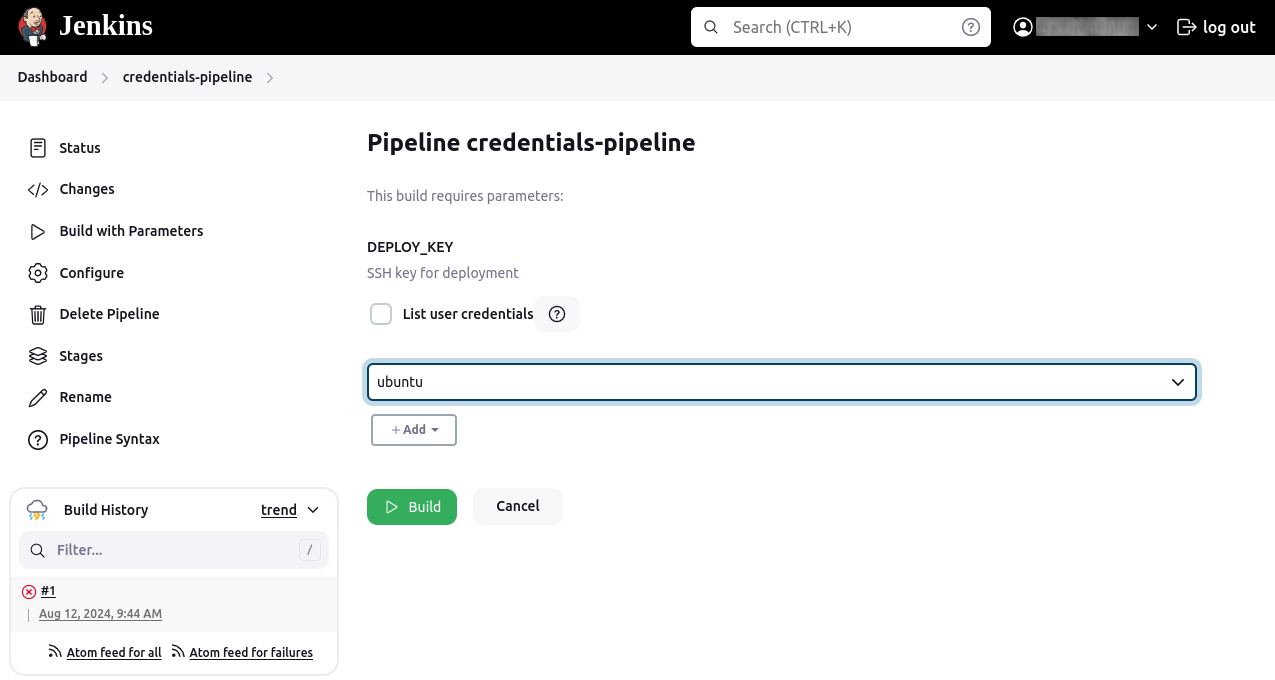
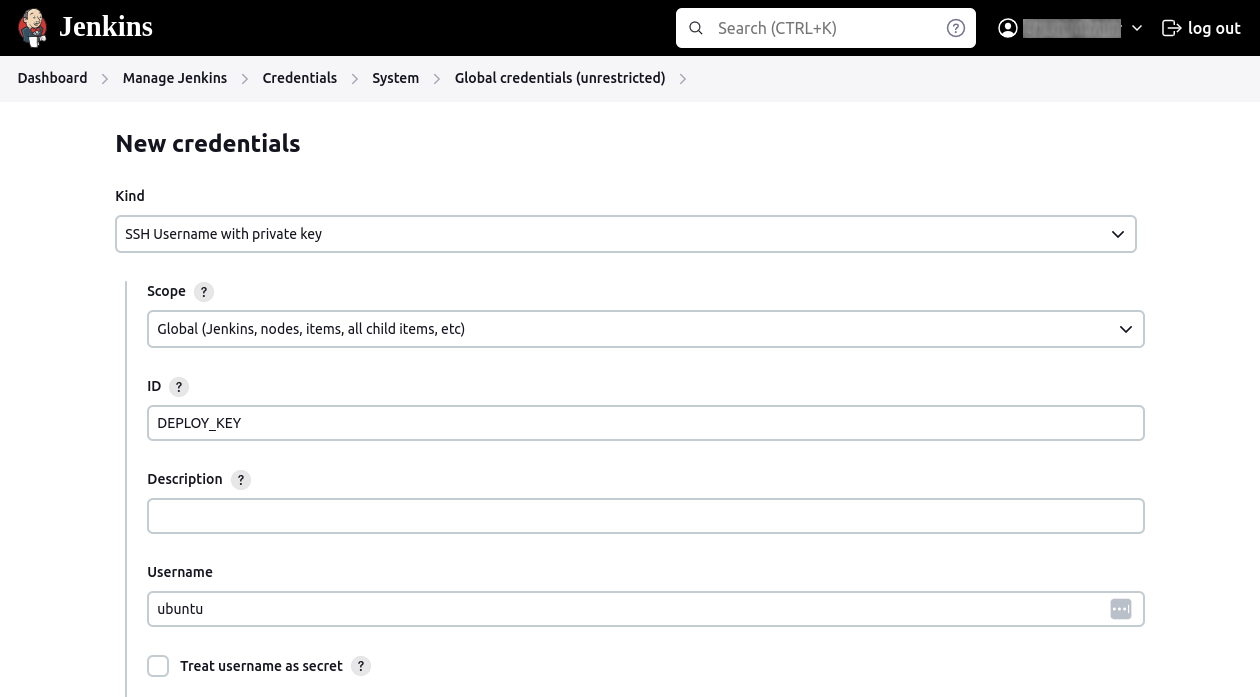
You can add the SSH key by selecting Manage Jenkins > Manage Credentials, and under the global domain, adding DEPLOY_KEY as the ID.
4. File
A File parameter allows users to upload a file that the job can use during the build process. This is useful for dynamically passing configuration files, data files, or any other necessary files.
Here is an example:
pipeline {
agent any
parameters {
    file(name: 'DATA_FILE', description: 'Upload the data file for processing')
}
stages {
    stage('Process Data') {
        steps {
            script {
                def dataFile = params.DATA_FILE
                echo "Processing data file: ${dataFile}"
                // Add steps to process the uploaded data file
            }
        }
    }
}
}
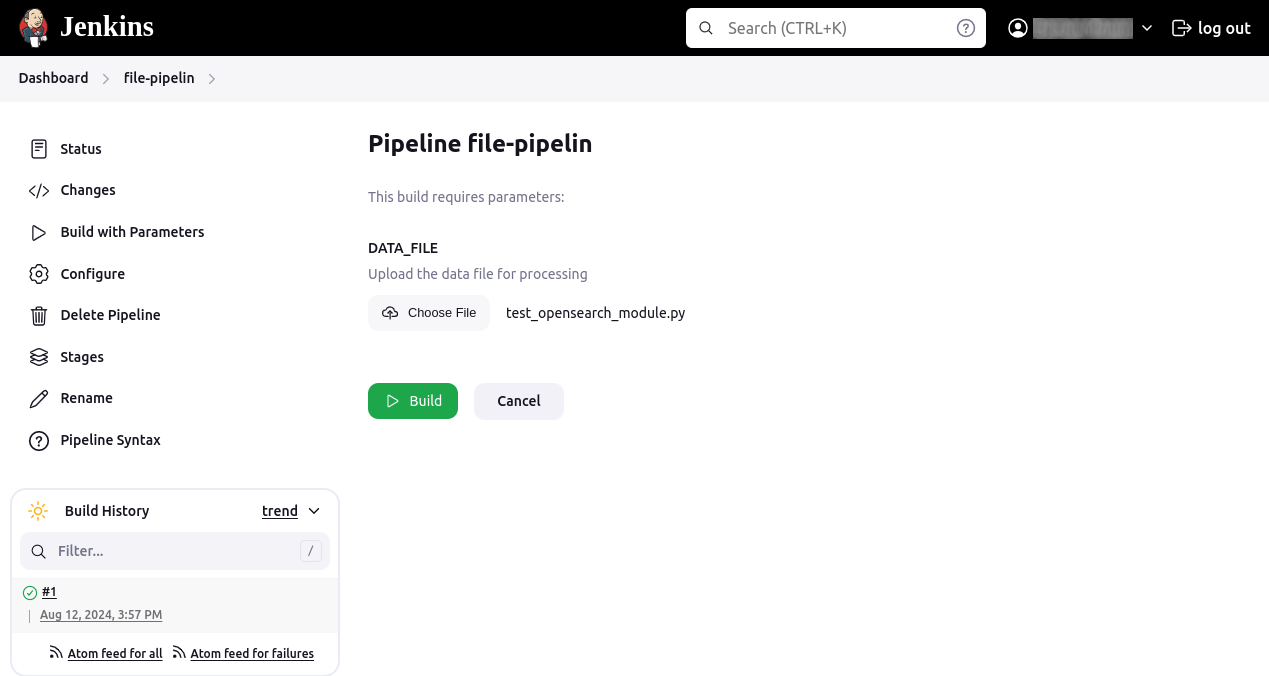
This pipeline defines a File parameter DATA_FILE. The job processes the uploaded data file during the build.
Here is how a pipeline with a File parameter looks like in the Jenkins UI:
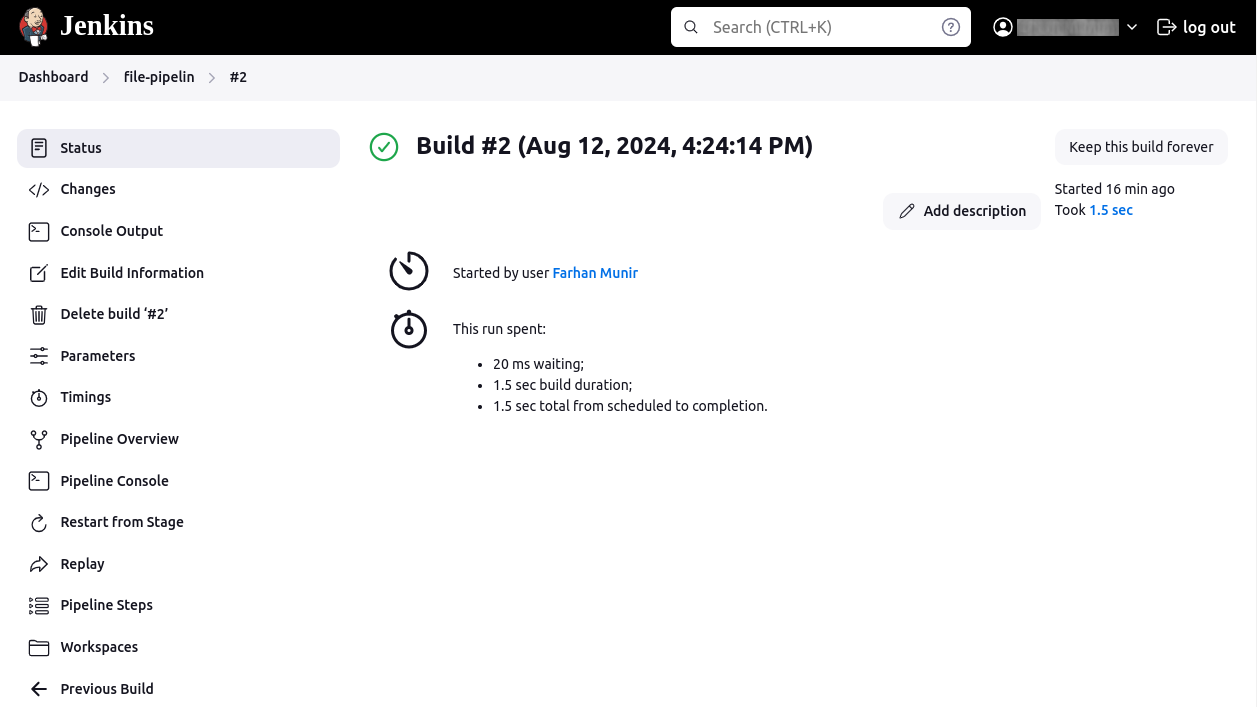
Click Build to start a build:
5. String
A String parameter allows users to pass a simple text value to the job. This is useful for passing various types of input like version numbers, file paths, or custom messages.
Here is an example:
pipeline {
agent any
parameters {
    string(name: 'VERSION', defaultValue: '1.0.0', description: 'Specify the version number')
}
stages {
    stage('Build') {
        steps {
            echo "Building version ${params.VERSION}"
            // Add steps to build the specified version
        }
    }
}
}
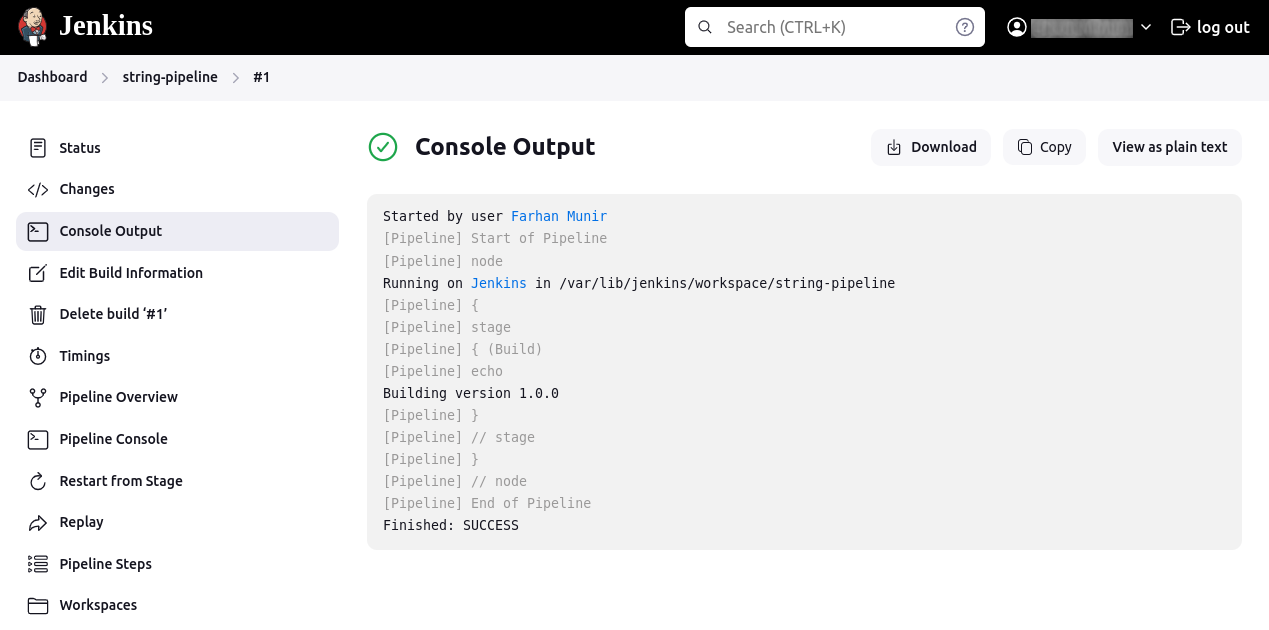
This pipeline defines a String parameter VERSION. The job builds the project using the specified version number.
The console output looks something like this:
6. Multi-line string
A Multi-line String parameter allows users to pass a text value that can span multiple lines. This is useful for passing long text inputs, scripts, or configuration blocks.
Here is an example:
pipeline {
agent any
parameters {
    text(name: 'CONFIG_SCRIPT', defaultValue: 'echo "Default Config"', description: 'Enter the configuration script')
}
stages {
    stage('Configure Server') {
        steps {
            script {
                def configScript = params.CONFIG_SCRIPT
                sh script: configScript
            }
        }
    }
}
}
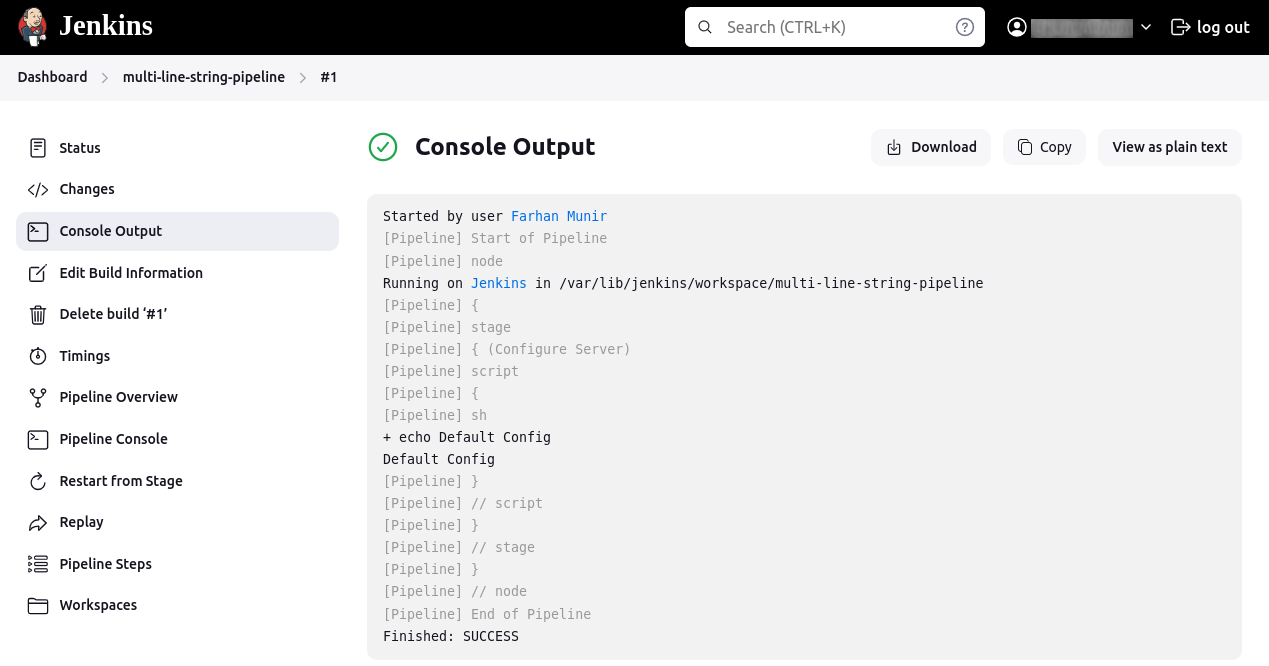
This pipeline defines a Multi-line String parameter CONFIG_SCRIPT. The job executes the provided script to configure the server.
The console output looks something like this:
7. Password
A Password parameter allows users to securely pass sensitive information like passwords or tokens to the job. The value is masked to prevent exposure.
Here is an example:
pipeline {
agent any
parameters {
    password(name: 'API_TOKEN', description: 'Enter the API token for the external service')
}
stages {
    stage('Call API') {
        steps {
            script {
                def apiToken = params.API_TOKEN
                sh "curl -H 'Authorization: Bearer ${apiToken}' https://api.example.com/data"
            }
        }
    }
}
}
This pipeline defines a Password parameter API_TOKEN. The job uses this token to authenticate API calls securely.
Help us continuously improve
Please let us know if you have any feedback about this page.