Why run PHP on IIS?
PHP can be integrated with Internet Information Services (IIS) on Windows to host PHP-based web applications. IIS is a web server developed by Microsoft for hosting websites and web applications on Windows systems. IIS provides a graphical interface and command-line tools for administering web content, offering robust support for both static and dynamic applications, including support for protocols like HTTP, HTTPS, FTP, and more. It integrates well with Windows authentication and Active Directory, making it suitable for enterprise environments.
While some say IIS is dead, it is a current technology included in all modern Windows desktop and server editions, which receives support aligned with Windows OS lifecycles. IIS 10 (and its variants) include up-to-date web features such as HTTP/2, HTTP/3, HSTS, container support, enhanced logging, SSL management, and URL rewriting.
Running PHP on IIS can be a practical choice in several scenarios, especially for organizations that are already using Windows Server environments.
Here are some reasons why developers and system administrators might choose to deploy PHP applications on IIS:
- Seamless Windows integration: IIS integrates tightly with Windows features like Active Directory, Windows authentication, and NTFS permissions, making it easier to manage access control and user authentication in enterprise setups.
- Centralized management: Organizations running Windows servers often prefer IIS for consistent management through familiar tools like the IIS Manager GUI, PowerShell, and Group Policy, allowing centralized configuration and deployment.
- Support for mixed technology stacks: IIS supports ASP.NET, classic ASP, and PHP side-by-side, making it ideal for environments where legacy or mixed-technology applications coexist.
- FastCGI support: PHP runs efficiently on IIS through the FastCGI module, which improves performance and stability by reusing PHP processes, reducing overhead compared to traditional CGI.
- Enterprise deployment standards: Many enterprises rely on Microsoft ecosystems. Running PHP on IIS avoids the need for additional Linux-based infrastructure, simplifying compliance and maintenance within a unified Windows environment.
- Improved security management: IIS includes advanced security features like request filtering, dynamic IP restrictions, and SSL certificate management, offering a controlled and secure hosting environment for PHP applications.
This is part of a series of articles about software deployment.
Quick tutorial: install IIS and PHP on Windows 11 and Server 2025
On Windows 11 and Server 2025, PHP can run natively on IIS through FastCGI. The setup requires enabling IIS with CGI, installing the Visual C++ runtime, downloading the NTS PHP build, configuring handler mappings, and adjusting php.ini as needed. Once configured, IIS can serve PHP applications alongside static and ASP.NET content.
Step 1: install IIS with CGI support
First, verify whether IIS and the CGI feature are already installed. You can do this with PowerShell:
Get-WindowsOptionalFeature -Online |
    where {$_.FeatureName -like "IIS-WebServer*" -or $_.FeatureName -eq "IIS-CGI"}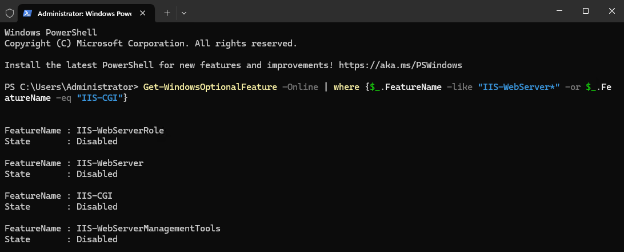
Alternatively, open Control Panel → Programs → Turn Windows features on or off and ensure that both Internet Information Services and CGI are enabled.
If IIS is missing, install it with PowerShell:
Enable-WindowsOptionalFeature -Online -FeatureName IIS-WebServerRole, IIS-WebServer, IIS-CGI -All -NoRestart
On Windows Server, the CGI option is available under Application Development in the Add Roles and Features wizard. Once installed, confirm IIS is running by browsing to the server hostname. The IIS welcome page should load.
Step 2: install the Microsoft Visual C++ runtime
PHP requires the Microsoft Visual C++ x64 Runtime. Check if it’s installed with:
Get-WmiObject -Class Win32_Product | where name -Like "*Visual C++*"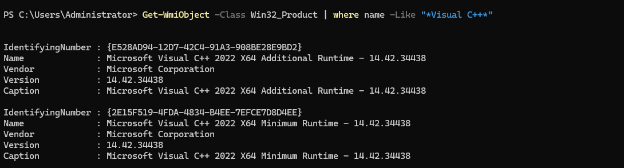
If it’s missing, download and install it:
Invoke-WebRequest -UseBasicParsing -Uri https://aka.ms/vs/17/release/vc_redist.x64.exe `
    -OutFile vc_redist.x64.exe
Run the installer to complete the setup.
Step 3: download and install PHP
Download the latest Non-Thread-Safe (NTS) version of PHP from the official site, since IIS uses FastCGI. For example:
curl.exe "https://windows.php.net/downloads/releases/php-8.4.4-nts-Win32-vs17-x64.zip" --output php84.zip
Expand-Archive -Path .\php84.zip -DestinationPath "C:\Program Files\php"
Extract the files to a directory such as C:\Program Files\PHP84.
Step 4: configure IIS to use PHP
Open IIS Manager, select the server node, and go to Handler Mappings. Add a new handler mapping:
- Request path:
*.php - Module:
FastCgiModule - Executable:
C:\Program Files\PHP84\php-cgi.exe - Name:
PHPHandler
Alternatively, configure it with PowerShell:
Add-WebConfigurationProperty -pspath 'MACHINE/WEBROOT/APPHOST' `
    -filter "system.webServer/handlers" -name "." `
    -value @{name='PHPHandler'; path='*.php'; verb='*'; modules='FastCgiModule'; scriptProcessor='C:\Program Files\PHP84\php-cgi.exe'; resourceType='File'}
Register the PHP executable in FastCGI:
Add-WebConfigurationProperty -pspath 'MACHINE/WEBROOT/APPHOST' `
    -filter "system.webServer/fastCgi" -name "." `
    -value @{fullPath="C:\Program Files\PHP84\php-cgi.exe"; arguments=""}
Restart IIS with:
iisreset
Step 5: test the PHP setup
Create a test file:
"<?php phpinfo(); ?>" | Out-File -FilePath "C:\inetpub\wwwroot\get_php_info.php" -Encoding utf8Browse to http://localhost/get_php_info.php. If PHP is configured, the PHP information page will display.
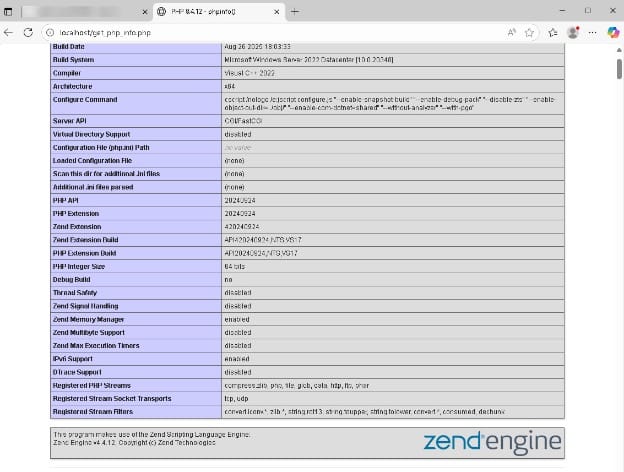
To load index.php automatically, add it to the Default Document list in IIS or run:
Add-WebConfigurationProperty -pspath 'MACHINE/WEBROOT/APPHOST' `
    -filter "system.webServer/defaultDocument/files" -name "." `
    -value @{value="index.php"}
Step 6: configure php.ini
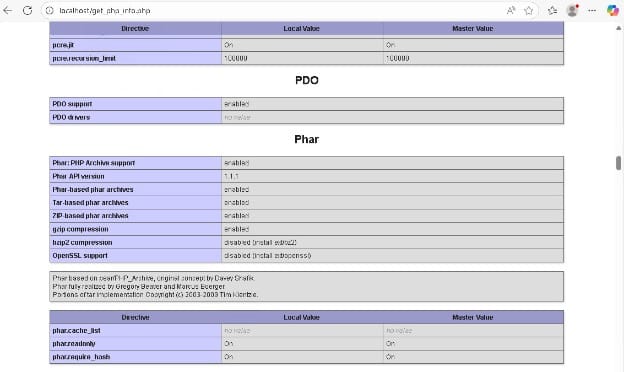
By default, PHP runs without a configuration file. Copy php.ini-production to php.ini in the PHP folder. Edit the file as needed, for example:
extension_dir = "ext"
extension=openssl
Restart IIS again with iisreset. Open get_php_info.php in your browser to verify that extensions like OpenSSL are enabled.
Best practices for running PHP with IIS
Here are some useful practices to consider when working with IIS for PHP projects.
1. Use FastCGI and the Non-Thread Safe (NTS) PHP build
Always use the Non-Thread Safe (NTS) version of PHP when running it on IIS. IIS uses FastCGI to interface with PHP, and the NTS build is optimized for this setup. Thread safety mechanisms in the TS build are unnecessary in a FastCGI context and may reduce performance.
Ensure FastCGI settings are properly configured in IIS. You can fine-tune parameters like InstanceMaxRequests and ActivityTimeout in the FastCGI section of IIS Manager to better handle concurrency and avoid idle process termination.
2. Tweak php.ini for security and performance
After copying php.ini-production, modify it to harden security and optimize performance. Switch off functions that are not needed by your application by setting:
disable_functions = exec,passthru,shell_exec,systemEnable only the extensions your application requires. For example, turn on openssl, pdo_mysql, or mbstring as needed.
Set appropriate values for memory limits and execution times:
memory_limit = 256M
max_execution_time = 30
Also, ensure display_errors is switched off in production environments to avoid leaking sensitive information.
3. Use isolation and caching
Use IIS Application Pools to isolate PHP applications. Assign each app its own pool to avoid cross-app interference and improve fault tolerance.
Enable output caching in IIS to reduce load for pages that don’t change frequently. For dynamic content, consider using opcode caching with PHP’s built-in OPcache:
opcache.enable = 1
opcache.memory_consumption = 128
opcache.max_accelerated_files = 10000
This significantly reduces file parsing and speeds up response times.
4. Perform debugging and performance optimization
Use tools like Xdebug for step debugging and performance profiling. On production, monitor performance using Windows Performance Monitor or third-party solutions like New Relic.
Enable IIS Failed Request Tracing to troubleshoot slow requests or errors. Use phpinfo() or ini_get() to verify environment settings.
Keep an eye on FastCGI timeouts and adjust max_input_time and request_terminate_timeout to balance performance with responsiveness.
5. Automate deployments with PowerShell
Use PowerShell for repeatable and consistent deployments. Scripts can install features, configure PHP handlers, copy application files, and restart IIS.
For example, automate app setup:
Copy-Item -Path "C:\Deploy\MyApp" -Destination "C:\inetpub\wwwroot\MyApp" -Recurse
Set-ItemProperty -Path IIS:\Sites\MyApp -Name applicationPool -Value MyAppPool
Use DSC (Desired State Configuration) for configuration management in enterprise environments to ensure all IIS servers maintain the same PHP setup.
Help us continuously improve
Please let us know if you have any feedback about this page.