Username and Password authentication can only be configured for Octopus Server. For Octopus Cloud, authentication using this provider is supported through Octopus ID. See our authentication provider compatibility section for further information.
Octopus provides a Username and Password authentication provider allowing you to create user accounts in Octopus manually without requirement for an external authentication provider.
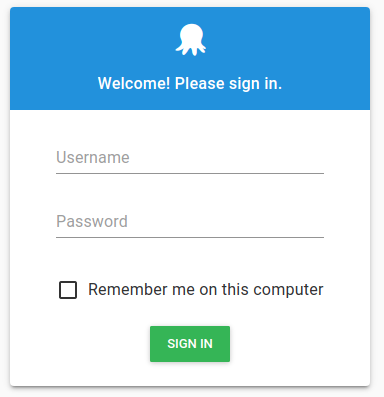
When Username and Password authentication is enabled, the sign in page for the Octopus Web Portal will present users with the option to sign in with an Octopus account:
Security considerations
Username and Password authentication has limited built-in security controls compared to IdP-based or directory-based authentication:
- Passwords do not expire and there is no password history enforcement, so previously used passwords can be reused.
- Accounts are locked for 10 minutes after 9 failed login attempts for the same username from the same IP address. The threshold and duration are not configurable and no administrative unlock is available.
For environments that require password expiry, password history, or configurable lockout policies, we recommend using IdP or directory-based authentication instead.
Enable username and password authentication via UI
You can enable Username and Password authentication from the Octopus Web Portal by navigating to Configuration ➜ Settings ➜ Username / Password. From there you can click the Is Enabled checkbox to enable or disable the Username and Password provider.
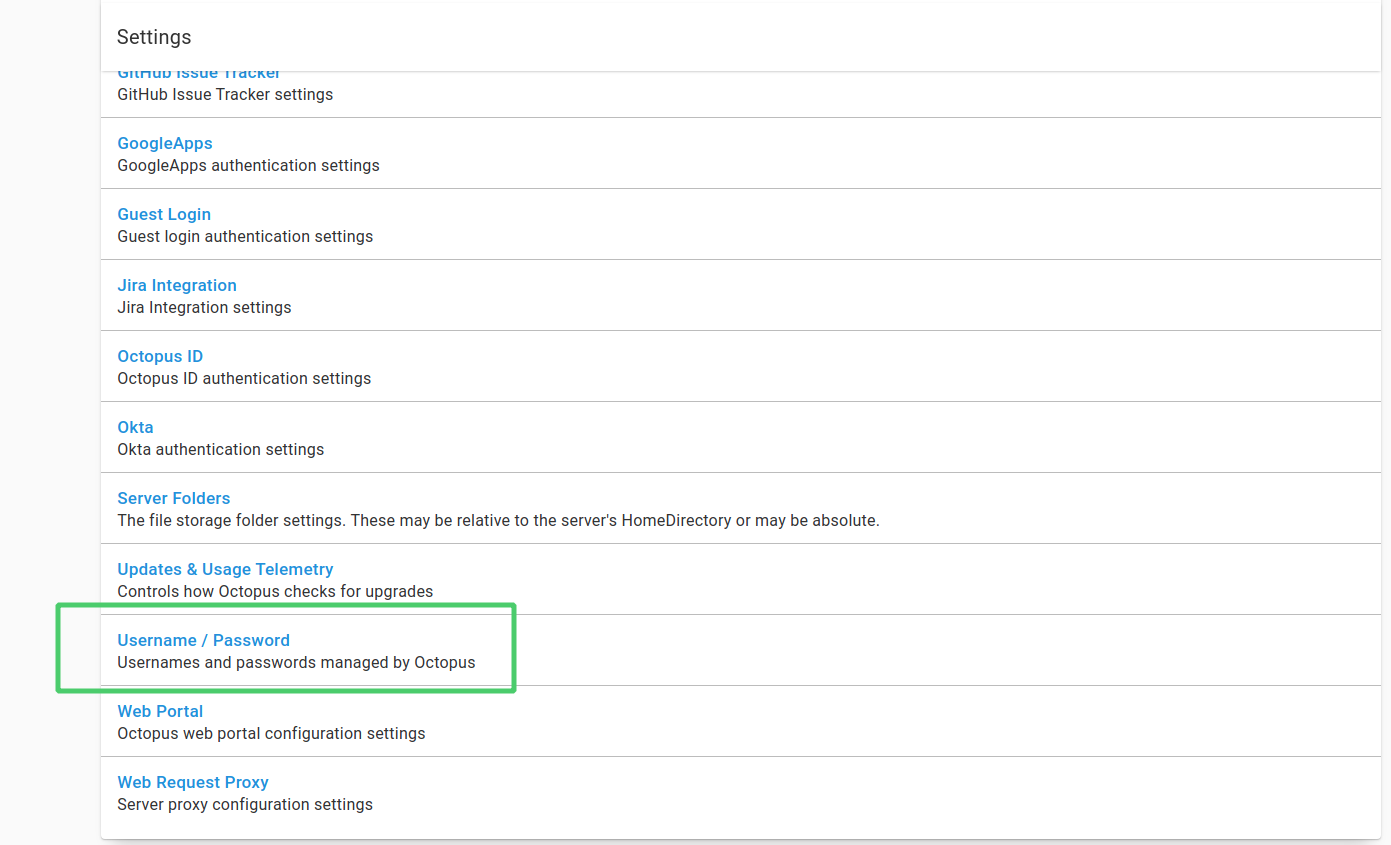

The Username and Password provider will now be activated and available for Octopus users.
Configuring username and password login
Octopus Server can be configured to enable or disable username and password authentication via the command line, as follows:
Octopus.Server.exe configure --instance=[your_instance_name] --usernamePasswordIsEnabled=trueManaging user permissions
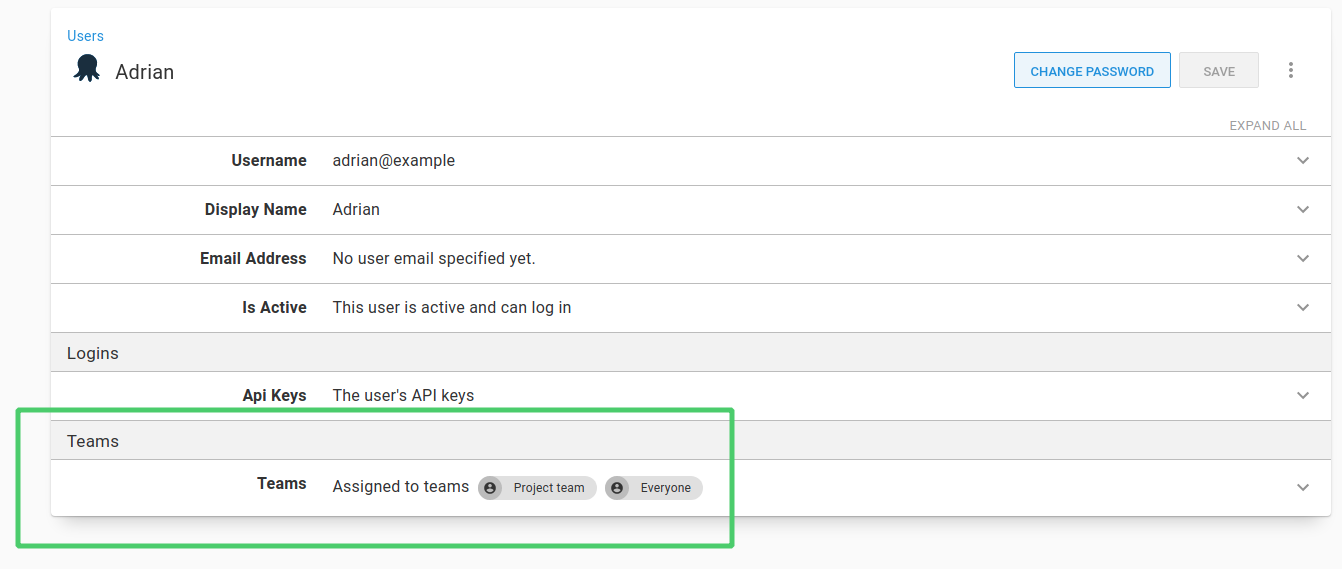
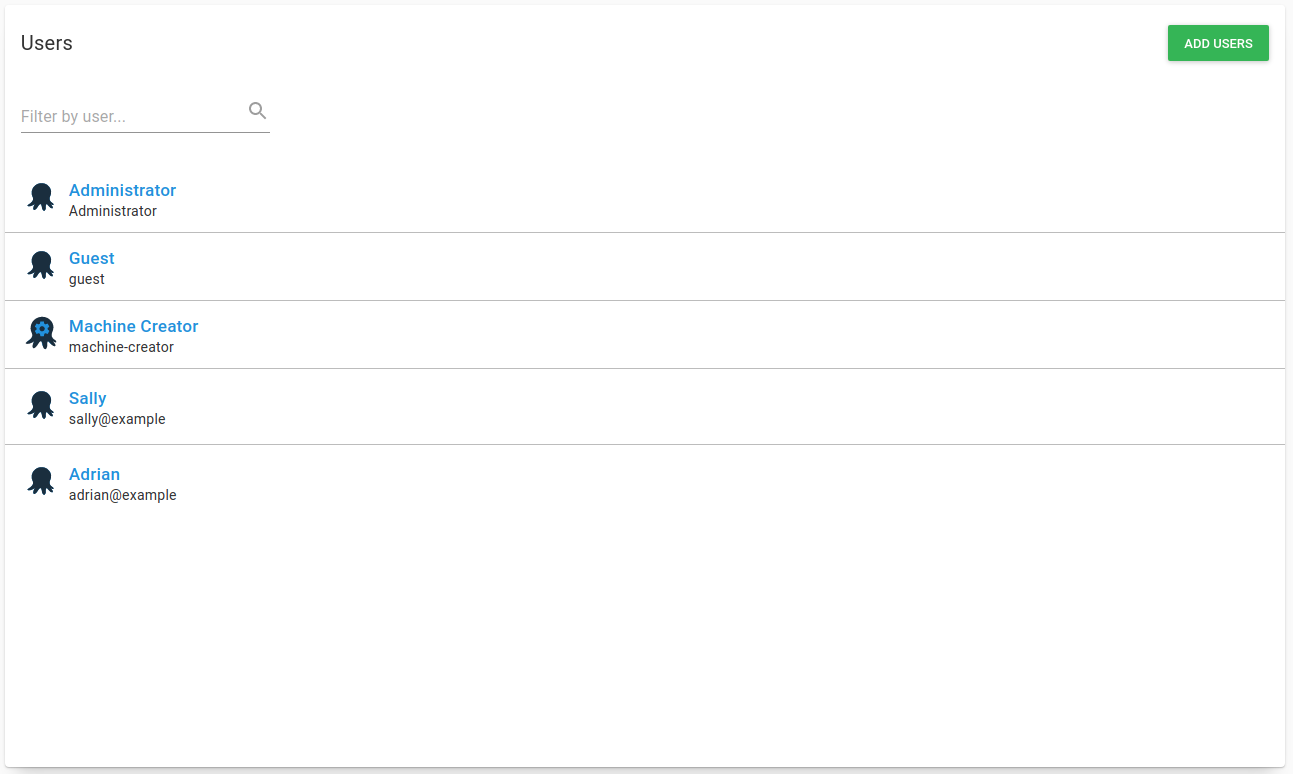
When a new Octopus user is created, they are automatically added to the Everyone team. To manage Octopus users, this can be done by navigating to Configuration ➜ Users.
With any Octopus user, you can assign user accounts to different teams to give them permissions to view projects or environments, or any additional permissions they may need: