If you’re deploying packages located in a Google Cloud Storage bucket, you can register them with Octopus and use them as part of your deployments. This lets you store your deployment packages in Google Cloud Storage and deploy them through Octopus.
Go to Deploy ➜ Manage ➜ External Feeds to add a new feed.
Adding a Google Cloud Storage feed
To add a Google Cloud Storage feed:
- Go to Deploy ➜ Manage ➜ External Feeds.
- Click Add feed.
- Select Google Cloud Storage as the feed type.
- Give your feed a name.
- Choose your authentication method:
- Service Account JSON Key: Upload your Google Cloud service account JSON key file
- OpenID Connect: Use OIDC authentication for short-lived credentials
- Click Save and test.
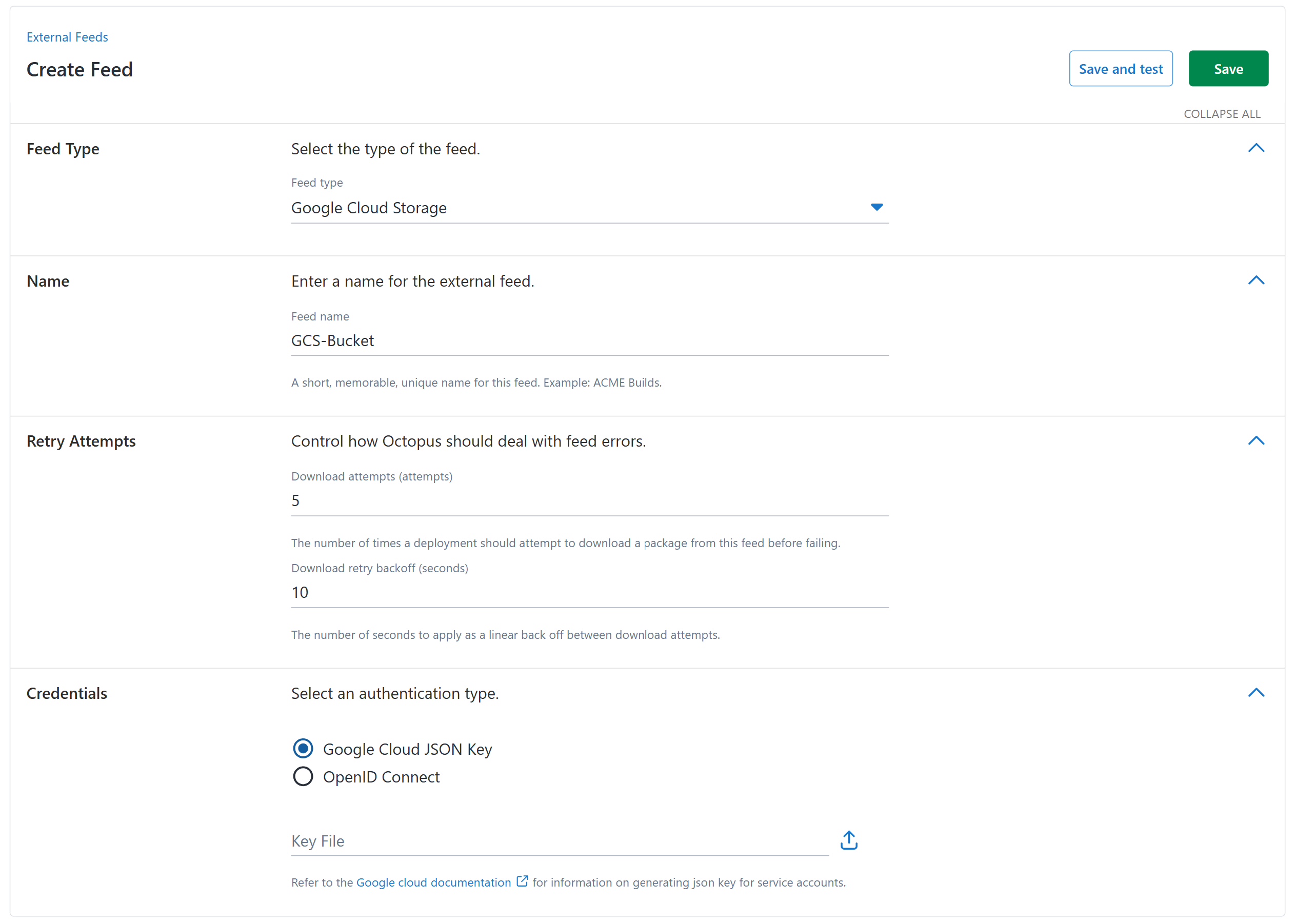
Authentication methods
Service Account JSON Key
To use service account authentication, you’ll need to create a JSON key file for a Google Cloud service account that has permission to read from your storage buckets.
- In the Google Cloud Console, go to IAM & Admin ➜ Service Accounts.
- Create a new service account or select an existing one.
- Grant the service account the Storage Object Viewer role (or a custom role with
storageand.objects .get storagepermissions)..objects .list - Create and download a JSON key for the service account.
- In Octopus, upload this JSON key file when configuring your feed.
OpenID Connect
OpenID Connect authentication provides short-lived credentials that are more secure than long-lived service account keys.
To set up OIDC authentication:
- Follow the Google Cloud documentation to create and configure a Workload Identity Federation.
- Grant the Workload Identity Federation service account the Storage Object Viewer role on your storage buckets.
- In Octopus, select OpenID Connect as your authentication method and configure:
- Subject: See OpenID Connect Subject Identifier for how to customize the subject value
- Audience: The audience value from your Workload Identity Federation (typically
https): / /iam .googleapis .com /projects /{project-id} /locations /global /workloadIdentityPools /{pool-id} /providers /{provider-id}
Package naming
The Google Cloud Storage feed searches for packages using the format bucket-name. For example, my-deployment-bucket will search for the package myapp in the my-deployment-bucket bucket under the releases folder.
The service account you provide must have access to the bucket.
The Google Cloud Storage feed follows the same package versioning conventions as other feeds. Octopus supports these file formats:
.zip.tar.gz .tar.bz2 .tgz.tar.bz
Testing your feed
On the test page, you can check whether the feed is working by searching for packages. Enter the bucket name and package name in the format bucket-name:
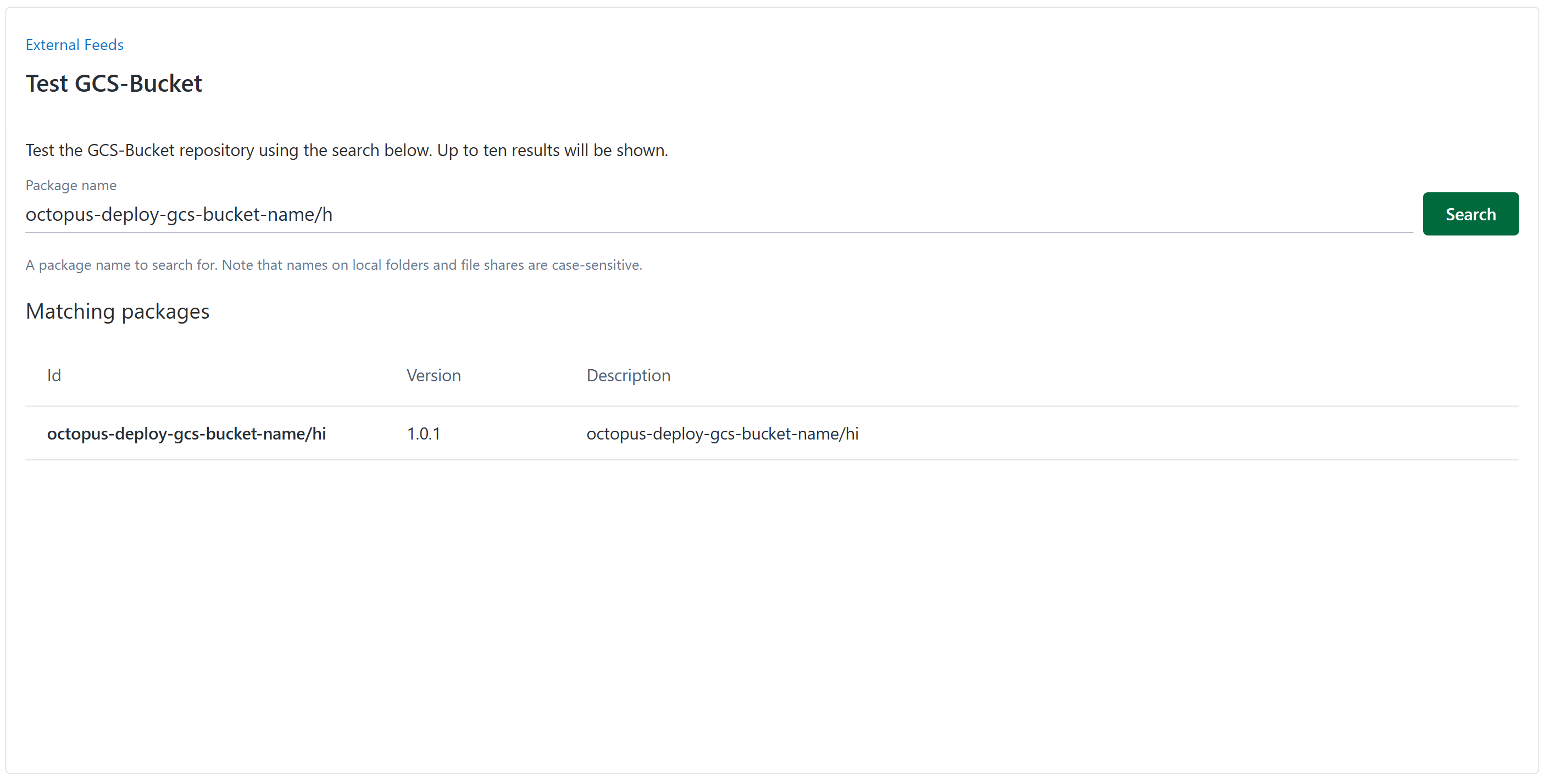
Troubleshooting Google Cloud Storage feeds
Access denied errors
If you receive an “Access Denied” or permission error:
- Check that your service account has the correct IAM permissions (at minimum
storageand.objects .get storage).objects .list - Verify the bucket exists and the name is spelled correctly
- For OIDC authentication, ensure the Workload Identity Federation is configured correctly and the audience matches
Bucket not found
If Octopus can’t find your bucket:
- Verify you’re using the correct bucket name in your package ID
- Ensure the bucket is in the same project as your service account or that cross-project access is configured
Package not found
If Octopus can’t find your package:
- Check the package path is correct (format:
bucket-name)/path /to /package - Verify the package file has one of the supported extensions
- Ensure the package follows Octopus versioning conventions (e.g.,
myapp).1 .0 .0 .zip
Performance considerations
To reduce network latency, consider placing your Google Cloud Storage bucket in the same region as your Octopus Server. For deployments where Tentacles download packages directly (when Octopus is set to True), consider placing the bucket close to your deployment targets.